
Introduction
Thank you for choosing the T2 Wireless Bluetooth Earphones. These earphones are designed to provide a high-quality audio experience with convenience and portability. Featuring Bluetooth 5.3 connectivity, HIFI sound effects, and a clear LED digital power display, you can enjoy your music and calls with ease. Please read this manual carefully before using your earphones to ensure proper operation and to maximize their lifespan.
Safety Information
- Do not expose the earphones to extreme temperatures, humidity, or corrosive environments.
- Avoid dropping or subjecting the earphones to strong impacts.
- Do not attempt to disassemble or modify the earphones, as this will void the warranty and may cause damage.
- Keep the earphones away from children and pets.
- Clean the earphones with a soft, dry cloth only.
- Do not use the earphones at high volume for extended periods to prevent hearing damage.
Package Contents
- T2 Wireless Bluetooth Earphones (Left and Right)
- Charging Case
- Charging Cable (USB-A to USB-C)
- User Manual (This document)

Image: T2 Wireless Bluetooth Earphones in their charging case, showing the compact design.
Product Overview
The T2 earphones feature an in-ear design with a semi-open earcup type for comfortable wear. The transparent charging case includes an LED digital display to show battery levels for both the case and individual earbuds.

Image: Front view of the T2 TWS earphones in their charging case, highlighting the LED digital display showing battery percentage.
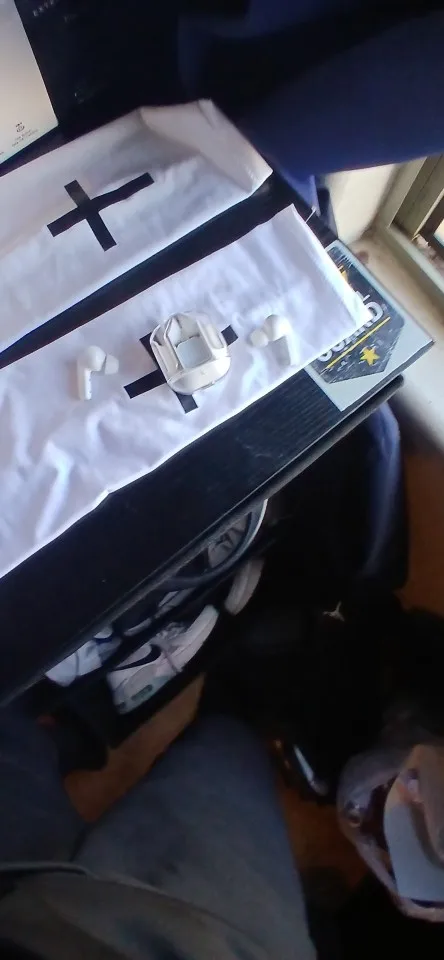
Image: Close-up of the charging case's LED digital display, accurately showing the battery level of the charging compartment and each earphone.
Setup
1. Initial Charging
- Before first use, ensure the earphones and charging case are fully charged.
- Open the charging case and remove any protective film (e.g., blue tape) from the charging contacts on the earbuds.
- Place both earphones into the charging case.
- Connect the provided USB-C charging cable to the charging port on the case and the other end to a USB power adapter (not included).
- The LED display on the case will show the charging status. A full charge is indicated when the display shows 100% or stops incrementing.
- Charging time for the case is approximately 1.5 hours.
2. Powering On/Off
- Power On: The earphones will automatically power on when removed from the charging case. You may also press and hold the touch control area on each earbud for a few seconds.
- Power Off: Place the earphones back into the charging case; they will automatically power off and begin charging. Alternatively, press and hold the touch control area on each earbud for approximately 5 seconds until you hear a power-off prompt.
3. Bluetooth Pairing
- Ensure the earphones are charged and powered on.
- Open the Bluetooth settings on your device (smartphone, tablet, etc.).
- Search for available devices. The earphones will typically appear as "TWS" or "T2".
- Select "TWS" or "T2" to connect. Once connected, you will hear a confirmation prompt.
- If only one earbud connects, place both back in the case, close it, then reopen and try pairing again. Ensure both earbuds are removed from the case simultaneously for stereo pairing.
Operating
1. Wearing the Earbuds
Gently insert each earbud into your ear canal. Adjust for a comfortable and secure fit to ensure optimal sound quality and noise isolation.
2. Touch Controls
The T2 earphones feature touch-sensitive controls on each earbud. The specific functions may vary slightly, but common controls include:
- Play/Pause: Single tap on either earbud.
- Next Track: Double tap on the right earbud.
- Previous Track: Double tap on the left earbud.
- Volume Up: Triple tap on the right earbud.
- Volume Down: Triple tap on the left earbud.
- Answer/End Call: Single tap on either earbud during an incoming call.
- Reject Call: Press and hold on either earbud for 2 seconds during an incoming call.
- Activate Voice Assistant: Press and hold on either earbud for 2 seconds (if supported by your device).
3. LED Indicators
The LED display on the charging case shows the battery percentage of the case and individual earbuds. The earbuds themselves may have small indicator lights that show pairing status (e.g., flashing blue/red) or connection status (e.g., slow blue flash).
Maintenance
- Cleaning: Regularly clean the earbuds, especially the ear tips and charging contacts, with a soft, dry, lint-free cloth. Do not use liquids or abrasive cleaners.
- Storage: When not in use, store the earphones in their charging case to protect them from dust, damage, and to keep them charged.
- Battery Care: To prolong battery life, avoid fully discharging the earphones and charging case frequently. Charge them regularly, even if not used for extended periods.
Troubleshooting
| Problem | Possible Cause | Solution |
|---|---|---|
| Earbuds not pairing / Only one earbud working | Incorrect pairing procedure, low battery, interference. |
|
| No sound | Not connected, volume too low, media not playing. |
|
| Charging issues / Earbuds not charging | Poor contact, faulty cable/adapter, protective film still on. |
|
| Battery drains quickly | High volume usage, old battery, earbuds not turning off. |
|
Specifications
| Feature | Detail |
|---|---|
| Model | T2 (CY-T2) |
| Material | Plastic |
| Style | In-ear |
| Earcups Type | Semi-open |
| Weight | 45g |
| Wireless Type | Bluetooth (V5.2/V5.3) |
| Communication | Wireless |
| Maximum Wireless Range | 10m-20m |
| Frequency Response Range | 20 - 20000 Hz |
| Sensitivity | 120dB |
| Resistance | 32Ω |
| Impedance Range | up to 32 Ω |
| Driver Diameter | 20mm |
| Number Of Drivers | 2 |
| Vocalism Principle | Balanced Armature |
| Total Harmonic Distortion | 10% |
| Sound Isolating | Yes |
| Active Noise-Cancellation | No |
| With Microphone | Yes |
| Volume Control | Yes |
| Control Button | Yes |
| Voice Assistant Built-in | No |
| Waterproof | No |
| Charging Method | Wired (USB-C for case) |
| Earbud Music Time (70% Vol) | Up to 2 hours |
| Total Playback Time (with case) | Up to 12 hours |
| Charging Case Capacity | 150mAh (charges headphones ~4 times) |
| Fast Charging | Charge 10 min for 1.5 hours use |
User Tips
- First Use Confusion: The earbuds are typically attached to the outside of the charging case's inner compartment, not hidden inside. Ensure you locate them correctly when first opening the package.
- Crucial Charging Step: Before initial charging, always check for and remove any protective blue tape or film covering the charging contacts on the earbuds. Failure to do so will prevent them from charging.
- Proper Storage: To prevent accidental activation and battery drain, always place the earbuds securely back into their charging case when not in use. Avoid leaving them loose in bags or pockets.
- Pairing Both Earbuds: If only one earbud connects, try resetting them by placing both back in the case, closing the lid for a few seconds, then removing both simultaneously to re-establish stereo pairing.
- Bluetooth Name: When searching for the device on your phone, look for "TWS" or "T2".
Warranty and Support
This product comes with a standard manufacturer's warranty. For specific warranty terms, support, or service inquiries, please refer to your purchase documentation or contact the seller directly. Keep your proof of purchase for any warranty claims.
A detailed user manual in PDF format may be available from the seller or product page for additional information.