
1. Introduction
This manual provides essential information for the safe and effective use of your WITRN USB C Power Delivery (PD) to DC 5.5x2.5mm Power Supply Cable. This cable is designed to power a variety of electronic devices from a compatible USB C PD source.
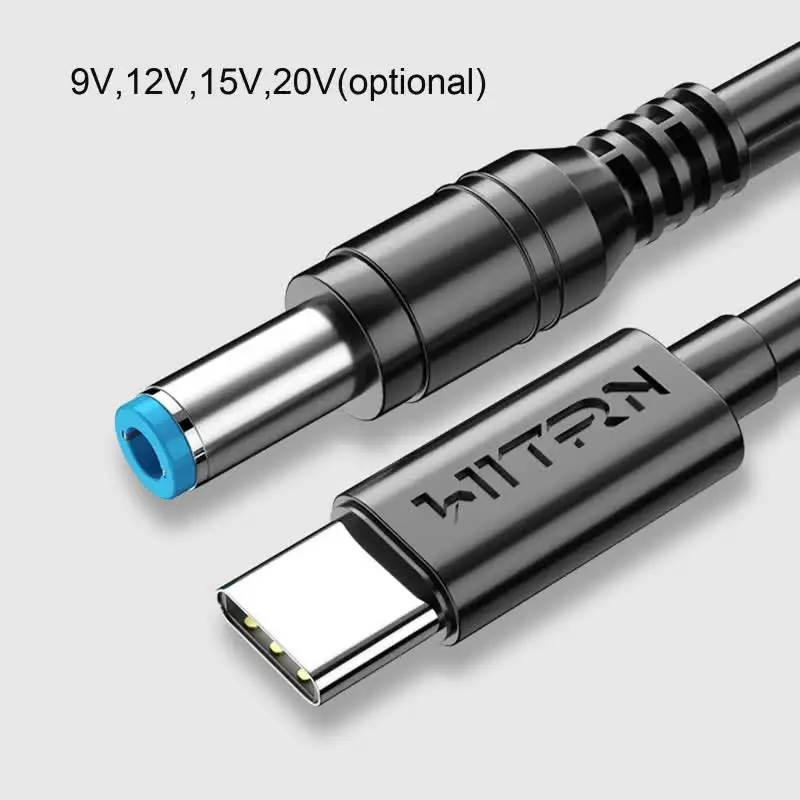
Video: Overview of the WITRN USB C PD Power Supply Cable and its applications.
2. Safety Information
- Avoid contact with water or other liquids.
- Do not disassemble the cable. Repairs should only be performed by qualified professionals.
- Ensure the USB C PD power source's output voltage matches the voltage rating of your specific cable variant.
- Verify your device's power requirements (voltage and current) before connecting.
- Keep out of reach of children.
3. Package Contents
Please check the package for the following items:
- 1 x WITRN USB C PD Power Supply Cable (Model: 4NB104744-20VL)
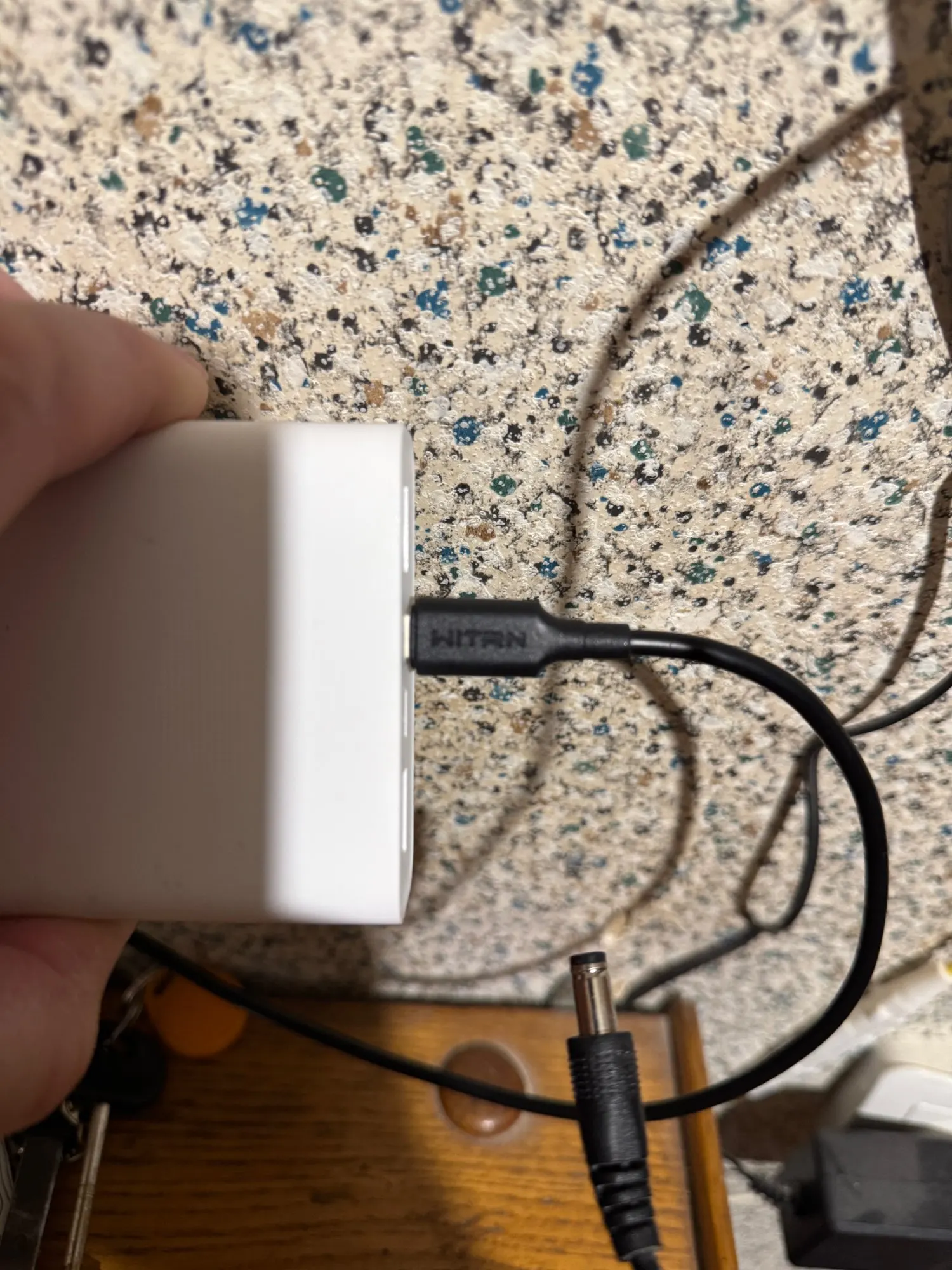
Image: The WITRN USB C PD Power Supply Cable as received in its packaging.
4. Setup Instructions
- Identify Cable Voltage: Your WITRN cable is designed for a specific output voltage (e.g., 9V, 12V, 15V, or 20V). This voltage is typically indicated on the cable or its packaging.
- Select Compatible Power Source: Ensure you have a USB C Power Delivery (PD) charger or power bank that can output the exact voltage required by your cable. For example, if you have a 12V cable, your PD source must be capable of delivering 12V.
- Connect USB C End: Plug the USB C connector of the WITRN cable into the USB C PD output port of your charger or power bank.
- Connect DC End: Plug the DC 5.5x2.5mm connector into the power input port of your target device (e.g., laptop, router, LED light, CCTV camera).
- Power On: Once both ends are securely connected, activate your USB C PD power source if it's not already active. Your device should begin to receive power.

Image: Example of a 15V E-marker cable, highlighting the 5.5x2.5mm DC connector dimensions. Ensure your PD adapter outputs 15V for this cable variant.

Image: Example of a 20V output cable, featuring an L-shaped DC connector. Your USB C adapter must provide 20V output.
5. Operating Instructions
The WITRN USB C PD Power Supply Cable allows you to power various devices using a compatible USB C PD source. Its stable output voltage ensures reliable operation for your electronics.
5.1 Compatible Devices
This cable is widely compatible with devices such as:
- Laptops (requiring DC 5.5x2.5mm input)
- CCTV Cameras
- Wi-Fi Routers and Modems
- Stepper Motors
- Desk Lamps and LED Lights
- Speakers and Headsets
- Mini Fans
- Other devices requiring 9V, 12V, 15V, or 20V DC power via a 5.5x2.5mm (or 5.5x2.1mm compatible) barrel jack.

Image: The cable connected to a laptop, illustrating its capability to deliver up to 100W of power.

Image: A power bank connected to a laptop using the WITRN USB C PD cable, demonstrating portable power delivery.
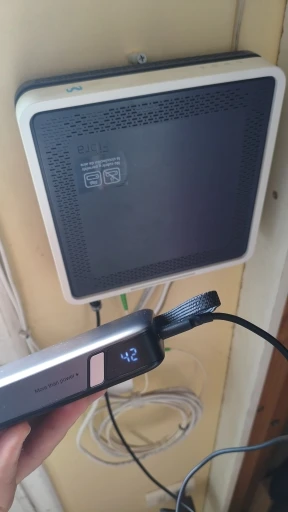
Image: A router being powered by a power bank using the WITRN USB C PD cable, ideal for backup power.
6. Maintenance
- Cleaning: Wipe the cable with a soft, dry cloth to remove dust or dirt. Do not use liquid cleaners.
- Storage: Store the cable in a cool, dry place away from direct sunlight and extreme temperatures.
- Handling: Avoid sharp bends, kinks, or excessive pulling on the cable, especially near the connectors, to prevent internal damage.
- Inspection: Periodically inspect the cable and connectors for any signs of wear, fraying, or damage. Discontinue use if damage is observed.
7. Troubleshooting
| Problem | Possible Cause | Solution |
|---|---|---|
| Device not powering on. |
|
|
| Intermittent power to device. |
|
|
8. Specifications
| Model | 4NB104744-20VL |
| Material | PVC (Polyvinyl Chloride) sheath, high-quality copper core |
| Input Connector | USB Type C (PD compatible) |
| Input Voltage Range | DC 9V-20V (from PD source) |
| Input Current Range | 1A-5A (from PD source) |
| Output Connector | DC 5.5mm x 2.5mm (compatible with 5.5mm x 2.1mm) |
| Output Voltage Options | 9V, 12V, 15V, 20V (specific to cable variant purchased) |
| Max Power Output | 100W (20V/5A) |
| Cable Length | Approx. 120cm (47.2 inches) |
| Features | E-marker chip (for certain voltage variants), stable voltage output, wear-resistant PVC sheath |

Image: The cable illustrating the various optional output voltages (9V, 12V, 15V, 20V) available as different cable variants.

Image: Diagram showing the internal E-marker chip within the USB C connector, indicating support for up to 5A/100W.
9. User Tips
- Router Startup Sequence: Some users have reported that when powering a router, it may be necessary to connect the cable to the power bank first, and then connect it to the router for proper startup.
- Voltage Matching is Key: Always double-check that the output voltage of your USB C PD charger/power bank precisely matches the voltage rating of your specific WITRN cable variant. Mismatched voltages can prevent your device from powering on or potentially damage it.
- Verify Device Requirements: Before connecting, confirm the voltage and current requirements of the device you intend to power to ensure compatibility and safe operation.
10. Warranty and Support
For warranty information, please refer to the terms and conditions provided by your retailer or contact the manufacturer directly.
Manufacturer Contact Information:
- Manufacturer: Shenzhen Subitong Technology Co., Ltd
- Email/Tel: smtsykj@163.com / +86 17722493418
An additional user manual in PDF format may be available for download. Please refer to the product listing or contact support for the direct link: View User Manual (PDF)