
1. Introduction
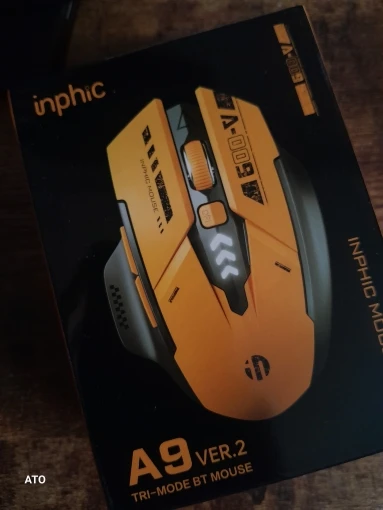
Thank you for choosing the Inphic A9 Bluetooth Wireless Silent Mouse. This manual provides detailed instructions on how to set up, operate, and maintain your new mouse. Designed for versatility and comfort, the Inphic A9 offers triple-mode connectivity (2.4G wireless, Bluetooth 4.0, and Bluetooth 5.0) and adjustable DPI settings for various computing needs.

2. Key Features
- Triple-Mode Connectivity: Seamlessly switch between 2.4G wireless, Bluetooth 4.0, and Bluetooth 5.0 for connection to up to three devices.
- Adjustable DPI: Five-stage sensitivity adjustment (800, 1200, 1600, 2000, 2400 DPI) for precise control.
- Silent Clicks: Enjoy a quiet working environment with silent left and right click buttons.
- Rechargeable Battery: Built-in rechargeable battery with USB-C charging port.
- Ergonomic Design: Comfortable grip for extended use.
- Multiple Protection Mechanisms: Equipped with overcurrent, overvoltage, overcharge, overtemperature, short circuit, and power protection.


3. Package Contents
Please check the package for the following items:
- Inphic A9 Wireless Mouse
- USB Receiver (stored in the mouse's battery compartment)
- USB-C Charging Cable
- User Manual (this document)
4. Setup Instructions
The Inphic A9 mouse supports three connection modes: 2.4G Wireless, Bluetooth 4.0, and Bluetooth 5.0. You can switch between these modes using the 'MODE' button on the underside of the mouse.
4.1. 2.4G Wireless Connection
- Take out the USB receiver from the battery compartment at the bottom of the mouse.
- Plug the USB receiver into an available USB port on your computer.
- Switch the 'MODE' button on the mouse to the 2.4G position (indicated by a red light).
- The mouse should automatically connect to your computer. If not, try moving the mouse or restarting your computer.
4.2. Bluetooth Connection (BT 4.0 / BT 5.0)
The mouse can connect to two different Bluetooth devices (BT1 and BT2).
- Switch the 'MODE' button on the mouse to either the BT1 or BT2 position (indicated by a blue light).
- On your computer or device, go to Bluetooth settings.
- Press and hold the 'MODE' button on the mouse for 3-5 seconds until the blue indicator light starts flashing rapidly. This indicates pairing mode.
- On your device, search for new Bluetooth devices and select "Inphic A9" (or similar name) from the list.
- Once paired, the blue indicator light will stop flashing and remain solid for a few seconds before turning off.
- To connect to a second Bluetooth device, switch the 'MODE' button to the other Bluetooth position (BT2 if you used BT1, or vice versa) and repeat steps 3-5.
- You can quickly switch between connected devices by pressing the 'MODE' button.

5. Operation
5.1. DPI Adjustment
The mouse features a dedicated DPI button located behind the scroll wheel. Press this button to cycle through five DPI settings: 800, 1200, 1600, 2000, and 2400 DPI. The current DPI setting is indicated by the LED lights on the mouse.

5.2. Charging the Mouse
When the battery is low, the mouse's indicator light may flash or the mouse may become unresponsive. Connect the supplied USB-C charging cable to the charging port on the front of the mouse and plug the other end into a USB power source (e.g., computer USB port, USB wall adapter). The indicator light will show charging status and turn off when fully charged.
5.3. Power Saving Mode
The mouse will automatically enter sleep mode after a period of inactivity to conserve battery. To wake it up, simply move the mouse or click any button.
5.4. Buttons Overview
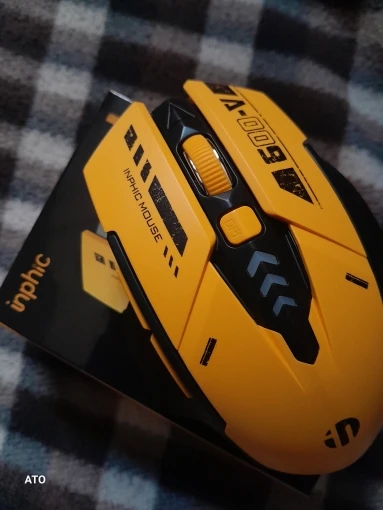
- Left Click Button: Standard left-click function.
- Right Click Button: Standard right-click function.
- Scroll Wheel: Scroll up/down, and middle-click function.
- DPI Button: Adjusts mouse sensitivity (DPI).
- Side Buttons: Typically function as 'Forward' and 'Backward' in web browsers and file explorers.
6. Maintenance
- Cleaning: Use a soft, dry cloth to clean the mouse. For stubborn dirt, a slightly damp cloth can be used, but ensure no moisture enters the device.
- Storage: Store the mouse in a cool, dry place away from direct sunlight and extreme temperatures.
- Battery Care: To prolong battery life, avoid fully discharging the mouse frequently. Charge it when the low battery indicator appears.
- Avoid Drops: Protect the mouse from drops and impacts, which can damage internal components.
7. Troubleshooting
| Problem | Solution |
|---|---|
| Mouse not responding |
|
| Lag or erratic movement |
|
| Cannot pair via Bluetooth |
|
8. Specifications
| Feature | Detail |
|---|---|
| Brand | Inphic |
| Model | A9 |
| Type | Bluetooth Wireless, Opto-electronic Mouse |
| Connectivity | 2.4G Wireless, Bluetooth 4.0, Bluetooth 5.0 (Triple Mode) |
| DPI Settings | 800, 1200, 1600, 2000, 2400 (Adjustable) |
| Number of Buttons | 6 (Left, Right, Scroll Wheel, DPI, 2 Side Buttons) |
| Number of Rollers | 1 (Scroll Wheel) |
| Power Type | Rechargeable (USB-C) |
| Hand Orientation | Both Hands (Ergonomic design) |
| Gross Weight | 190g |
| Movement Speed (IPS) | 140 |
9. User Tips
- Quiet Operation: Many users appreciate the silent clicks, making it ideal for quiet environments.
- Multi-Device Convenience: Take advantage of the triple-mode connectivity to easily switch between your computer, tablet, or other devices.
- Charging: The USB-C charging port is a convenient feature. Ensure you use the provided cable or a compatible USB-C cable for charging.
- Bluetooth Interference: If you experience sound issues with Bluetooth headphones while using the mouse via Bluetooth, consider switching the mouse to 2.4G wireless mode using the USB dongle to avoid potential interference.
- Comfort: The ergonomic design is noted for providing a comfortable grip during prolonged use.
10. Warranty and Support
The Inphic A9 mouse comes with a standard warranty. Please refer to the official Inphic website or your purchase documentation for specific warranty terms and conditions. For technical support or further assistance, please contact Inphic customer service.
A digital version of the user manual may be available for download. For more detailed information, you can refer to the official PDF manual: View User Manual (PDF).
