
1. Introduction
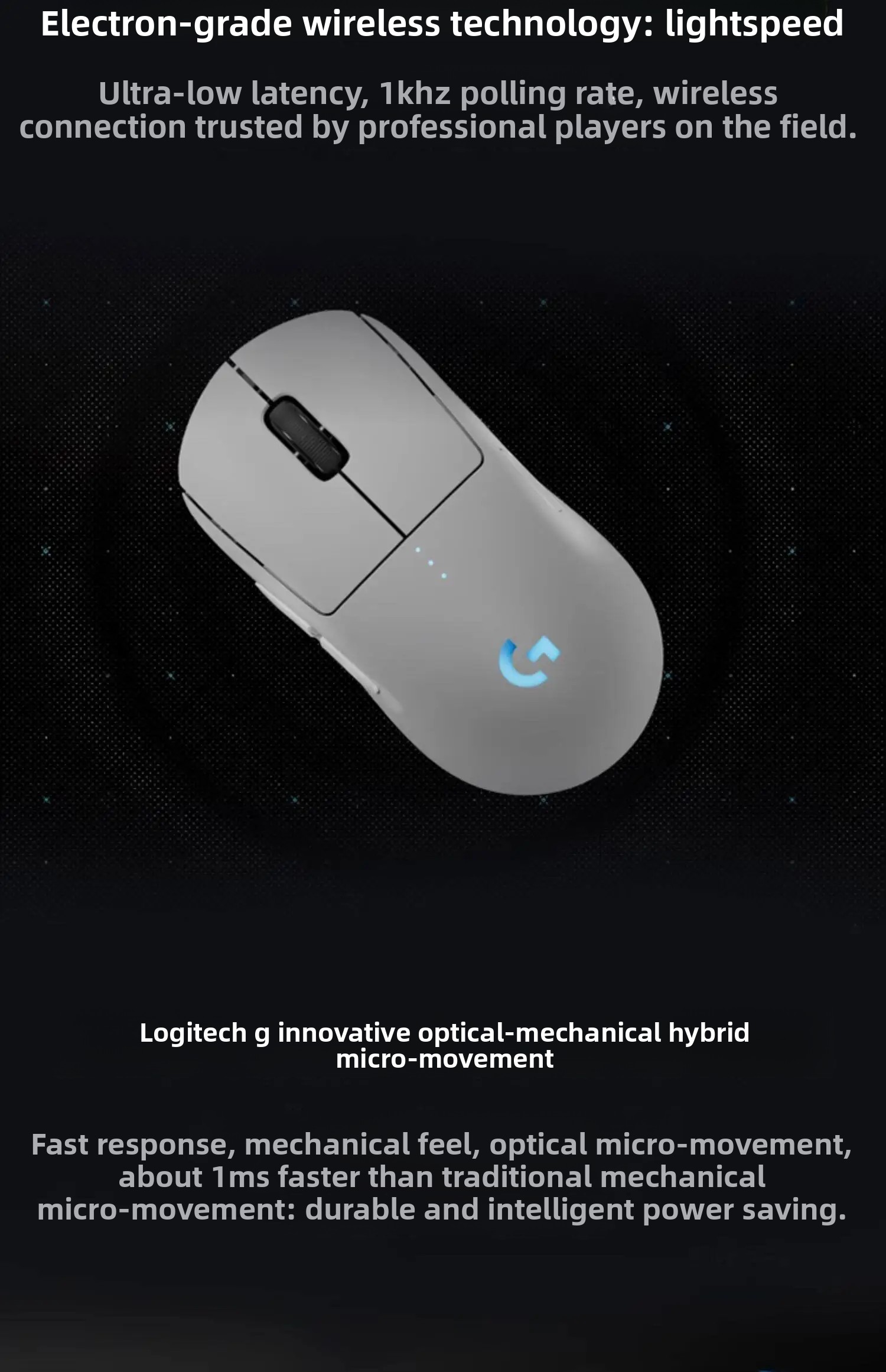
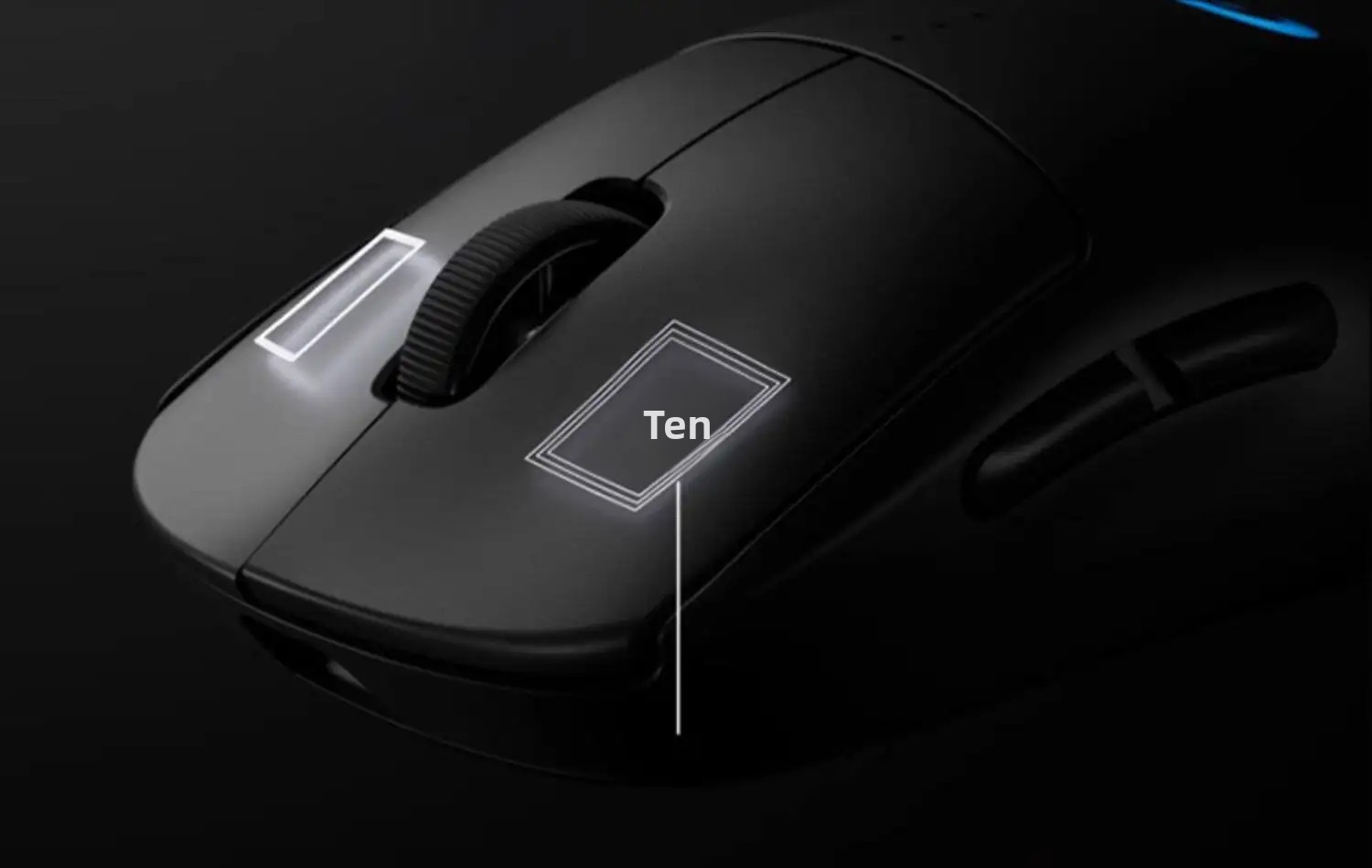
The Logitech GPW4 Zhuque is a high-performance wireless symmetrical gaming mouse designed for competitive play. Featuring LIGHTFORCE hybrid micro motion switches, a HERO 2 sensor, and LIGHTSPEED wireless technology, it offers precision, speed, and durability. This manual provides essential information for setting up, operating, maintaining, and troubleshooting your GPW4 Zhuque mouse.
2. Package Contents
Before you begin, please ensure all items are present in your package:
- GPW4 Zhuque Gaming Mouse
- LIGHTSPEED Wireless Receiver
- USB-A to USB-C Charging/Data Cable
- Receiver Extension Adapter
- Optional Side Buttons (2x left, 2x right)
- Optional Button Covers (2x left, 2x right)
- User Documentation
3. Setup
3.1 Mouse Overview

3.2 Connecting the Mouse
- Insert the LIGHTSPEED Wireless Receiver: Locate the USB LIGHTSPEED wireless receiver in the mouse's receiver storage compartment (see Figure 1). Remove it.
- Connect to your computer: Insert the LIGHTSPEED wireless receiver into an available USB-A port on your computer. For optimal signal strength and to keep the receiver close to your mouse, use the provided receiver extension adapter and USB-A to USB-C cable. Connect the USB-A end of the cable to your computer and the USB-C end to the extension adapter, then plug the receiver into the adapter.
- Power On: Turn on the mouse using the power switch located on the bottom of the mouse. The mouse should automatically connect to the receiver.
3.3 Charging the Mouse
The GPW4 Zhuque mouse features a built-in rechargeable battery with up to 95 hours of battery life on a single charge.
- Connect the USB-C Cable: Plug the USB-C end of the charging/data cable into the front port of the mouse.
- Connect to Power: Plug the USB-A end of the cable into a USB power source (e.g., computer USB port, USB wall adapter).
- Charging Indicator: The mouse's indicator lights will show the charging status.
3.4 Software Installation (Logitech G HUB)
To unlock the full potential of your GPW4 Zhuque mouse, including programmable buttons, DPI settings, and LIGHTSYNC RGB effects, download and install the Logitech G HUB software from the official Logitech website.
4. Operating the Mouse
4.1 Basic Functions
- Left Click: Primary action.
- Right Click: Secondary action/context menu.
- Scroll Wheel: Scroll up/down, middle click.
4.2 Programmable Side Keys
The GPW4 Zhuque features up to four detachable magnetic side buttons, allowing for an ambidextrous design. These buttons can be customized using the Logitech G HUB software for various in-game commands or productivity shortcuts.

4.3 DPI Adjustment
The HERO 2 sensor supports a resolution range of 100 to 32,000 DPI. DPI settings can be adjusted through the Logitech G HUB software to match your preference and game requirements. You can set multiple DPI levels and switch between them on-the-fly if configured in G HUB.
4.4 Polling Rate
The mouse operates at an 8,000Hz polling rate, providing ultra-low latency and responsive tracking for competitive gaming.
5. Maintenance
5.1 Cleaning
- Exterior: Use a soft, lint-free cloth lightly dampened with water or isopropyl alcohol to clean the mouse's surface. Avoid harsh chemicals.
- Sensor: Gently clean the sensor lens on the bottom of the mouse with a cotton swab or compressed air to ensure optimal tracking performance.
- Scroll Wheel: Use compressed air to dislodge any dust or debris accumulated around the scroll wheel.
5.2 Battery Care
- To prolong battery life, avoid fully discharging the mouse frequently.
- Store the mouse at room temperature.
- If storing for an extended period, charge the mouse to about 50% before turning it off.
6. Troubleshooting
6.1 Mouse Not Responding
- Ensure the mouse is powered on.
- Check battery level and charge if necessary.
- Verify the LIGHTSPEED wireless receiver is securely plugged into a working USB port.
- Try plugging the receiver into a different USB port or using the extension adapter.
- Ensure the mouse is within range of the receiver.
- Re-pair the mouse with the receiver using Logitech G HUB software if connection issues persist.
6.2 Inconsistent Tracking
- Clean the sensor lens on the bottom of the mouse.
- Ensure you are using the mouse on a clean, uniform surface (preferably a mouse pad).
- Check for any obstructions between the mouse and the receiver.
- Update mouse firmware via Logitech G HUB.
6.3 Battery Not Charging
- Ensure the USB-C cable is properly connected to both the mouse and the power source.
- Try a different USB port or power adapter.
- Check the charging cable for any damage.
7. Specifications
| Feature | Detail |
|---|---|
| Product | GPW4 Zhuque Gaming Mouse |
| Length | Approx. 125 mm |
| Width | Approx. 64 mm |
| Height | Approx. 40 mm |
| Weight | Approx. 80 grams |
| Sensor | HERO 2 |
| Resolution (DPI) | 100 - 32,000 |
| Polling Rate | 8,000 Hz |
| Micro Switches | LIGHTFORCE Hybrid Micro Motion |
| Battery Life | Up to 95 hours (depending on usage) |
| Connectivity | LIGHTSPEED Wireless (2.4G) |
| Design | Symmetrical, Ambidextrous |
| Programmable G Keys | Up to 4-8 (configurable via G HUB) |
| LIGHTSYNC RGB | Yes |
8. Warranty and Support
The Logitech GPW4 Zhuque Wireless Symmetrical Gaming Mouse comes with a Logitech 2-year limited hardware warranty. For detailed warranty information and technical support, please visit the official Logitech support website.

9. User Tips
- Customize DPI Profiles: Use Logitech G HUB to create different DPI profiles for various games or applications. This allows for quick switching between sensitivity settings.
- Optimize Receiver Placement: For the most stable wireless connection, use the included extension adapter to position the LIGHTSPEED receiver closer to your mouse, especially if your PC is under a desk or far away.
- Experiment with Side Buttons: Take advantage of the programmable side buttons. Assign frequently used commands or macros to them for a competitive edge or improved workflow.
- Regular Cleaning: A clean sensor and mouse surface can significantly improve tracking accuracy and overall performance. Make cleaning a routine part of your setup maintenance.
- Firmware Updates: Periodically check Logitech G HUB for firmware updates. These updates often include performance improvements, bug fixes, and new features.