
1. Introduction
The MonsGeek Verve 68 HE is a magnetic-switch keyboard designed for high-performance gaming and typing. It features a unique side-cut design that highlights vibrant RGB lighting, encased in a perforated ABS outer shell over a solid PC inner frame for both style and protection.
This keyboard offers advanced features such as Rapid Trigger, Snap Key, Toggle Key, and DKS, providing a competitive edge in fast-paced games. It boasts an 8K Hz polling rate, 16K scan rate, and ultra-precise 0.005mm actuation for lower latency and stable rapid key triggering. The addressable RGB lighting operates at a 500Hz refresh rate for smooth, flicker-free illumination.
Note: This keyboard is specifically designed for magnetic switches and does NOT support traditional mechanical switches.
2. Setup
2.1 Connectivity Options
The Verve 68 HE Tri-mode version supports three connection methods:
- 2.4GHz Wireless: Utilizes a dedicated receiver for low-latency wireless connectivity.
- Bluetooth 5.0: Connects to up to 3 devices, allowing seamless switching.
- USB-C Wired: Provides a stable, high-speed connection with minimal input lag.
For a visual guide on multi-device connectivity, refer to the diagram below:

2.2 System Mode Switch (Mac & Windows)
- Tri-mode Version: A physical switch is located under the 'CAPS' key.
- Top Position: Mac Wireless Mode
- Middle Position: Default Windows Wired Mode
- Bottom Position: Windows Wireless Mode
- Wired Version: Press and hold
FN + Ofor 3 seconds to switch between Windows and Mac modes.

2.3 Battery Level Check
To check the battery level, press FN + Space. The LED indicators on keys 1-0 will light up according to the remaining battery percentage:
- Below 30%: Keys 1-2 (Red)
- Below 40%: Keys 1-3 (Green)
- Below 50%: Keys 1-4 (Green)
- Below 60%: Keys 1-5 (Green)
- Below 70%: Keys 1-6 (Green)
- Below 80%: Keys 1-7 (Green)
- Below 90%: Keys 1-8 (Green)
- Below 100%: Keys 1-9 (Green)
- Fully Charged: Key 1-0 (Green)
3. Operating Instructions
3.1 Combination Keys
The keyboard features various combination keys using the FN key for enhanced functionality:
| Combination | Function (Windows) | Function (Mac) |
|---|---|---|
Fn + 1 | F1 | F1 |
Fn + 2 | F2 | F2 |
Fn + 3 | F3 | F3 |
Fn + 4 | F4 | Siri |
Fn + 5 | F5 | N/A |
Fn + 6 | F6 | N/A |
Fn + 7 | F7 | Bluetooth Pairing (((BT))) |
Fn + 8 | F8 | Play/Pause (▷II) |
Fn + 9 | F9 | Previous Track (←) |
Fn + 0 | F10 | Next Track (→) |
Fn + - | F11 | Volume Down (↓) |
Fn + = | F12 | Volume Up (↑) |
Fn + L | Lighting Mode Cycle | Lighting Mode Cycle |
Fn + [ | Brightness Down | Brightness Down |
Fn + C | Lighting Speed Down | Lighting Speed Down |
Fn + M | Lighting Speed Up | Lighting Speed Up |
Fn + ↓ | Lighting Direction Down | Lighting Direction Down |
Fn + ] | Brightness Up | Brightness Up |
Fn + P | PrtSc | PrtSc |
Fn + < | Lighting Color Cycle | Lighting Color Cycle |
Fn + ↑ | Lighting Direction Up | Lighting Direction Up |
Fn + Z | Lighting Effect Cycle | Lighting Effect Cycle |
Fn + I | Ins | Ins |
Fn + > | Lighting Mode Cycle | Lighting Mode Cycle |
Fn + ← | Home | Home |
Fn + X | End | End |
Fn + R_Ctrl (3S) | Right Ctrl (Hold 3s) | Right Ctrl (Hold 3s) |
Fn + W | Win Lock | Win Lock |
Fn + → | PgUp | PgUp |
Fn + L_Ctrl | Left Ctrl | Left Ctrl |
Fn + Backspace (5S) | Reset (Hold 5s) | Reset (Hold 5s) |
Fn + L_Win | Left Win | Left Win |
Fn + Del | Del | Del |
Fn + Esc | Esc | Esc |
3.2 Wireless Pairing
- Bluetooth Pairing: After powering on the keyboard, press
FN + E/R/Tto enter Bluetooth mode. Short press to switch between paired devices, and long press for 3 seconds to initiate pairing. - 2.4GHz Pairing: After powering on the keyboard, press
FN + Yto enter 2.4GHz mode. Short press to switch, and long press for 3 seconds to initiate pairing.
3.3 Lighting Control
- Backlight Color Adjustment: Press
FN + \to cycle through 7 single colors and an RGB loop effect in all RGB lighting modes. - Side Light Color Adjustment: Press
FN + L_Altto set the side light color to 7 single colors with an RGB loop effect.
3.4 Rapid Trigger and Actuation
The keyboard supports ultra-precise 0.005mm Rapid Trigger and adjustable actuation distance in 0.005mm steps. This allows for fine-tuning your typing or gaming experience for faster response times and improved accuracy. The 16K scan rate ensures that even subtle finger lifts are captured promptly and reliably, leading to consistent rapid triggering.


3.5 ARGB Lighting
The keyboard features Addressable RGB (ARGB) with a 500Hz refresh rate, providing smooth, flicker-free lighting. Individual LEDs can be controlled for rich dynamic effects, reducing visual fatigue during extended use.


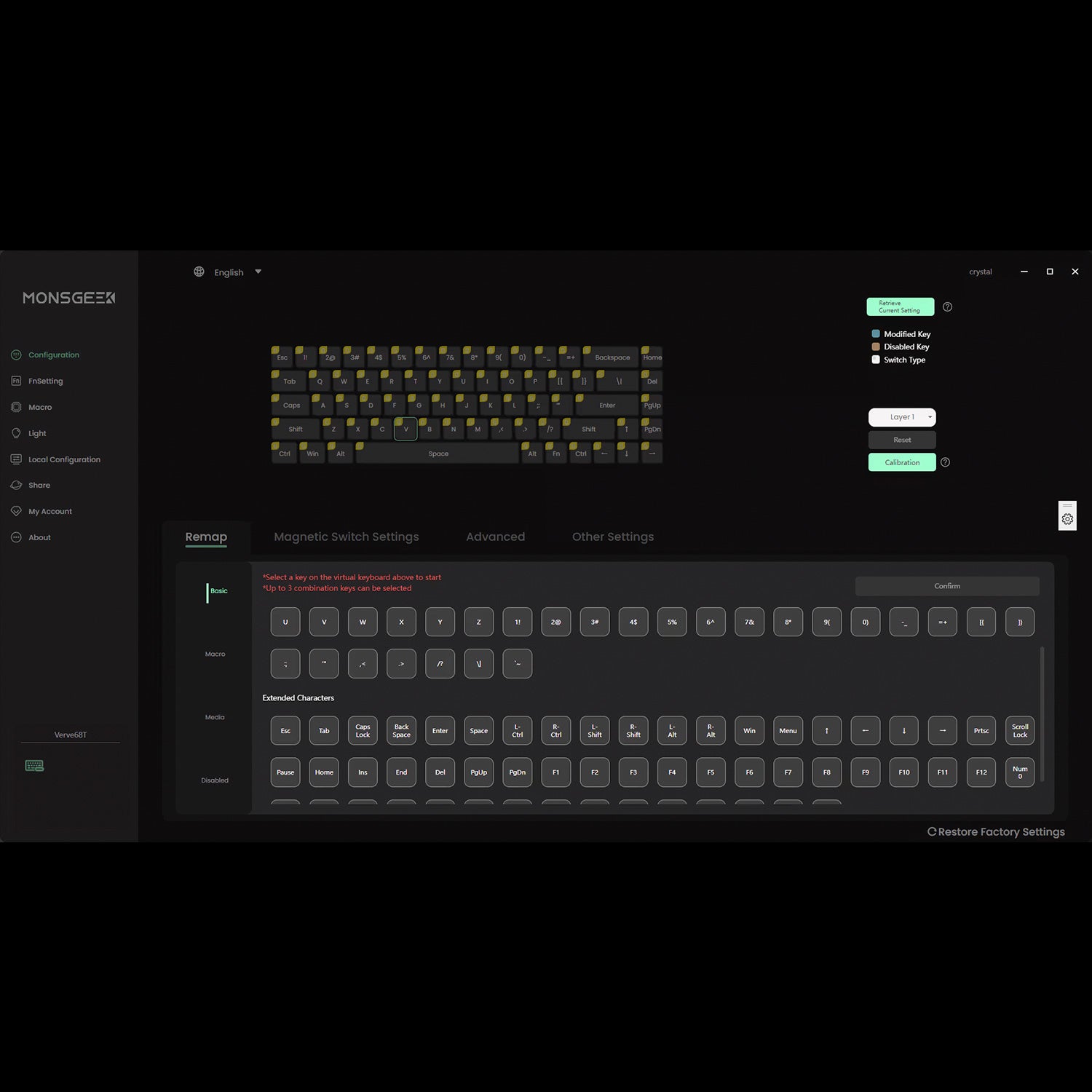
4. Customization (MonsGeek V4 Driver)
The MonsGeek Verve 68 HE keyboard is fully customizable using the MonsGeek V4 Driver software (available for Windows/Web). This driver allows you to:
- Key Remapping: Reassign functions to individual keys.
- Magnetic Switch Settings: Adjust actuation points and other parameters for magnetic switches.
- Advanced Settings: Fine-tune various keyboard behaviors.
- RT Stabilizer Activation: Enable and configure the RT Stabilizer mode with 4 different filtering levels to prevent unintended inputs from hand tremors.
- On-board Memory: Save your preferred lighting profiles directly to the keyboard for use on any system without the software.

5. Maintenance
5.1 General Cleaning
To maintain your keyboard's performance and appearance:
- Regularly dust the keyboard using compressed air or a soft brush.
- Wipe keycaps and the case with a soft, damp cloth. Avoid harsh chemicals.
- For deeper cleaning, keycaps can be carefully removed.
5.2 Stabilizers
The keyboard features demagnetized and lubed stabilizers. These are designed to reduce magnetic interference and improve trigger accuracy and long-term stability. No special maintenance is typically required for these, but ensure they remain free of debris.

6. Troubleshooting
If you encounter issues with your MonsGeek Verve 68 HE keyboard, consider the following:
- Connectivity Issues: Ensure the keyboard is properly paired (for wireless) or connected (for wired). Check the system mode switch (Mac/Win) is set correctly.
- Key Response: If keys are unresponsive or inconsistent, verify magnetic switch settings in the MonsGeek V4 Driver. Consider activating the RT Stabilizer if experiencing unintended inputs.
- Lighting Problems: Check lighting settings via combination keys or the MonsGeek V4 Driver.
- Driver Issues: Ensure you have the latest MonsGeek V4 Driver installed from the official website.
- Radio Interference: As per NCC regulations, if interference is detected, immediately cease use and resolve the interference before continuing.
For further assistance, refer to the Warranty & Support section.
7. Specifications
| Feature | Specification |
|---|---|
| Model | MonsGeek Verve 68 HE |
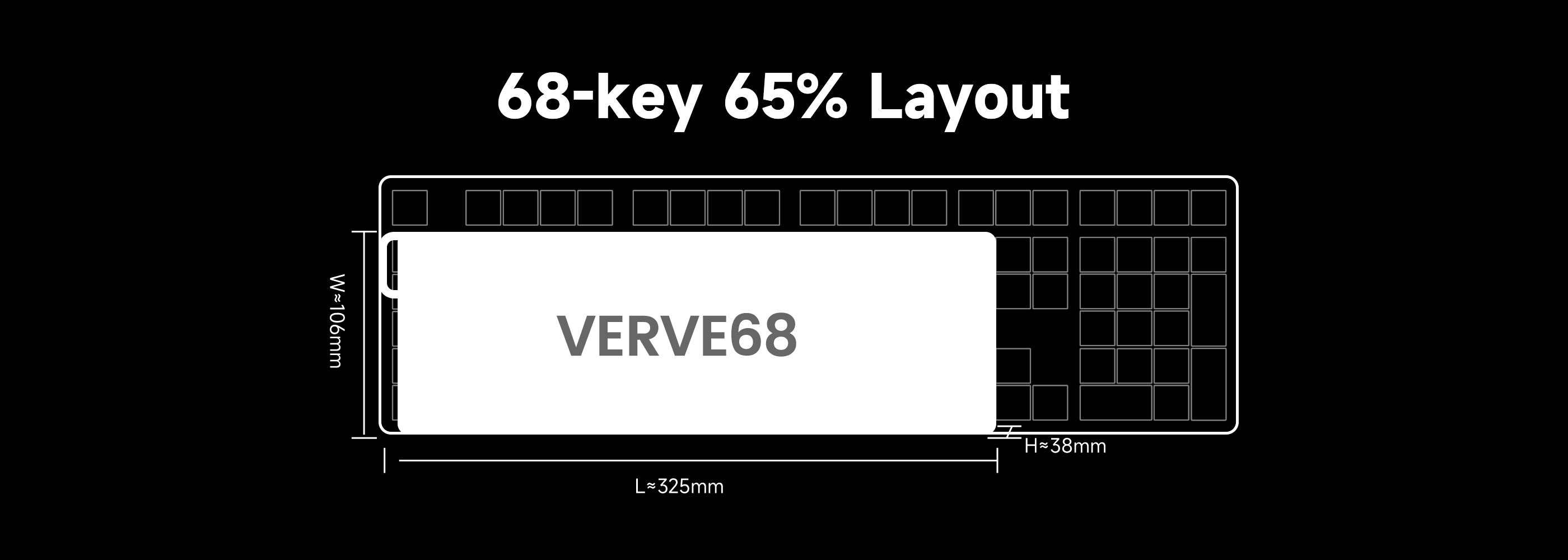
| Layout | 65% (68 keys) |
| Switches | Magnetic (Hot-swappable for magnetic switches) |
| Polling Rate | 8K Hz (Wired/2.4G Wireless) |
| Scan Rate | 16K |
| Actuation Precision | 0.005mm |
| Backlight | ARGB, 500Hz Refresh Rate |
| Keycap Material | PC + ABS Misty keycaps |
| Keycap Profile | Cherry Profile |
| Connectivity | USB, Bluetooth / USB (Tri-mode: BT 5.0, 2.4Ghz Wireless, USB-C Wired) |
| Battery (Tri-mode) | 6000mAh |
| CPU | ARM Cortex-M4 |
| Dimensions (L x W x H) | 325mm x 106mm x 38mm |
| Package | Yes |
| Wrist Support | No |
| Language | English |
| Origin | Mainland China |
| Certification | CE, WEEE |
| Weight | 1.207 kg |


8. User Tips
- The RGB lighting is a standout feature and looks great, especially with the keyboard's unique translucent case.
- The default keycaps, made of PC + ABS, have a pleasant misty appearance and are comfortable for typing.
- Despite its competitive price, the keyboard offers good build quality and stability. Some users might find minor adjustments beneficial for optimal performance.
- The flash switches are noted for their sharp response, providing a satisfying tactile experience.
9. Warranty & Support
9.1 Warranty Information
- MONSGEEK provides a one-year warranty for customers in mainland China.
- For customers in other regions, please contact your specific seller (MONSGEEK distributor) for detailed warranty policies, as they may vary.
- Repairs outside the warranty period will incur charges.
- Disassembling the keyboard without explicit instructions from the manufacturer or seller will immediately void the warranty.
- Return and warranty policies can differ across platforms and depend on the specific dealer at the time of purchase.
9.2 Support Contact
- Manufacturer: Shenzhen Yinchen Technology Co., Ltd
- Phone: 0769-22114578
- Website: www.monsgeek.com
- Official After-Sales Service Hours: Monday to Friday, 10:00 AM to 6:00 PM (excluding national holidays).
- Driver Download: monsgeek.com/download/
For the full user manual in PDF format, please refer to the official documentation: User manual (PDF)