
1. Introduction
This manual provides detailed instructions for the setup, operation, and maintenance of your Akko 5087 V3 Mechanical Keyboard. Please read this manual thoroughly before using the product to ensure optimal performance and longevity.

Image: Overview of the Akko 5087 V3 Mechanical Keyboard showcasing different color options.
2. Package Contents
Please check the package for the following items:
- Akko 5087 V3 Mechanical Keyboard
- USB Type-C Cable
- Wireless Receiver (2.4GHz)
- User Manual (this document)
- Keycap Puller (may vary by package)
- Switch Puller (may vary by package)
3. Technical Specifications
| Feature | Specification |
|---|---|
| Model | 5087 V3 |
| Layout | 80% TKL (88 Keys) ANSI-US |
| Dimensions | Approximately 360*132*40mm |
| Weight | Approximately 0.9kg |
| Keycap Material | PBT plastic (Double-shot, some themes Dye-sublimation) |
| Keycup Printing | Dye-sublimation (for Bun Wonderland theme), Double-shot for others |
| Switches | Akko V3 Piano Pro Switch (Linear), 5-pin Hot-swappable |
| Operation Style | Mechanical |
| Connectivity | Tri-mode: USB Type-C (Wired), 2.4GHz Wireless, Bluetooth 5.0 |
| Interface Type | USB, Bluetooth, Bluetooth / USB |
| Backlight | Multicolor RGB |
| Battery Capacity | 10000mAh (Note: Lord of the Mysteries version has 8000mAh) |
| N-Key Rollover | Yes |
| Application | Desktop, Laptop, Tablet |
| Origin | Mainland China |
| Certification | CE, WEEE |
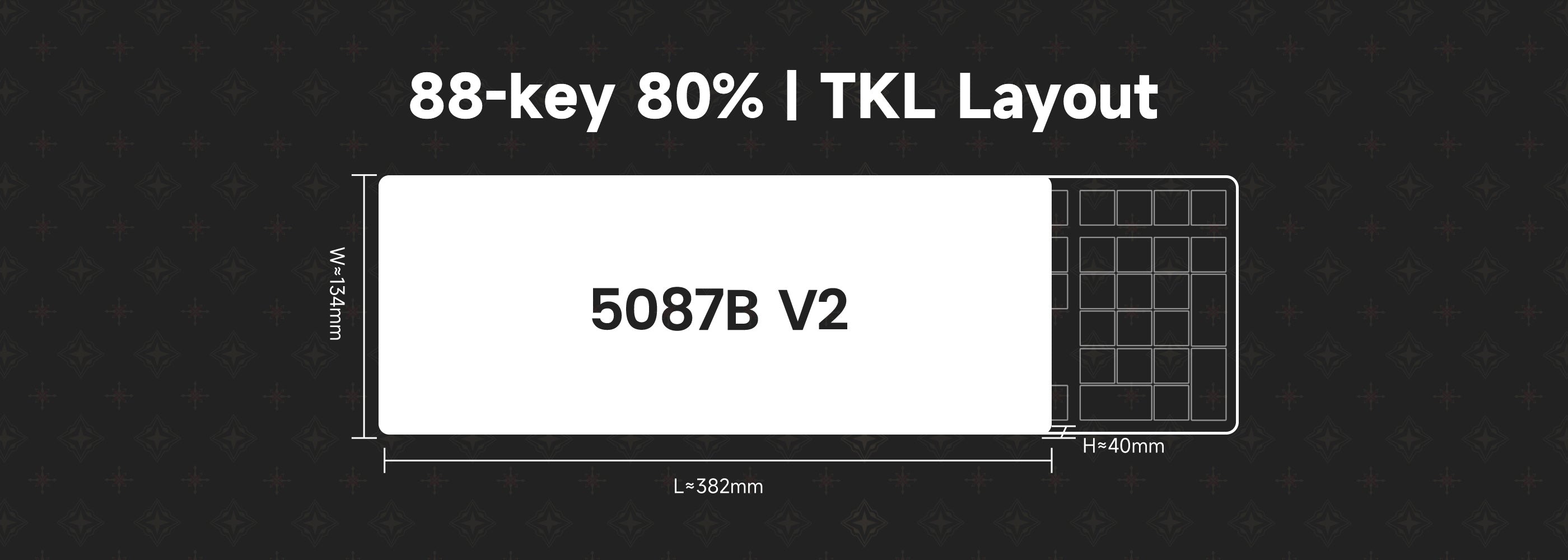
Image: Diagram illustrating the dimensions of the 5087B V2 keyboard (L=382mm, W=134mm, H=40mm).

Image: Visual representation of the 10000mAh battery capacity. Note: Lord of the Mysteries version has 8000mAh.
4. Setup and Connectivity
The Akko 5087 V3 keyboard supports three connection modes: USB Type-C wired, 2.4GHz wireless, and Bluetooth 5.0.
4.1. Wired Mode (USB Type-C)
- Connect the provided USB Type-C cable to the keyboard's Type-C port.
- Plug the other end of the cable into an available USB port on your computer.
- The keyboard will be automatically recognized and ready for use.
4.2. 2.4GHz Wireless Mode
- Locate the 2.4GHz wireless receiver, usually stored in a compartment on the underside of the keyboard.
- Plug the receiver into an available USB port on your computer.
- Ensure the keyboard's OS switch (located on the underside) is set to the correct operating system (Windows/Mac).
- The keyboard should automatically connect to the receiver. If not, short press Fn + Y to initiate connection. The green LED on the key will flash slowly, then restore lighting effect upon successful pairing.
4.3. Bluetooth 5.0 Mode
The keyboard can store up to 3 Bluetooth devices. Follow these steps to pair your device:
- Switch to Bluetooth Mode:
- If the keyboard is unplugged: Turn the back switch to ON. Long press Fn + E/R/T to start pairing. The blue LEDs under E/R/T keys will flash quickly.
- If the keyboard is plugged into a computer via USB: It will automatically enter Bluetooth mode. Directly long press Fn + E/R/T to enable Bluetooth pairing. The blue LEDs under E/R/T keys will flash quickly.
- Select Bluetooth Device Slot:
The keyboard supports both Bluetooth 5.0 and 3.0 frameworks. The device names are:
- Bluetooth 5.0: "5087BP-1", "5087BP-2", "5087BP-3"
- Bluetooth 3.0: "Akko 5087BP BT3.0"
Choose an available slot (E, R, or T) by pressing Fn + E, Fn + R, or Fn + T. The corresponding key's blue LED will flash.
- Pair with Your Device:
- On your PC, tablet, or smartphone, enable Bluetooth and search for new devices.
- Select either "Akko 5087BP BT3.0" or one of the "5087BP-X" (Bluetooth 5.0) options based on your device's compatibility and preference.
- Complete the pairing process on your device. Once paired, the system will remember the last connected device.
- Switching Between Bluetooth Devices:
After pairing up to 3 Bluetooth devices, you can quickly switch between them by short pressing Fn + E, Fn + R, or Fn + T.

Image: Diagram illustrating the keyboard's multi-mode connectivity options (2.4GHz, Bluetooth, USB-C) with various devices like Mac, PC, laptop, tablet, and phone.

Image: Underside view of the keyboard showing the built-in wireless receiver slot, dual-position feet, and the OS switch (Mac/USB/Win).
5. Operating Instructions
5.1. Hotkeys (Windows)
The following hotkeys are applicable in Windows mode:
| Combination | Function |
|---|---|
| Fn + F1 | My Computer |
| Fn + F2 | |
| Fn + F3 | Windows Search |
| Fn + F4 | Browser Homepage |
| Fn + F5 | Media Player |
| Fn + F6 | Play/Pause |
| Fn + F7 | Previous Song |
| Fn + F8 | Next Song |
| Fn + W | Swap WASD with Arrow Keys |
| Fn + C | Calculator |
| Fn + M | Mute |
| Fn + < | Decrease Volume |
| Fn + > | Increase Volume |
5.2. System Commands (Windows)
| Combination | Function |
|---|---|
| Fn + Left Win | Lock Windows Key |
| Long press Left Win + Right Win (5 seconds) | Restore Factory Settings |
| Hold down Fn + Right Ctrl | Revert Ctrl into Menu (App) key |
5.3. System Commands (Mac)
The following hotkeys are applicable in Mac mode:
| Combination | Function |
|---|---|
| Fn + F1 | Decrease Display Brightness |
| Fn + F2 | Increase Display Brightness |
| Fn + F3 | Open Mission Control |
| Fn + F4 | Activate Siri |
| Fn + F7 | Skip Back (Audio) |
| Fn + F8 | Pause/Play (Audio) |
| Fn + F9 | Skip Forward (Audio) |
| Fn + F10 | Mute |
| Fn + F11 | Volume Down |
| Fn + F12 | Volume Up |
| Right Win | Command |
| Right Alt | Option |
| Left Win | Command |
| Left Alt | Option |
6. Backlight Settings
The Akko 5087 V3 features customizable RGB backlighting. Use the following combinations to adjust:
| Combination | Function |
|---|---|
| Fn + Ins | Cycle through effects: Constant, Meteor, Breathing |
| Fn + Home | Cycle through effects: Ripple, Shadow, Flow |
| Fn + PgUp | Cycle through effects: Starlight, Neon, Wave, Fade |
| Fn + Del | Cycle through effects: Color Fountain, Marquee, Blooming |
| Fn + End | Cycle through effects: Aurora, Sine Wave, Raindrop |
| Fn + PgDn | Cycle through effects: Wind, Snow, Aggregate, Two Birds |
| Fn + L | Toggle Backlight On/Off |
| Fn + ↑ | Increase Brightness |
| Fn + ↓ | Decrease Brightness |
| Fn + ← | Change Animation Direction (Left) |
| Fn + → | Change Animation Direction (Right) |
| Fn + "-" | Decrease Animation Speed |
| Fn + "=" | Increase Animation Speed |

Image: Close-up view of the keyboard switches illuminated with RGB backlighting.

Image: The keyboard showcasing its RGB side lighting feature.
7. Key and Lighting Effects Customization
The Akko 5087 V3 keyboard supports full customization of key assignments and lighting effects using the Akko Cloud Driver software.
- Customization of key/lighting effects must be performed in wired mode with the Akko Cloud Driver.
- In wired mode, the lighting effects can also achieve music rhythm effects with the Akko Cloud Driver.
- Download the Akko Cloud Driver from the official Akko website: www.akkogear.com.

Image: Screenshot of the Akko Cloud Driver software interface, showing options for macro, lighting, and button customization.
8. Maintenance
8.1. Cleaning
- Use a soft, dry cloth to wipe the keyboard surface.
- For deeper cleaning, use a can of compressed air to remove dust and debris from between keycaps.
- If necessary, carefully remove keycaps using a keycap puller and clean the switches and plate with a brush or compressed air.
8.2. Battery Management
- To save power when not in use, turn off the power switch located on the back panel of the keyboard.
- The keyboard will enter sleep mode after 15 minutes of inactivity. Press any key to wake it up.
- Note: The battery saver mode in Windows may affect or delay the keyboard's sleep activation time.
8.3. Hot-swapping Switches
The keyboard is equipped with 5-pin hot-swappable sockets, allowing you to change switches without soldering.
- Using a switch puller, gently grip the switch from the top and bottom and pull it straight up.
- Align the pins of the new switch with the holes on the PCB. Ensure the pins are straight to avoid bending.
- Press the new switch firmly into place until it clicks.

Image: Close-up view of the hot-swappable switch sockets on the keyboard, demonstrating how switches can be easily removed and replaced.
9. Troubleshooting
9.1. Bluetooth Connection Issues
- If you forget a specific paired device or experience connection disorder, you may need to reset the keyboard's Bluetooth.
- To reset: Remove the "Akko 5087" keyboard from your computer's Bluetooth device list and re-pair following the steps in Section 4.3.
- Ensure the keyboard's power switch is ON and it's in Bluetooth pairing mode (blue LEDs flashing).
9.2. Keyboard Not Responding
- Check the connection cable for wired mode, or the receiver for 2.4GHz wireless mode.
- Ensure the keyboard battery is charged. Connect the USB-C cable to charge.
- Verify the OS switch on the underside of the keyboard is set correctly (Windows/Mac).
- Try restoring factory settings by long pressing Left Win + Right Win for 5 seconds.
9.3. Backlight Not Working
- Ensure the backlight is not turned off (Fn + L).
- Adjust brightness using Fn + ↑/↓.
- If using Akko Cloud Driver, ensure settings are applied correctly in wired mode.
10. User Tips
- For optimal performance, especially for gaming, consider using the wired or 2.4GHz wireless mode due to their lower latency compared to Bluetooth.
- Experiment with different keycap profiles (Cherry, MOG, etc.) if you plan to replace them, as they can significantly alter the typing feel. Refer to the keycap profile diagram for guidance.
- Regularly update the Akko Cloud Driver software from the official website to access the latest features and bug fixes for customization.
- When customizing key assignments or lighting effects, always ensure the keyboard is connected in wired mode to guarantee changes are saved correctly.

Image: Comparison of various keycap profiles including Cherry and MOG, showing their different heights and angles.
11. Warranty and Support
11.1. Warranty Statement
- Akko provides a 1-year warranty for non-human induced damage from the date of purchase.
- For regions outside mainland China, please contact your local Akko distributor for specific warranty policies.
- Repairs outside the warranty period will incur a fee not exceeding the market average price.
- Disassembling the keyboard without manufacturer/seller's instruction will immediately void the warranty.
- Man-made damage (e.g., immersion, falling, excessive force on cables) is not covered under warranty.
11.2. User Manual (PDF)
A detailed user manual in PDF format is available for download. This document contains additional guides and information.
You can access the PDF manual here: Akko 5087 V3 User Manual (PDF)
11.3. Contact and Further Information
For further support, product information, or driver downloads, please visit the official Akko website:
You can also follow Akko on social media:
- Instagram: instagram.com/akkogear.de
- Facebook: facebook.com/de.akkogear
- TikTok: tiktok.com/@akkogear.de


