
1. Introduction
Thank you for choosing the Akko Dash MAX/Ultra Gaming Mouse. This manual provides detailed instructions on how to set up, operate, maintain, and troubleshoot your new gaming mouse. Designed for e-sports, the Akko Dash series offers ultra-lightweight design, high-precision sensors, and versatile connectivity options for an unparalleled gaming experience.
2. Package Contents
Please check the box for the following items:
- Akko Dash MAX/Ultra Gaming Mouse
- USB-C Cable
- 2.4G Wireless Dongle
- User Manual (this document)
3. Specifications
General Specifications
| Feature | Description |
|---|---|
| Brand | AKKO |
| Model | DASH |
| Gross Weight | Black Variant: 40±3g, White Variant: 41±3g |
| Power Type | Rechargeable |
| Number of Rollers | 1 pcs |
| Hand Orientation | Both Hands (Symmetrical shape) |
| Style | DPI adjust button |
| Interface Type | USB (Wired), 2.4Ghz Wireless, Bluetooth |
| Battery Included | Yes (300 mAh High-Density) |
| Operation Mode | Opto-electronic |
| Certification | CE, WEEE |
| Number of Buttons | 7 |
| Encoder | TTC Gold Wheel |
| Dimensions | 175.6 × 90.9 × 37.1mm |
Model Comparison: Dash Ultra vs. Dash Max
| Feature | Dash Ultra (Professional) | Dash Ultra (Advanced) | Dash Max (Performance) |
|---|---|---|---|
| Sensor | PAW3950 | PAW3950 | PAW3395 |
| DPI | 42K DPI Overclock | Native 30K DPI | Up to 26K DPI |
| MCU | Nordic 54L15 | Nordic 54L15 | Realtek 8762 |
| Switch | Omron Optical (70M Clicks) | Kailh Optical (150M Clicks) | Kailh Optical (150M Clicks) |
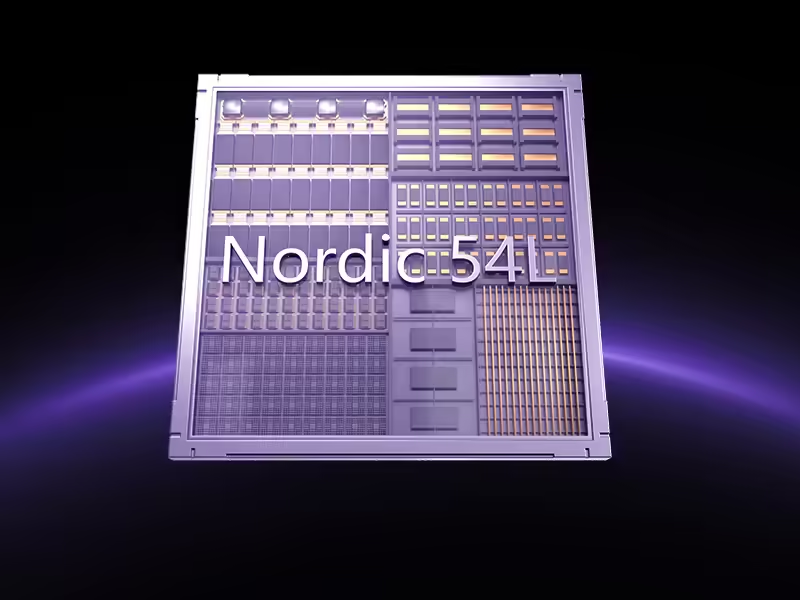
The Nordic 54L15 MCU (Dash Ultra version) delivers 128 MHz performance, 22 nm efficiency, and ultra-low 0.125 ms latency, enabling faster responses and longer battery life.

4. Setup
4.1 Charging the Mouse
Before first use, it is recommended to fully charge the mouse. Connect the provided USB-C cable to the mouse's USB-C port and the other end to a powered USB port on your computer or a USB wall adapter. The mouse has a 300 mAh high-density battery.

4.2 Connecting the Mouse
The Akko Dash mouse supports three connection modes: USB-C Wired, 2.4G Wireless, and Bluetooth.
4.2.1 USB-C Wired Connection
- Connect the USB-C cable to the mouse.
- Connect the other end of the USB-C cable to an available USB port on your computer.
- The mouse will be automatically detected and ready for use. This mode is ideal for competitive eSports gaming due to its minimal latency.
4.2.2 2.4G Wireless Connection
- Locate the 2.4G wireless dongle in the package.
- Plug the 2.4G wireless dongle into an available USB port on your computer.
- Turn on the mouse. The mouse should automatically connect to the dongle. This mode provides desktop-level stability without cable clutter.

4.2.3 Bluetooth Connection
- Turn on the mouse and switch it to Bluetooth mode (refer to the mouse's bottom switch if available, or consult the official PDF manual for specific instructions).
- On your computer or device, go to Bluetooth settings and enable Bluetooth.
- Search for new devices and select "Akko Dash" (or similar name) from the list to pair.
- Follow any on-screen prompts to complete the pairing process. This mode offers multi-device connectivity.
4.3 Software Installation (Akko Gaming Hub)
For full customization options, including DPI settings, parameter settings, and macro settings, download and install the Akko Gaming Hub software from the official Akko website. The software supports Windows OS.

5. Operating the Mouse
5.1 DPI Adjustment
The mouse features a dedicated DPI adjust button. Press this button to cycle through preset DPI levels. For fine-tuning and to access the full range of DPI (up to 42,000 DPI for Ultra, 26,000 DPI for Max), use the Akko Gaming Hub software.
5.2 Polling Rate
The Akko Dash mouse supports an 8,000 Hz polling rate in both wired and 2.4G wireless modes, ensuring stable and lag-free performance. This can be configured via the Akko Gaming Hub software.
5.3 Adjustable LOD Settings
Lift-Off Distance (LOD) can be customized via the Akko Gaming Hub software to 2mm, 1mm, or 0.7mm. Adjusting the LOD minimizes unwanted cursor movement when lifting the mouse, which is crucial for precise competitive play.

5.4 Ergonomics and Grip Styles
The Akko Dash mouse is ergonomically designed with a symmetrical shape, optimized for small hands. Its compact dimensions (175.6 × 90.9 × 37.1mm) promote a natural grip, balanced force distribution, smooth control, and long-lasting comfort.
The design accommodates various grip styles:
- Palm Grip: The entire palm rests on the mouse.
- Claw Grip: Fingers are arched, and the palm rests on the back of the mouse.
- Fingertip Grip: Only the fingertips touch the mouse, allowing for maximum agility.


6. Customization with Akko Gaming Hub
The Akko Gaming Hub software provides extensive customization options to personalize your mouse settings:
- DPI Settings: Adjust DPI levels precisely to match your preference.
- Parameter Settings: Fine-tune other mouse parameters like polling rate, LOD, and button response.
- Macro Settings: Create and assign macros to mouse buttons for complex in-game actions.
Ensure the software is installed and updated to the latest version for optimal performance and features.
7. Maintenance
7.1 Cleaning
To maintain optimal performance and hygiene, regularly clean your mouse:
- Use a soft, lint-free cloth slightly dampened with water or a mild cleaning solution to wipe the surface of the mouse.
- Avoid using harsh chemicals, abrasives, or solvents.
- Use compressed air to clear dust and debris from crevices and around buttons.
7.2 Battery Care
The Akko Dash mouse uses a rechargeable 300 mAh battery. Follow these guidelines for optimal battery life:
- Charge the mouse when the battery indicator shows low power.
- Avoid completely draining the battery frequently.
- If storing the mouse for an extended period, charge it to about 50% before storage.
8. Troubleshooting
8.1 Mouse Not Responding
- Wired Mode: Ensure the USB-C cable is securely connected to both the mouse and the computer. Try a different USB port or cable.
- 2.4G Wireless Mode: Ensure the 2.4G dongle is securely plugged into a USB port. Check if the mouse is switched to 2.4G mode. Try re-pairing by unplugging and replugging the dongle, then turning the mouse off and on.
- Bluetooth Mode: Ensure Bluetooth is enabled on your device and the mouse is in Bluetooth pairing mode. Re-pair the mouse if necessary.
- Battery: Check the battery level. If low, connect the mouse via USB-C cable to charge.
8.2 Inconsistent Tracking or Lag
- Surface: Ensure you are using the mouse on a clean, uniform surface, preferably a high-quality mouse pad.
- Interference (Wireless): Move the 2.4G dongle closer to the mouse or use a USB extender to reduce interference. Avoid placing the dongle near other wireless devices.
- Software: Ensure Akko Gaming Hub software and mouse firmware are up to date.
- LOD Settings: Adjust LOD settings in the software if the cursor moves when lifting the mouse.
9. User Tips
- Ergonomics: While designed for small hands, users with larger hands might find the mouse less comfortable for extended use. Consider your hand size and grip style for optimal comfort.
- Customization: Take advantage of the Akko Gaming Hub software to fine-tune DPI, macros, and other settings to perfectly match your gaming style and preferences.
- Connectivity: For the most stable and lowest latency experience in competitive gaming, use the USB-C wired connection or the 2.4G wireless mode with the dongle placed close to the mouse.
10. Warranty and Support
For detailed warranty information, technical support, and frequently asked questions, please visit the official Akko website. You may also find additional information in the official user manual PDF available at this link.