
Introduction
Thank you for choosing the 1STPLAYER TS4 360 ARGB Water Cooling Cooler. This All-In-One (AIO) liquid cooler is designed to provide efficient and quiet cooling for your CPU, featuring a 360mm radiator, three ARGB fans, and a real-time digital display on the pump for monitoring critical system parameters. This manual will guide you through the installation, operation, and maintenance of your new cooler.

Figure 1: 1STPLAYER TS4 360 ARGB AIO Liquid Cooler
Package Contents
Please check the package for the following items:
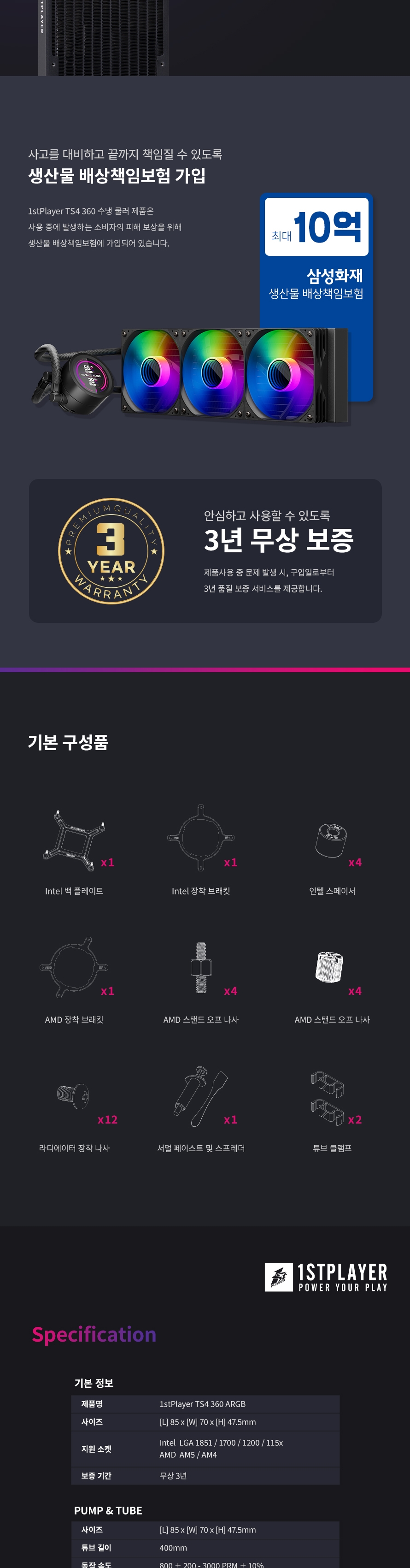
Figure 2: Package Contents
- 1x TS4 360 ARGB AIO Liquid Cooler (Radiator with 3 Fans, Pump/Cold Plate Unit)
- 1x Intel Back Plate
- 1x Intel Mounting Bracket
- 4x Intel Standoffs
- 1x AMD Mounting Bracket
- 4x AMD Standoffs
- 12x Radiator Mounting Screws
- 1x Thermal Paste & Spreader
- 2x Tube Clamps
Setup and Installation
Compatibility
The 1STPLAYER TS4 360 ARGB cooler supports a wide range of Intel and AMD CPU sockets:
- Intel: LGA 1851 / 1700 / 1200 / 115x
- AMD: AM5 / AM4
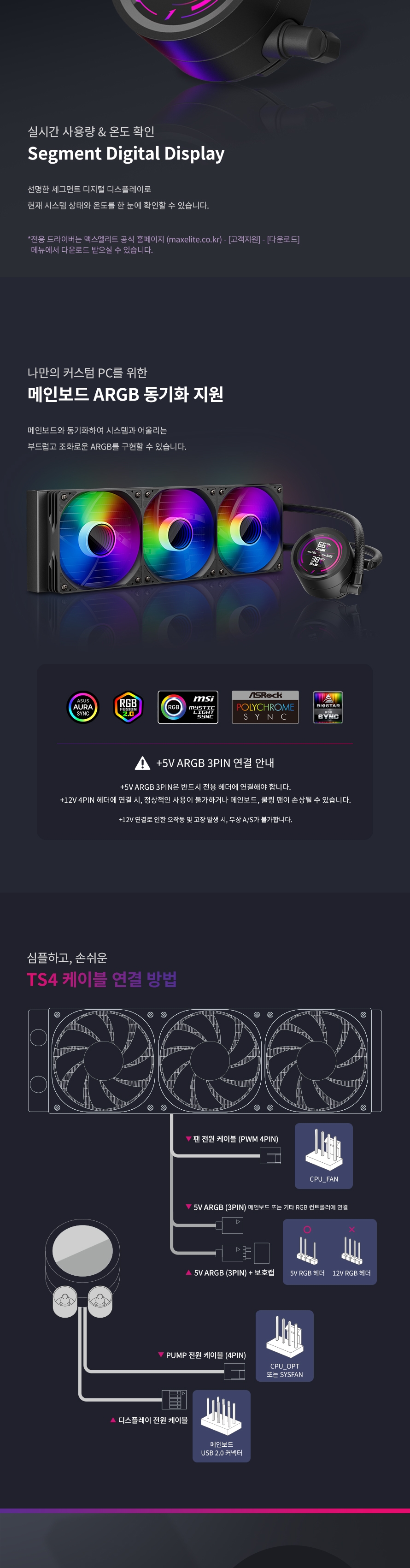
Figure 3: CPU Socket Compatibility
Installation Steps (General Guide)
- Prepare CPU: Ensure your CPU is clean and free of old thermal paste. Apply a small amount of the provided thermal paste to the center of the CPU IHS (Integrated Heat Spreader).
- Install Mounting Hardware: Attach the appropriate backplate (for Intel) and standoffs to your motherboard. Then, secure the correct mounting bracket to the pump unit.
- Mount Radiator: Install the 360mm radiator to an available fan mounting location in your PC case (typically top or front). Use the provided radiator mounting screws.
- Mount Pump/Cold Plate: Carefully place the pump/cold plate unit onto the CPU, aligning it with the standoffs. Secure it with the thumb screws or nuts, ensuring even pressure.
- Connect Cables: Refer to the wiring diagram below for proper cable connections.
Wiring Diagram

Figure 4: Wiring Connections
- Fan Power: Connect the 4-pin PWM fan cables from the radiator fans to an available FAN header on your motherboard.
- ARGB Lighting: Connect the 3-pin +5V ARGB cables from the fans to a compatible +5V ARGB (3-pin) header on your motherboard or an ARGB controller.
- IMPORTANT: Do NOT connect +5V ARGB (3-pin) cables to a +12V RGB (4-pin) header. Incorrect connection will damage the product and void the warranty.
- Pump Power: Connect the 4-pin pump power cable to the CPU_FAN or SYSFAN header on your motherboard.
- Display Cable: Connect the display cable from the pump unit to an available USB 2.0 header on your motherboard. This enables the real-time display functionality.
Operating Instructions
Once installed and powered on, the 1STPLAYER TS4 360 ARGB cooler will begin operating automatically.
- Real-time Digital Display: The pump unit features a digital display that shows real-time CPU temperature and pump speed.
- ARGB Lighting Control: The ARGB lighting of the fans and pump can be synchronized and controlled via your motherboard's RGB software (e.g., ASUS Aura Sync, MSI Mystic Light Sync, GIGABYTE RGB Fusion, ASRock Polychrome Sync) if connected to a compatible ARGB header.
- Automatic Fan/Pump Speed: The cooler's fans and pump are PWM controlled, meaning their speeds will automatically adjust based on CPU temperature to optimize cooling performance and noise levels.
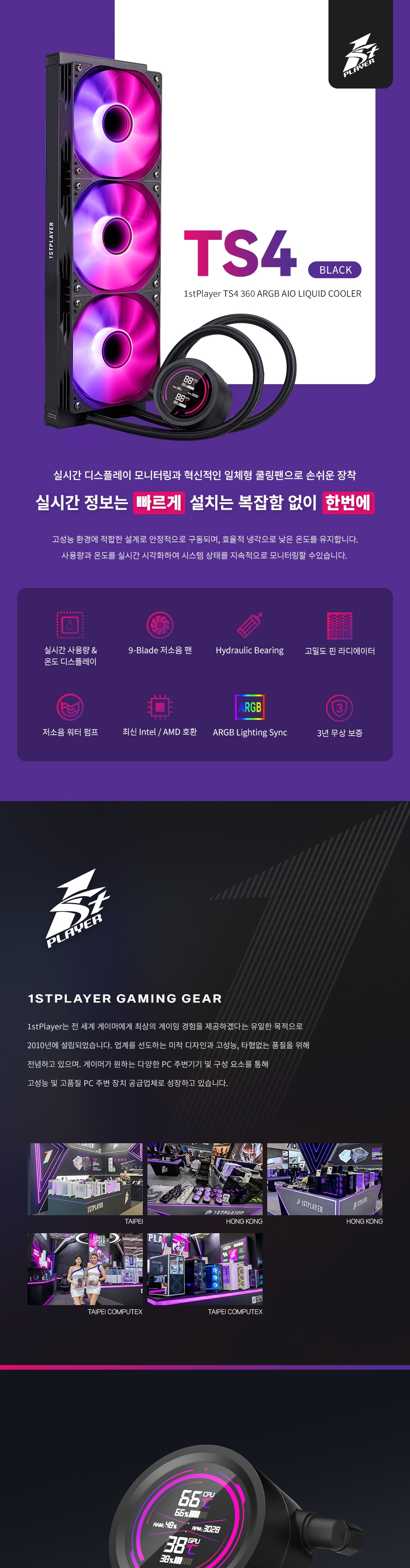
Figure 5: Real-time Digital Display
Maintenance
To ensure optimal performance and longevity of your liquid cooler, follow these maintenance guidelines:
- Dust Cleaning: Periodically clean the radiator fins and fan blades to prevent dust buildup, which can impede airflow and cooling efficiency. Use compressed air or a soft brush.
- Cable Management: Ensure all cables are neatly routed and secured to prevent interference with fan blades or other components.
- Inspect Tubing: Occasionally check the tubing for any signs of kinks, leaks, or damage. While AIOs are sealed systems, visual inspection is good practice.
Troubleshooting
If you encounter issues with your 1STPLAYER TS4 360 ARGB cooler, consider the following:
- No Power/Lights:
- Check all power connections (fan, pump, ARGB) to ensure they are securely seated.
- Verify that the motherboard headers are enabled in the BIOS/UEFI settings.
- High CPU Temperatures:
- Ensure the pump is running (check the digital display for pump RPM).
- Verify that the fans are spinning.
- Confirm the cold plate is making proper contact with the CPU and thermal paste was applied correctly.
- Check for any obstructions to airflow through the radiator.
- ARGB Lights Not Working/Synchronizing:
- Ensure the 3-pin +5V ARGB cable is connected to the correct header (not +12V RGB).
- Check your motherboard's RGB software for proper configuration.
- If using an external ARGB controller, ensure it is powered and configured correctly.
- Unusual Noise:
- Check for any cables or objects interfering with fan blades.
- Ensure the fans and pump are securely mounted.
- A slight gurgling sound upon initial startup is normal as air bubbles settle. If persistent, gently tilt your PC case to help dislodge air.
Specifications
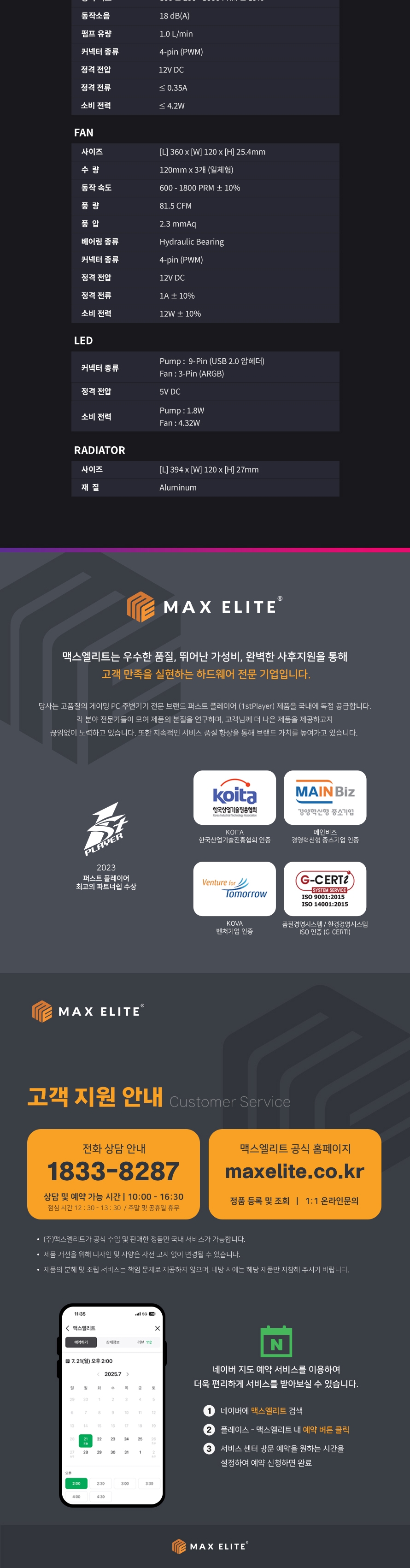
Figure 6: Product Specifications
| Feature | Detail |
|---|---|
| Model Number | TS4 360 ARGB |
| Type | CPU All In One Liquid Cooler |
| Radiator Type | 360mm |
| Radiator Material | Aluminum |
| Radiator Dimensions | L 394 x W 120 x H 27mm |
| RGB Support | A-RGB (+5V 3-pin) |
| Fan Interface | 4-pin PWM |
| Fan Speed | 600-1800 RPM (±10%) |
| Airflow | 77.6 CFM |
| Air Pressure | 2.2 mmH2O |
| Noise Level | <38 dB(A) |
| Fan Bearing Type | Hydraulic Bearing |
| Pump Interface | 4-pin PWM |
| Pump Speed | 800-3000 RPM (±10%) |
| Pump Dimensions | L 85 x W 70 x H 47.5mm |
| With Liquid | Yes (Pre-filled) |
| CPU Socket Compatibility | Intel LGA 1851/1700/1200/115x, AMD AM5/AM4 |
Warranty and Support
The 1STPLAYER TS4 360 ARGB Water Cooling Cooler comes with a 3-year warranty from the date of purchase. This warranty covers defects in materials and workmanship under normal use.
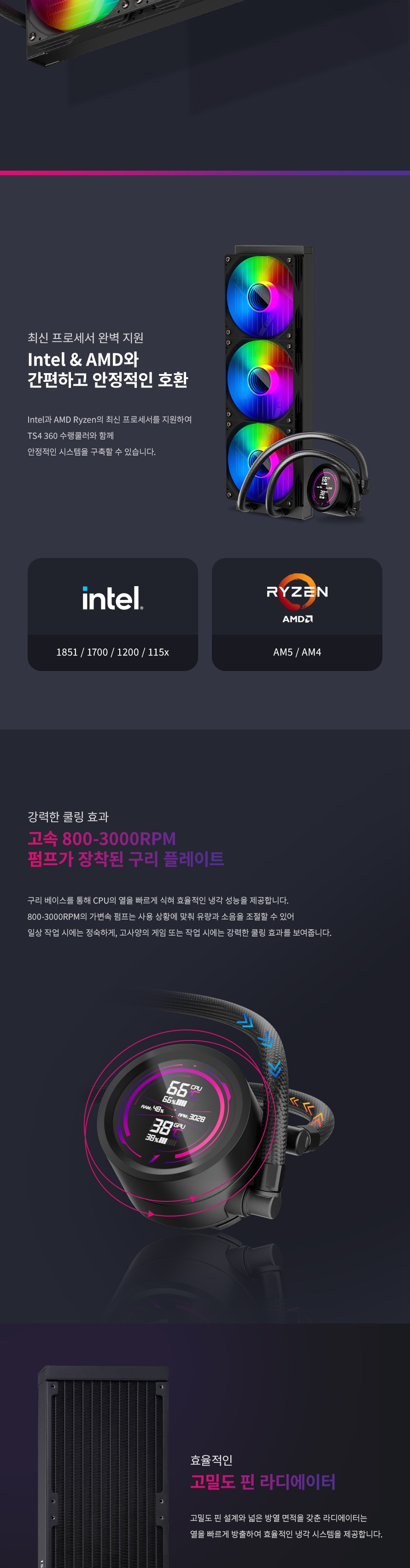
Figure 7: 3-Year Warranty
For technical support, warranty claims, or further assistance, please contact your retailer or the official 1STPLAYER customer service. Please have your proof of purchase ready when contacting support.
User Tips
- Optimal Radiator Placement: For best cooling performance, consider mounting the radiator at the top of your case as an exhaust, or at the front as an intake, depending on your case's airflow design.
- Cable Management: Take time to neatly route and secure all cables. This not only improves aesthetics but also ensures unobstructed airflow within your PC case.
- Software Control: Utilize your motherboard's fan control software to fine-tune fan and pump curves for a balance of cooling performance and noise levels that suits your preference.