
1. Product Overview
The Inphic IN6 is a high-performance lightweight wireless gaming mouse designed for precision and versatility. It features a PAW3395 sensor, three-mode connectivity (Wired, 2.4G Wireless, Bluetooth 5.0), and a long-lasting rechargeable battery. Its ergonomic and lightweight design ensures comfort during extended use.

Figure 1: Inphic IN6 Lightweight Wireless Mouse

Figure 2: Key Features Overview
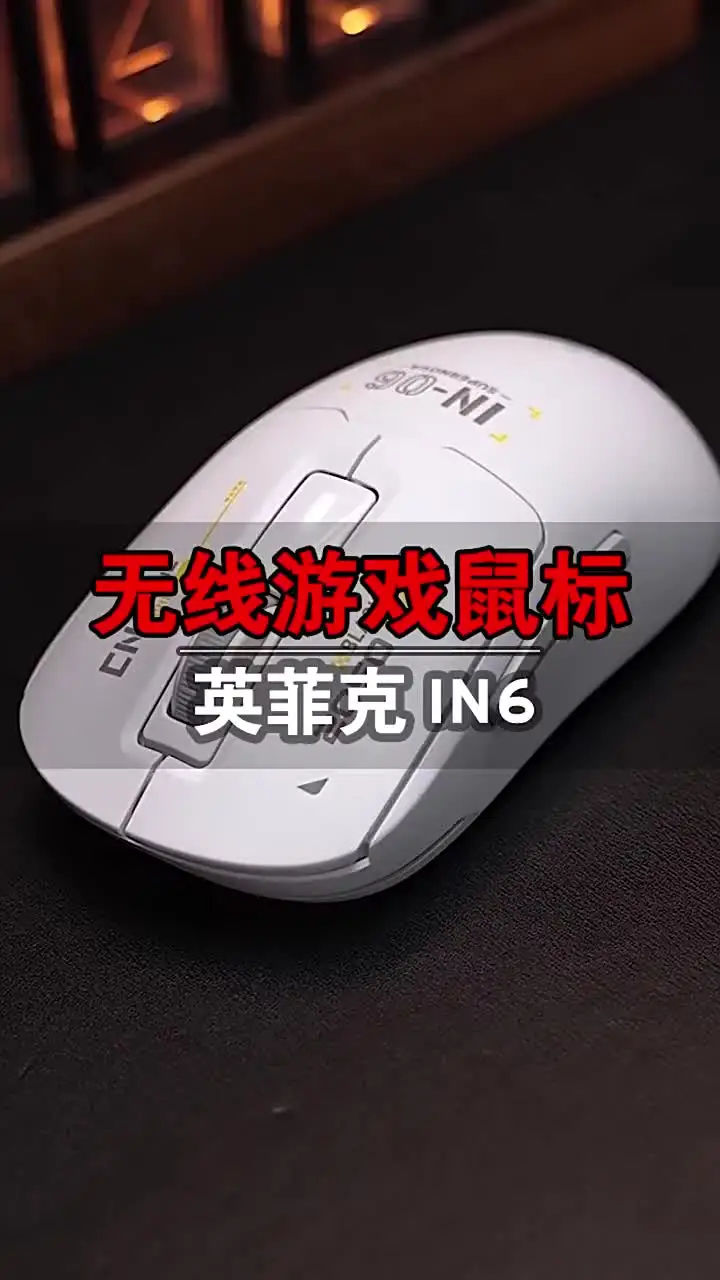
Video 1: Inphic IN6 Product Overview
2. Package Contents
Please check the package for the following items:
- Inphic IN6 Wireless Mouse
- USB Type-C Charging Cable (1.8m braided umbrella cord)
- 1K Wireless Receiver
- User Manual
3. Setup and Connection
3.1 Charging the Mouse
Before first use, it is recommended to fully charge the mouse. Connect the provided USB Type-C cable to the mouse and a power source (e.g., computer USB port, USB wall adapter). The indicator light will show charging status:
- Blinking Red: Mouse power less than 25%
- Steady Yellow: Mouse charging
- Steady Green: Mouse charging complete

Figure 3: Battery Indicator Lights
3.2 Connection Modes
The Inphic IN6 mouse supports three connection modes: Wired, 2.4G Wireless, and Bluetooth 5.0. You can switch between modes using the switch on the bottom of the mouse.

Figure 4: Three-mode Connection
3.2.1 Wired Connection
Connect the USB Type-C cable directly from the mouse to your computer's USB port. The mouse will automatically switch to wired mode and begin charging.
3.2.2 2.4G Wireless Connection
- Locate the 1K wireless receiver in the package.
- Plug the receiver into an available USB port on your computer.
- Switch the mode selector on the bottom of the mouse to the 2.4G wireless icon.
- The mouse should connect automatically.
3.2.3 Bluetooth 5.0 Connection
- Switch the mode selector on the bottom of the mouse to the Bluetooth icon.
- On your computer or device, open Bluetooth settings.
- Search for new devices and select "Inphic IN6" (or similar) to pair.
3.3 Driver Installation (Optional)
For advanced customization, including DPI adjustment, macro programming, and return rate settings, it is recommended to install the official Inphic driver software. Please visit the Inphic website for the latest driver download.

Figure 5: Independent Drive Center for Customization
4. Operating Instructions
4.1 DPI Adjustment
The mouse supports DPI settings from 800 to 26000 DPI. You can adjust DPI levels through the dedicated DPI button on the mouse or via the driver software for more precise control.
4.2 Return Rate Settings
The default return rate is 1K (1000Hz) for both wired and 2.4G wireless connections. For an enhanced 8K (8000Hz) return rate, an additional 8K receiver must be purchased separately. Settings can be adjusted in the driver software.

Figure 6: 8K Return Rate Advantage
4.3 Macro Programming
Utilize the Independent Drive Center software to program custom macros for the mouse buttons (Left Key, Right Key, Forward Key, Back Key, Roller). This allows for personalized commands and enhanced gaming or productivity workflows.
4.4 Power Management
The driver software allows you to configure power-saving settings, including primary sleep time (e.g., 4.5 minutes) and deep sleep time (e.g., 22 minutes) to conserve battery life.
5. Maintenance
5.1 Cleaning
To maintain optimal performance, regularly clean your mouse. Use a soft, dry cloth to wipe the surface. For stubborn dirt, a slightly damp cloth can be used, ensuring no moisture enters the internal components. Avoid harsh chemicals or abrasive materials.
5.2 Teflon Feet
The mouse is equipped with low-friction Teflon feet for smooth gliding. If the feet show signs of wear, replacement feet can be purchased from authorized retailers to maintain optimal performance.
5.3 Battery Care
The 500mAh rechargeable Li-ion battery is designed for long life. To prolong battery health, avoid fully discharging the mouse frequently and store it in a cool, dry place when not in use for extended periods.
6. Troubleshooting
6.1 Mouse Not Responding
- Wired Mode: Ensure the Type-C cable is securely connected to both the mouse and the computer. Try a different USB port.
- 2.4G Wireless Mode: Ensure the 2.4G receiver is plugged in and the mouse is switched to 2.4G mode. Try re-pairing by unplugging and replugging the receiver.
- Bluetooth Mode: Ensure Bluetooth is enabled on your device and the mouse is in Bluetooth pairing mode. Re-pair the device if necessary.
- Battery: Check the battery level. If low, charge the mouse.
6.2 DPI Not Changing
- Ensure the DPI button is functioning correctly.
- If using driver software, verify that the settings are applied and the software is running.
6.3 Lag or Delay
- Wireless Interference: Move the mouse closer to the receiver or clear any obstructions. Avoid using the mouse near other wireless devices that might cause interference.
- Return Rate: Ensure the return rate is set to 1000Hz or 8000Hz (with optional 8K receiver) in the driver software for optimal performance.
- Battery: Low battery can sometimes affect performance. Ensure the mouse is sufficiently charged.
7. Specifications
| Feature | Specification |
|---|---|
| Model | IN6 |
| Sensor | Pixart 3395 |
| DPI | 800/1200/2400/4800/12000/26000 (Drive Adjustable) |
| IPS (Inches Per Second) | 650 |
| Acceleration | 50 G |
| Return Rate | Wired/Wireless 1K (1000Hz), Wireless 8K (8000Hz, with optional 8K receiver) |
| Connection Method | Wired (Type-C), 2.4G Wireless, Bluetooth 5.0 |
| Battery | 500mAh Rechargeable Li-ion |
| Micro Switches | HUANO Green Transparent (100 million clicks lifetime) |
| Foot Pad Material | Teflon |
| Cable Length | 1.8m braided umbrella cord with magnetic ring |
| Weight | Approx. 60g (including receiver +1g) |
| Dimensions (LxWxH) | 123 x 62 x 29.5mm |
| Operating System | WINDOWS XP and above series, Universal mouse system |
8. User Tips
- Optimize for Gaming: For competitive gaming, consider purchasing the optional 8K receiver to achieve the lowest possible delay and highest return rate.
- Customization is Key: Take advantage of the Independent Drive Center software to fine-tune DPI, program macros, and adjust power settings to match your personal preferences and game styles.
- Switch Modes Wisely: Use 2.4G wireless for low-latency gaming, Bluetooth for general productivity and power saving on compatible devices without a receiver, and wired mode for guaranteed connection and charging.
- Ergonomic Grip: Experiment with different grip styles (e.g., palm, claw, fingertip) to find the most comfortable and efficient way to hold the lightweight IN6 mouse for long sessions.

Figure 7: Recommended Grip Styles
9. Warranty and Support
Inphic products are manufactured to high-quality standards. For warranty information, technical support, or service inquiries, please refer to the warranty card included with your product or contact the seller/manufacturer directly through their official website or customer service channels. Keep your proof of purchase for warranty claims.