
Introduction
The iPazzPort Mini Wireless Keyboard Air Mouse is a versatile 2-in-1 remote control designed for seamless interaction with various smart devices. It features a dual-sided design with a minimalist remote on one side and a full QWERTY keyboard on the reverse. With support for both 2.4GHz wireless and Bluetooth connections, it offers plug-and-play compatibility and precise 6-axis air mouse control. This manual provides detailed instructions for setting up, operating, and maintaining your device.

Specifications
| Feature | Detail |
|---|---|
| Brand Name | iPazzPort |
| Model Number | KP_Black_T1 |
| Type | ERGONOMIC |
| Keyboard Connection | Wireless (2.4GHz, Bluetooth) |
| Mouse Connection | Wireless |
| Interface | Bluetooth |
| Multimedia Function Keys | Yes |
| Supports Human Engineering | Yes |
| Applicable Object | For Home Office |
| Battery | Built-in Rechargeable Battery |
| Charging Port | Type-C |
| Origin | Mainland China |
| FCC ID | 2BEN7-T1 |
| Dimensions (L x W x T) | 152mm x 44mm x 9.8mm |
| Weight | 0.11 kg |
| Wireless Range | Up to 10 meters |
| Compatible Systems | Android, iOS, Mac, Windows |
| Compatible Devices | Smart Android TV Boxes, Laptops, Projectors, HTPCs, Televisions, Desktop Computers |


Setup Instructions
1. Unboxing and Charging
Upon unboxing, ensure you have the iPazzPort Mini Wireless Keyboard Air Mouse and the USB receiver. The device features a built-in rechargeable battery. Connect a Type-C charging cable (not included) to the charging port to fully charge the device before first use.
2. Connecting via 2.4GHz Wireless (Plug & Play)
- Insert the USB receiver into an available USB port on your device (Smart TV, Android TV Box, PC, Projector, etc.).
- Turn on the iPazzPort remote. The device should automatically connect to the receiver.
- You can now use the air mouse and keyboard functions.
3. Connecting via Bluetooth
- Ensure the iPazzPort remote is powered on and in Bluetooth mode (if applicable, switch modes as described in the Operating Instructions).
- On your host device (e.g., Smart TV, Laptop), navigate to the Bluetooth settings.
- Search for available Bluetooth devices. The iPazzPort remote should appear in the list.
- Select the iPazzPort remote to pair. Follow any on-screen prompts to complete the pairing process.
4. IR Learning Function
The IR Learning function allows you to program essential TV functions (like Power and Volume) from your original TV remote onto the iPazzPort remote, reducing remote clutter.
- Place the iPazzPort remote and your original TV remote head-to-head, ensuring they are close enough for IR signals to transmit.
- Activate the IR learning mode on the iPazzPort remote (refer to the full user manual PDF for specific button combinations, link below).
- Press the button on your original TV remote that you wish to learn (e.g., Power).
- Then, press the corresponding programmable button on the iPazzPort remote.
- Repeat for other functions like Volume Up/Down.
- Exit IR learning mode.

Operating Instructions
1. Power On/Off
Press the power button located on the remote side to turn the device on or off.
2. Air Mouse Function
The iPazzPort remote utilizes a high-accuracy 6-axis gyroscope sensor for fluid cursor control. Simply move the remote in the air to control the on-screen cursor. Press the dedicated air mouse activation button (if present) to enable or disable the air mouse function.

Video demonstrating the air mouse functionality and keyboard typing on a laptop.
3. Keyboard Function
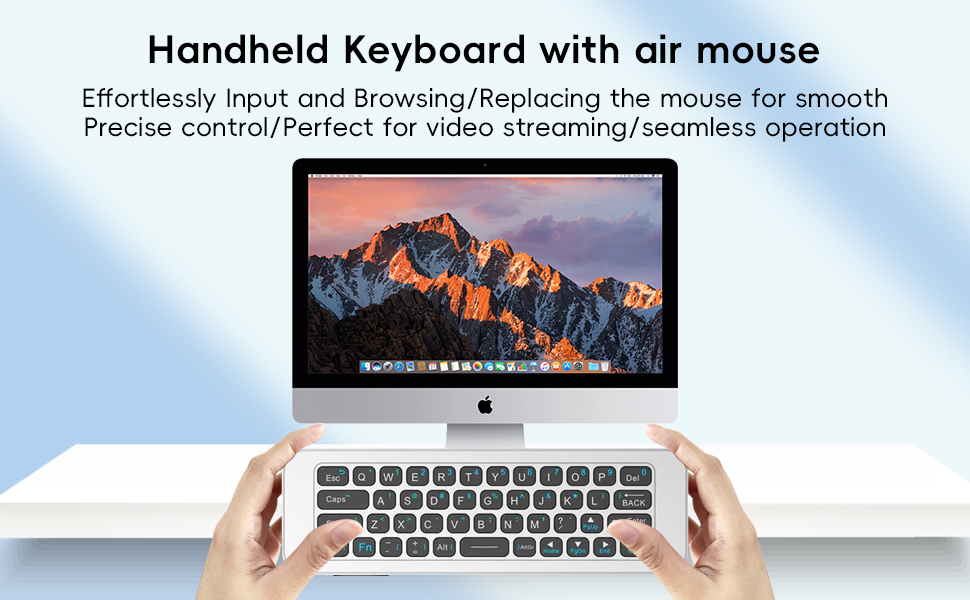
Flip the remote to access the full QWERTY keyboard layout. Use the keys for effortless text input, searching, and browsing. The keyboard includes multimedia function keys for quick access to common controls.

4. Switching Between 2.4GHz and Bluetooth Modes
The device supports both 2.4GHz and Bluetooth connections. Specific buttons or a switch may be present to toggle between these modes. Refer to the full user manual PDF for exact instructions on mode switching.

Maintenance
- Cleaning: Use a soft, dry cloth to clean the surface of the device. Avoid using harsh chemicals or abrasive materials.
- Battery Care: To prolong battery life, avoid fully discharging the battery frequently. Recharge the device when the battery indicator is low. Store the device in a cool, dry place when not in use for extended periods.
- Storage: Keep the device away from extreme temperatures, direct sunlight, and moisture.
Troubleshooting
- Device not responding:
-
- Ensure the device is fully charged.
- Check if the USB receiver is properly inserted into the host device's USB port (for 2.4GHz mode).
- Verify that the device is correctly paired via Bluetooth (for Bluetooth mode).
- Try restarting both the iPazzPort remote and the host device.
- Air mouse cursor is erratic or not moving:
-
- Ensure the air mouse function is enabled.
- Recalibrate the gyroscope if the cursor drifts (refer to the full user manual PDF for specific calibration steps).
- Ensure there are no obstructions between the remote and the host device.
- Keyboard input issues:
-
- Confirm the device is in keyboard mode.
- Check if the keyboard layout on the host device matches the physical keyboard.
- No microphone functionality:
-
- This model does not include a built-in microphone.
User Tips
- Keyboard Button Stiffness: Some users have noted that the keyboard buttons can be a little stiff. This can prevent accidental presses when in remote mode. For typing, ensure a firm press for optimal input.
- Hand Size Consideration: While the keyboard is functional, users with smaller hands or shorter fingers might find extended typing sessions slightly less comfortable due to its compact size.
- Couch PC Setup: This remote is particularly well-suited for controlling a PC from a couch, offering both precise air mouse control and a full keyboard for browsing and typing.
Warranty and Support
For detailed warranty information and further technical support, please refer to the official user manual PDF. Should you have any questions regarding setup, compatibility, or require assistance, our dedicated support team is ready to provide quick and helpful solutions.
You can view the comprehensive user manual in PDF format here: iPazzPort Mini Wireless Keyboard Air Mouse User Manual (PDF)