
1. Introduction
The AULA SC650 is a high-performance tri-mode wireless gaming mouse designed for versatility and precision. Featuring a lightweight design, a custom PAW3311 sensor, and multiple connectivity options, it is suitable for both gaming and office use. This manual provides detailed instructions for setting up, operating, maintaining, and troubleshooting your SC650 mouse.
2. Package Contents
Please check the package to ensure all items are present:
- AULA SC650 Tri-Mode Wireless Gaming Mouse
- USB Type-C Charging Cable
- 2.4GHz USB Receiver
- User Manual (this document)
3. Setup
3.1. Charging the Mouse
Before first use, it is recommended to fully charge the mouse. The SC650 is equipped with a 500mAh rechargeable battery.
- Connect the provided USB Type-C cable to the mouse's charging port and the other end to a computer's USB interface.
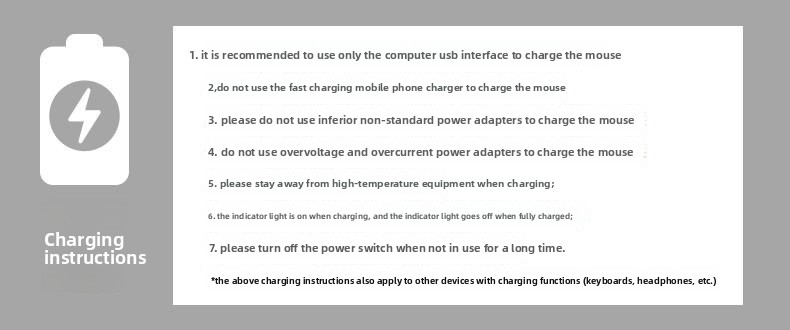
- The indicator light will be on during charging and will turn off when fully charged.
Important Charging Instructions:
- It is recommended to use only the computer USB interface to charge the mouse.
- Do not use fast charging mobile phone chargers to charge the mouse.
- Do not use inferior non-standard power adapters to charge the mouse.
- Do not use overvoltage and overcurrent power adapters to charge the mouse.
- Stay away from high-temperature equipment when charging.
- Turn off the power switch when not in use for a long time to preserve battery life.
3.2. Connectivity Modes
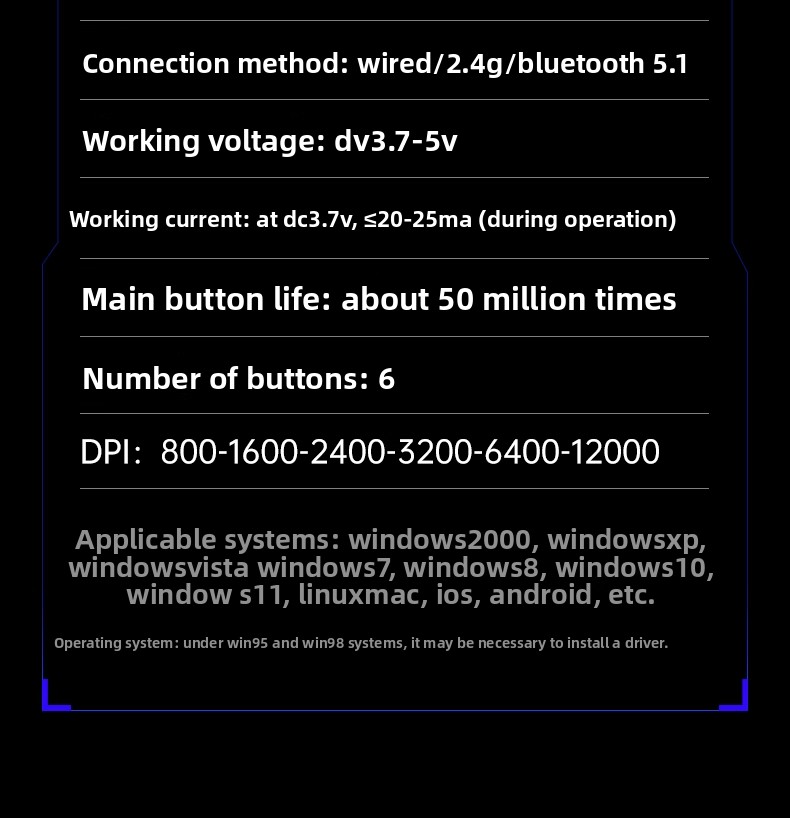
The AULA SC650 supports three connection modes: 2.4GHz Wireless, Bluetooth 5.1, and Wired (Type-C). You can switch between up to 3 devices at will.

3.2.1. 2.4GHz Wireless Connection
- Plug the 2.4GHz USB receiver into an available USB port on your computer.
- Turn on the mouse and select the 2.4G mode using the switch on the bottom of the mouse.
- The mouse should automatically connect.
3.2.2. Bluetooth Connection
- Turn on the mouse and select the Bluetooth mode using the switch on the bottom of the mouse.
- On your device (computer, tablet, mobile phone), go to Bluetooth settings and search for new devices.
- Select "AULA SC650" from the list of available devices to pair.
- The mouse can be paired with up to two Bluetooth devices. Switch between them using the mode switch.
3.2.3. Wired (Type-C) Connection
- Connect the USB Type-C cable directly from the mouse to your computer's USB port.
- The mouse will automatically switch to wired mode and begin charging.
3.3. System Compatibility
The AULA SC650 mouse is compatible with a wide range of operating systems:
- Windows 2000
- Windows XP
- Windows Vista
- Windows 7
- Windows 8
- Windows 10
- Windows 11
- Linux
- Mac OS
- iOS
- Android
Note: Under Windows 95 and Windows 98 systems, it may be necessary to install a driver.
4. Operating Instructions
4.1. Mouse Buttons and Functions
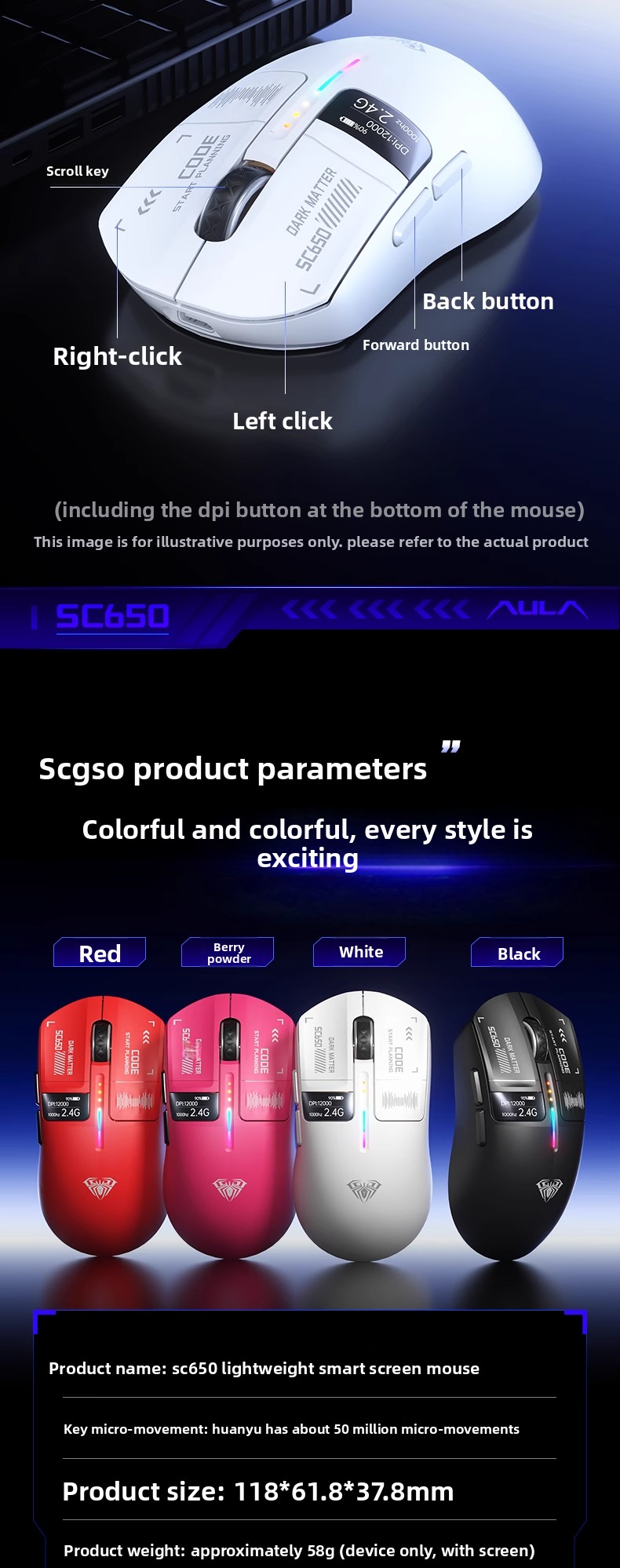
The AULA SC650 features 6 programmable buttons for enhanced control:
- Left Click: Standard primary click function.
- Right Click: Standard secondary click function.
- Scroll Key: Scroll up/down, and middle click function.
- Forward Button: Navigates forward in web browsers or file explorers.
- Back Button: Navigates backward in web browsers or file explorers.
- DPI Button (bottom of mouse): Adjusts the DPI sensitivity.
4.2. DPI Adjustment
The mouse features a PAW3311 customized sensor with adjustable DPI settings. You can cycle through 6 levels of DPI sensitivity:
- 800 DPI
- 1600 DPI (Default)
- 2400 DPI
- 3200 DPI
- 6400 DPI
- 12000 DPI
To adjust the DPI, press the dedicated DPI button located on the bottom of the mouse. The smart screen display will show the current DPI setting.

4.3. Smart Screen Display
The AULA SC650 is equipped with a smart screen display that provides real-time information:
- Battery Level Indicator: Shows the current battery charge.
- DPI Display: Indicates the active DPI setting.
- Connection Mode Display: Shows the current connection mode (2.4G, BT, or Wired).
- Return Rate Display: Displays the polling rate (1000Hz).

4.4. RGB Lighting Effects
The mouse features colorful RGB lighting effects. To switch between the 7 available lighting effects, press the front button and the middle button (scroll wheel) simultaneously.
Available effects include: Waves, Neon, Circulating Flash, Yoyo Ball, One-Way Flash, Circular Breathing, and Light Off.

5. Maintenance
5.1. Cleaning
To maintain optimal performance and appearance, clean your mouse regularly:
- Use a soft, lint-free cloth slightly dampened with water or a mild cleaning solution to wipe the surface of the mouse.
- Avoid using harsh chemicals, abrasive cleaners, or solvents.
- Use a soft brush or compressed air to remove dust and debris from crevices and around the scroll wheel.
5.2. Battery Care
Follow the charging instructions in Section 3.1 to ensure proper battery health and longevity. Avoid completely draining the battery frequently, and store the mouse with some charge if not used for extended periods.
6. Troubleshooting
| Problem | Possible Cause | Solution |
|---|---|---|
| Mouse not responding | Low battery; Incorrect connection mode; Receiver not plugged in (2.4G); Bluetooth not paired; Loose cable (wired) | Charge the mouse; Switch to the correct connection mode; Re-insert 2.4G receiver; Re-pair Bluetooth; Check Type-C cable connection. |
| DPI not changing | DPI button not pressed correctly; Software conflict | Ensure a firm press on the DPI button; Restart your computer; Check for any conflicting mouse software. |
| RGB lighting not working | Lighting turned off; Software issue | Press the front button + middle button simultaneously to cycle through effects; Ensure mouse is powered on. |
| Lag or intermittent connection | Interference; Distance from receiver/device; Low battery | Move closer to the receiver/device; Remove obstacles; Charge the mouse; Try a different USB port for the receiver. |
7. Specifications
| Feature | Specification |
|---|---|
| Brand | AULA |
| Model | SC650 |
| Connectivity | Wired (Type-C), 2.4GHz Wireless, Bluetooth 5.1 (Tri-Mode) |
| Sensor | PAW3311 Customized Sensor |
| DPI Settings | 800 / 1600 / 2400 / 3200 / 6400 / 12000 (6 levels) |
| Report Rate | 1000Hz |
| Number of Buttons | 6 |
| Main Button Life | Approx. 50 million times |
| Battery Capacity | 500mAh (Rechargeable) |
| Working Voltage | DC 3.7-5V |
| Working Current | ≤20-25mA (during operation) |
| Weight | Approx. 58g (device only, with screen) |
| Dimensions | 118mm × 61.8mm × 37.8mm |
| Applicable Systems | Windows 2000/XP/Vista/7/8/10/11, Linux, Mac OS, iOS, Android |

8. User Tips
- Optimize for Task: Utilize the tri-mode connectivity to seamlessly switch between different devices (e.g., a gaming PC via 2.4GHz, a work laptop via Bluetooth, and a tablet via another Bluetooth profile).
- DPI Customization: Experiment with the 6 DPI levels to find the perfect sensitivity for different applications, whether it's precise aiming in games or general desktop navigation.
- Battery Monitoring: Regularly check the battery level on the smart screen display to avoid unexpected power loss during critical tasks.
- RGB Ambiance: Customize the RGB lighting to match your setup or mood by cycling through the 7 effects.
- Ergonomics: The lightweight design (approx. 58g) is intended for comfortable extended use. Ensure your grip is relaxed to prevent strain.
9. Warranty and Support
For warranty information, technical support, or service inquiries, please contact the seller or manufacturer directly. Keep your purchase receipt as proof of purchase.