
1. Product Overview
The Akko 5087 V3 is an 80% TKL (Tenkeyless) mechanical keyboard designed for versatile use, offering tri-mode connectivity (USB Type-C, 2.4GHz wireless, and Bluetooth 5.0). It features hot-swappable switches, PBT dye-sublimation keycaps, and customizable RGB backlighting.

Key Features:
- Layout: 80% TKL (88 Keys)
- Connectivity: Tri-mode (USB Type-C, 2.4GHz Wireless, Bluetooth 5.0)
- Switches: 5-pin Hot-swappable sockets, Akko V3 Piano Pro (Linear)
- Keycaps: PBT Dye-Sublimation
- Backlight: South-facing RGB, Multicolor
- Structure: Gasket Mount
- Battery: Built-in 10000mAh (Note: Lord of Mysteries version has 8000mAh)
- Polling Rate: 1000Hz (wired & 2.4G), 125Hz (Bluetooth)
- N-Key Rollover: Supported
- Macro: Akko Web & Cloud Driver
- Operating Systems: Windows / macOS / iOS / Android
2. Setup Guide
2.1 Package Contents
Before proceeding, please ensure all items are present in the package:
- Akko 5087 V3 Mechanical Keyboard
- USB Type-C Cable
- 2.4GHz Wireless Receiver (usually stored in the keyboard's bottom compartment)
- Keycap Puller
- Switch Puller
- User Manual (this document)
2.2 Initial Charging
For optimal performance, it is recommended to fully charge the keyboard before first use. Connect the keyboard to a USB power source using the provided USB Type-C cable. The charging indicator (if present) will show the charging status.
2.3 Operating System Switch
Locate the OS switch on the bottom of the keyboard. Toggle it to the appropriate position for your operating system (Windows or macOS).

2.4 Connectivity Modes
The Akko 5087 V3 supports three connection types:

2.4.1 USB Type-C Wired Connection
- Connect the provided USB Type-C cable to the keyboard's port.
- Connect the other end of the cable to an available USB port on your computer.
- The keyboard will be automatically recognized and ready for use.
2.4.2 2.4GHz Wireless Connection
- Retrieve the 2.4GHz wireless receiver from its storage slot on the bottom of the keyboard.
- Plug the receiver into an available USB port on your computer.
- Switch the keyboard to 2.4GHz mode (refer to keyboard's function key combinations, usually Fn + a specific key).
- The keyboard should connect automatically.
2.4.3 Bluetooth 5.0 Connection
The keyboard can store up to 3 Bluetooth devices.
- Ensure the keyboard is in Bluetooth mode (refer to keyboard's function key combinations).
- On your device (computer, tablet, phone), enable Bluetooth and search for new devices.
- Select "Akko 5087 V3" (or similar name) from the list of available devices.
- If prompted, enter the pairing code.
- To switch between paired Bluetooth devices, use the Fn + E/R/T key combinations.
3. Operating Instructions
3.1 Basic Keyboard Functions
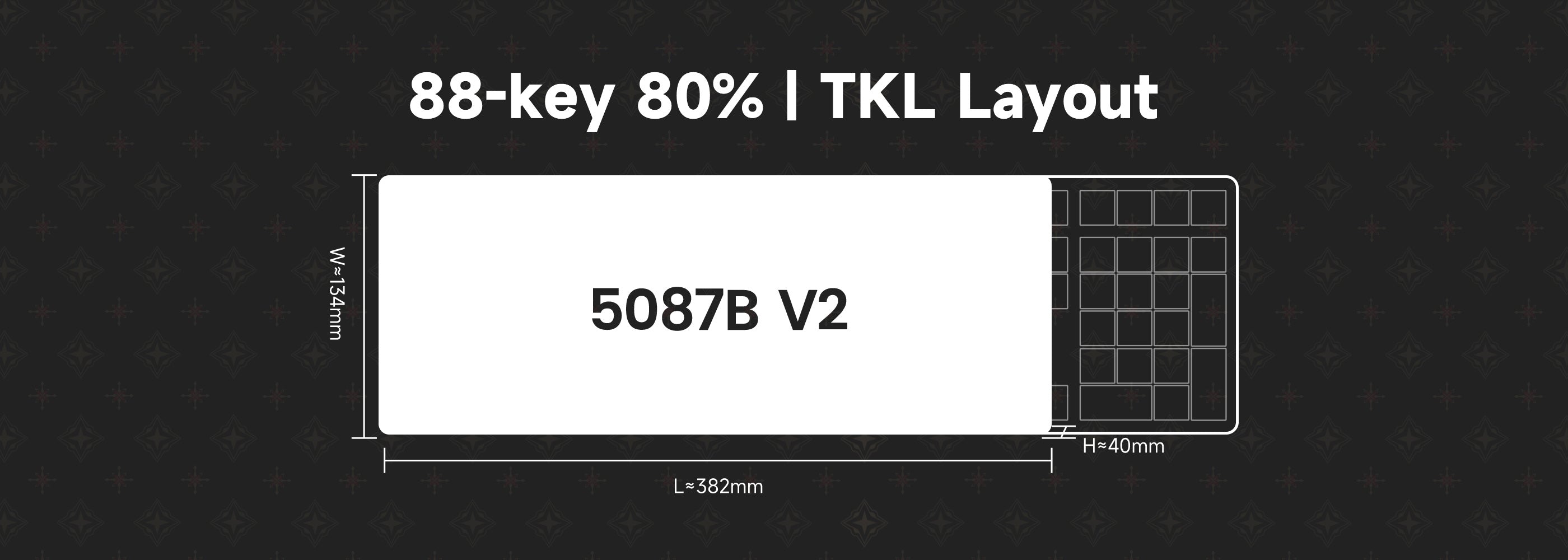
The Akko 5087 V3 functions as a standard 88-key TKL keyboard. All standard keys operate as expected. Refer to the keyboard layout for specific key placements.
3.2 RGB Backlight Customization
The keyboard features South-facing RGB backlighting with over 16 million customizable colors per key. You can adjust lighting effects, brightness, and animation speed using the Akko Cloud Driver software.

3.3 Key Customization and Macros
Utilize the Akko Cloud Driver (available as web version and application) to remap keys, create custom macros, and fine-tune other keyboard settings. This allows for personalized functionality and enhanced productivity or gaming performance.

The web version of the driver can be accessed at: web.akkogear.com
4. Maintenance
4.1 Cleaning the Keyboard
- Keycaps: Use a keycap puller to remove keycaps. Clean them with mild soap and water, then dry thoroughly before reattaching.
- Keyboard Body: Use a soft, lint-free cloth dampened with a small amount of isopropyl alcohol to wipe down the keyboard surface. Avoid excessive moisture.
- Between Keys: Use compressed air to remove dust and debris from between the switches.
4.2 Battery Care
- Avoid fully discharging the battery frequently.
- Store the keyboard in a cool, dry place when not in use for extended periods.
- If storing for a long time, charge the battery to about 50-70% capacity.
4.3 Hot-Swappable Switches
The Akko 5087 V3 features 5-pin hot-swappable sockets, allowing you to change switches without soldering. Use the provided switch puller for safe removal and installation.

Caution:
- Ensure the keyboard is disconnected from power before swapping switches.
- Align switch pins carefully to avoid bending them during installation.
- Use gentle force when removing or inserting switches.
5. Troubleshooting
5.1 Keyboard Not Responding
- Wired Mode: Ensure the USB-C cable is securely connected to both the keyboard and the computer. Try a different USB port or cable.
- 2.4GHz Wireless Mode: Ensure the 2.4GHz receiver is plugged in and the keyboard is switched to 2.4GHz mode. Try re-pairing if necessary.
- Bluetooth Mode: Ensure Bluetooth is enabled on your device and the keyboard is paired. Try re-pairing or switching to a different Bluetooth profile (Fn+E/R/T).
- Battery: Check if the keyboard battery is charged. Connect it via USB-C to charge.
- OS Switch: Verify the OS switch on the bottom of the keyboard is set correctly (Windows/macOS).
5.2 RGB Backlight Issues
- If RGB is not lighting up, check the brightness settings via function keys or the Akko Cloud Driver.
- Ensure the Akko Cloud Driver software is up-to-date.
- Perform a factory reset (refer to Akko Cloud Driver or specific key combination if available) if customization issues persist.
5.3 Keys Not Registering
- If individual keys are not working, try removing the keycap and switch (if hot-swappable) and re-seating the switch firmly.
- Test with a different switch if available to rule out a faulty switch.
- Clean any debris around the switch socket using compressed air.
6. Specifications
| Feature | Detail |
|---|---|
| Model | Akko 5087 V3 |
| Layout | 80% TKL (88 Keys) |
| Connectivity | USB Type-C, 2.4GHz Wireless, Bluetooth 5.0 |
| Switches | Akko V3 Piano Pro (Linear), 5-pin Hot-swappable |
| Keycap Material | PBT plastic |
| Keycap Printing | Dye-sublimation |
| Backlight | South-facing RGB, Multicolor |
| Structure | Gasket Mount |
| Battery Capacity | 10000mAh (8000mAh for Lord of Mysteries version) |
| Polling Rate | 1000Hz (wired & 2.4G), 125Hz (Bluetooth) |
| N-Key Rollover | Supported |
| Macro Support | Akko Web & Cloud Driver |
| Operating Systems | Windows / macOS / iOS / Android |
| Dimensions (L x W x H) | 382mm x 134mm x 40mm |
| Certifications | CE, WEEE |

7. User Tips
- Experiment with Switches: Since the keyboard is hot-swappable, don't hesitate to try different switch types to find your preferred typing feel.
- Utilize the Cloud Driver: The Akko Cloud Driver offers extensive customization. Spend some time exploring its features for macros, key remapping, and lighting effects to personalize your experience.
- Battery Management: For longer battery life, consider using wired mode when at a desk and only switch to wireless when portability is needed.
- Firmware Updates: Periodically check the official Akko website for firmware updates, which can improve performance and add new features.
8. Warranty and Support
This product is covered by the manufacturer's warranty. For detailed warranty information, technical support, or service inquiries, please refer to the official AKKO website or contact their customer support directly.
Please retain your proof of purchase for warranty claims.