
1. Introduction
The MINISO MS103 AI Translation Earbuds are advanced wireless headphones designed for seamless communication and high-quality audio. Featuring AI real-time translation in up to 135 languages, a full-color touchscreen charging case, Bluetooth V6.0 connectivity, and active noise reduction, these earbuds are perfect for travel, business, and daily use. This manual provides detailed instructions to help you get the most out of your new device.

Image: MINISO AI Headphones with translation capabilities and a smart charging case.
2. Package Contents
Please check the box for the following items:
- Earbuds (x2)
- Charging Case (x1)
- Type-C Charging Cable (x1)
- APP Instruction Manual (x1)
- Specification Sheet (x1)
- Packing Box (x1)

Image: MINISO MS103 Earbuds packing list.
3. Product Overview
3.1 Components
- Earbuds: Left and Right earbuds with touch-sensitive surfaces.
- Charging Case: Houses the earbuds, features a full-color touchscreen display, and a Type-C charging port.
3.2 Controls (Touchpad on Earbuds)

Image: Smart gesture control diagram for earbuds.
- Tap Once: Play/Pause music, Answer/End call.
- Tap Twice: Volume + (Right earbud), Volume - (Left earbud).
- Tap Three Times: Next track (Right earbud), Previous track (Left earbud).
- Long Press (3s/5s): Power On/Off.
3.3 Charging Case Controls
- Single Press: Turn screen on/off.
- Triple Press: Pair charging case with earphones.
- Long Press (5 seconds): Access settings, restart, power off, restore factory settings.
- Long Press (10 seconds): Force restart (when powered off).
- Long Press (6 seconds): Turn on.
3.4 Indicator Lights

Image: Indicator Light Description.
- Earbuds On: White light flashes.
- Earbuds Off: Red light stays on for 2 seconds, then turns off.
- Pairing Status: White light flashing.
- Connection Successful: No light.
- Earbud Charging: Red light stays on; turns off when fully charged.
- Charging Case: Display screen shows battery level; 100% when fully charged. Screen automatically turns off after about 30 seconds of inactivity; slide to re-enter display.
4. Setup
4.1 Powering On/Off
- Power On: Take the earphones out of the charging case, or long press the touchpad on each earbud for three seconds.
- Power Off: Place the earphones in the charging case, or long press the touchpad on each earbud for five seconds.
4.2 Wireless Pairing Mode

Image: Bluetooth 6.0 lightning-fast connection.
- Initial Pairing: When there is no previous pairing record, the left and right earphones will automatically pair with each other after being turned on. After successful pairing, you will hear two beeps. Then, connect to your device via Bluetooth settings.
- Reconnection: If the earphones have existing pairing records, they will automatically connect back to your device when turned on. A "beep" sound will confirm the connection.
4.3 Resetting Earphones
If the earphones fail to pair or reconnect to each other, or if you wish to clear all connected devices:
- Tap both earphones five times simultaneously. This action will clear the Bluetooth pairing history.
5. Operating Instructions
5.1 Basic Operations (Music & Calls)
Image: Basic operations for music and phone mode.
- Music Playback: Use single, double, and triple taps as described in Section 3.2.
- Phone Calls: Use single tap to answer/end calls. Long press to reject calls.
5.2 AI Translation Features
The earbuds offer versatile translation modes for various scenarios:
- Real-time Simultaneous Interpretation: Translate conversations in real-time for face-to-face communication.
- Translation Machine Mode: Utilize the dedicated app for meetings and daily conversations, easily breaking down language barriers.
- Headphones + Phone Mode: One person uses the earphones, and the other interacts via the phone to start a conversation.
- Dual Ear Click Mode: One person clicks the left earphone, and the other clicks the right earphone to initiate a translated conversation.
- Video Subtitle Translation: Easily enjoy videos from other countries with on-screen subtitle translation.

Image: Real-time simultaneous interpretation in action.
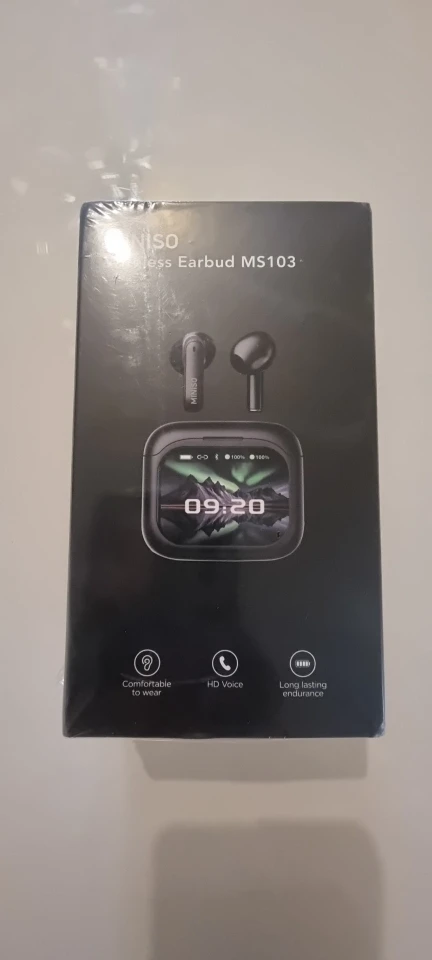
Image: Translation Machine Mode via the app.

Image: Multi-scenario translation with Headphones + Phone Mode.

Image: Video subtitle translation and Dual Ear Click Mode.
5.3 Noise Reduction
- ANC (Active Noise Cancellation): Reduces environmental noise for an immersive audio experience.
- ENC (Environmental Noise Cancellation): Specifically designed for calls, ENC technology suppresses up to 90% of reverse environmental noise, ensuring clear articulation of your voice.

Image: ANC active deep noise reduction.

Image: ENC call noise reduction.
5.4 Touchscreen Functions (Charging Case)

Image: Multi-function touchscreen with 13 functions.
- Navigation: The full-color smart screen provides intuitive control over various functions.
- Customizable Wallpapers: Personalize your charging case display with custom images or dynamic wallpapers via the app.
- Remote Camera: Connect via Bluetooth to control your phone's camera remotely.
- Flip Short Videos: Use the earphone jack to flip pages and like videos hands-free.
- Other Functions: Access System Settings, Music, Language, Equalizer, System menu, Game, Voice assistant, Find My earphones, and more.

Image: Customizable wallpapers, remote camera, and flip short videos.
6. Maintenance
- Cleaning: Use a soft, dry cloth to clean the earbuds and charging case. Avoid using harsh chemicals or abrasive materials.
- Water Resistance: The earbuds are IPX5 waterproof, meaning they are resistant to rain and sweat. Do not submerge them in water.
- Charging: Always use the provided Type-C charging cable. Ensure the charging port is dry before connecting the cable.
- Storage: Store the earbuds in their charging case when not in use to protect them and keep them charged.

Image: IPX5 waterproof earbuds resistant to rain and sweat.
7. Troubleshooting
- Earbuds not pairing/connecting:
- Ensure both earbuds are charged.
- Try resetting the earphones by tapping both earbuds five times simultaneously (refer to Section 4.3).
- Turn off and on your device's Bluetooth, then try pairing again.
- No sound:
- Check the volume level on both your device and the earbuds.
- Ensure the earbuds are properly connected to your device.
- Re-pair the earbuds if necessary.
- Charging case screen unresponsive:
- Single press the screen to turn it on/off.
- If completely unresponsive, try a long press (5 seconds) to access settings or restart, or a long press (10 seconds) for a force restart.
- Translation not working:
- Ensure the earbuds are connected to the companion app.
- Check your internet connection, as some translation features may require it.
- Verify language settings in the app.
8. Specifications
| Feature | Specification |
|---|---|
| Brand Name | MINISO |
| Model | MS103 |
| Material | Metal, Plastic, Silica Gel |
| Bluetooth Version | V6.0 |
| Wireless Type | Bluetooth |
| Communication | Wireless |
| Maximum Wireless Range | <10m |
| Driver Diameter | 13mm |
| Number Of Drivers | 2 |
| Impedance Range | up to 32 Ω |
| Frequency Response Range | 20 - 20000Hz |
| Vocalism Principle | Dynamic |
| Waterproof Rating | IPX5 |
| With Microphone | Yes |
| Volume Control | Yes |
| Active Noise Reduction | Yes (ANC & ENC) |
| Support APP | Yes |
| Charging Method | Type-C (Case) |
| Earbud Weight | 4g (each) |
| Battery Life (Earbuds) | Up to 4.5 hours (single charge) |
| Battery Life (with Case) | Up to 30 hours |
| Charging Case Battery | 400mAh |
| Origin | Mainland China |
| Certification | CE, FCC |

Image: Upgrade features of MINISO MS103 at a glance.
9. User Tips
- Initial Charge: For optimal performance, fully charge your earbuds and charging case before first use.
- Explore the App: Download the dedicated app to unlock full features, including customizable wallpapers and advanced translation settings.
- Practice Touch Controls: Familiarize yourself with the touch gestures on the earbuds for seamless music control and call management.
- Verify Specifications: As noted by other users, the product generally matches its stated technical specifications and appearance.
10. Warranty and Support
For detailed warranty information and customer support, please refer to the official product documentation included in your package. You can also access the user manual in PDF format:
If you encounter any issues not covered in this manual, please contact the seller or manufacturer's customer support for assistance.