
1. Introduction
The Akko MonsGeek FUN68 HE is a high-performance 65% layout magnetic switch gaming keyboard designed for competitive gaming and efficient typing. It features advanced technologies such as Rapid Trigger, adjustable actuation distance, an 8K polling rate, and vibrant ARGB lighting. This manual provides detailed instructions for setup, operation, maintenance, and troubleshooting to help you get the most out of your keyboard.
Video: Akko MonsGeek FUN68 HE Keyboard in action, showcasing typing and RGB lighting effects.
2. Setup
2.1 Package Contents
Before proceeding, please ensure all items are present in the package:
- Akko MonsGeek FUN68 HE Keyboard
- USB Type-C Cable
- User Manual (PDF available at User manual (PDF))
2.2 Wired Connection
Connect the keyboard to your computer using the provided USB Type-C cable. The keyboard is plug-and-play for basic functionality.
2.3 Bluetooth Pairing
To pair the keyboard via Bluetooth:
- Power on the keyboard.
- Press
Fn + E,Fn + R, orFn + Tto enter Bluetooth mode. - Short press the selected Fn key to switch between Bluetooth profiles (BT1, BT2, BT3).
- Long press the selected Fn key for 3 seconds to initiate pairing. The indicator light will flash.
- On your device, search for Bluetooth devices and select the MonsGeek FUN68 HE to connect.
2.4 2.4G Wireless Pairing
To pair the keyboard via 2.4G wireless:
- Power on the keyboard.
- Press
Fn + Yto enter 2.4G mode. - Short press
Fn + Yto switch 2.4G connections. - Long press
Fn + Yfor 3 seconds to initiate pairing. The indicator light will flash. - Connect the 2.4G receiver to your device.
2.5 Driver Installation
The MonsGeek Driver and Web-Based Driver allow for extensive customization. Access the web-based driver at web.monsgeek.com for key remapping, backlight customization, and polling rate adjustments.

Image: MonsGeek Web-Based Driver Interface for customization.
3. Operating Instructions
3.1 Combination Keys
The keyboard features various Fn key combinations for enhanced functionality:
| Function | Win Key Combination | Mac Key Combination |
|---|---|---|
| F1 | Fn + 1! | Fn + 1! |
| F2 | Fn + 2@ | Fn + 2@ |
| F3 | Fn + 3# | Fn + 3# |
| F4 | Fn + 4$ | Siri |
| F5 | Fn + 5% | F5 |
| F6 | Fn + 6^ | F6 |
| F7 | Fn + 7& | F7 |
| F8 | Fn + 8* | F8 |
| F9 | Fn + 9( | F9 |
| F10 | Fn + 0) | F10 |
| F11 | Fn + -_ | F11 |
| F12 | Fn + =+ | F12 |
| Previous Track | Fn + < | Fn + < |
| Next Track | Fn + > | Fn + > |
| Play/Pause | Fn + \| | Fn + \| |
| Mute | Fn + C | Fn + C |
| Print Screen | Fn + P | Prtsc |
| Insert | Fn + I | Ins |
| Win/Mac Toggle | Fn + O | Win/Mac (3S) |
| Delete | Fn + Del | Fn + Del |
| Home | Fn + Home | Fn + Home |
| End | Fn + End | Fn + End |
| Page Up | Fn + PgUp | Fn + PgUp |
| Page Down | Fn + PgDn | Fn + PgDn |
| Backspace | Fn + Backspace | Reset |
| Right Alt | Fn + R_Alt | Fn + R_Ctrl (3S) |
| Left Win | Fn + L_Win | Fn + L_Win |
3.2 Advanced Features
Rapid Trigger (RT)
Rapid Trigger dynamically changes the keys’ actuation and deactivation points. Through the MonsGeek Driver, you can choose “All Buttons” or “Per Button” customization modes, as well as activate “Non-stop Rapid Trigger” for near-instant key response. This feature is ideal for competitive gaming, allowing for faster response times and precise movements.
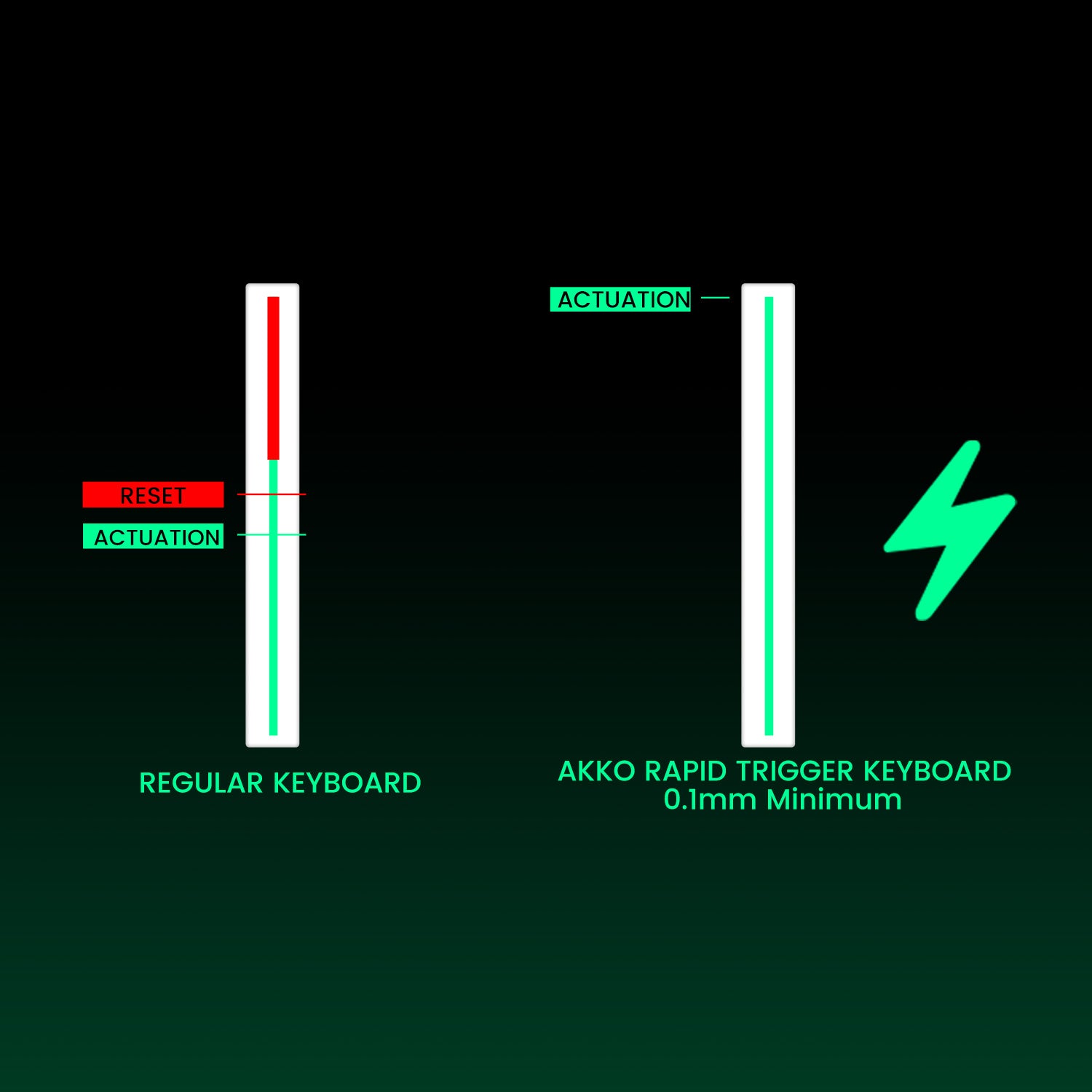
Image: Rapid Trigger (RT) mechanism for quick key actuation and reset.

Image: Adjustable Actuation Distance settings in the driver.
Dynamic Keystrokes (DKS)
DKS allows a single keypress to trigger up to four different operations based on the force applied. A light press triggers action 1, a deeper press activates action 2, and releasing the key also supports a two-stage key setting.
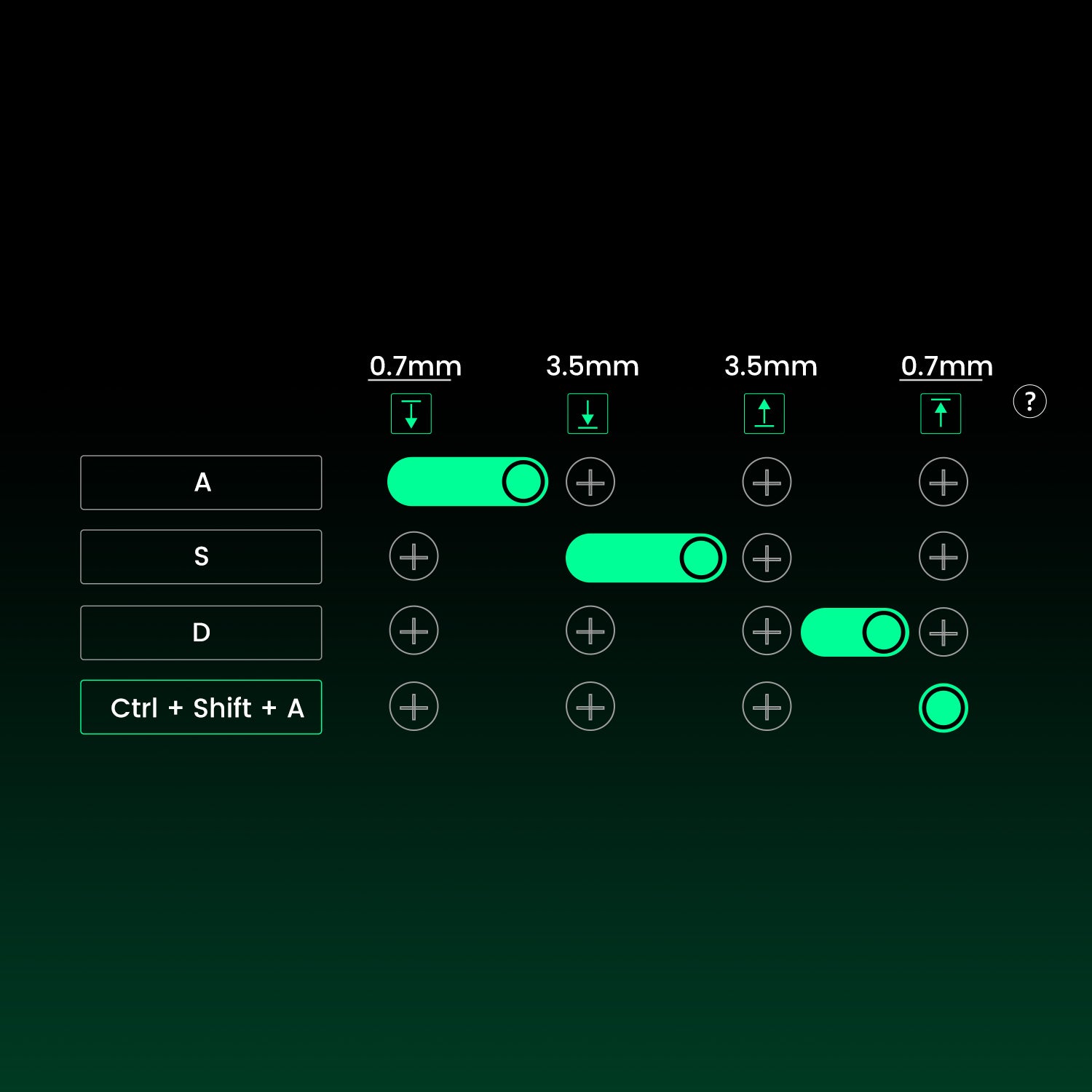
Image: Dynamic Keystrokes (DKS) configuration.
Toggle Key (TGL)
TGL transforms a key into a toggle switch. You can configure it to continuously hold down a key/function or trigger it multiple times at a high frequency with a single press.
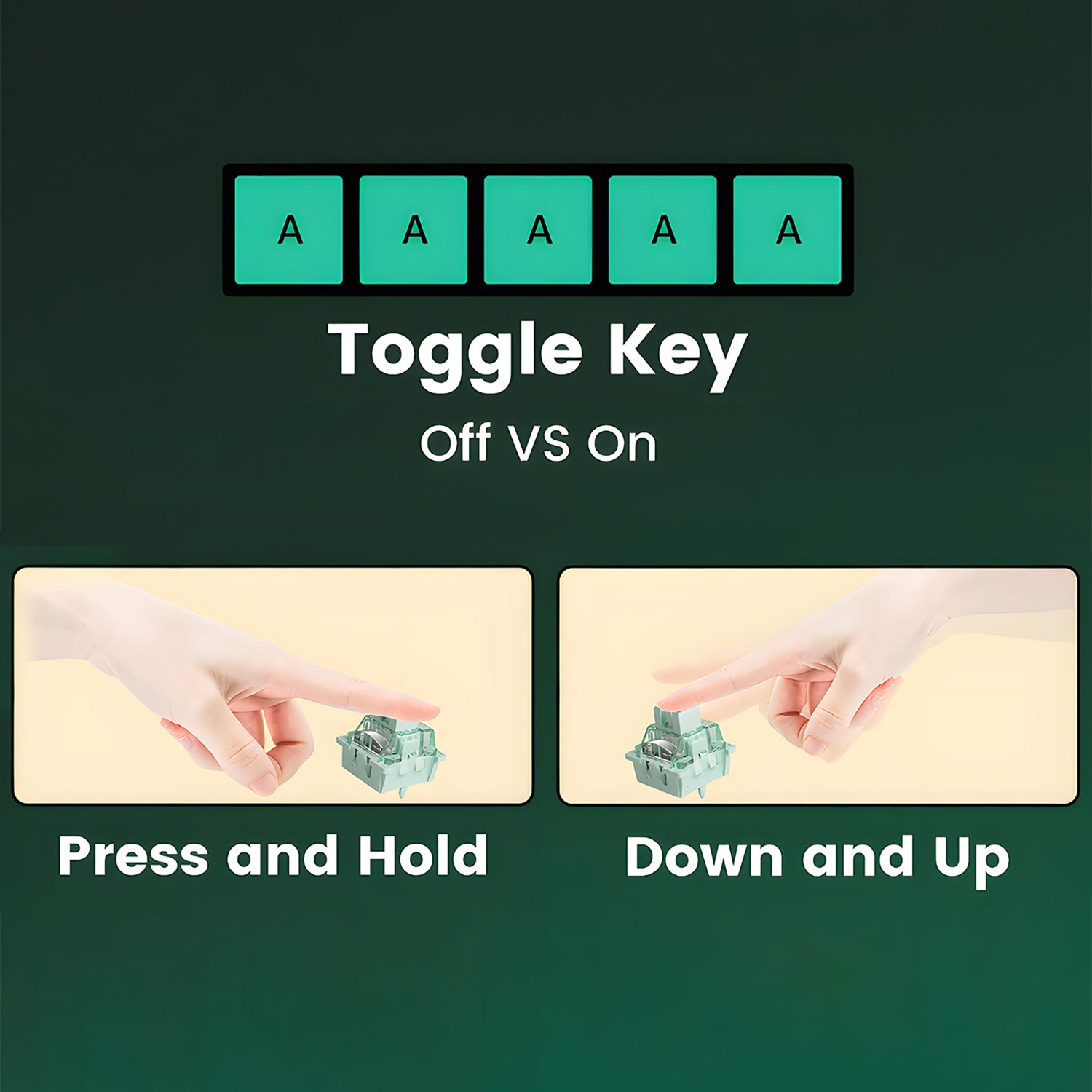
Image: Toggle Key (TGL) operation modes.
Mod-Tap
Mod-Tap provides convenience for gaming by enabling dedicated or dual-functional keys based on key press behavior. A single keypress can achieve two functions: holding down the key for one function, and tapping the key for another.
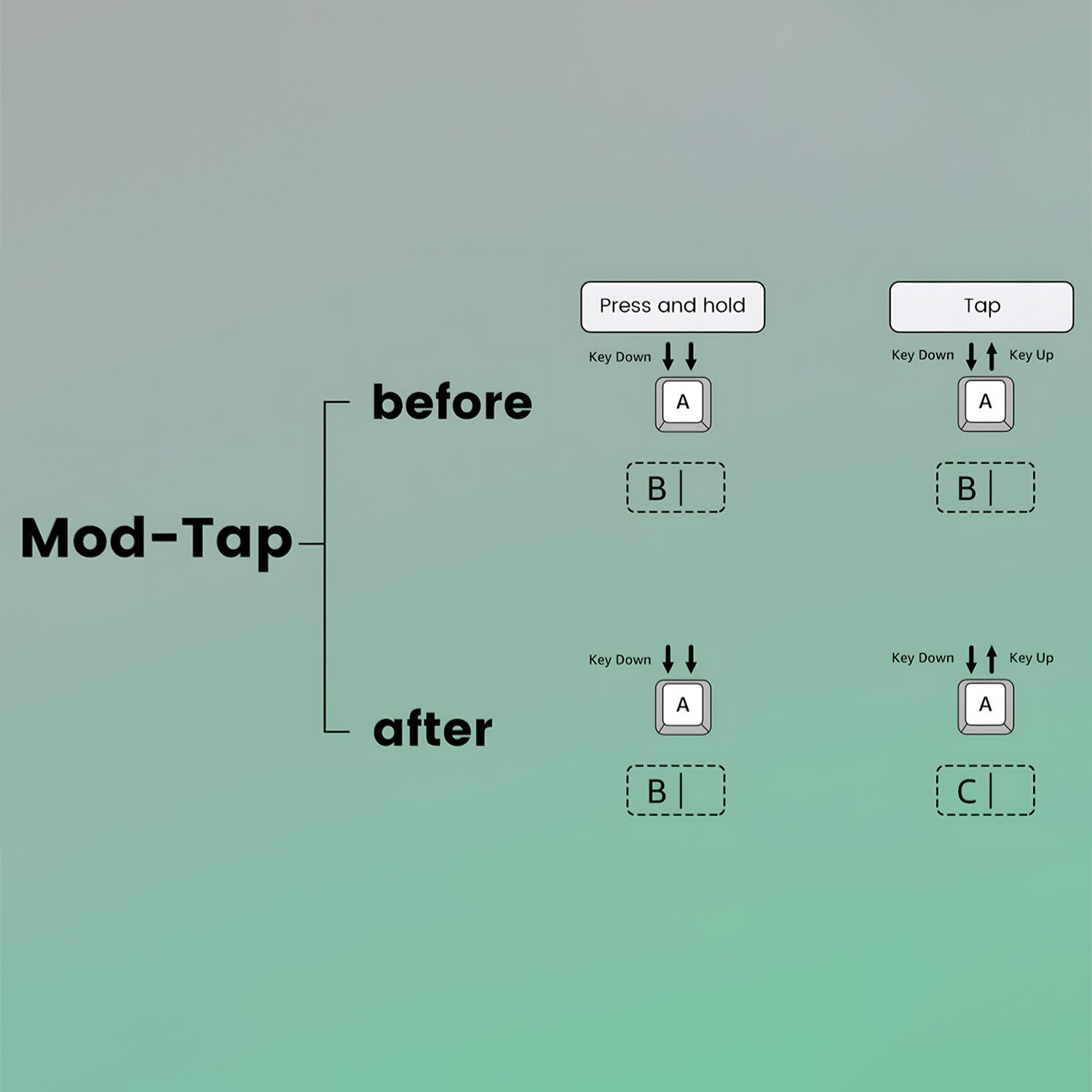
Image: Mod-Tap functionality for dual-action keys.
Snap Key
Snap Key is MonsGeek’s implementation of SOCD (Simultaneous Opposite Cardinal Directions), which prioritizes the most recent keypress for swift directional changes without releasing previous inputs. This ensures fluid and responsive control, especially in FPS games where quick reactions and precise movements are crucial.
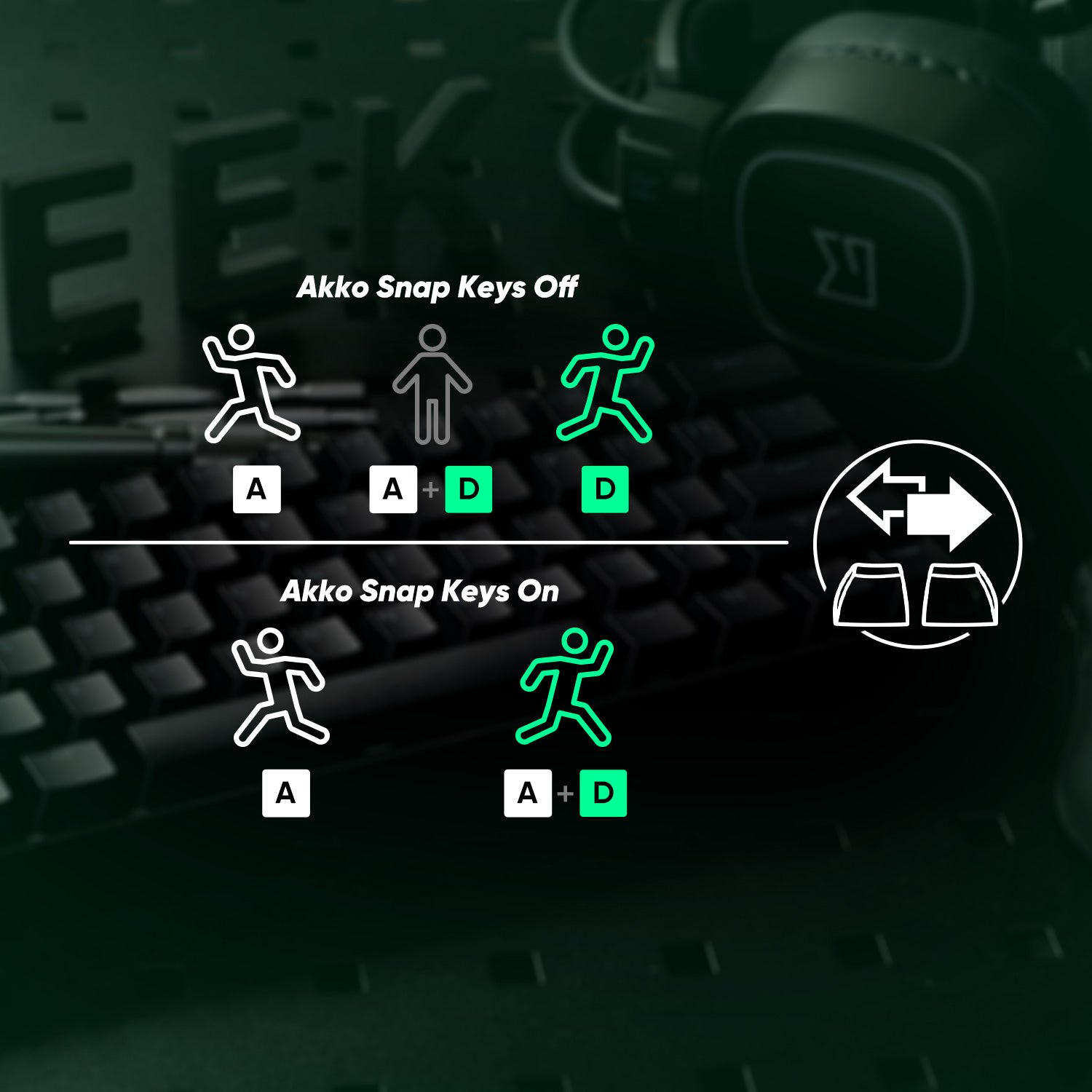
Image: Snap Key (SOCD) for precise directional control.
Universal 8K Polling Rate
The keyboard supports an 8000Hz polling rate for all keys in wired mode, offering ultra-fast response times and smoother, more precise inputs for gaming and high-performance tasks.

Image: 8K Polling Rate for ultra-fast response.
ARGB Lighting with 500Hz Refresh Rate
The FUN68 HE features Addressable RGB (ARGB) with individually controlled LEDs for smooth, flicker-free lighting. With Alpha channel integration and a 500Hz refresh rate, it offers rich dynamic effects and reduces visual fatigue, perfect for gaming and aesthetic builds.

Image: ARGB lighting with 500Hz refresh rate.
Cross-Compatible Magnetic Switches
The FUN68 HE Series offers cross-compatibility with various third-party magnetic switches. Users can select the corresponding switch from the list in the MonsGeek Driver and easily calibrate the keyboard after replacement. You can also mix and match them in different keys simultaneously.

Image: Cross-compatibility with various magnetic switches.
4. Maintenance
4.1 Battery Level Check (Wired models do not have a battery)
Note: This keyboard is a wired model and does not contain a battery. The following information is for reference for other models.
In wireless mode, press the Fn + Spacebar combination keys to check the battery level. The indicator lights will show the charge status:
- Below 30%: Number 1-2 keys show red light.
- Below 40%: Number 1-3 keys show green light.
- Below 50%: Number 1-4 keys show green light.
- Below 60%: Number 1-5 keys show green light.
- Below 70%: Number 1-6 keys show green light.
- Below 80%: Number 1-7 keys show green light.
- Below 90%: Number 1-8 keys show green light.
- Below 100%: Number 1-9 keys show green light.
- Fully charged: Number 1-0 key shows green light.
4.2 Cleaning and Care
- Use a soft, dry cloth to clean the keyboard surface.
- For deeper cleaning, use compressed air to remove dust and debris from between keycaps.
- Avoid using harsh chemicals or abrasive materials.
4.3 Stabilizers
RT Stabilizer
The “RT Stabilizer” mode helps prevent unintended inputs or disconnections from slight hand tremors, especially when using a Rapid Trigger precision of 0.005 mm. It can be activated via the MonsGeek Driver with 4 different filtering levels.

Image: RT Stabilizer feature.
Demagnetized Stabilizer
The FUN68 HE’s Stabilizer Wire is demagnetized to reduce magnetic interference, improve trigger accuracy, optimize feel, and enhance long-term stability. This is crucial for precise and consistent performance in magnetic switch keyboards.

Image: Demagnetized Stabilizer for improved accuracy.
5. Troubleshooting
5.1 Connectivity Issues
- Wired Connection: Ensure the USB Type-C cable is securely connected to both the keyboard and your computer. Try a different USB port or cable if issues persist.
- Bluetooth/2.4G Wireless: If experiencing connection drops or inability to pair, try re-pairing the keyboard following the instructions in Section 2.3 and 2.4. Ensure the keyboard is sufficiently charged (if applicable to a wireless variant).
5.2 Key Functionality
- Keys not responding: Check if the keyboard is properly connected. If using magnetic switches, ensure they are correctly seated and calibrated via the MonsGeek Driver.
- Unintended inputs: Activate the "RT Stabilizer" mode in the MonsGeek Driver to filter out slight hand tremors, especially when using high-precision Rapid Trigger settings.
5.3 Driver and Software
- Driver not recognizing keyboard: Ensure the keyboard firmware is up to date. Reinstall the MonsGeek Driver or try the web-based driver.
- Custom settings not applying: Save your settings within the driver software after making changes.
6. Specifications
| Feature | Specification |
|---|---|
| Brand Name | AKKO |
| Model | MonsGeek FUN68 HE gaming keyboard |
| Keyboard Standard | 68 keys (65% Layout) |
| Operation Style | Mechanical |
| Type | Wired |
| Interface Type | USB Type-C |
| Backlight Type | MULTICOLOR (ARGB) |
| Keycup Material | PBT plastic |
| Keycup Printing | Doublshot |
| Switches Hot swap | no (Magnetic Switch Cross-Compatibility: Yes) |
| Full Size keyboard | Yes (refers to full functionality in compact size) |
| Wrist Support | No |
| Application | Desktop, Laptop, Tablet |
| Origin | Mainland China |
| Certification | CE, WEEE |
| Structure | Tray Mount gaming keyboard |
| Case Material | ABS |
| Plate | Aluminum |
| LED | ARGB |
| Accuracy | 0.005 mm |
| Polling Rate | 8K |
| Key Feature | Custom Actuation/Mod-Tap/Toggle Key/Dynamic Keystroke/Keys Remapping/SOCD |
| Stabilizer | Pre-Lubed Plate-Mounted Stabilizer |
| Software | MonsGeek Driver & Web-Based Driver |
| RT Stabilizer | Yes |
| Keycap Profile | Cherry Side-printed |
| Size | 316*106.6*27mm (without keycaps) |
| Weight | 0.6kg (without package) |
6.1 Akko Flash Magnetic Switch Specifications
- Total Travel: 3.5±0.1mm
- Initial Force: 25gf Min
- Actuation force at 2.0mm Travel: 40±5gf
- End Force: 48gf Max
- Initial Magnetic Flux: 90+15GS (PCB: 1.6mm)
- Bottom Magnetic Flux: 580+50GS (PCB: 1.6mm)
- Top/Stem/Bottom: PC/POM/PA66
- LED Diffuser
6.2 Akko Glare Magnetic Switch Specifications
- Total Travel: 3.4mm
- Initial Force: 25gf Min
- Actuation force at 2.0mm Travel: 40±5gf
- End Force: 48gf Max
- Initial Magnetic Flux: 95+15GS (PCB: 1.6mm)
- Bottom Magnetic Flux: 589+50GS (PCB: 1.6mm)
- Top/Stem/Bottom: PC/POM/PC
- LED Diffuser
7. Warranty and Support
7.1 Warranty Information
MONSGEEK provides a one-year warranty for customers in mainland China. For other regions, please contact your seller (MONSGEEK distributor) for specific warranty policies.
- If the warranty period has expired, customers will be responsible for repair costs.
- If you prefer to repair the keyboard yourself, MONSGEEK may provide instructions. However, users are solely responsible for any damage incurred during self-repair.
- Disassembling the keyboard without manufacturer/seller instructions will immediately void the warranty.
- Return and warranty policies may vary across different platforms and depend on the specific dealer at the time of purchase.
7.2 Contact Information
Shenzhen Yinchen Technology Co., Ltd
Address: Tower B, 35th Floor, Evergrande, Jiannan Road, Nanshan District, Shenzhen
Phone: 0769-22114578
Website: www.monsgeek.com
Support Hours: 09:00-18:00 (Monday-Friday)
7.3 NCC Warning (Taiwan)
According to the regulations for low-power radio-frequency electric machinery management:
- Article 12: Certified low-power radio-frequency electric machinery shall not be altered in frequency, increased in power, or changed in original design characteristics and functions without permission from the company, business, or user.
- Article 14: The use of low-power radio-frequency electric machinery shall not affect flight safety or interfere with legal communications. If interference is found, the use should be immediately stopped and improved until no interference occurs before resuming use. Legal communications mentioned in the preceding paragraph refer to radio communications operated in accordance with telecommunications laws. Low-power radio-frequency electric machinery must tolerate interference from legal communications or industrial, scientific, and medical radio-frequency equipment.
8. User Tips
- The keyboard offers excellent material quality and a satisfying, responsive typing experience.
- Its comprehensive software allows for extensive customization, including key remapping and various RGB lighting effects.
- The advanced features like Rapid Trigger make it highly suitable for competitive gaming.
- The keyboard is comfortable to use and highly customizable to suit individual preferences.
9. Frequently Asked Questions (FAQ)
Q: When will the stock be restocked?
A: Stock availability varies. Please check the product page regularly or contact the seller for updates on restocking.