
1. Introduction
Welcome to the XGODY Gimbal 5 Go Smart Projector user manual. This guide provides detailed instructions on how to set up, operate, and maintain your new smart projector. The Gimbal 5 Go is a portable projector featuring Android 14.0, native 720P resolution with 4K support, 300 ANSI lumens brightness, and versatile connectivity options including Dual WiFi 6 and Bluetooth 5.4. Its unique 180-degree rotation and automatic keystone correction make it ideal for various projection scenarios, from home cinema to outdoor entertainment.

Figure 1: XGODY Gimbal 5 Go Projector with key features highlighted.
2. Package Contents
Please check the box for the following items:
- 1 x XGODY Gimbal 5 Go Projector (with Speaker Base)
- 1 x Remote Control
- 1 x Power Cable
- 1 x HDMI Cable
- 1 x User Manual
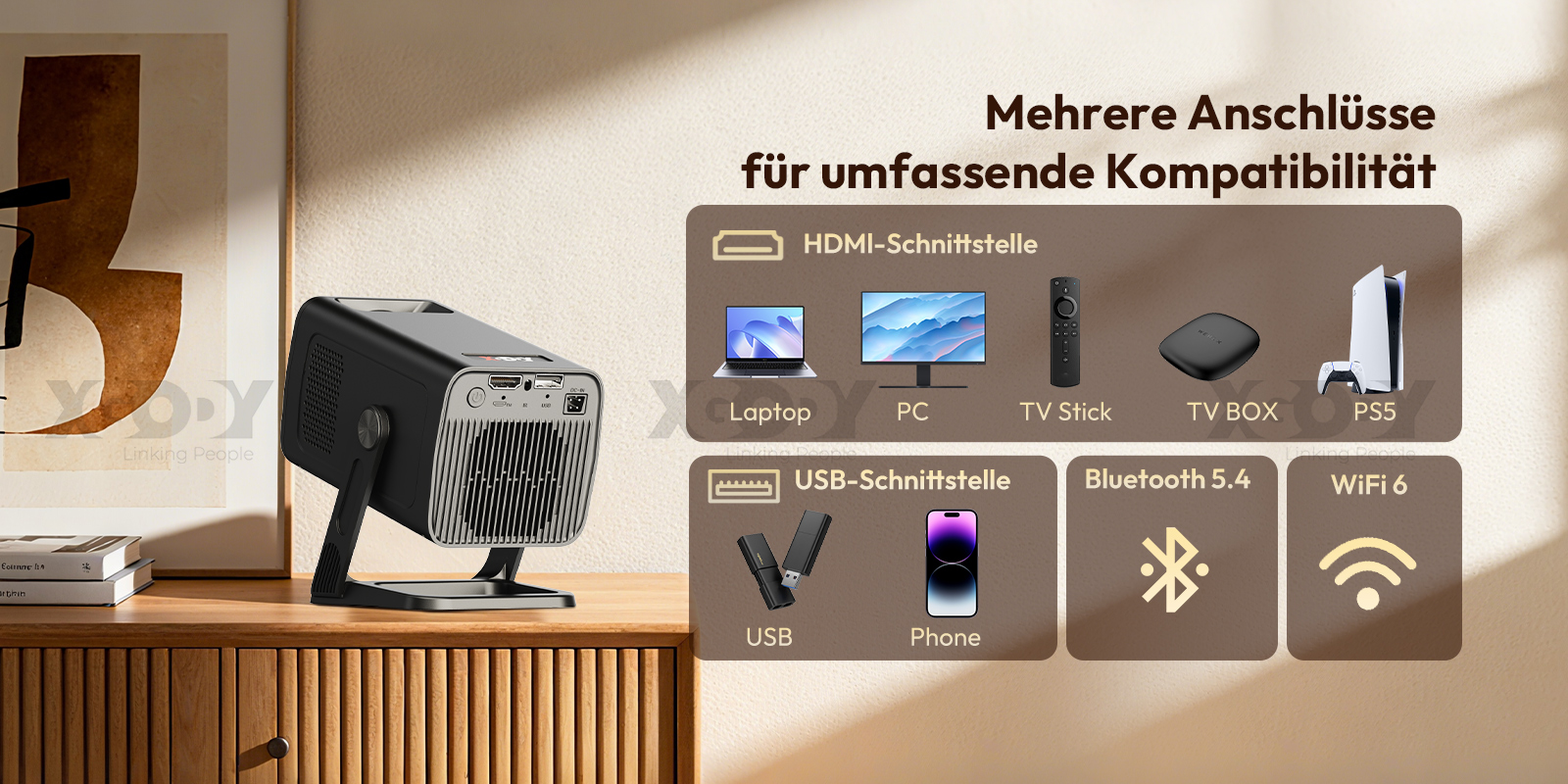
Figure 2: Contents of the XGODY Gimbal 5 Go Projector package.
3. Product Overview
Familiarize yourself with the projector's components and interfaces.
3.1. Front View
Video 1: XGODY Gimbal 5 Go Projector Unboxing and Overview. This video demonstrates the physical components and initial setup.
3.2. Rear View and Ports
The rear panel of the projector houses all the essential input/output ports:
- Power Button: To turn the projector on/off.
- HDMI Port: For connecting external devices like laptops, PCs, TV sticks, TV boxes, or gaming consoles (e.g., PS5).
- USB Port: For connecting USB drives or charging compatible devices.
- DC-IN Port: For connecting the power adapter.
- IR Receiver: For remote control signals.
Figure 3: Rear view of the projector highlighting various input/output ports.
4. Initial Setup
4.1. Power Connection
- Connect the power cable to the DC-IN port on the projector.
- Plug the power adapter into a suitable power outlet.
- Press the power button on the projector or the remote control to turn it on.
4.2. Placement and Adjustment
The Gimbal 5 Go features a flexible 180-degree rotation stand, allowing for versatile placement. Position the projector on a stable surface. You can project onto a wall, ceiling, or screen.
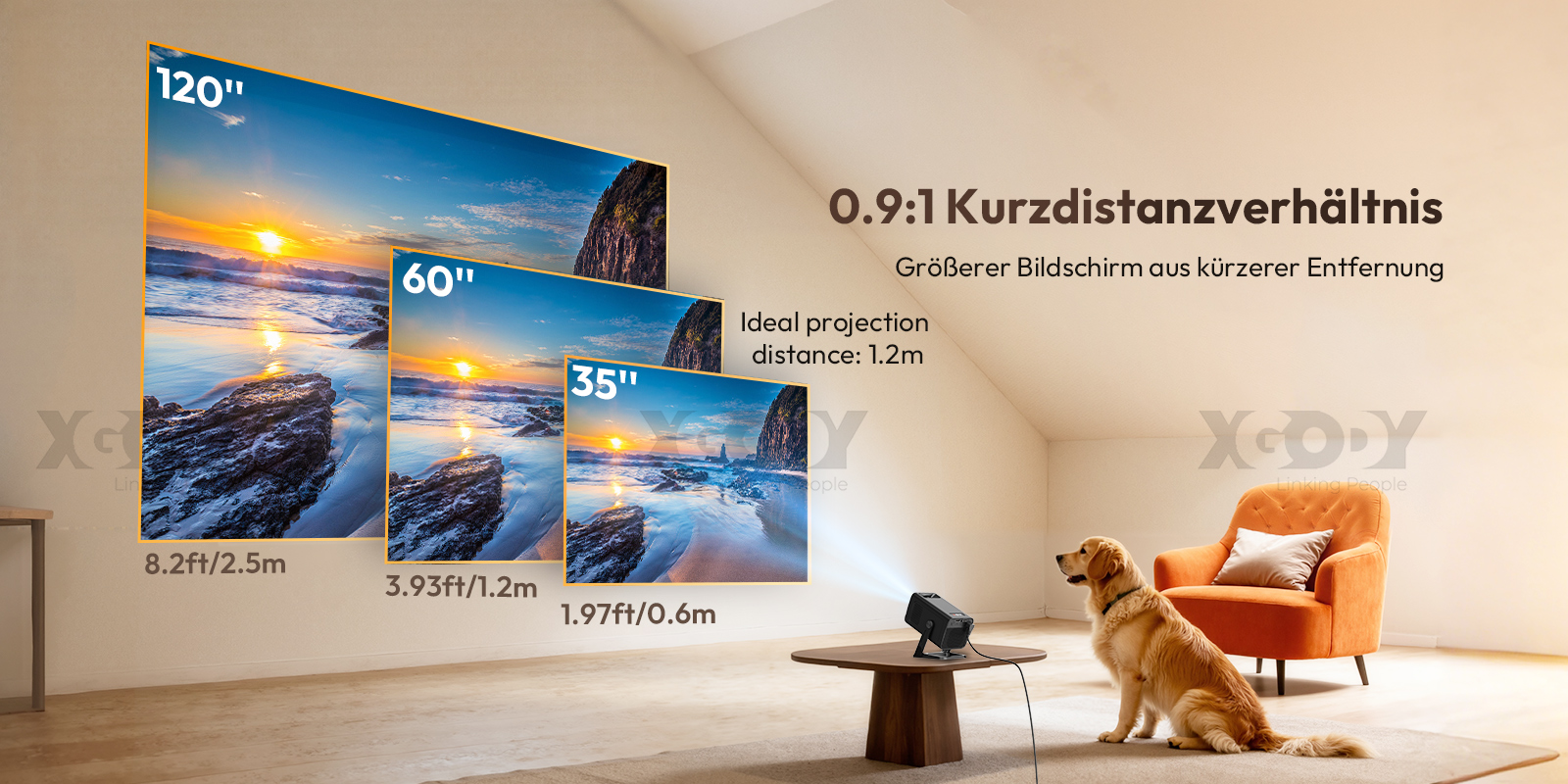
Figure 4: Projector showing its adjustable stand and 180-degree rotation capability.
4.3. Network Connection (Wi-Fi)
- Once powered on, navigate to the 'Settings' menu using the remote control.
- Select 'Network' or 'Wi-Fi Settings'.
- Choose your desired Wi-Fi network from the list.
- Enter the password and connect. The projector supports Dual WiFi 6 for faster and more stable streaming.
5. Operating Instructions
5.1. Navigating the Android 14.0 Interface
The projector runs on Android 14.0, providing a smart and user-friendly interface. Use the included remote control to navigate through menus, select applications, and adjust settings.

Figure 5: Android 14.0 Smart System interface with pre-installed streaming applications.
5.2. Focus and Keystone Correction
The projector features both manual focus and automatic keystone correction to ensure a clear and perfectly rectangular image.
- Automatic Keystone Correction: The projector will automatically adjust the image shape to correct for angled projection.
- Manual Focus: Use the manual focus ring or remote control options to fine-tune the image clarity.

Figure 6: Demonstrating automatic keystone correction and manual focus for optimal image quality.
5.3. Screen Mirroring
Share content from your phone or tablet instantly using wired or wireless screen mirroring options.
- Wired Connection: Supports Android Wired and Apple Wired connections.
- Wireless Casting: Supports Android Wireless, Miracast, and Airplay for seamless screen sharing.

Figure 7: Screen mirroring functionality from various devices.
6. Connectivity
6.1. HDMI Input
Connect your laptop, PC, TV stick, TV box, or gaming console to the projector using an HDMI cable for high-definition video and audio transmission.
6.2. USB Input
Plug in a USB drive to play media files directly from it. The USB port can also be used for charging compatible devices.
6.3. Bluetooth 5.4
Connect external Bluetooth speakers, headphones, or other audio devices for an enhanced audio experience. The projector's built-in speaker provides adequate sound, but Bluetooth allows for more immersive audio.
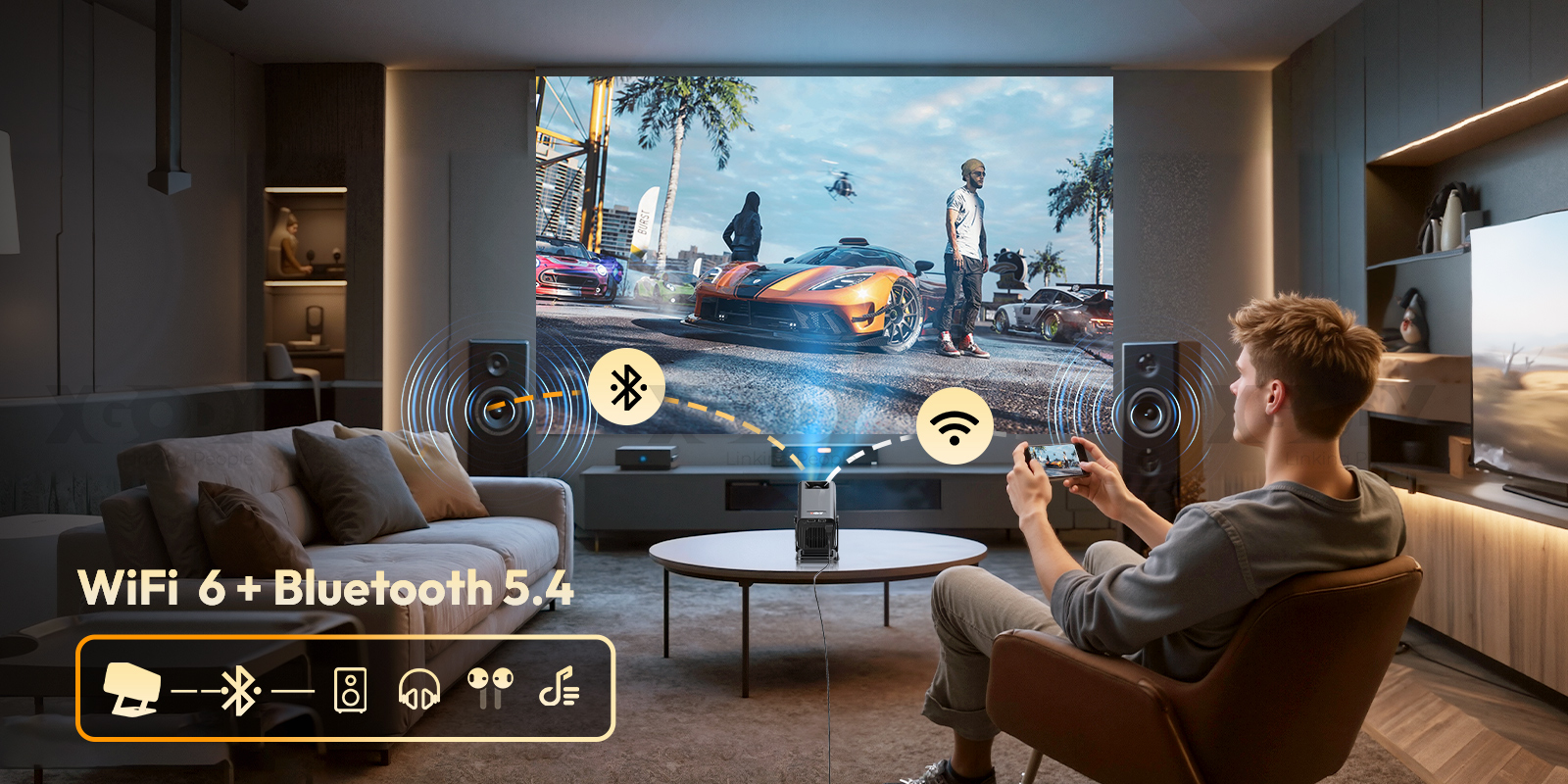
Figure 8: Projector connected to external speakers via Bluetooth for an immersive gaming experience.
6.4. Dual Wi-Fi 6
Benefit from faster and more stable internet connectivity with Dual Wi-Fi 6, supporting both 2.4G and 5GHz bands for smooth streaming and online activities.
7. Projection Settings
7.1. Projection Distance and Screen Size
The Gimbal 5 Go is a short-throw projector, offering a large screen from a short distance. The ideal projection distance is 1.2 meters for a 60-inch screen, with a range of 0.6-2.5 meters supporting screen sizes from 35 to 120 inches (or up to 130 inches as per some specifications).
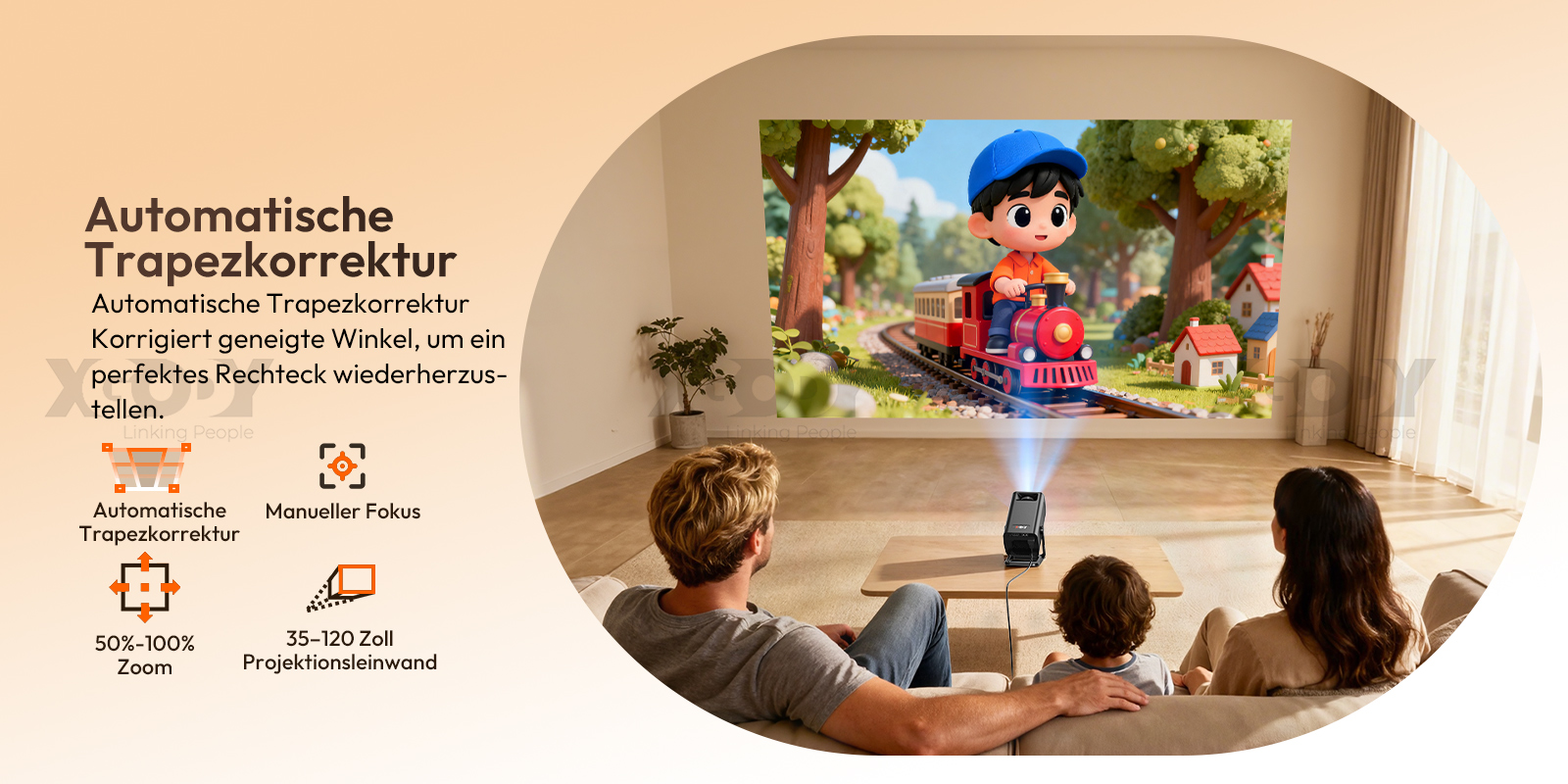
Figure 9: Guide for optimal projection distance and corresponding screen sizes.
7.2. Projective Modes
The projector supports various projective modes to suit your setup:
- Throwing: Standard front projection.
- Ceiling: For ceiling-mounted installations.
- Back Projection: For projecting from behind a translucent screen.
- Mirror Image: For specific display needs.
8. Maintenance
8.1. Cleaning the Lens
Use a soft, lint-free cloth specifically designed for optical lenses to gently wipe the projector lens. Avoid using abrasive cleaners or excessive force, as this can scratch the lens.
8.2. Cleaning the Projector Body
Wipe the exterior of the projector with a soft, dry cloth. Do not use liquid or aerosol cleaners directly on the device.
8.3. Storage
When not in use for extended periods, store the projector in a cool, dry place, away from direct sunlight and extreme temperatures. It is recommended to use the original packaging or a protective case to prevent dust accumulation and damage.
9. Troubleshooting
| Problem | Possible Cause | Solution |
|---|---|---|
| No image displayed | Power cable not connected; Projector not turned on; Input source incorrect; Lens cap on. | Ensure power is connected and unit is on; Select correct input source (HDMI, USB); Remove lens cap. |
| Image is blurry | Out of focus; Incorrect projection distance. | Adjust manual focus; Ensure projector is within optimal projection distance (0.6-2.5m). |
| Image is distorted (trapezoid shape) | Projector is not perpendicular to the screen. | Allow automatic keystone correction to adjust; Manually adjust keystone settings if needed. |
| No sound | Volume too low; Muted; External audio device not connected properly; Bluetooth not paired. | Increase volume; Unmute; Check external audio connections; Re-pair Bluetooth device. |
| Remote control not working | Batteries low/dead; Obstruction between remote and projector; Remote not pointed at IR receiver. | Replace batteries; Remove obstructions; Point remote directly at the projector's IR receiver. |
| Wi-Fi connection unstable | Weak signal; Router issues; Interference. | Move projector closer to router; Restart router; Check for interference from other devices. |
10. Specifications
| Feature | Detail |
|---|---|
| Brand | XGODY |
| Model | Gimbal 5 Go |
| System | Android 14.0 |
| Optical Resolution | 1280x720dpi (Native 720P) |
| Supported Resolutions | 4K, 1920x1080, 1280x720 |
| ANSI Lumens | 300 |
| Contrast Ratio | 5001:1-8000:1 |
| Projected Dimension | 40-130 inches |
| Projection Distance | 0.6-2.5 meters |
| Projection Technology | LED |
| Screen Scale | 16:9 |
| Projective Mode | Throwing, Ceiling, Back Projection, Mirror Image |
| Portable | Yes |
| Use | Home |
| Type | Short-Focus |
| Weight | 0.66 KG |
| Input/Output | HDMI, USB |
| Built-in Speaker | Yes |
| Bluetooth-compatible | Yes (Bluetooth 5.4) |
| Wi-Fi | Dual Wi-Fi 6 (2.4G & 5GHz) |
| Remote Control Included | Yes |
| Battery | No |
| Power Source | DC |
| Inbox Adaptor | Yes |
| Keystone Correction | Automatic Correction, Manual Focus |
| Light Source | LED |
| Lamp Life | 50,000 hours |
| Power (W) | 48W |
11. User Tips
- For the best viewing experience, use the projector in a dark environment.
- While the built-in speaker is convenient, connecting external Bluetooth speakers can significantly enhance audio quality for movies and music.
- Regularly check and adjust the focus and keystone correction, especially if the projector has been moved, to ensure a sharp and correctly proportioned image.
- Utilize the 180-degree rotation feature to project onto ceilings for a unique viewing experience in bed.
- Keep the projector's ventilation areas clear to prevent overheating and ensure optimal performance.
12. Warranty and Support
XGODY is committed to providing excellent customer service and support for your Gimbal 5 Go Smart Projector.
- Quick Response: Expect a response to your inquiries within 24 hours.
- Returns: Returns are accepted within 30 days for an exchange or refund.
- Technical Support: Lifetime technical customer support is provided for your product.
For any assistance, please contact XGODY customer service through the official channels.
Figure 10: XGODY customer support commitment.


