
1. Introduction
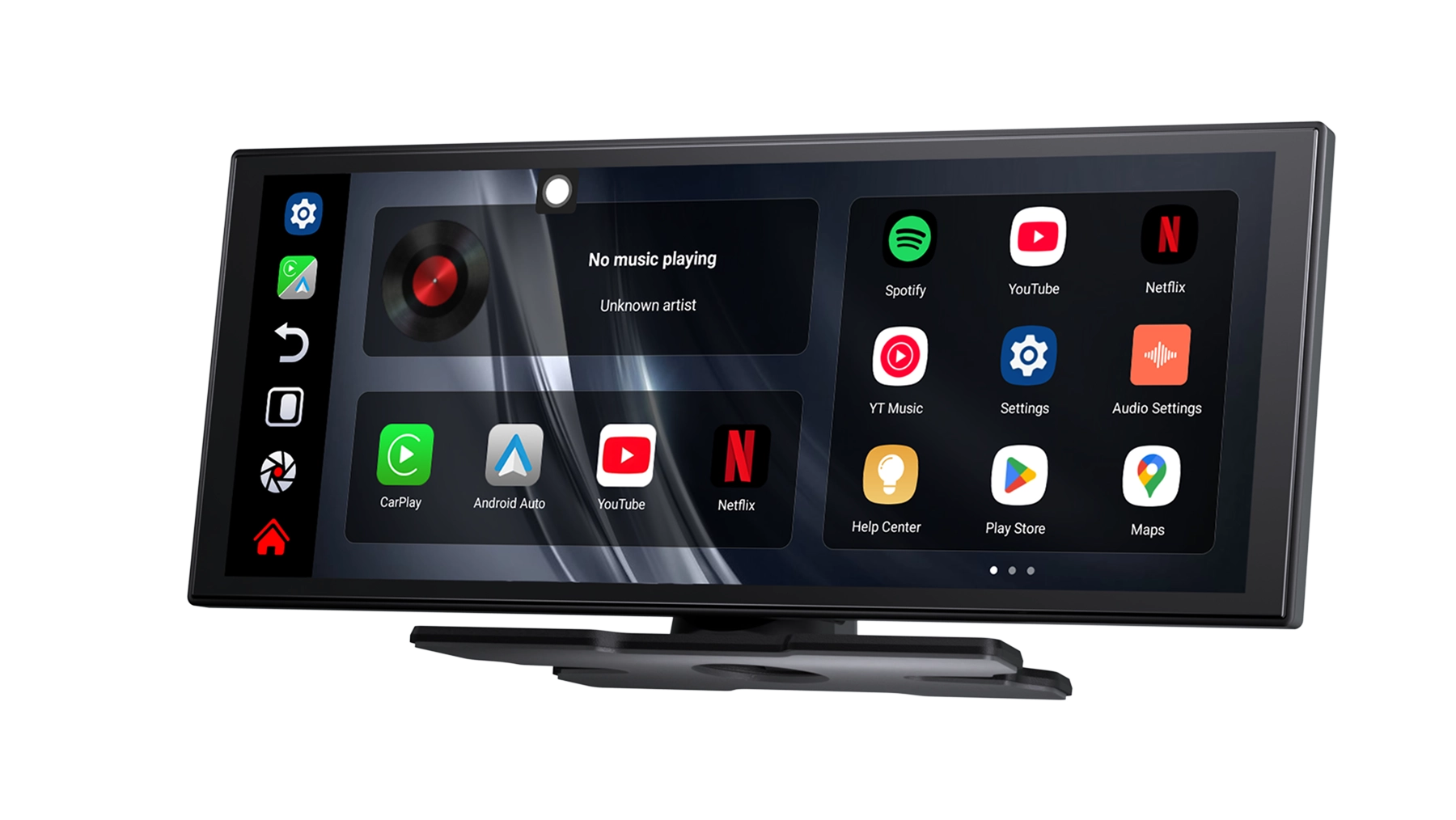
The Ottocast Ottoscreen AI is an advanced 11.4-inch smart car display designed to enhance your driving experience with seamless connectivity and entertainment. Featuring wireless CarPlay and Android Auto, an 8-core CPU, 4GB RAM, and 64GB storage, it offers fast, smooth performance for navigation, multimedia, and communication. This manual provides essential information for setting up, operating, and maintaining your Ottoscreen AI device.

2. Package Contents
Upon opening the box, you should find the following items:
- Ottoscreen AI 11.4" Display Unit
- Mounting Base
- Power Cable (Car Charger)
- AUX Cable
- USB Data Cable
- User Manual (this document)
- (Optional) 1080P AHD Rearview Camera (if selected at purchase)

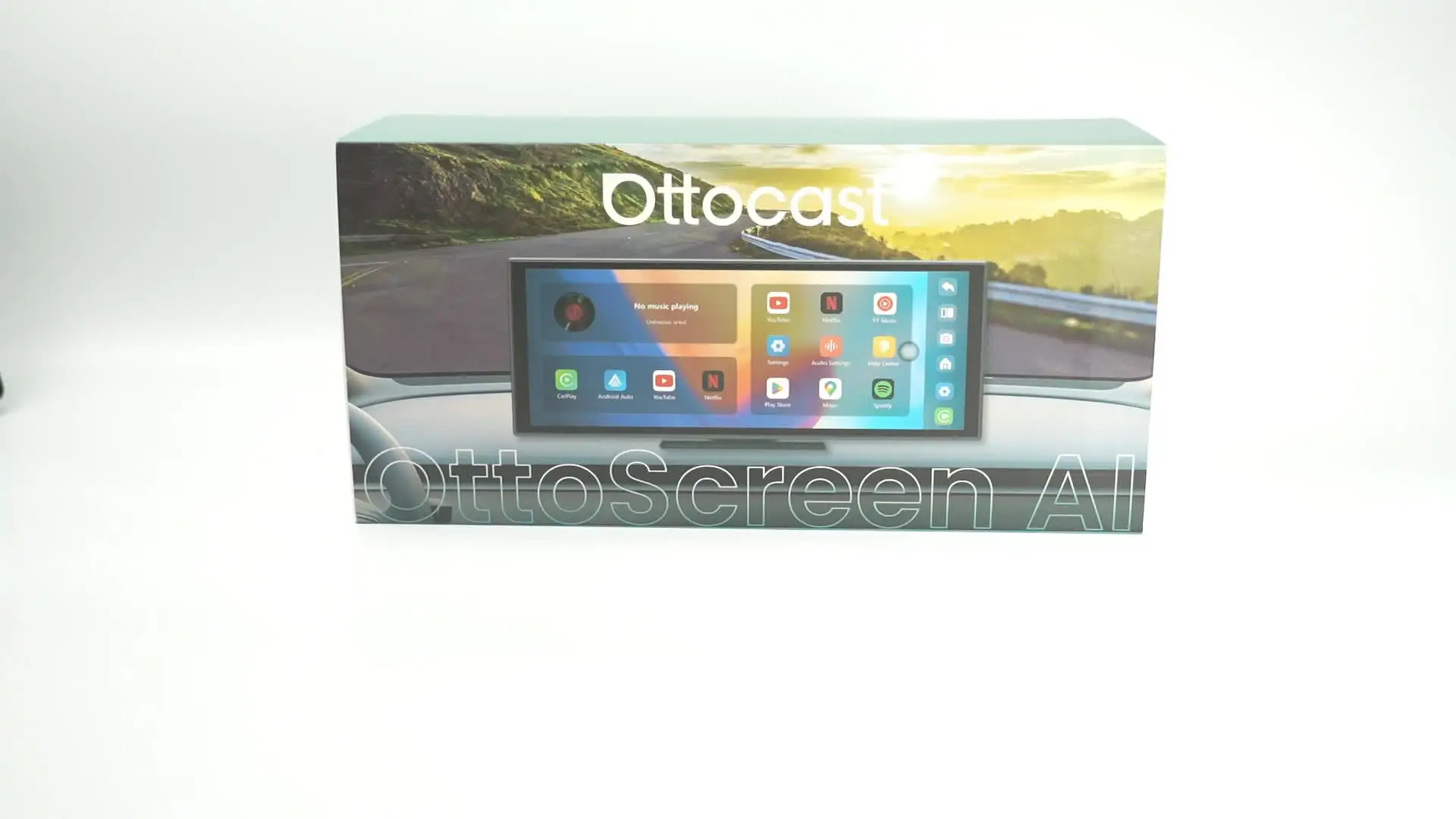
Video 1: Unboxing the Ottocast Ottoscreen AI and its accessories.
3. Setup Instructions
3.1 Mounting the Display
- Choose a suitable location on your dashboard that does not obstruct your view or interfere with driving controls.
- Clean the dashboard surface thoroughly to ensure proper adhesion of the mounting base.
- Attach the display unit to the mounting base. The base is typically pre-installed on the display.
- Secure the mounting base to the dashboard. Ensure it is stable and does not move during driving.
3.2 Power Connection
- Connect the provided car charger power cable to the Ottoscreen AI unit.
- Plug the car charger into your vehicle's 12V power outlet (cigarette lighter socket).
- The device should power on automatically or by pressing the power button.
3.3 Connecting to Car Speakers
The Ottoscreen AI offers three methods to output audio to your car's speaker system:
- FM Transmit: Tune your car radio to an unused FM frequency, then set the Ottoscreen AI to transmit audio on the same frequency.
- Bluetooth: Pair the Ottoscreen AI with your car's Bluetooth system. Select the Ottoscreen AI as an audio source on your car's infotainment system.
- AUX Connection: Use the provided AUX cable to connect the Ottoscreen AI's audio output to your car's AUX input port.

3.4 Optional Rearview Camera Installation
If you have purchased the optional 1080P AHD rearview camera, refer to the separate camera installation guide provided with the accessory for detailed wiring and mounting instructions. Ensure the camera is securely mounted and properly connected to the Ottoscreen AI for optimal functionality.

4. Operating Instructions
4.1 Wireless CarPlay & Android Auto
- Ensure Bluetooth and Wi-Fi are enabled on your smartphone.
- On the Ottoscreen AI, select the CarPlay or Android Auto icon.
- Follow the on-screen prompts to pair your phone. Once paired, your phone's interface will appear on the Ottoscreen AI display.

4.2 Voice Control (AI Assistant)
The Ottoscreen AI features a built-in AI assistant for hands-free operation. Activate it by saying "Hey Google" or "Hi Siri" (when connected to CarPlay) or by tapping the voice assistant icon. You can use voice commands for:
- Navigation: "Navigate to [address/place]"
- Calls: "Call [contact name]"
- Music: "Play [song/artist]"
- App control: "Open Netflix"

4.3 Entertainment and Apps
The device supports a wide range of entertainment applications. You can download and use apps like YouTube, Netflix, and others directly from the Google Store. The 8-core CPU and 4GB RAM ensure smooth streaming and app performance.

4.4 Split-Screen Functionality
The Ottoscreen AI supports free split-screen functionality, allowing you to run two applications simultaneously. For example, you can have navigation on one side and a music player or video on the other. Consult the on-screen interface for specific gestures or buttons to activate and manage split-screen mode.
5. Maintenance
- Cleaning: Use a soft, lint-free cloth to clean the screen. For stubborn smudges, slightly dampen the cloth with water or a screen-safe cleaner. Avoid harsh chemicals or abrasive materials.
- Software Updates: Periodically check for system updates through the device settings to ensure optimal performance and access to the latest features.
- Temperature: Avoid exposing the device to extreme temperatures (very hot or very cold) for extended periods, as this can affect its lifespan and performance.
- Cable Management: Ensure all cables are neatly routed and secured to prevent entanglement or damage.
6. Troubleshooting
- Device not powering on: Check the power cable connection to both the device and the car's 12V outlet. Ensure the car's ignition is on.
- No audio from car speakers: Verify the audio connection method (FM, Bluetooth, AUX) is correctly configured on both the Ottoscreen AI and your car's audio system. If using FM, ensure both are on the same clear frequency. If using Bluetooth, ensure successful pairing.
- CarPlay/Android Auto not connecting wirelessly: Ensure Bluetooth and Wi-Fi are active on your phone. Forget and re-pair the device in your phone's Bluetooth settings and on the Ottoscreen AI.
- Lagging performance: Close unnecessary background applications. Ensure the device has sufficient free storage. A factory reset might be necessary if the issue persists (backup data first).
- Rearview camera not displaying: Check the camera's power and video signal connections. Ensure the camera input is selected or automatically triggered when reversing.
7. Specifications
| Feature | Specification |
|---|---|
| Brand Name | OTTOCAST |
| Origin | Mainland China |
| Android Version | Android 15 |
| RAM+ROM | 4GB RAM + 64GB Storage |
| Bluetooth | 4.2 & 5.4 |
| Resolution | 1920*720 |
| WIFI | WIFI5+WIFI6 (Dual-band WLAN) |
| CPU | 8 cores (A73*2 + A53*6) |
| Split-screen | Free Split Screen |
| Features | Wireless Carplay, Wireless Android Auto, Google Store |
| Display Size | 11.4 inches |
| Display Technology | In-Cell Touch |
| Contrast | 1:1000 |
| Daylight Visible | 600 Cd/m2 |

8. User Tips
- Bluetooth Audio Output: If your car has Bluetooth, you can connect the Ottoscreen AI to your car's radio via Bluetooth for audio output, providing a cleaner sound than FM transmission.
- Voice Commands: Utilize the AI assistant for most functions to minimize distractions while driving. Practice common commands for navigation, calls, and music playback.
- App Management: Regularly close unused apps to free up RAM and ensure smooth performance, especially when multitasking.
- Screen Brightness: Adjust the screen brightness according to ambient light conditions for optimal visibility and to reduce eye strain. The 600 Cd/m2 brightness ensures good visibility even in daylight.
9. Warranty & Support
For warranty information, technical support, or service inquiries, please refer to the official Ottocast website or contact your retailer. Keep your proof of purchase for warranty claims.