
1. Product Overview
The LIHETUN Gyroscope Air Mouse Remote Control Mini Keyboard is a versatile input device designed for various platforms including Android, Windows, Mac OS, iOS, and Linux. It features dual-mode connectivity (2.4G wireless and Bluetooth 5.0), a 6-axis gyroscope for precise air mouse control, a full QWERTY mini keyboard, and 7-color adjustable backlighting.

Figure 1: Product Overview - Front and Back

Figure 2: 6-Axis Gyro Sensor in Action
2. Package Contents
- 1 x Wireless Remote Control (AAA Battery not included)
- 1 x Wireless Receiver
- 1 x User Manual
3. Setup
3.1 Battery Installation
Open the battery compartment on the back of the remote control and insert AAA batteries (not included), ensuring correct polarity. Close the compartment securely.
3.2 Initial Connection (2.4G Wireless Mode)
For initial use, plug the USB receiver into an available USB port on your device (e.g., Smart TV, computer, projector). Wait for 20-60 seconds for the device to install the necessary drivers. Once installed, move the air mouse; if the cursor moves on the screen, the pairing is successful.
3.3 Pairing Instructions
Normally, the remote control is pre-paired at the factory. If connection issues occur, follow these steps:
3.3.1 2.4G Pairing
- Unplug and then re-plug the USB receiver into the device.
- Press and hold the "OK" and "Back" buttons on the remote control simultaneously.
- After approximately three seconds, the red indicator light will flash quickly, indicating pairing has begun.
- The indicator light will turn off after a few seconds, signifying successful pairing.
3.3.2 Bluetooth Pairing
- Press and hold the "OK" + "Home" buttons on the remote control simultaneously. The red indicator light will flash quickly, indicating that the remote has entered Bluetooth pairing mode.
- On your device, open the Bluetooth search settings.
- Locate and select the Bluetooth device named "M3" (or "M5" as seen in some instructions) from the list of available devices.
- Click to connect. The red indicator light on the remote control will turn off, and the cursor button will function normally, confirming successful pairing.
3.4 Mode Switching
To switch between 2.4G wireless mode and Bluetooth mode, simply press the Bluetooth & 2.4G pairing key combination.
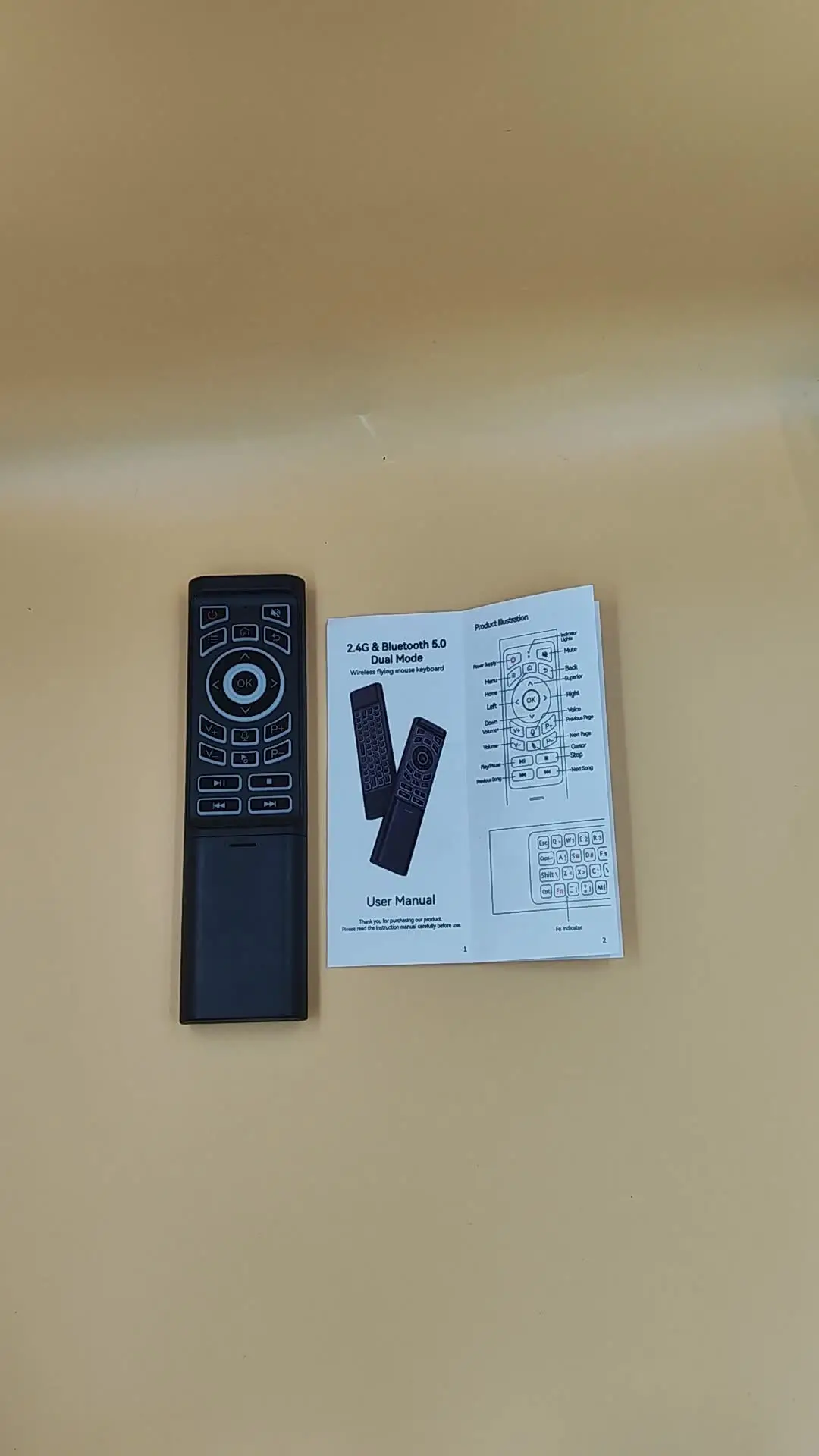
Video 1: Product Demonstration (Pairing, Backlight, IR Learning)
4. Operating Instructions
4.1 Flying Mouse Function
Click the "Cursor" button (located on the front face) to activate the flying mouse function. The cursor on your screen will move in the direction you move the remote. The "OK" button acts as the left mouse button. Click the "Cursor" button again to deactivate the flying mouse function.

Figure 3: Front Button Layout
4.2 CPI (Cursor Speed) Adjustment
- To increase the flying mouse cursor speed: Press and hold "OK" + "V+".
- To decrease the flying mouse cursor speed: Press and hold "OK" + "V-".
The indicator light will flash quickly during adjustment. Release the keys once the desired speed is set. The CPI will be adjusted to the original level.
4.3 Backlight Control
To turn on or off the backlight, press and hold the "Fn" + "Space" keys on the back of the remote control. To cycle through the 7 available backlight colors, press and hold "Fn" + "Space" again.

Figure 4: Back Keyboard Layout
4.4 Voice Control Function
Press and hold the "Voice" button and speak your command. This function requires Google Assistant or Google Voice Search to be installed on your device.
4.5 Infrared Learning Function
This function allows the remote to learn infrared commands from another TV remote control. This is active when the remote is NOT connected via USB receiver (front buttons are infrared, except cursor and voice keys).
- Press and hold the "Power" button on the air mouse remote. The indicator light will change from solid on to slowly flashing, indicating entry into infrared learning mode.
- Align the infrared transmitters of the air mouse remote and the TV remote control. Press the "Power" button on the TV remote control. The air mouse indicator light will flash quickly, confirming successful learning of the infrared code.
- The air mouse indicator light will then flash slowly, indicating that the infrared remote control code has been successfully learned.
- To clear the learned infrared code and restore factory settings, press and hold the "OK" + "P+" keys.
4.6 Flip Prohibition Function
To prevent accidental key presses, only the front buttons are active when the remote is facing upwards. The keyboard (downward) functions are disabled in this orientation.
4.7 Sleep and Wake Up
The remote control will enter sleep mode after 15 seconds of inactivity. Press any button to wake it up.
5. Maintenance
- Cleaning: Use a soft, dry cloth to clean the remote control. Avoid using liquid cleaners or aerosols.
- Battery Replacement: Replace AAA batteries when the remote's performance degrades or it stops responding. Ensure correct polarity.
- Storage: Store the remote control in a cool, dry place away from direct sunlight and extreme temperatures. If storing for extended periods, remove the batteries to prevent leakage.
6. Troubleshooting
- Remote not responding: Check battery levels and replace if necessary. Ensure the USB receiver is properly plugged in. Try re-pairing the device (refer to Section 3.3).
- Cursor erratic or not moving smoothly: Adjust the CPI (cursor speed) as described in Section 4.2. Ensure there are no obstructions between the remote and the USB receiver.
- Backlight not working: Press and hold "Fn" + "Space" to toggle the backlight.
- Voice control not working: Ensure your device has Google Assistant or Google Voice Search installed and configured.
- Air mouse not working on certain TVs: Note that the air mouse functionality may not be compatible with some LG, Samsung Smart TVs, or Xiaomi boxes.
- Buttons on the back (keyboard) not working: Ensure the remote is not flipped to the front side, as the flip prohibition function disables the back keyboard when the front buttons are facing upwards.
7. Specifications

Figure 5: Product Specifications
| Feature | Detail |
|---|---|
| Wireless Communication | 2.4G RF, Bluetooth 5.0 |
| Frequency | 2.400-2.483GHz |
| Working Temperature | -20°C ~ 65°C |
| Battery Type | AAA (not included) |
| Working Current | 33mA |
| Standby Current | 25uA |
| Transmission Distance | 8-10m |
| Dimensions | 168mm x 45mm x 18mm |
| Weight | 68g |
| Supported Systems | Android, Windows (2000, XP, Vista, CE, 7), Mac OS X, Linux (Debian-3.1, Redhat-9.0, Ubuntu-8.10, Fedora-7.0) |
| Use Cases | TV, Computer, Projectors |

Figure 6: Product Dimensions
8. User Tips
- For optimal performance, ensure a clear line of sight between the remote and the USB receiver, especially in 2.4G mode.
- Remember that the air mouse function might not work on all Smart TVs, specifically some LG, Samsung, and Xiaomi box models.
- When using the voice control feature, make sure your device has Google Assistant or Google Voice Search installed and properly configured.
- The backlight feature is very useful in low-light conditions. Cycle through the 7 colors to find your preference by repeatedly pressing and holding "Fn" + "Space".
9. Warranty and Support
For any issues or questions regarding your LIHETUN Gyroscope Air Mouse Remote Control Mini Keyboard, please contact the seller or manufacturer directly. Keep your purchase receipt as proof of purchase for warranty claims. Refer to the product packaging or seller's website for specific warranty terms and contact information.