
1. Introduction
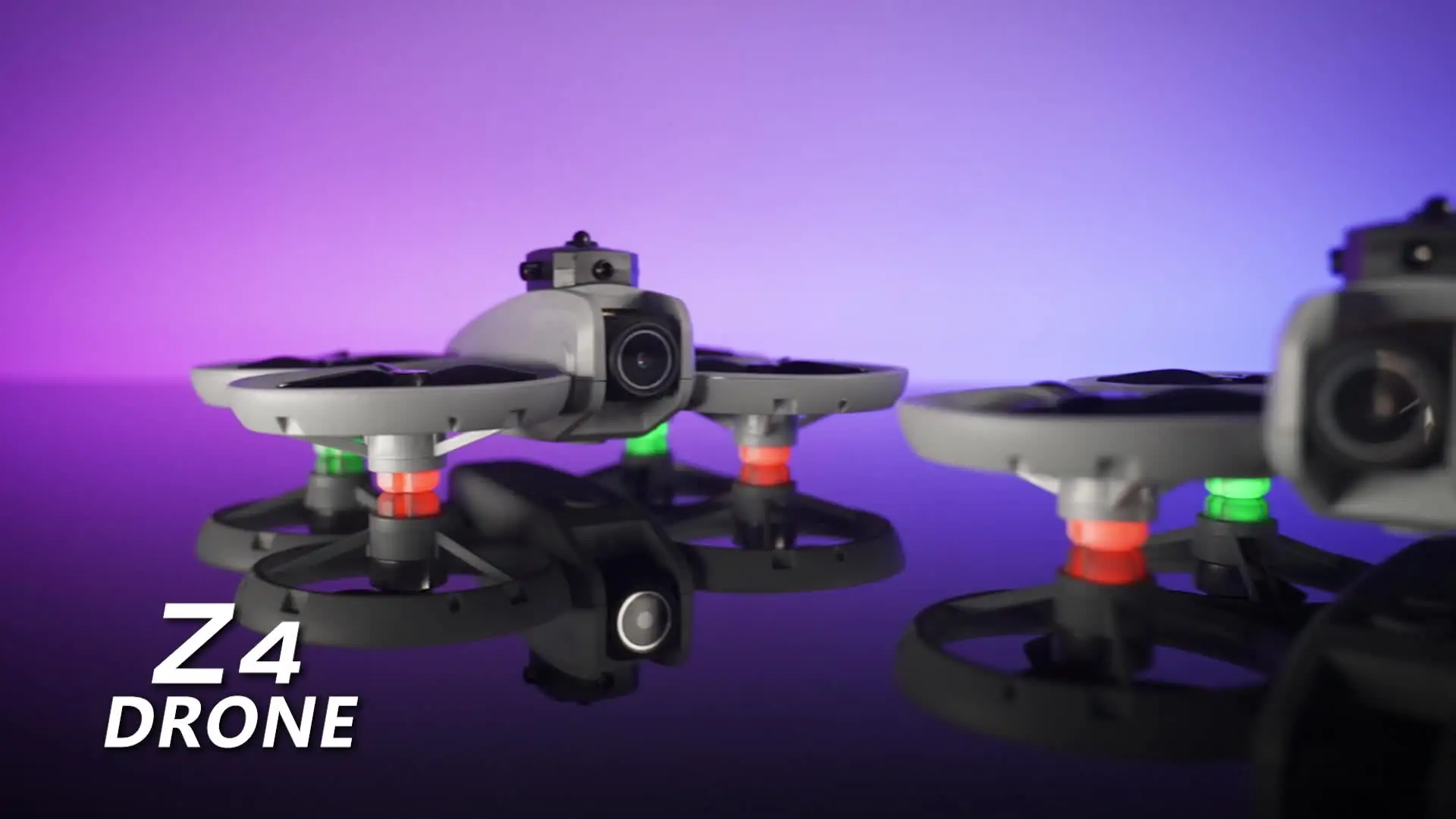
The Z4 Drone is a professional aerial photography drone equipped with a 4K HD camera, brushless motors, optical flow positioning, and a 4.3-inch screen control for an enhanced flying experience. Designed for both beginners and experienced pilots, it offers intelligent features like 360° obstacle avoidance and various flight modes for capturing stunning visuals.

2. Safety Information
⚠️ For recreation use only. Illegal modification of drones/planes is prohibited. Please also pay attention to the relevant laws and regulations on the use of drones/planes in your country/area to ensure legal use.
- Always operate the drone in open areas, away from people, animals, and obstacles.
- Do not fly near airports or restricted airspace.
- Ensure the battery is fully charged and securely installed before each flight.
- Perform pre-flight checks as outlined in the setup section.
- Avoid flying in strong winds or adverse weather conditions.
- Keep hands and face clear of rotating propellers.
3. Package Contents
Please check the package contents carefully upon unboxing to ensure all items are present:

- Aircraft x 1
- Remote Control x 1
- Body Battery x 1
- Protection Circle x 2
- Spare Maple Leaves (Propellers) x 2
- USB Charging Cable x 1
- Screwdriver x 1
- Instruction Manual x 1
4. Specifications

| Parameter | Value |
|---|---|
| Product Name | Z4 intelligent aerial drone |
| Product Dimensions | 18 x 15.3 x 6 cm |
| Drone Weight | 132g |
| Flight System | Optical flow hovering positioning |
| Flight Assistance | 360° intelligent sensing obstacle avoidance |
| Power System | Magnetic levitation brushless motor |
| Shooting System | High-definition camera |
| Lens Parameter | Electrically adjustable lens |
| Video Max Resolution | 480i/P (720*480) |
| Body Battery | 3.7V 1300mAh |
| Flight Time | Approx. 12-15 minutes |
| Remote Distance | 100m |
| Connectivity | WiFi, APP Controller, Remote Control |
| Aircraft Operating Frequency | 2.4 GHz |
| Max Wind Speed Resistance | < 10 KM/H |
| Max Takeoff Weight | <1kg |
| Recommended Age | 14+ Years |

5. Setup
5.1. Battery Installation and Charging
- Insert the 3.7V 1300mAh modular battery into the drone's battery compartment. Ensure it clicks securely into place.
- To charge the battery, connect the USB charging cable to the battery and a suitable USB power source (e.g., computer, USB wall adapter). The battery features an LCD power display to indicate charging status.
- Charge the remote control using its dedicated charging port if applicable.
5.2. Propeller Guard Installation
Attach the two protection circles (propeller guards) to the drone's arms. These guards help prevent damage to the propellers during minor collisions.

5.3. Remote Control Setup
Familiarize yourself with the remote control layout:

- Power Switch: Turns the remote control on/off.
- Throttle Control Lever: Controls altitude (up/down).
- Directional Joystick: Controls forward/backward, left/right movement.
- One-click Takeoff/Landing: Initiates or lands the drone automatically.
- Obstacle Avoidance Switch: Activates/deactivates obstacle avoidance mode.
- Camera Up and Down: Adjusts the camera angle.
- Take a Photo/Video Recording: Captures images or starts/stops video recording.
- Headless Mode: Simplifies flight by removing the need to orient the drone.
- Speed Gear: Adjusts flight speed.
- Fine-tuning: Corrects minor drifts in flight.
- Return: Initiates return-to-home function (if available and configured).
- Screen Switch: Toggles display modes on the remote screen.
5.4. App Connection (Optional)
For advanced features and real-time FPV (First Person View) on your smartphone:
- Download the dedicated Z4 Drone app from your device's app store.
- Power on the drone and the remote control.
- Connect your smartphone to the drone's Wi-Fi network (usually named 'Z4_DRONE_XXXX').
- Open the app to establish a connection and access additional controls and live feed.
6. Operating Instructions
6.1. Basic Flight
- Power On: Place the drone on a flat surface. Power on the drone, then the remote control. Wait for the drone and remote to pair (indicator lights will stabilize).
- Calibration: If necessary, perform gyroscope calibration as per the remote control guide (one-click correction button).
- Takeoff: Press the one-click takeoff button on the remote control or push both joysticks simultaneously outwards and upwards to start the motors, then push the left joystick up to ascend.
- Landing: Press the one-click landing button or slowly pull the left joystick down to descend and land.

6.2. Advanced Flight Features
- Optical Flow Positioning: The drone uses optical flow sensors for stable hovering and precise positioning, especially indoors or at low altitudes.
- Intelligent Obstacle Avoidance: Activate the obstacle avoidance mode using the dedicated switch on the remote. The drone will automatically detect and avoid obstacles, enhancing flight safety.
- Headless Mode: Press the headless mode button. In this mode, the drone's orientation is irrelevant; it will always move relative to the pilot's position.
- Trajectory Flight: Using the app, draw a desired flight path on your screen, and the drone will follow it automatically.
- One-touch 360° Roll: Execute aerial stunts with a single button press for dynamic photography.


6.3. Camera Operation
- 4K HD Camera: The drone features a high-definition camera for capturing clear photos and videos.
- Electrically Adjustable Lens: Adjust the camera angle up and down directly from the remote control for optimal shooting perspectives.
- 50x Digital Zoom: Utilize the app to zoom in up to 50x for detailed shots from a distance.
- Gesture Photography: Perform specific hand gestures in front of the camera to trigger photo or video capture.
- Beauty Filter: The app includes built-in filter effects to enhance your aerial photos.
- Horizontal/Vertical Tap Switching: Easily switch between horizontal and vertical video modes via the app.

6.4. Remote Control Screen and FPV
The remote control features a 4.3-inch integrated screen for real-time image transmission with zero delay, eliminating the need for a separate mobile phone for FPV.

Video Demonstration:
7. Maintenance
- Cleaning: Regularly clean the drone body and propellers with a soft, dry cloth. Avoid using harsh chemicals.
- Propeller Inspection: Check propellers for any cracks, bends, or damage before each flight. Replace damaged propellers with spare ones using the provided screwdriver.
- Battery Care: Store batteries in a cool, dry place. Do not overcharge or over-discharge. If not used for a long time, charge them to about 50-60% capacity.
- Motor Care: The brushless motors are designed for durability. Keep them free from dust and debris.
- Storage: When not in use, store the drone and remote control in a safe, dry place, preferably in its original packaging or a protective case.
8. Troubleshooting
- Drone does not respond to remote control:
- Ensure both the drone and remote are powered on and fully charged. Re-pair the remote control with the drone according to the pairing instructions in the full manual.
- Unstable flight/Drifting:
- Perform gyroscope calibration on a flat surface. Check for damaged propellers and replace if necessary. Ensure there are no strong winds affecting flight.
- No image transmission to remote screen/app:
- Verify the drone's Wi-Fi connection to your smartphone (if using the app). Ensure the drone's camera is properly connected and functioning. Check for interference in the 5G transmission band.
- Obstacle avoidance not working:
- Ensure the obstacle avoidance mode is activated on the remote control. Check if the sensors are clean and unobstructed.
9. User Tips
- For beginners, start flying in a large, open area with minimal wind.
- Practice basic controls (takeoff, landing, hovering) before attempting advanced maneuvers.
- Utilize the headless mode to simplify control orientation, especially when learning.
- The 4.3-inch screen on the remote provides a clear FPV experience without needing a phone, but connecting to the app unlocks additional features like trajectory flight and digital zoom.
- Always keep an eye on the drone's battery level, both on the drone's LCD display and the remote control's indicators.
10. Warranty and Support
For any issues, questions, or support needs, please contact the seller or manufacturer directly. Refer to your purchase documentation for specific warranty terms and contact information.