
1. Setup
This section guides you through the initial setup of your Incott G23V2 SE or G23V2 Pro wireless gaming mouse.
1.1 Package Contents
Before you begin, please ensure all items are present in your package:
- Incott G23V2 SE/Pro Mouse
- 1K Receiver (USB Dongle)
- Paracord Cable (for wired connection and charging)
- User Manual (this document)
- Mouse Anti-slip Stickers
- Mouse Feet
- Micro-motion Bottom Seat Spacers
1.2 Connecting the Mouse
Your Incott G23V2 mouse supports dual-mode connectivity: 2.4G Wireless and Bluetooth.
2.4G Wireless Mode:
- Locate the 1K USB receiver.

Image: Incott 1K USB Receiver
- Plug the USB receiver into an available USB port on your computer.
- Turn on the mouse using the switch located on the bottom. Ensure it is set to 2.4G wireless mode (refer to the 'Functionality and Lighting Effects' diagram in Section 2 for switch positions).
- The mouse should automatically connect.
Bluetooth Mode:
- Turn on the mouse and switch it to Bluetooth mode.
- On your computer or device, go to Bluetooth settings and search for new devices.
- Select 'Incott G23V2' from the list of available devices to pair.
Wired Mode:
- Connect the paracord cable to the mouse and then to a USB port on your computer.
- The mouse will automatically switch to wired mode and begin charging.
1.3 Initial Charging
For optimal performance, it is recommended to fully charge the mouse before its first use. Connect the mouse to your computer using the provided paracord cable. A full charge takes approximately 50 minutes.

Image: Bottom view of Incott G23V2 mouse, illustrating the power and mode switches.
2. Operating Instructions
Understand the functions of your Incott G23V2 mouse buttons and indicators.
2.1 Button Functions and Indicators

Image: Diagram detailing button functions, indicator lights, and switch settings for the Incott G23V2 mouse.
- 1. Left Mouse Button: Standard left-click function.
- 2. Right-click: Standard right-click function.
- 3. Scroll Middle Button: Scroll wheel and middle-click function.
- 4. Front Button: Programmable button, typically for forward navigation.
- 5. Back Button: Programmable button, typically for backward navigation.
- 6. DPI/Report Rate Switch Button: Cycles through DPI and polling rate settings.
- 7. On/Off/Mode Switch: Located on the bottom of the mouse.
- Off: Powers off the mouse.
- On: Powers on the mouse.
- DPI Mode Switching: Cycles through DPI settings.
- Hz Polling Rate Switching: Cycles through polling rate settings.
2.2 Indicator Effects
- Low Voltage Indicator: Alerts when battery is low.
- Charging Indicator: Shows charging status.
- DPI Level Indicators: Visual feedback for current DPI setting (e.g., 400, 800, 1600, 3200, 6400).
- Report Rate Indicators: Visual feedback for current polling rate (e.g., 125Hz, 250Hz, 500Hz, 1000Hz for 1K; 125Hz, 250Hz, 500Hz, 1000Hz, 2000Hz, 4000Hz, 8000Hz for 8K).
- Code Pairing Indicator: Indicates pairing status during Bluetooth connection.
2.3 DPI and Polling Rate Adjustment
Use the dedicated DPI/Report Rate switch button (6) and the bottom switch (7) to adjust these settings. Refer to the diagram above for specific indicator light patterns corresponding to each setting.
3. Maintenance
Proper care will extend the life and performance of your Incott G23V2 mouse.
3.1 Cleaning
The mouse features a nano-coating that is sweat-proof, oil-proof, and abrasion-resistant, making it easy to clean.
- Use a soft, dry cloth to wipe down the mouse surface regularly.
- For stubborn dirt, slightly dampen the cloth with water or a mild, non-abrasive cleaner. Avoid harsh chemicals.
- Do not allow liquids to enter the mouse's internal components.
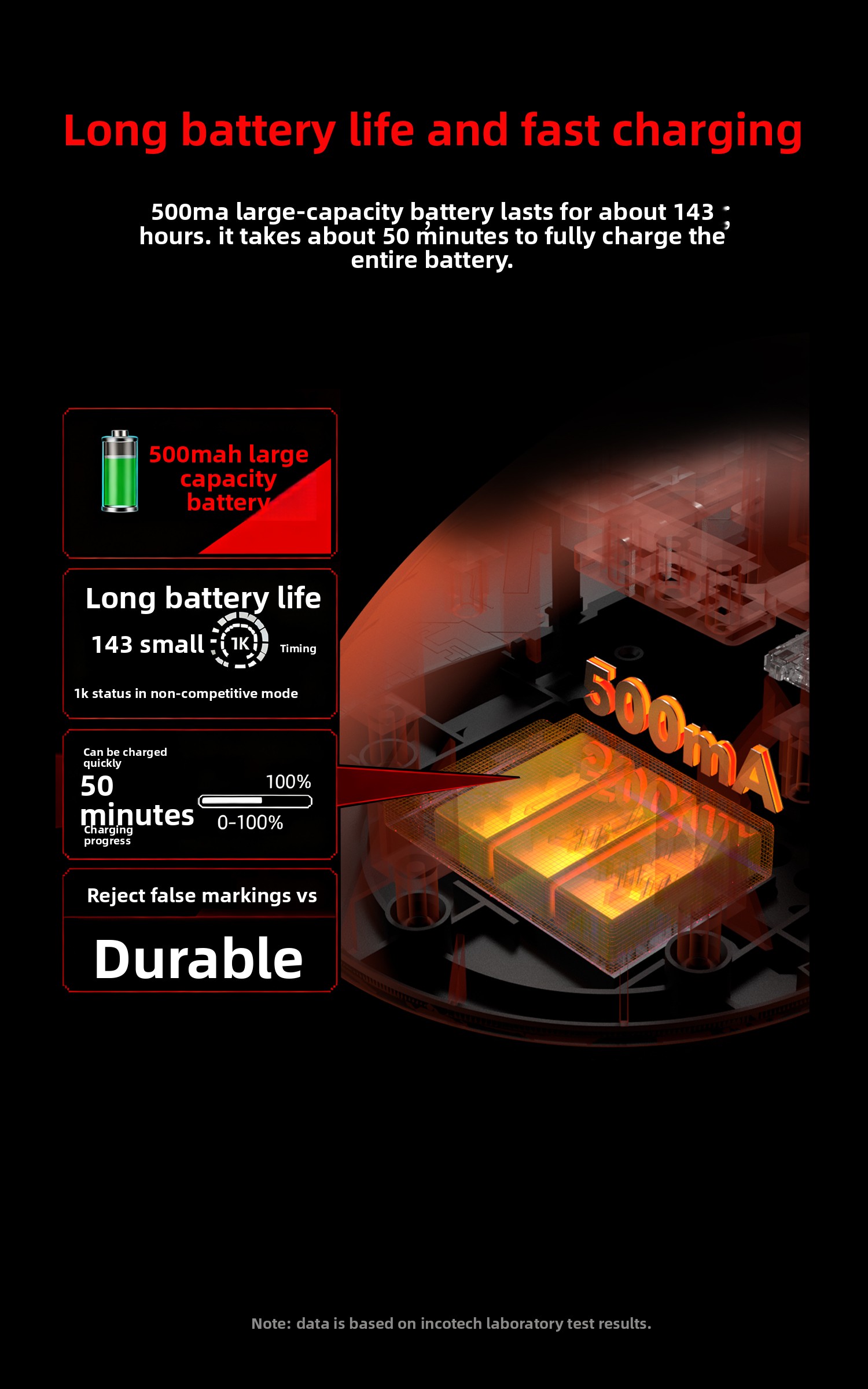
Image: Diagram highlighting the non-porous ultra-lightweight design and nano-coating for comfortable experience.
3.2 Battery Care
The 500mAh large-capacity battery provides up to 143 hours of usage. To maintain battery health:
- Avoid completely draining the battery frequently.
- Charge the mouse when the low voltage indicator appears.
- Store the mouse in a cool, dry place when not in use for extended periods.
3.3 Micro-motion Switch Replacement
The Incott G23V2 features a self-developed micro-motion hot-swappable system, allowing for easy replacement of switches without soldering.

Image: Diagram illustrating the three-stage process for replacing micro-motion switches: Take out, Exchange, Load.
- Take Out: Gently pry open the mouse cover and locate the micro-motion switches.
- Exchange: Carefully remove the existing switch.
- Load: Insert the new compatible mechanical micro-motion switch into the slot. Ensure it is seated correctly.
This system is compatible with 99% of mechanical micro-movements, offering a customizable feel.
4. Troubleshooting
If you encounter issues with your Incott G23V2 mouse, refer to the following common problems and solutions.
- Mouse not responding:
- Ensure the mouse is powered on and the correct mode (2.4G or Bluetooth) is selected.
- Check battery level; charge if necessary.
- For 2.4G mode, ensure the USB receiver is securely plugged in. Try a different USB port.
- For Bluetooth mode, ensure the mouse is paired correctly with your device.
- Try restarting your computer.
- Lag or intermittent connection:
- Ensure the mouse is within range of the receiver/device.
- Minimize interference from other wireless devices.
- Ensure the receiver is not blocked by metal objects.
- Update mouse drivers if available (check the official Incott website).
- Sensor tracking issues:
- Clean the sensor lens on the bottom of the mouse with a soft cloth.
- Ensure you are using the mouse on a suitable surface (e.g., a mouse pad).
- Adjust DPI settings to see if it resolves the issue.
- Mouse not charging:
- Ensure the paracord cable is securely connected to both the mouse and the USB power source.
- Try a different USB port or charging adapter.
- Check if the charging indicator light is active.
If the problem persists after trying these steps, please contact customer support for further assistance.
5. Specifications
Detailed technical specifications for the Incott G23V2 SE and G23V2 Pro models.
| Feature | G23V2 SE | G23V2 Pro Woda |
|---|---|---|
| Model | G23V2 SE | G23V2 Pro Woda |
| Official Warranty | 1 year | 3 years |
| Sensor | PAW3395 | PAW33950ES-KING |
| LOD (Lift Off Distance) | 1/2mm second gear adjustable | 0.7/1/2mm three levels adjustable |
| IPS (Inches Per Second) | 650 | 750 |
| Foot Patch | Esports version 100% PTFE | Three-proof gaming version 100% PTFE |
| Size (Approx.) | 126mm (L) x 63.5mm (W) x 40mm (H) | |
| Hot-swappable | Yes, compatible with 99% of mechanical micro-motions | |
| Plan | Pixart full set + Pixart sensor + Pixart wireless competition firmware | |
| Return Rate | Wireless support 125-250-500-1K-2K-4K-8K | |
| Weight | Approximately 55g | |
| Battery | 500mAh, 143 hours* long battery life, about 50 minutes to fully charge | |
| Micro Movement | Huano micro-motion button press is about 100 million times | |
| Encoder | Fuang Weiqi dustproof custom blend | |
| Coating | Sweat-proof, oil-proof, abrasion resistant, three-layer process | |
| Acceleration | 50G | |
| Connection Mode | Wireless 2.4G + Bluetooth (dual mode). Supports 2.4G + wired + Bluetooth. | |
| Drive | Self-developed web driver + local, dual support | |
| Packing List | Mouse*1, 1k receiver*1, paracord cable*1, manual*1, mouse anti-slip stickers*1, mouse feet*1, micro-motion bottom seat spacers*1 | Mouse*1, 8k receiver*1, paracord cable*1, manual*1, mouse anti-slip stickers*1, mouse feet*1, micro-motion bottom seat spacers*1 |
Note: Battery life and charging times are based on Incott laboratory test results. Specifications are subject to change without notice.
6. User Tips
Maximize your experience with these helpful tips for your Incott G23V2 mouse.
- Customize Your Feel: Take advantage of the hot-swappable micro-motion system. Experiment with different compatible switches to find the click feel that best suits your preference for gaming or office work.
- Optimize Performance: For competitive gaming, utilize the 8K polling rate (if supported by your model) for the lowest latency. Adjust DPI settings via the mouse button or dedicated software to match your game and screen resolution.
- Battery Management: While the mouse boasts long battery life, consider charging it overnight or during breaks to ensure it's always ready for extended use. The fast-charge feature allows for quick top-ups.
- Software Customization: If available, download the official Incott web driver or software to unlock advanced customization options for buttons, macros, and lighting effects.
- Ergonomic Grip: The mouse features a classic center of gravity design and comfortable back curvature. Experiment with different grip styles to find the most comfortable and fatigue-free hold for long sessions.
7. Warranty and Support
7.1 Warranty Information
The Incott G23V2 SE model comes with a 1-year official warranty, and the G23V2 Pro Woda model comes with a 3-year official warranty from the date of purchase. This warranty covers manufacturing defects and malfunctions under normal use. Please retain your proof of purchase for warranty claims.
7.2 Customer Support
For technical assistance, troubleshooting not covered in this manual, or warranty inquiries, please contact Incott customer service through the retailer where you purchased the product or visit the official Incott support website.