1. Introduction
This manual provides comprehensive instructions for the installation, operation, and maintenance of your ESSGOO Android 14 Car Stereo Radio. This 7-inch multimedia system is designed to enhance your driving experience with advanced features such as Wireless CarPlay, Android Auto, GPS navigation, Bluetooth connectivity, and a high-resolution IPS touch screen. Please read this manual thoroughly before using the product to ensure proper functionality and safety.
2. Safety Information
- Ensure professional installation to prevent damage to the unit or your vehicle's electrical system.
- Do not attempt to operate the unit or adjust settings that distract you from driving. Always prioritize road safety.
- Avoid exposing the unit to extreme temperatures, direct sunlight for prolonged periods, or excessive moisture.
- Use only specified power cables and accessories.
- Before performing any maintenance or cleaning, ensure the unit is powered off and disconnected from the vehicle's power supply.
3. Package Contents
Please check the package for the following items:
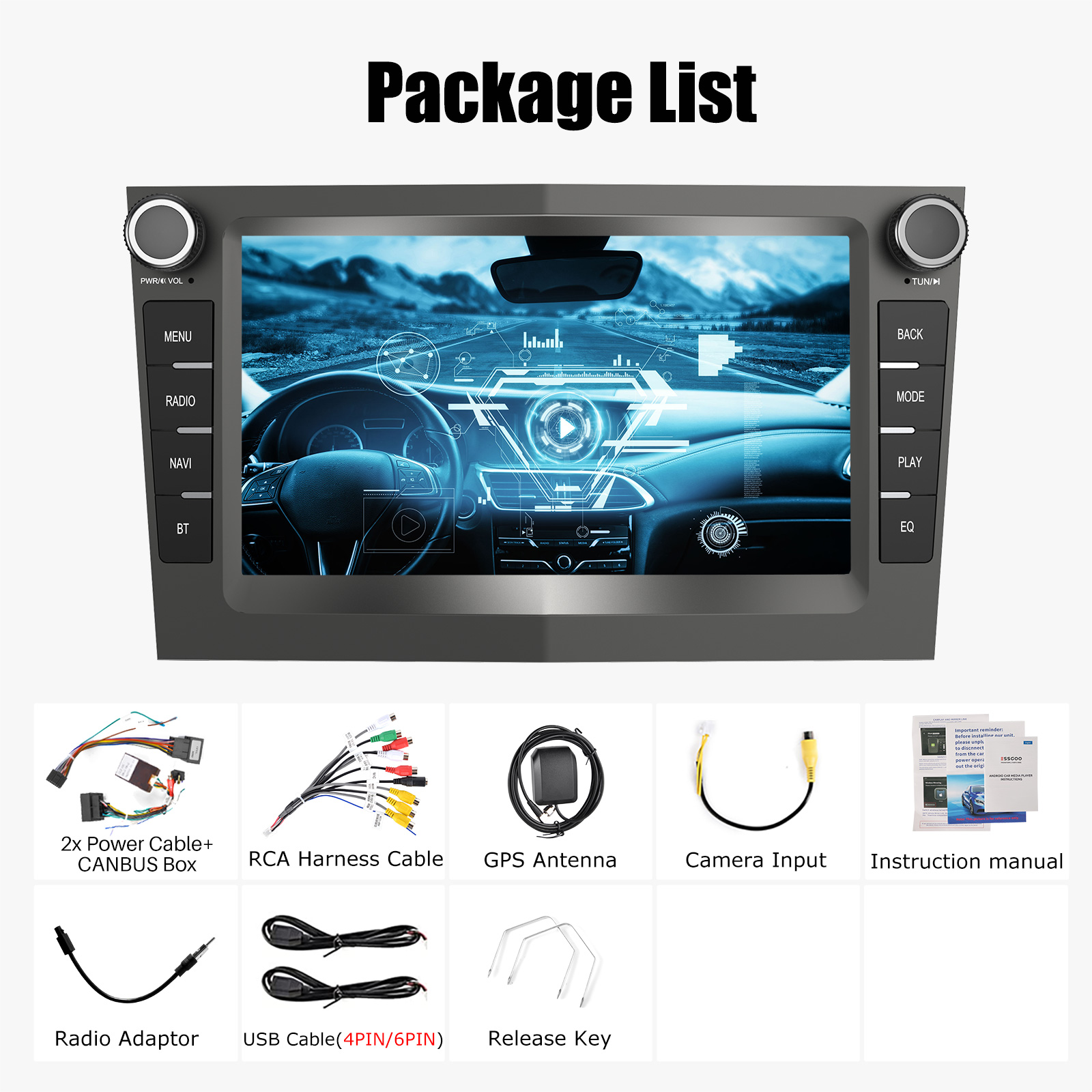
- 1 × ESSGOO Android Car Radio
- 1 × GPS Antenna
- 2 × Power Cables
- 1 × CANBUS Box
- 1 × Radio Antenna Adapter
- 2 × USB Cables
- 1 × RCA Input / Output Cable
- 1 × User Manual
- 1 × Release Key
- Optional accessories (may vary based on purchase):
- Microphone
- DAB+ Adapter
- AHD Rear View Camera
4. Product Overview and Features
The ESSGOO Android 14 Car Stereo Radio is a versatile multimedia system designed for seamless integration into compatible Vauxhall/Opel vehicles. Key features include:
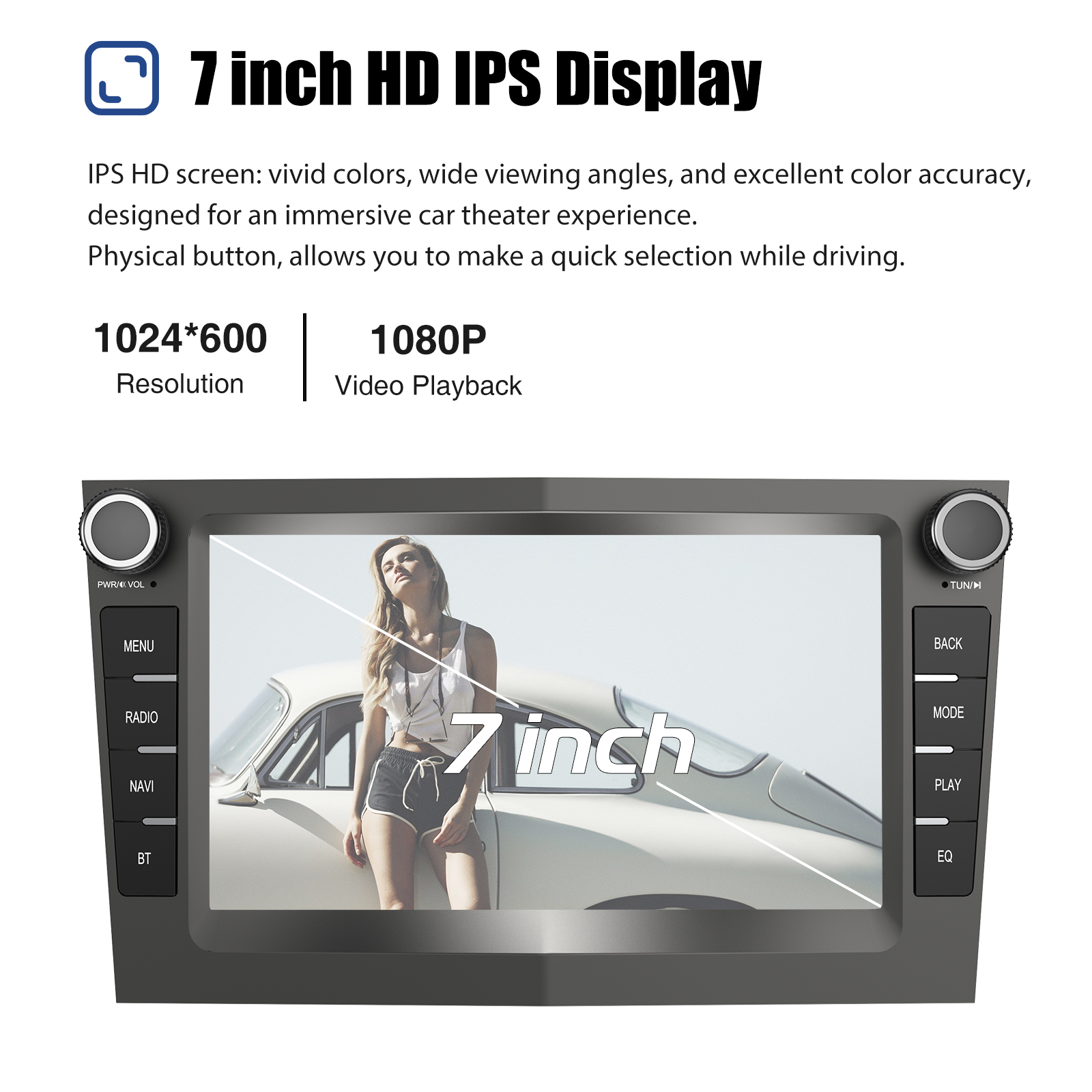
- Display: 7-inch 1024x600 HD IPS capacitive touch screen with a 178° viewing angle.
- Operating System: Android 14.
- Processor: Cortex A53 1.3GHZ x4 Quad Core.
- Memory: Available in 1+32G, 2+64G, or 4+64G RAM+ROM configurations.
- Connectivity: Built-in Wireless CarPlay & Android Auto, WiFi, Bluetooth 4.1.
- Navigation: Integrated GPS with support for online and offline maps.
- Audio: FM/RDS Radio (87.5M-108Mhz, 18 presets), 32-band ASP EQ sound setting, 4x45W amplifier, surround sound, and subwoofer output.
- Multimedia: Mirror Link for iOS and Android phones, dual USB interface, video output.
- Vehicle Integration: Supports original car steering wheel controls, AHD rear view camera input (optional camera), and car logo change.
- Voice Control: AI Voice Control support (Pro version activation may be required for full functionality).

5. Installation and Wiring
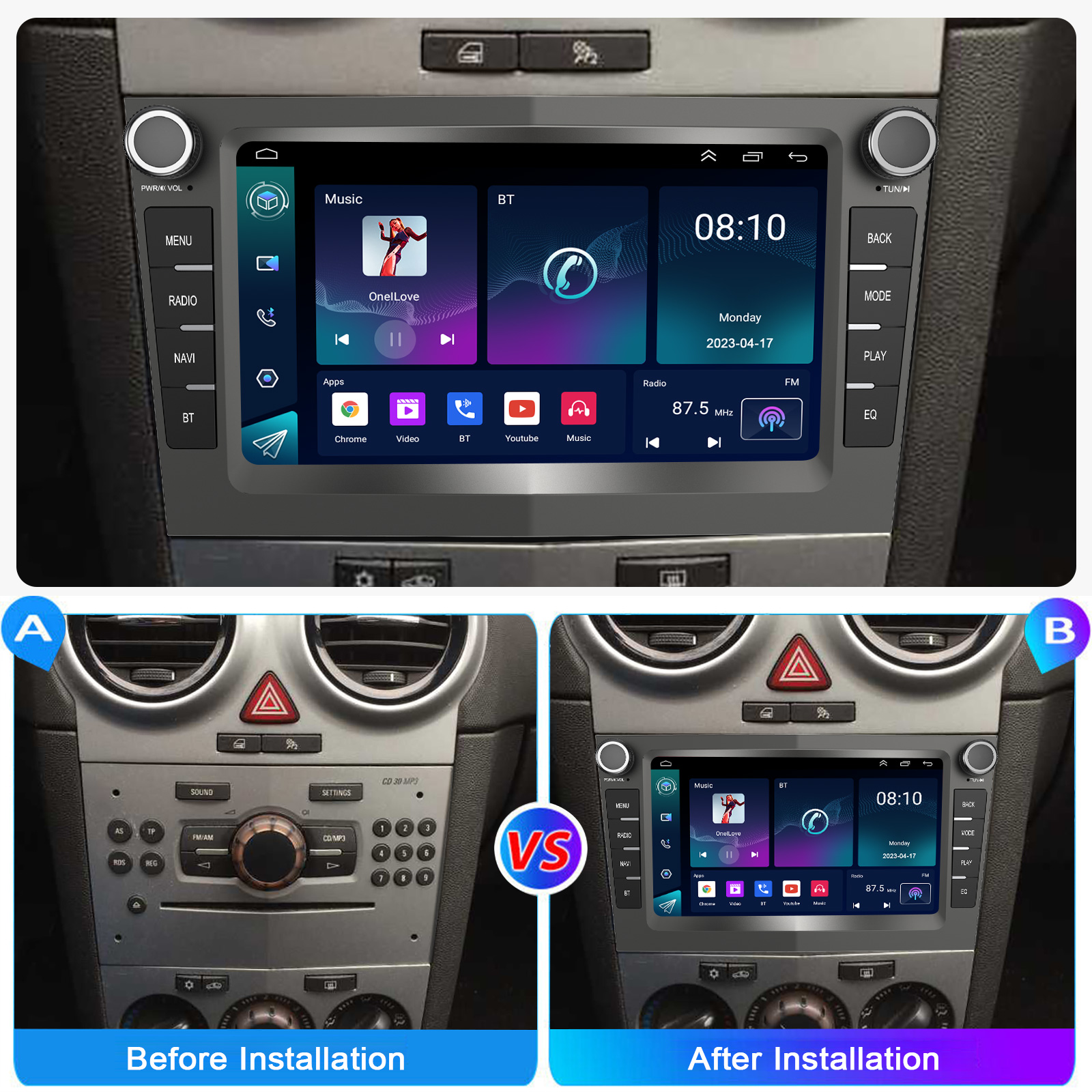
This unit is designed for a "plug and play" installation in compatible Vauxhall/Opel models, meaning no additional frame or extensive cable changes are typically required. However, professional installation is highly recommended to ensure correct wiring and avoid damage.
5.1 Vehicle Compatibility
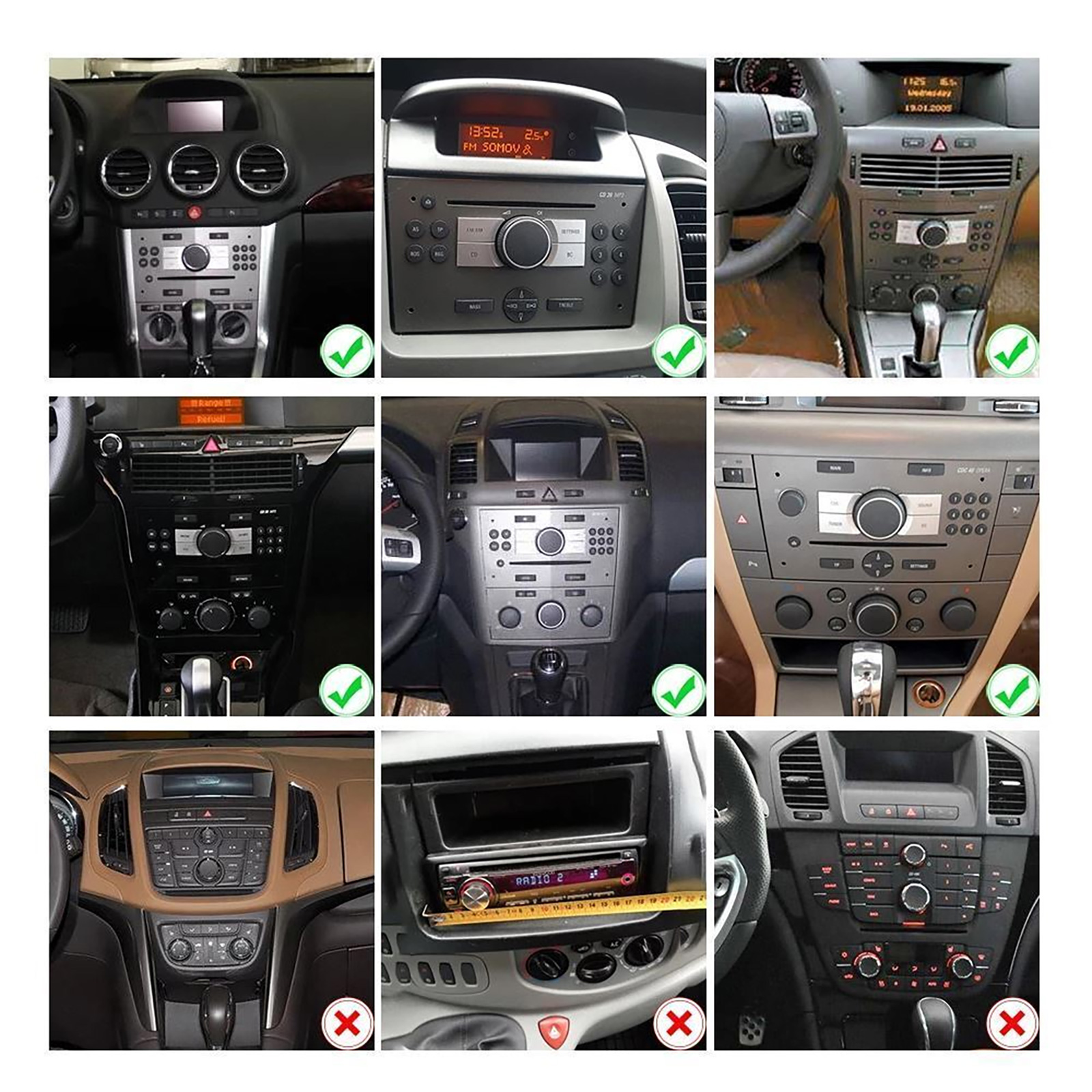
The car stereo is compatible with the following Vauxhall/Opel models:
- Astra (2004-2009)
- Antara (2006-2011)
- Vectra (2003-2008)
- Corsa (2006-2011)
- Zafira (2005-2011)
- Meriva (2006-2011)
- Vivara (2006-2010)
- Vivaro (2006-2010)
- Combo (2004-2011)
- Signum (2003-2011)
- Tigra Doppeldach (2004-2011)
5.2 Dimensions and Interface
The unit has approximate main unit dimensions of 216mm (8.5in) width, 121mm (4.76in) height, and 50mm (1.96in) depth. The standard double din chassis size is 178mm x 102mm x 60mm. Refer to the diagram below for detailed measurements and interface connections.
5.3 Wiring Connections
Refer to Figure 5.3 for the physical layout of the connections. The main connections are:
- ISO Power Socket (1): Main power connection.
- Fuse (2): For circuit protection.
- RCA Cable Socket (3): Connects to the RCA harness for audio/video input/output.
- USB 1 (4) & USB 2 (5): For connecting USB devices, CarPlay/Android Auto (wired), or media playback.
- Rear Camera Input (6): For connecting an optional AHD rear view camera.
- Radio Antenna Socket (7): Connects to the vehicle's radio antenna.
- GPS Antenna (8): Connects the included GPS antenna for navigation functionality.
The RCA harness includes connections for Video Out, Microphone, Video In, Subwoofer, Audio Out (Left/Right), and AUX In (Left/Right).
6. Operating Instructions
6.1 Initial Setup
- Power On: After installation, turn on your vehicle's ignition. The stereo should power on automatically.
- Language Settings: Navigate to "Settings" to select your preferred OSD language (English, German, French, Italian, Spanish, Portuguese, Russian, Turkish, Polish).
- Time and Date: Adjust the system time and date in the settings menu.
- Car Logo: You can customize the boot logo to match your car brand in the settings.
6.2 Wireless CarPlay & Android Auto
Connect your smartphone wirelessly via Bluetooth or USB cable to access CarPlay or Android Auto features. This allows for safe access to navigation, calls, messages, and music directly from your phone's interface on the car stereo screen.

6.3 GPS Navigation
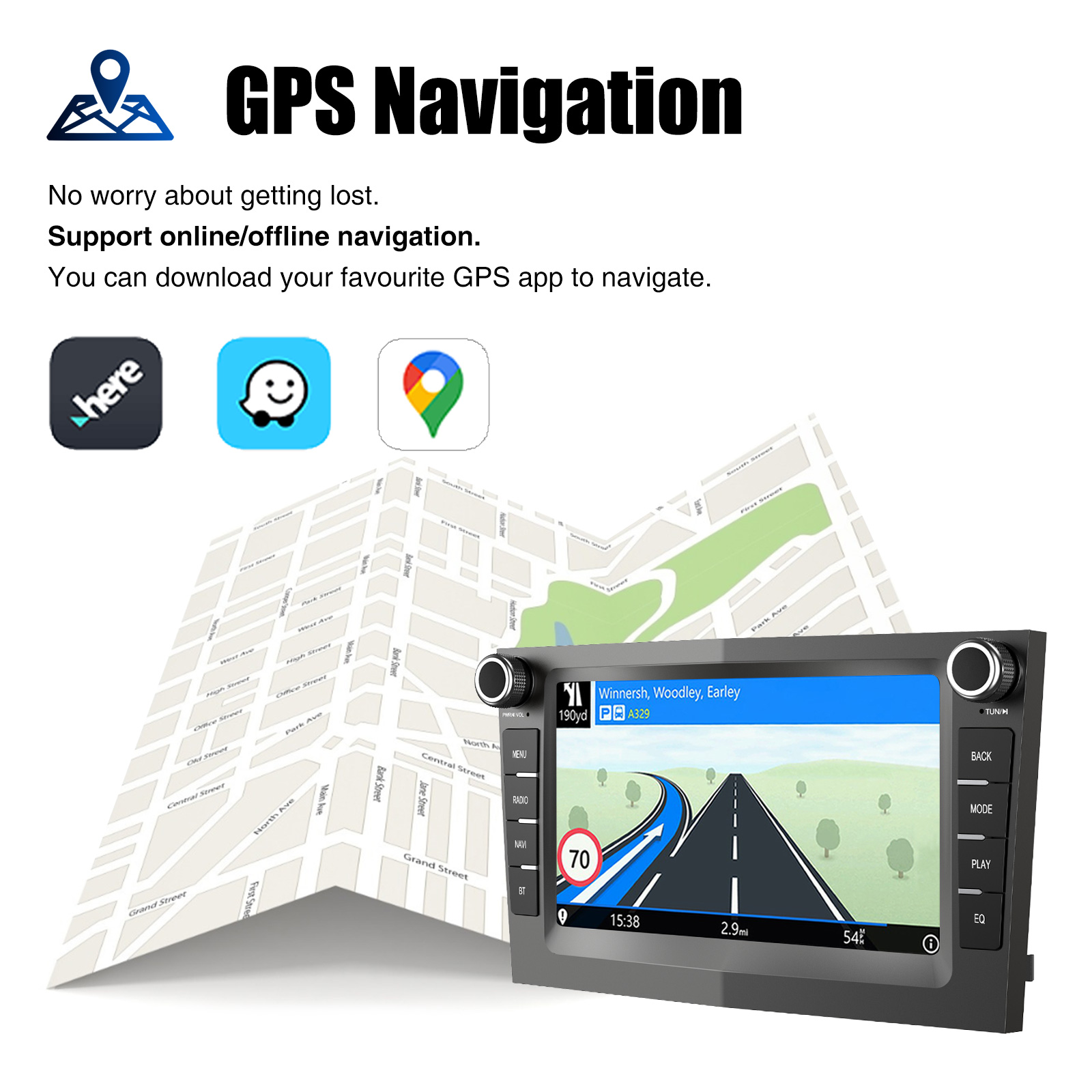
The unit supports both online and offline navigation. Ensure the GPS antenna is properly connected. You can download your preferred navigation apps from the App Store after connecting to WiFi.

6.4 WiFi Connection
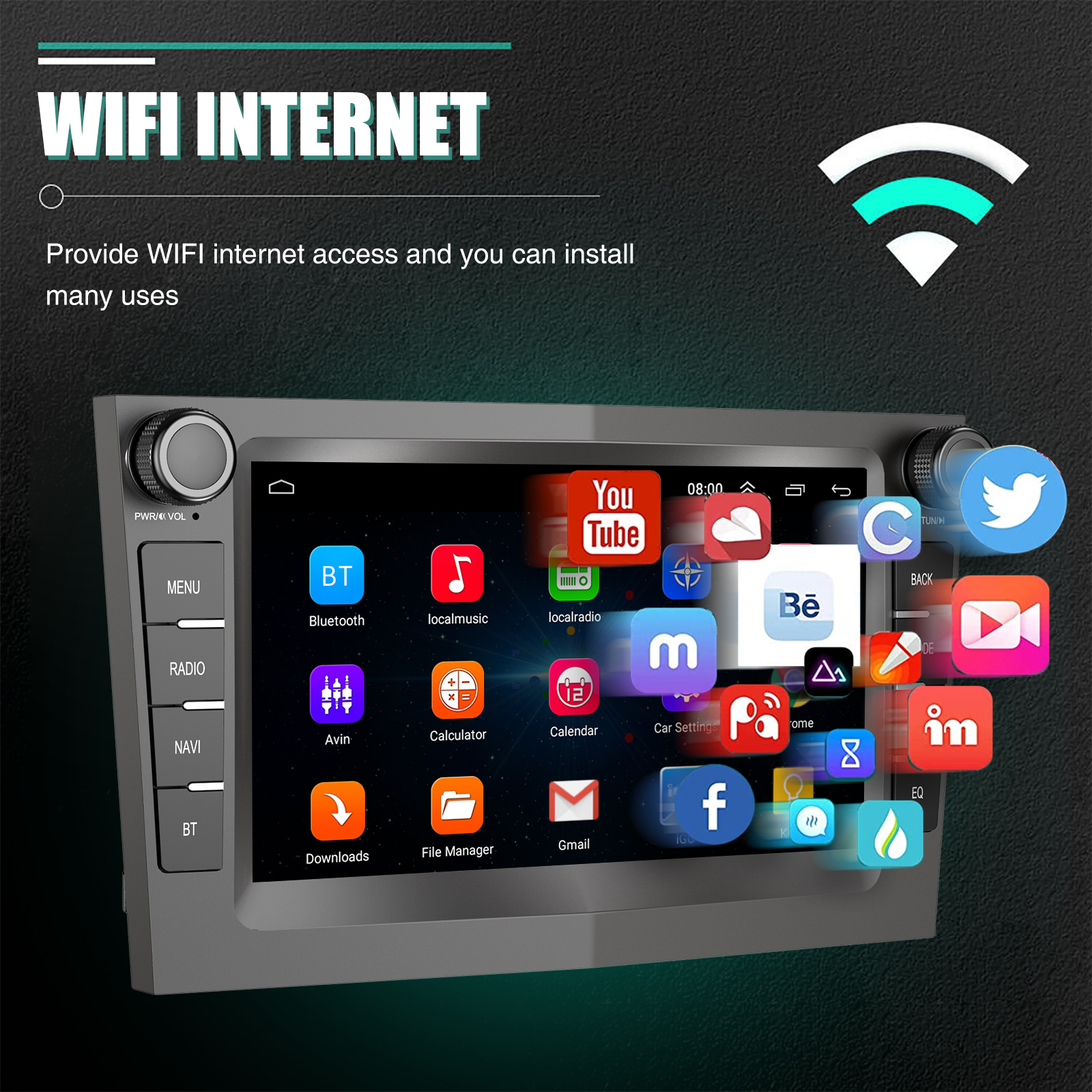
Connect the stereo to a WiFi hotspot (e.g., from your smartphone) to access the internet, download apps, stream music/videos, and update software. Go to Settings > Network & Internet > Wi-Fi to connect.
6.5 Bluetooth Function
Pair your phone via Bluetooth 4.1 for hands-free calling and music streaming. Access your phone book and control music playback directly from the stereo.

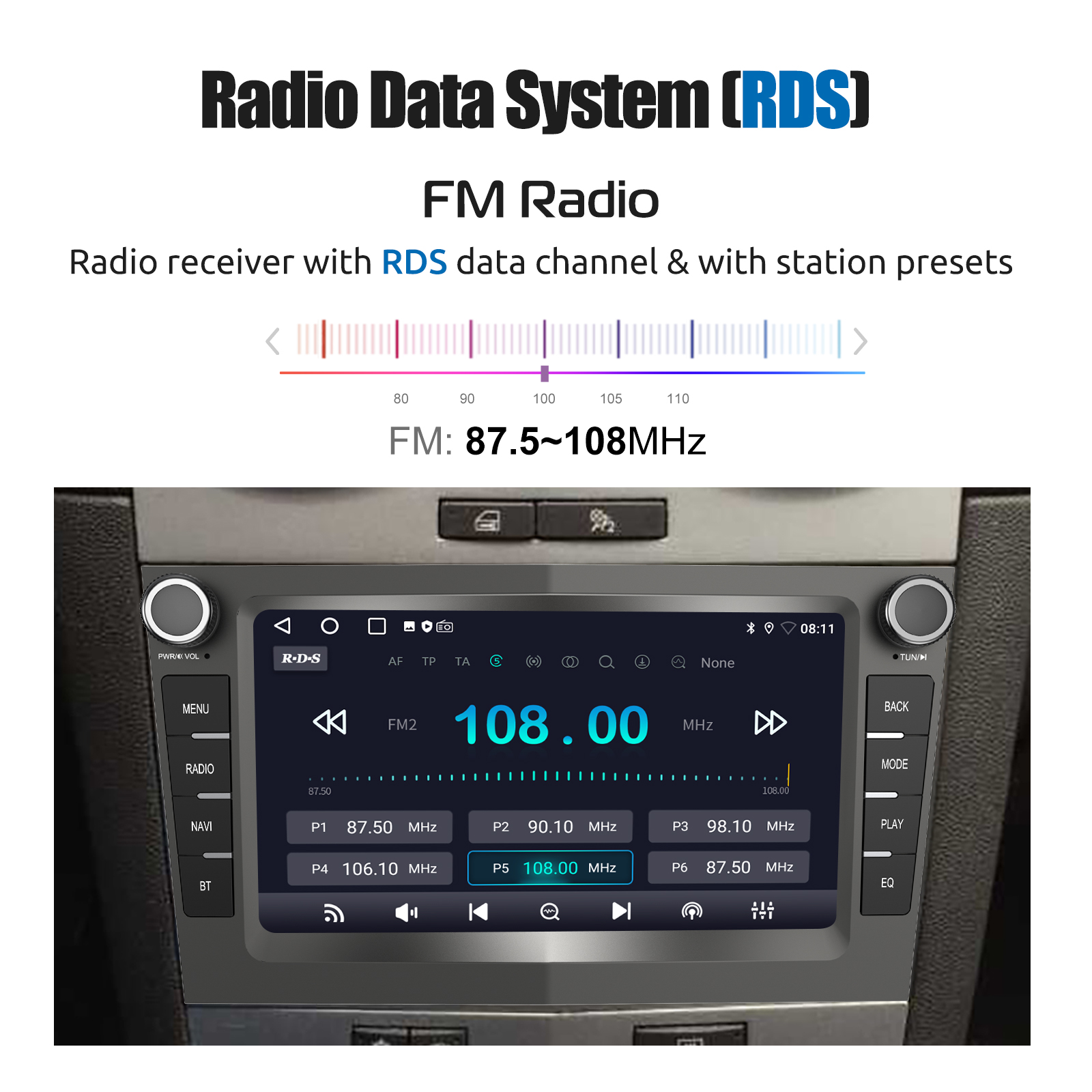
6.6 FM/RDS Radio
Tune into FM radio stations (87.5M-108Mhz). The RDS (Radio Data System) feature provides additional information like station name (RT), alternative frequencies (AF), and traffic announcements (TA). You can save up to 18 favorite FM stations.

6.7 ASP EQ Sound Setting
Utilize the built-in ASP chip and 32-band EQ settings to customize your audio experience. Adjust frequencies, balance, and fader settings to match your personal preferences. The 4x45W amplifier provides powerful and clear sound.
6.8 Mirror Link
Connect your iOS or Android smartphone to mirror its screen onto the car stereo display. This allows you to view apps, videos, and navigation from your phone on the larger screen.
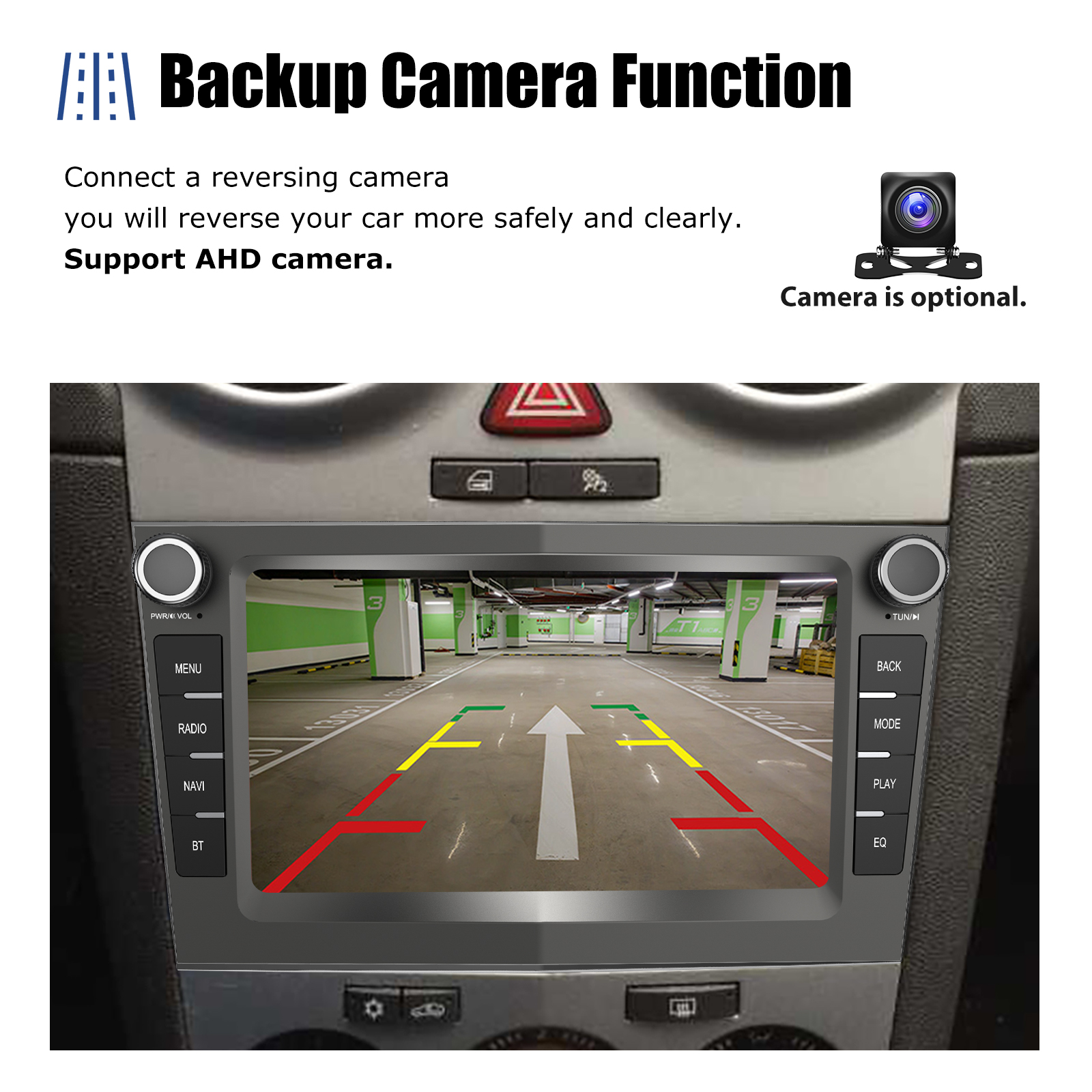
6.9 Rear View Camera Input
If an optional AHD rear view camera is connected, the stereo will automatically display the camera feed when you engage reverse gear, aiding in safer parking and reversing maneuvers.

6.10 Steering Wheel Controls
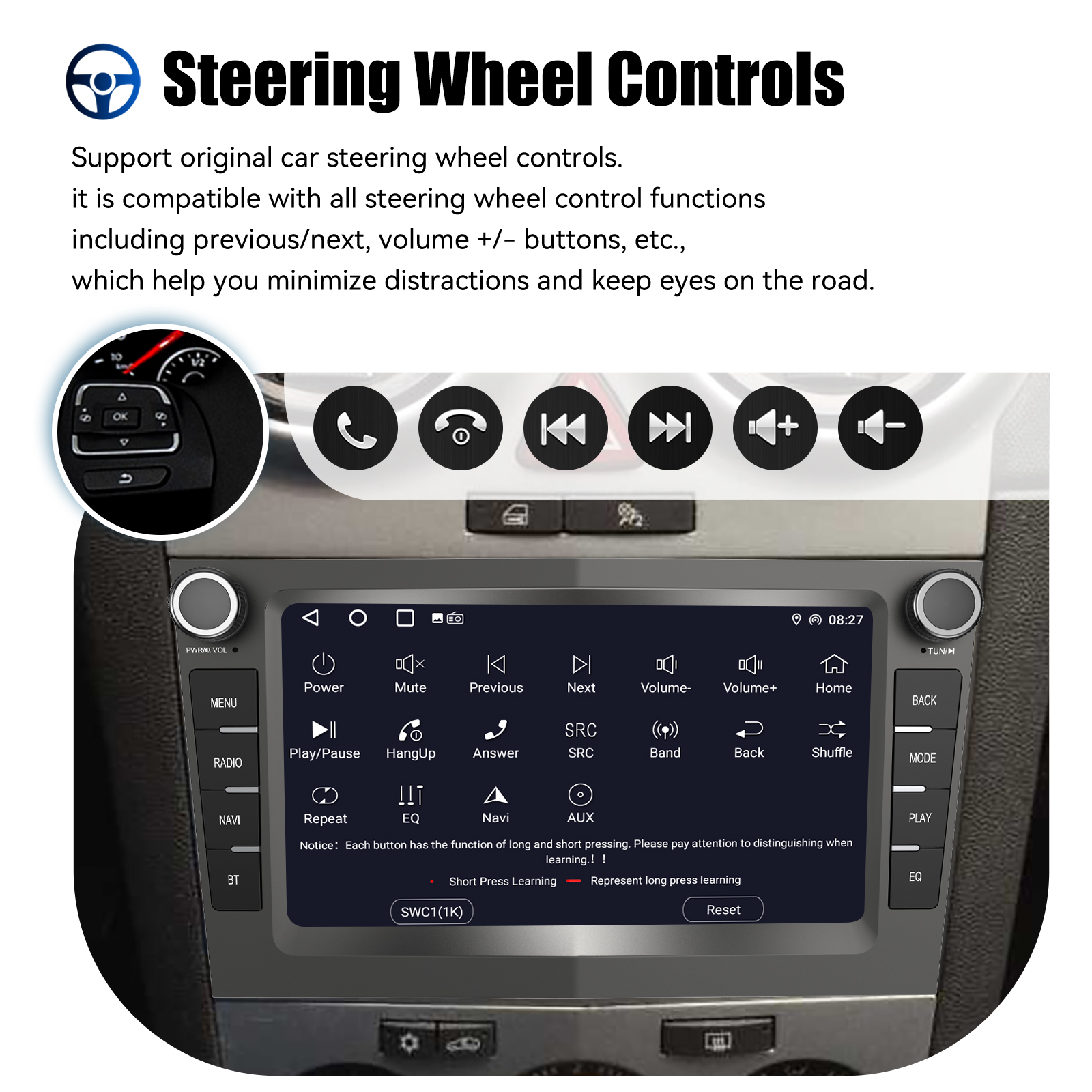
The unit supports your vehicle's original steering wheel controls, allowing you to manage audio, calls, and other functions without taking your hands off the wheel. This minimizes distractions and enhances driving safety.
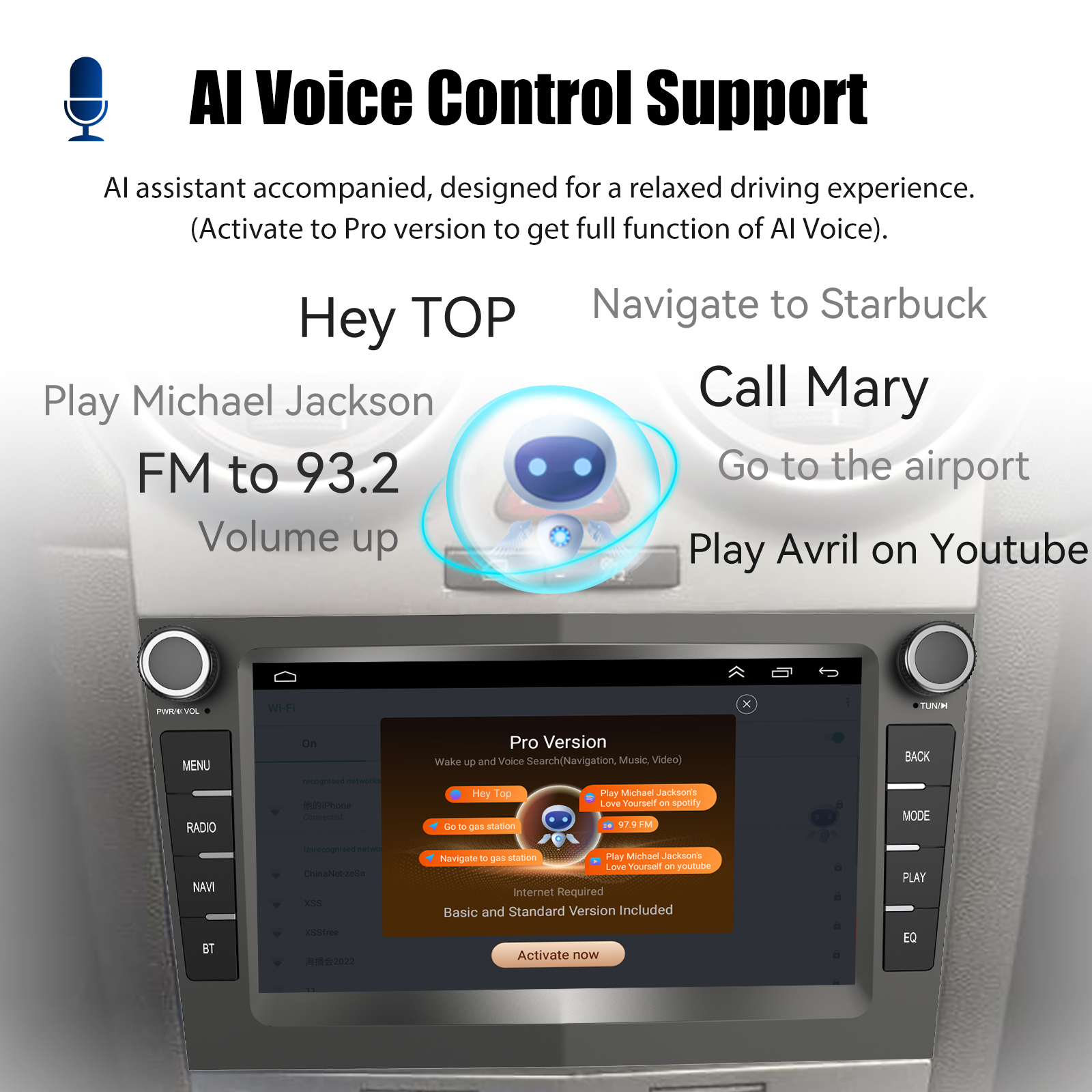
6.11 AI Voice Control
The system supports AI Voice Control for a more relaxed driving experience. Basic functions are included, and activating the Pro version may unlock full voice command capabilities for navigation, music, and calls.
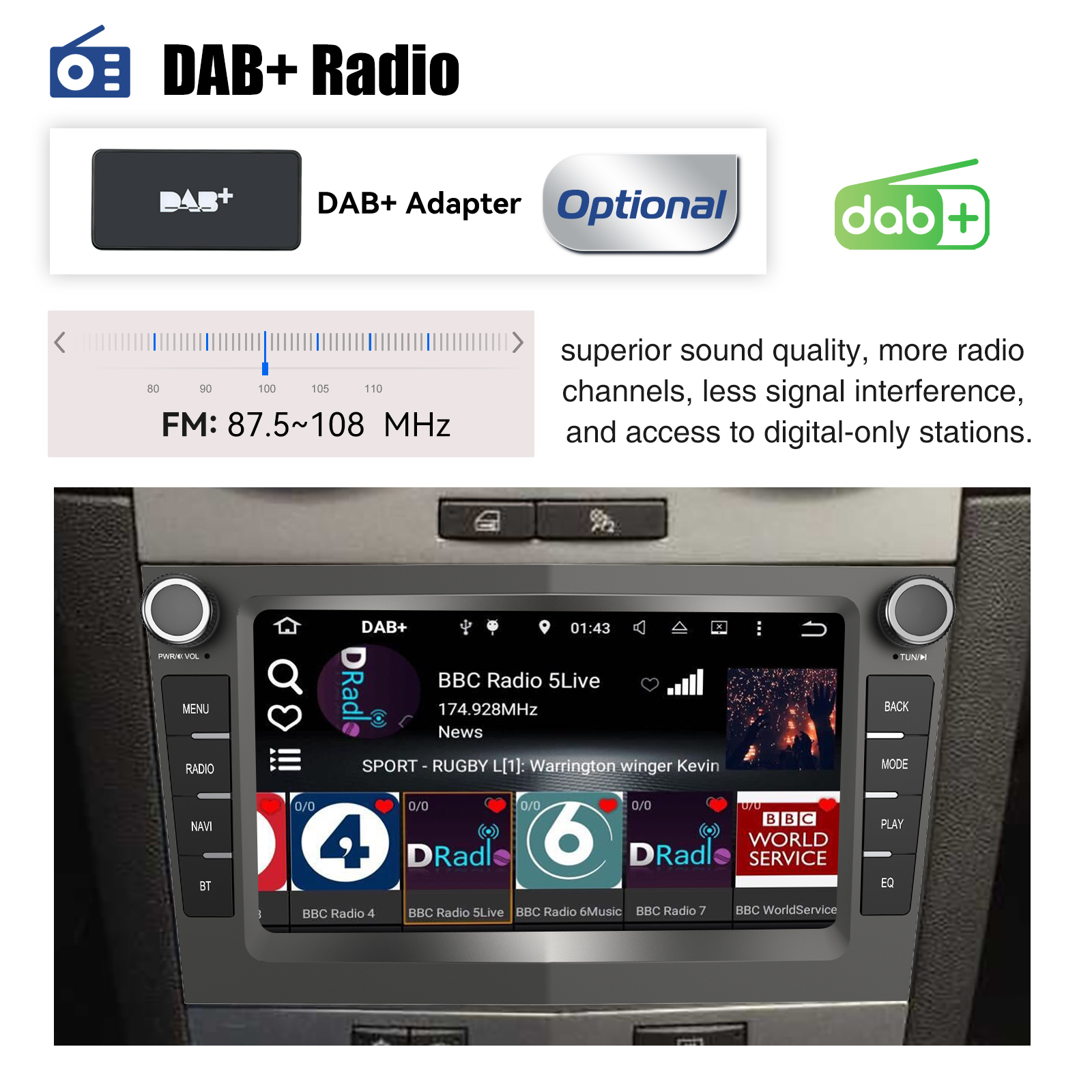
6.12 DAB+ Radio (Optional)
With an optional DAB+ adapter, you can enjoy Digital Audio Broadcast radio, offering superior sound quality, more radio channels, and noise-free operation compared to traditional FM radio.
6.13 User Interface Options
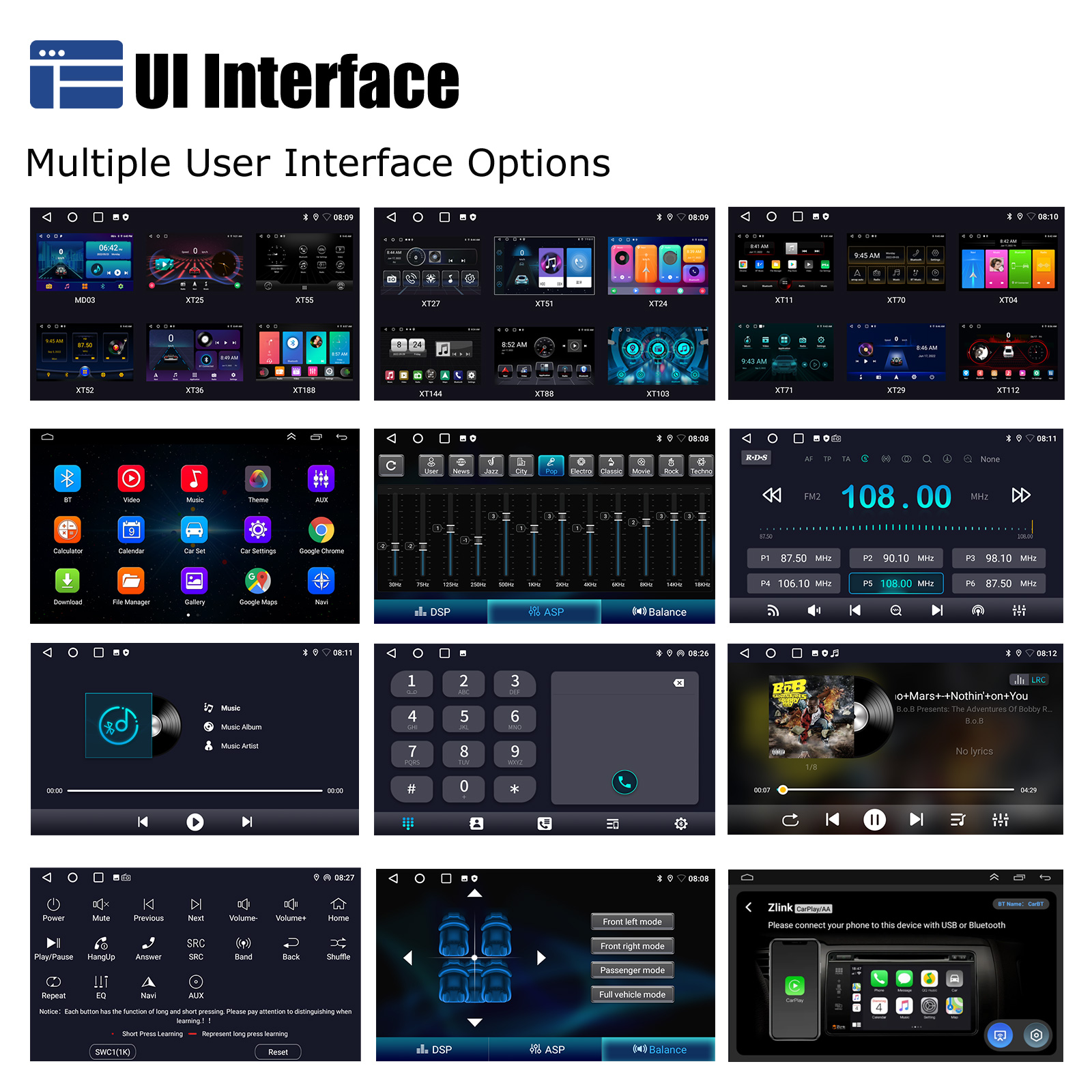
The system offers multiple user interface options, allowing you to customize the look and feel of your car stereo display.
7. Maintenance
- Cleaning: Use a soft, dry cloth to clean the screen and exterior. Avoid abrasive cleaners or solvents.
- Software Updates: Periodically check for software updates via the system settings when connected to WiFi to ensure optimal performance and access to new features.
- Fuse Replacement: If the unit loses power, check the fuse (item 2 in Figure 5.3). Replace it with a fuse of the same rating if blown.
8. Troubleshooting
| Problem | Possible Cause | Solution |
|---|---|---|
| No Power | Loose power connection, blown fuse, vehicle ignition off. | Check power cables, inspect and replace fuse if necessary, ensure ignition is on. |
| No Sound | Volume too low, mute activated, incorrect audio source, loose speaker wires. | Increase volume, check mute status, select correct audio source, verify speaker connections. |
| GPS Signal Lost | GPS antenna obstructed or disconnected, driving in areas with poor satellite reception. | Ensure GPS antenna is properly connected and has a clear view of the sky. Try moving to an open area. |
| Bluetooth Not Connecting | Bluetooth off on phone/stereo, device not in pairing mode, interference. | Ensure Bluetooth is enabled on both devices, put stereo in pairing mode, try restarting both devices. |
| Steering Wheel Controls Not Working | Incorrect wiring, CANBUS box issue, software misconfiguration. | Verify CANBUS box connection and configuration in settings. Consult a professional installer. |
9. Specifications
| Feature | Specification |
|---|---|
| System | Android 14 |
| Display Size | 7 inches |
| Resolution | 1024*600 IPS Capacitive Touch Screen |
| CPU | Cortex A53 1.3GHz x4 (Quad Core) |
| RAM+ROM (Optional) | 1+32G / 2+64G / 4+64G |
| Tuner Type | FM (87.5M-108Mhz) with RDS |
| Out Power | 4*45W |
| Voltage | 12 V |
| Item Weight | 1.02 kg |
| Item Size | 178mm x 102mm x 60mm (approx. 216mm x 121mm x 50mm for main unit) |
| Interface | USB (Dual) |
| Special Features | WiFi, Steering Wheel Control, Built-in GPS, MP3 players, CarPlay, Android Auto, Reversing Input, Split Screen |
| Digital Media Format | Mp3, MP4, WMA, JPEG |
| OSD Language | Chinese (Simplified), Chinese (Traditional), Polish, German, Russian, French, Czech, Portuguese, Turkish, Spanish, Italian, English |
| Brand Name | ESSGOO |
| Model | AZ0001 |
| For Vehicle Brands/Model | Vauxhall/Opel |
| Certification | CE, FCC |
| Material | Plastic |
| Color | Grey |
| Built-in DVD Player | No |
| Built-in CD player | No |
| Is touch screen | Yes |
| Built-in Screen | Yes |
| Din | Double Din |
10. User Tips
- Professional Installation: While the unit is designed for specific models, professional installation is highly recommended to ensure all features, especially steering wheel controls and CANBUS integration, function correctly.
- Software Updates: Regularly check for and install software updates to benefit from performance improvements and new features.
- App Management: To optimize performance, periodically clear cache and uninstall unused applications.
11. Warranty and Support
This ESSGOO car stereo comes with a 1-year warranty. For any technical issues, troubleshooting assistance beyond this manual, or warranty claims, please contact the seller or ESSGOO customer support. Provide your model number (AZ0001) and purchase details for faster service.


