
1. Introduction
Welcome to the LEEDOAR B3 Smart Bracelet user manual. This guide provides essential information for setting up, operating, and maintaining your new smart bracelet. The B3 Smart Bracelet is designed for comfortable, no-sense wearing, featuring a single-touch intelligent display and comprehensive health monitoring capabilities, including heart rate, blood oxygen, blood pressure, and sleep tracking. It also offers activity tracking, call reminders, and remote control functions, all within a life waterproof design.
2. Specifications
| Feature | Description |
|---|---|
| Brand Name | LEEDOAR |
| Model | B3 |
| Battery Capacity | 1100mAh |
| GPS | Via Smartphone |
| Metrics Measured | Heart Rate Monitor, Women's Health Monitoring, Blood Oxygen Monitor, Sleep Monitor, Blood Pressure Monitor, Stress Monitor |
| Activity Tracked | General Fitness Tracking |
| Category | Wristbands |
| Band Detachable | No |
| Screen Style | Rectangle/Square-shape |
| Application Age Group | Adult |
| Waterproof Grade | Life Waterproof |
| Compatibility | All Compatible (Android 6.0 and above, Apple 11.0 and above) |
| Language | English |
| Functions | Fitness tracker, Sleep tracker, Message Reminder, Call Reminder, Remote Control, Blood Pressure, Heart Rate Tracker |
| Origin | Mainland China |
| Touch Screen | Yes |
| Screen Type | TFT |
| Case Material | Alloy |
| Certification | CE, FCC, RoHS, UL |
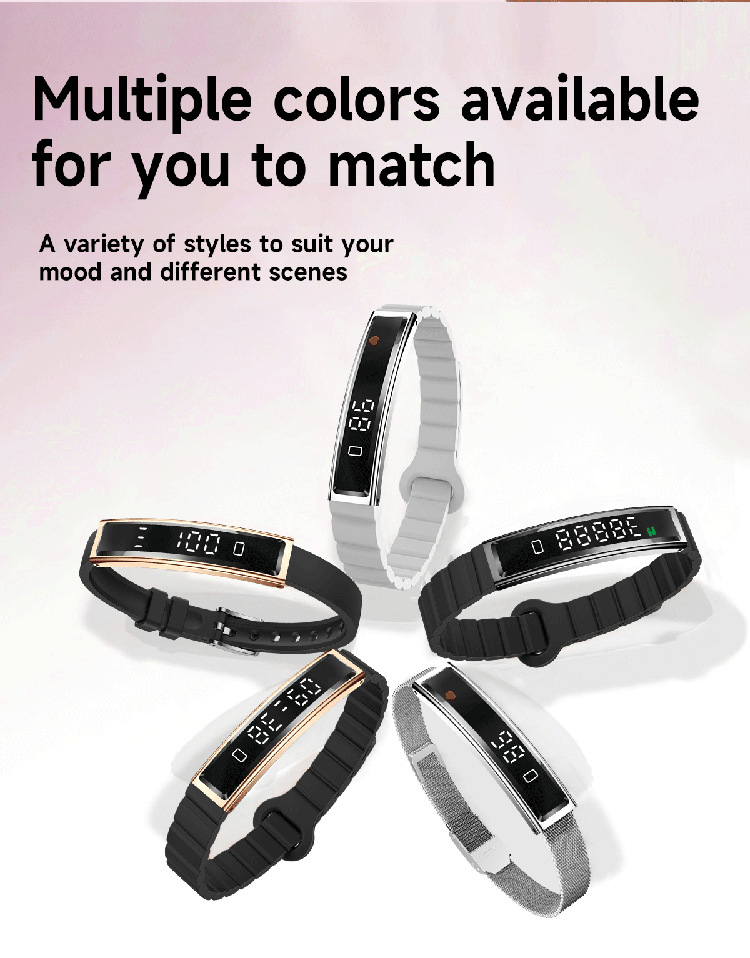
| Band Material | Fine Steel / Silicone |
| Chip | OM6626B |
| Weight | 16.5g |
| Bluetooth | BT5.3 |
| Dimensions (Display) | 44.5mm (Length) x 10.5mm (Width) x 5.6mm (Thickness) |
| Total Band Length | 225mm |
3. Package Contents
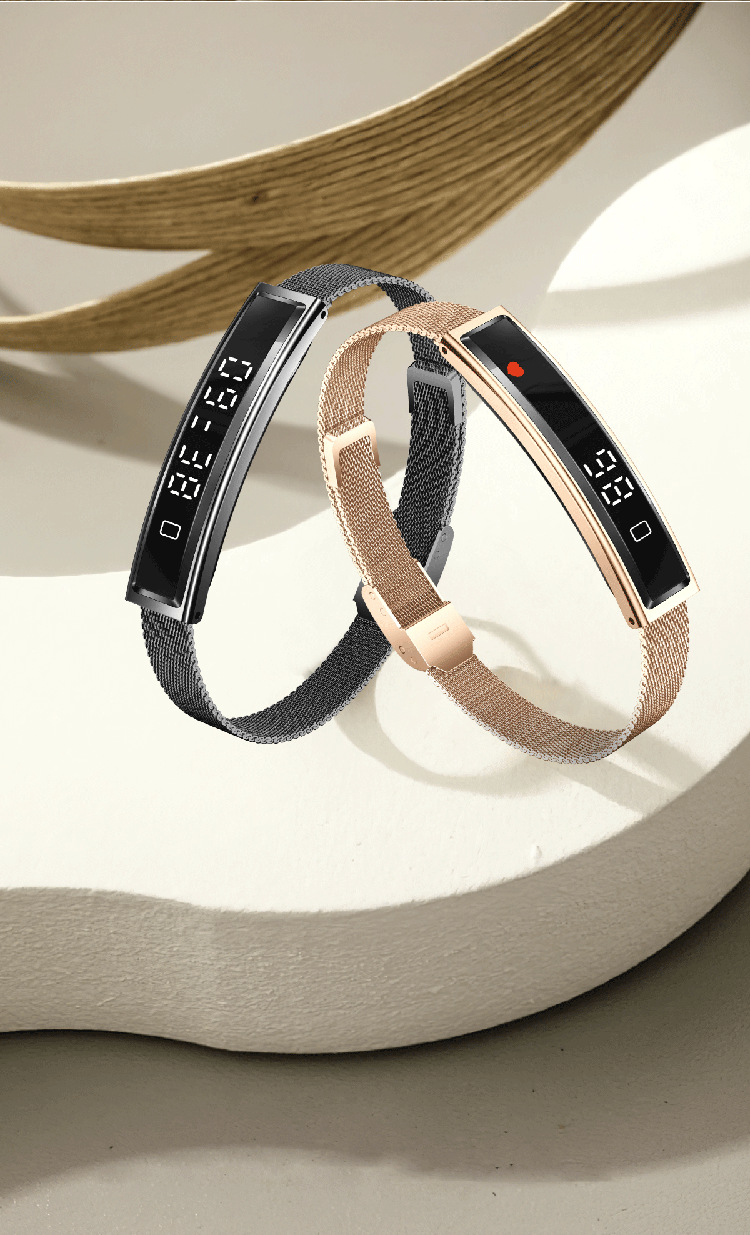
Upon opening your LEEDOAR B3 Smart Bracelet package, you should find the following items:
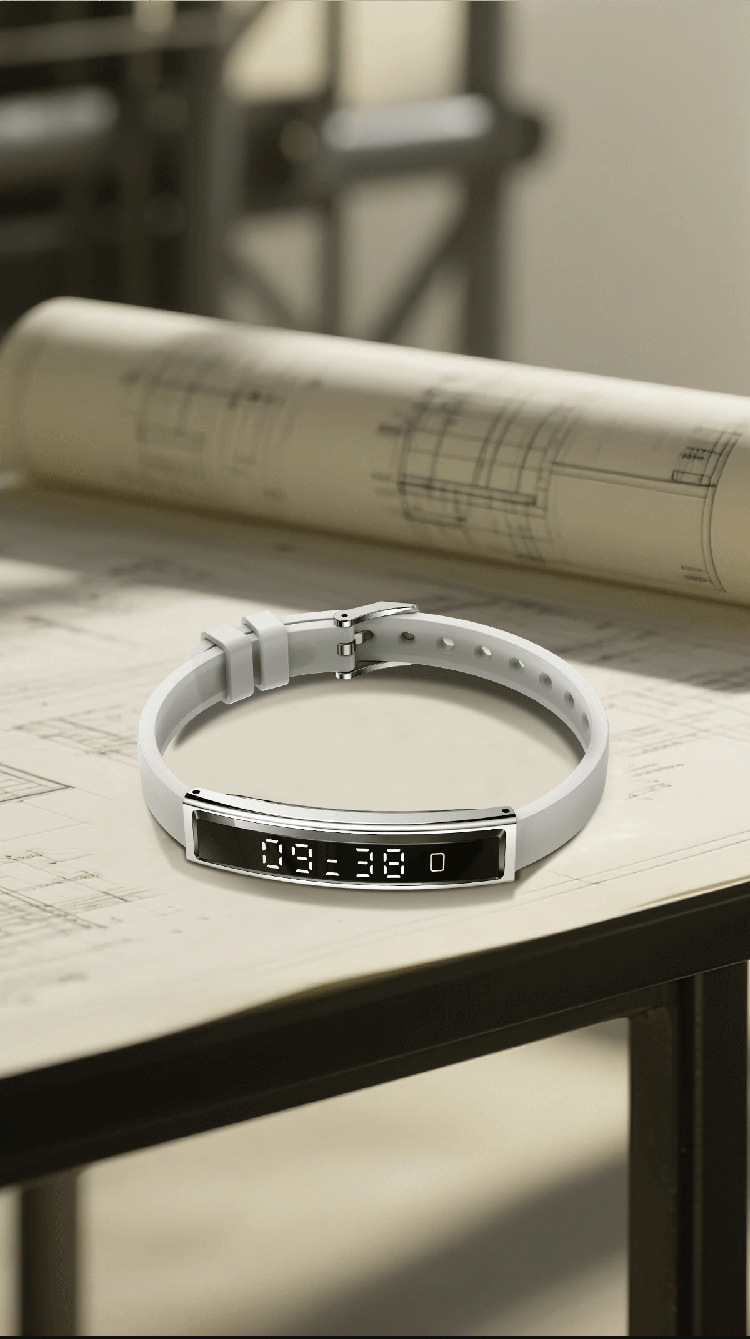
- LEEDOAR B3 Smart Bracelet (with chosen strap)
- Charging Cable
- User Manual (this document)
4. Initial Setup
4.1 Charging the Device
Before first use, fully charge your B3 Smart Bracelet. Connect the charging cable to the designated charging port on the bracelet and plug the other end into a USB power adapter (not included) or a computer's USB port. The display will indicate charging status. A full charge typically takes 1-2 hours.
4.2 App Installation
To unlock the full potential of your B3 Smart Bracelet, you need to download and install the companion application on your smartphone. The app is named "Nx Wear".
- Scan the QR code provided in the packaging or search for "Nx Wear" in your smartphone's app store (Google Play Store for Android, Apple App Store for iOS).
- Download and install the app.
- Ensure your smartphone's Bluetooth is enabled.
4.3 Pairing with Your Smartphone
- Open the "Nx Wear" app on your smartphone.
- Follow the on-screen instructions to create an account or log in.
- Navigate to the device pairing section within the app.
- The app will search for nearby Bluetooth devices. Select "B3 Smart Bracelet" from the list.
- Confirm the pairing request on both your smartphone and the bracelet if prompted.
- Once paired, the app will synchronize data and allow you to customize settings.

5. Operating Your Smart Bracelet
5.1 Basic Navigation
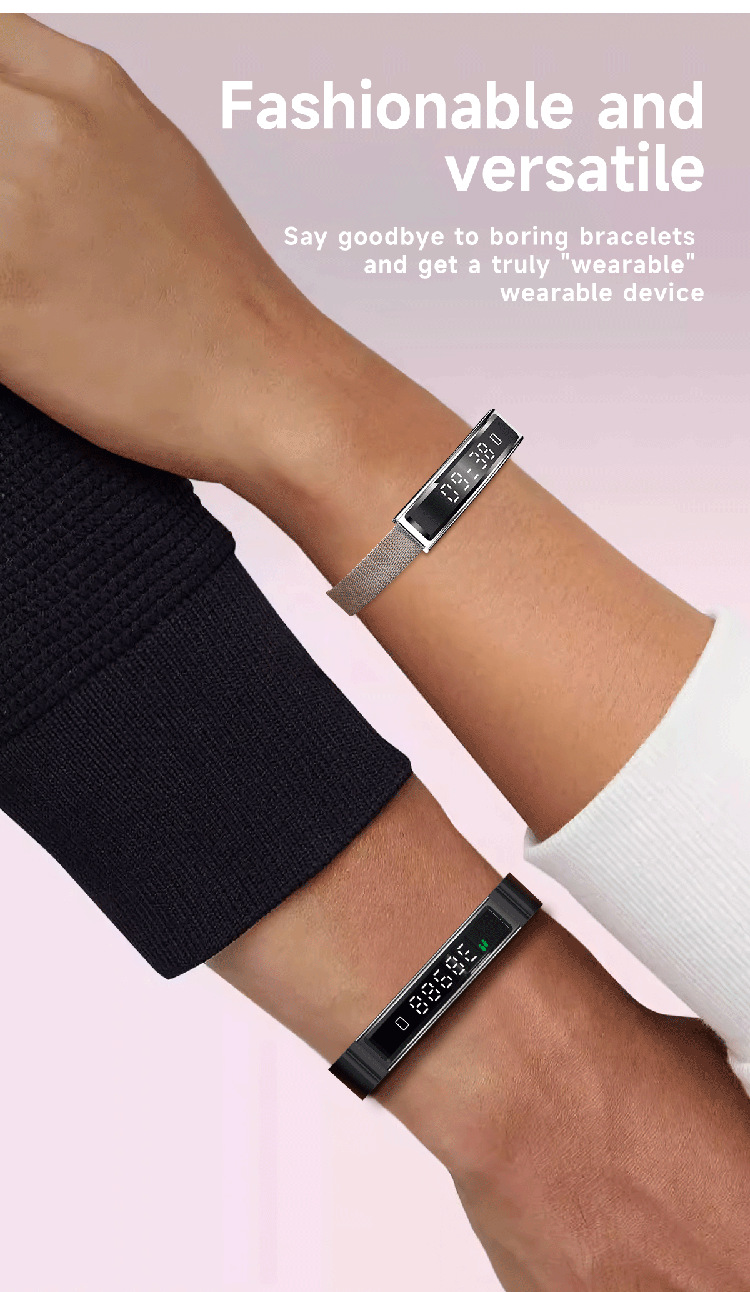
The B3 Smart Bracelet features a single-touch intelligent display. Tap the touch area to cycle through different screens and functions. Hold the touch area for specific actions, as indicated on the screen or in the app.
5.2 Health Monitoring
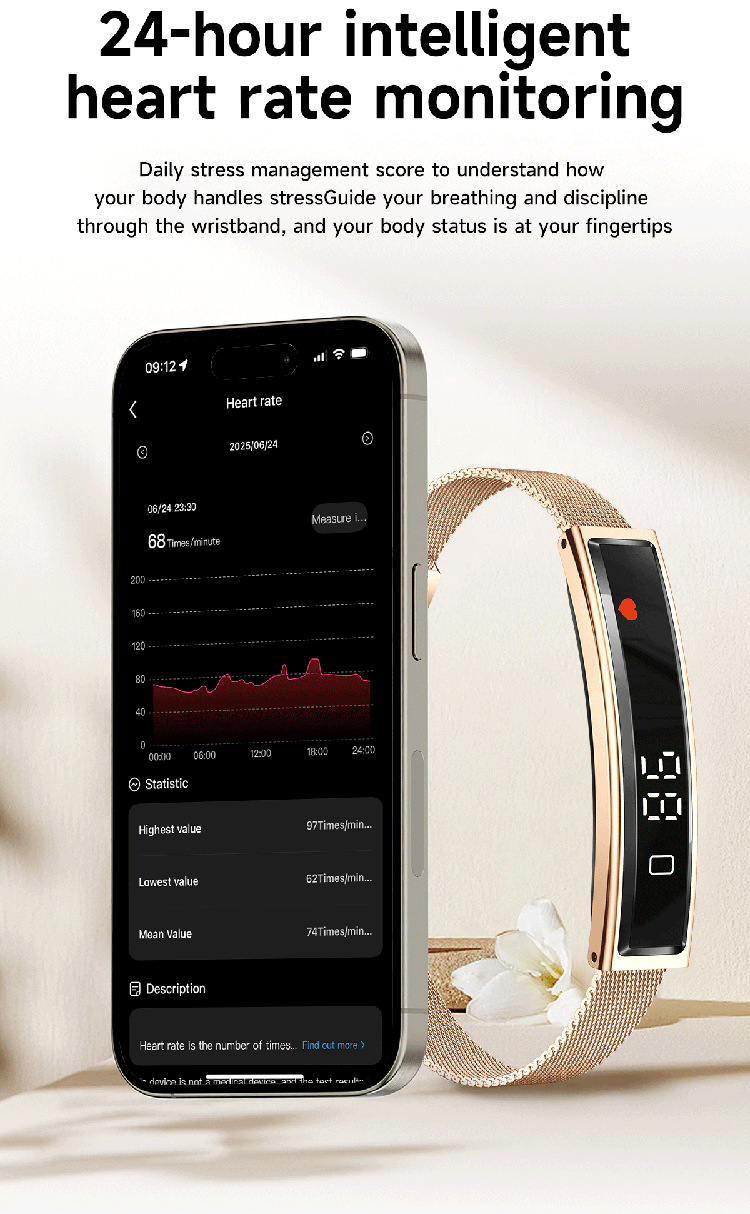
- Heart Rate Monitoring: The bracelet provides 24-hour intelligent heart rate monitoring. View real-time data on the bracelet or detailed graphs and statistics (highest, lowest, mean values) in the Nx Wear app.
- Blood Oxygen Monitoring: Monitor your blood oxygen saturation levels.
- Blood Pressure Monitoring: Track your blood pressure.
- Stress Monitoring: Daily stress management score to understand how your body handles stress.
- Women's Health Monitoring: Specific tracking features for women's health.
5.3 Activity Tracking
- Step Counting: Automatically tracks your daily steps.
- Running Companion: Records duration, calories burned, and total steps during running activities.

5.4 Sleep Monitoring
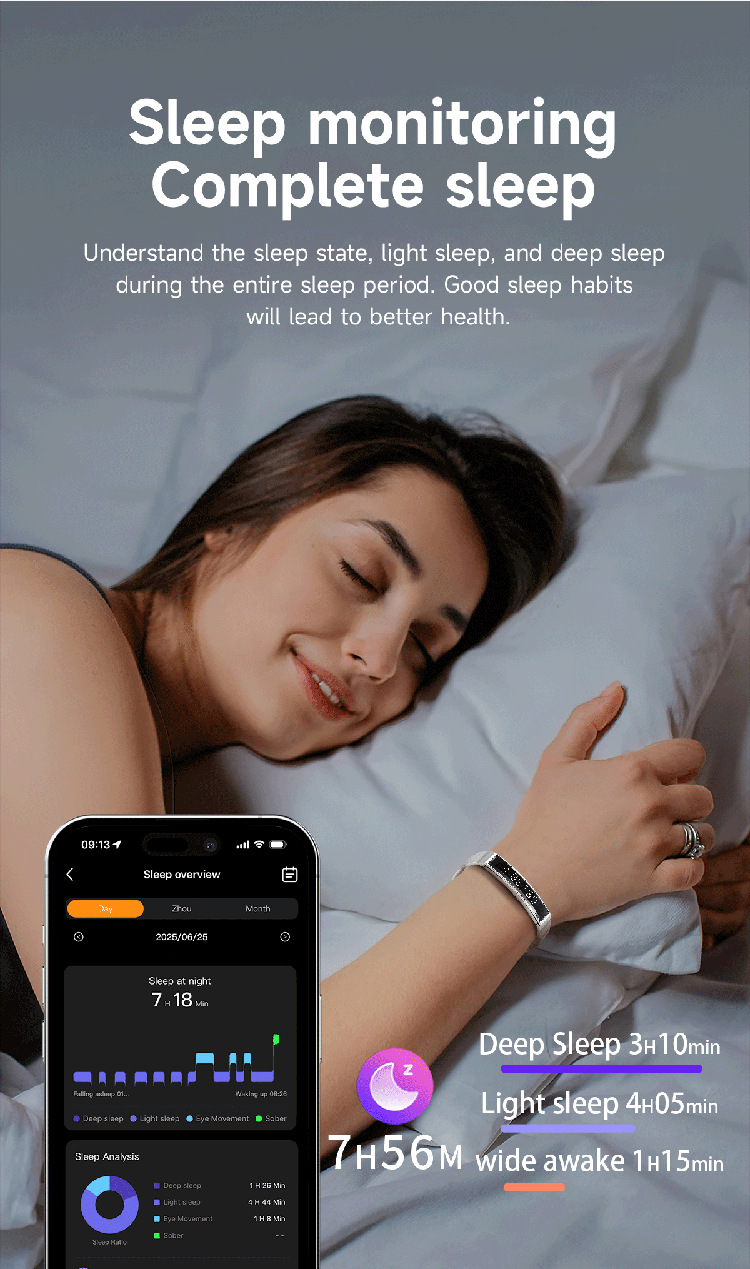
The B3 Smart Bracelet monitors your sleep patterns, recording complete sleep structure including deep sleep, light sleep, and awake times. This data helps you understand your sleep quality and develop better sleep habits.
5.5 Smart Notifications & Remote Control
- Incoming Call Reminder: Receive vibrations and notifications for incoming calls.
- Message Reminder: Get alerts for new messages.
- Remote Control: Use the bracelet as a light touch shutter to control your smartphone camera for photos and videos.
6. Care and Maintenance
6.1 Waterproofing
The B3 Smart Bracelet is designed with a Life Waterproof rating, meaning it can withstand splashes, rain, and brief immersion in water, making it suitable for daily wear, swimming, and diving. However, it is not recommended for hot showers, saunas, or deep-sea diving, as extreme temperatures or high water pressure may compromise the seal.

6.2 Cleaning
To keep your bracelet clean and functioning optimally:
- Wipe the display and band regularly with a soft, damp cloth.
- Avoid using harsh chemicals, abrasive cleaners, or solvents, as these can damage the device.
- Ensure the charging contacts are clean and dry before charging to prevent corrosion.
6.3 Storage
When not in use for extended periods, store the bracelet in a cool, dry place away from direct sunlight and extreme temperatures.
7. Troubleshooting
7.1 Device Not Turning On
- Ensure the device is fully charged. Connect it to the charger for at least 30 minutes.
- Try resetting the device (refer to the app for specific reset instructions if available).
7.2 Unable to Pair with Smartphone
- Make sure Bluetooth is enabled on your smartphone.
- Ensure the bracelet is sufficiently charged.
- Keep the bracelet close to your smartphone during pairing.
- Restart both your smartphone and the bracelet.
- If the app is already installed, try unpairing and re-pairing the device through the app settings.
7.3 Inaccurate Health Readings
- Ensure the bracelet is worn snugly on your wrist, not too tight or too loose.
- Clean the sensor on the back of the bracelet.
- Avoid excessive movement during measurements.
- Note that smart bracelets are not medical devices and readings are for reference only.
7.4 Bracelet Not Vibrating for Calls/Messages
- Check the notification settings within the "Nx Wear" app to ensure call and message reminders are enabled.
- Verify that the bracelet is properly connected to your smartphone via Bluetooth.
- Ensure your phone's notification permissions are granted to the "Nx Wear" app.
8. User Tips
- Stay Connected: Keep your bracelet paired with your phone to receive all notifications and synchronize health data regularly.
- App Exploration: Dive into the 'Nx Wear' app to discover all data visualizations and customization options for your bracelet.
- Comfort is Key: Wear the bracelet comfortably but securely for the most accurate health monitoring.
- Notification Vibration: Yes, the bracelet is designed to vibrate for incoming calls and messages, ensuring you don't miss important alerts.
9. Warranty and Support
For warranty information, technical support, or service inquiries, please refer to the official LEEDOAR website or contact the retailer from whom you purchased the product. Keep your purchase receipt as proof of purchase.