1. Introduction
Thank you for choosing the XGODY Gimbal 5 Mini Portable Smart Projector. This manual provides essential information for setting up, operating, and maintaining your projector. Please read it thoroughly before use to ensure optimal performance and safety.

2. Package Contents
Please check the box for the following items:
- 1 x XGODY Gimbal 5 Mini Projector
- 1 x Remote Control
- 1 x Power Cable
- 1 x HDMI Cable
- 1 x User Manual
3. Product Overview
The XGODY Gimbal 5 Mini is a compact and portable smart projector designed for versatile entertainment. It features Android 11, dual-band WiFi 6, Bluetooth 5.0, and supports 4K video decoding.

3.1 Key Features
- Operating System: Android TV 11.0 with access to over 8000 apps (e.g., Netflix, YouTube, Hulu).
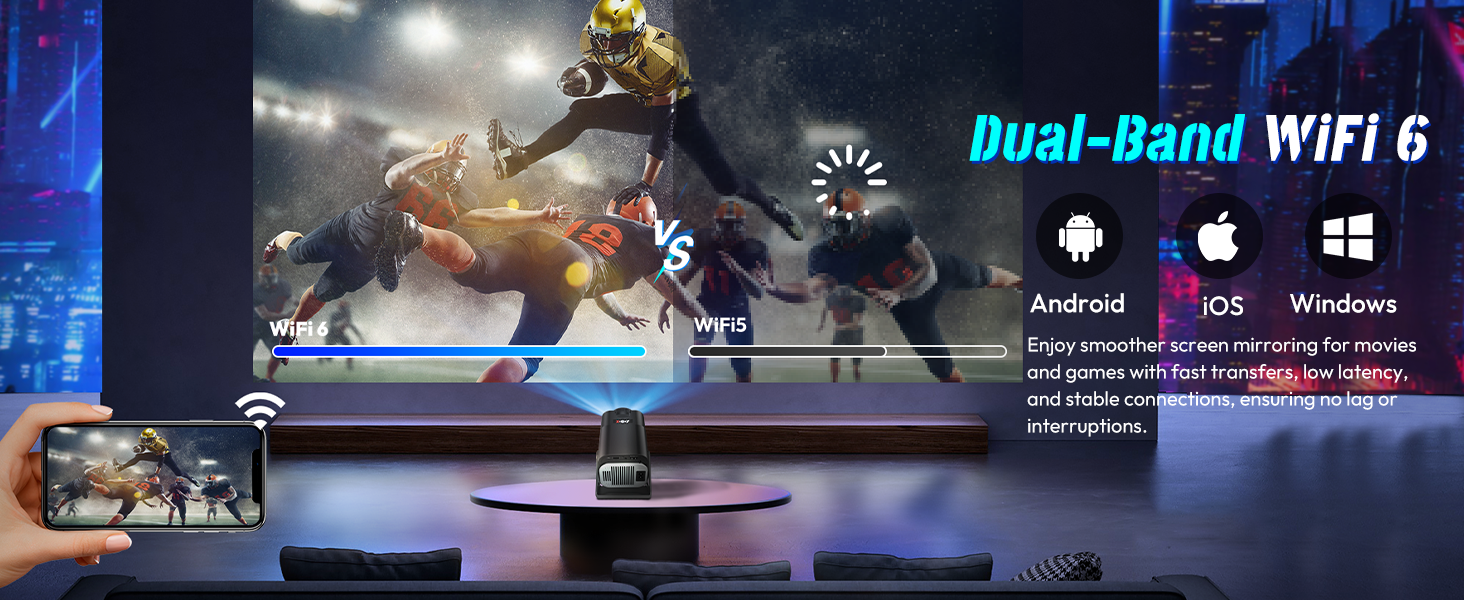
- Connectivity: Dual-band WiFi 6 (2.4G/5G) for smooth screen mirroring, Bluetooth 5.0 for external audio.
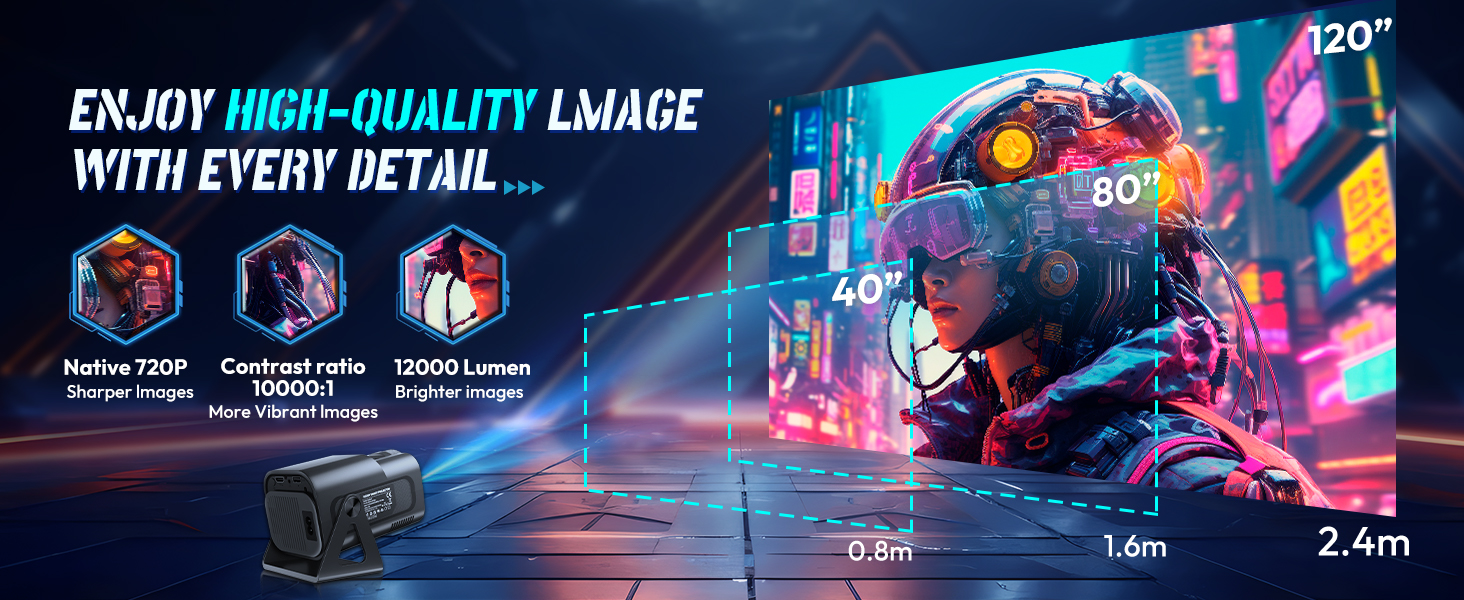
- Display: Native 720P HD, 4K support, 12000 Lumens brightness, 10000:1 contrast ratio.
- Flexibility: 180° rotatable projection angle, auto vertical keystone correction, 4P correction, 100%-50% screen fit.
- Ports: HDMI, USB, 3.5mm Audio Jack.
3.2 Controls and Ports
Refer to Figure 3 for a visual guide to the projector's controls and ports.
- ON/OFF Button: Power on or off the projector.
- Audio Jack (3.5mm): Connect external headphones or speakers.
- Vent: Ensure these are not blocked for proper heat dissipation.
- Power Input: Connect the provided power cable.
- HDMI Port: Connect to devices like PS4/PS5, TV Box, TV Stick, or PC/Laptop.
- USB Port: Connect USB drives (U-Disk) for media playback or other USB devices.
- Focus Adjustment Ring: Rotate to achieve a clear image.
4. Setup Guide
4.1 Initial Placement
- Place the projector on a stable, flat surface.
- Ensure there is adequate ventilation around the projector and that the vents are not obstructed.
- Position the projector at a suitable distance from the projection surface (wall or screen) to achieve your desired screen size (e.g., 0.8m for 40 inches, 2.4m for 120 inches).

4.2 Power Connection
- Connect the power cable to the projector's power input port.
- Plug the other end of the power cable into a suitable power outlet.
4.3 First Time Use
- Press the ON/OFF button to power on the projector.
- Follow the on-screen instructions to complete the initial Android TV setup, including language selection, Wi-Fi connection, and Google account login.
5. Operation
5.1 Adjusting Projection Angle and Focus
- Rotation: The projector features a 180° rotatable design. Adjust the projector's body to project onto a wall, ceiling, or any desired surface.
- Focus: Rotate the focus adjustment ring on the projector until the image appears clear and sharp.


5.2 Keystone Correction and Screen Fit
The projector supports automatic vertical keystone correction and 4P correction to ensure a perfectly rectangular image, even if the projector is not perfectly aligned with the screen. It also offers 100%-50% zoom for screen size adjustment.
5.3 Android TV Features
Navigate the Android TV interface using the remote control. You can download and stream content from various apps like Netflix, YouTube, Hulu, and Amazon Prime Video.

5.4 Screen Mirroring (Wireless Connection)
The projector supports dual-band WiFi 6 for seamless screen mirroring from Android, iOS, and Windows devices. Ensure your device and the projector are connected to the same Wi-Fi network.

5.5 Wired Connections
- HDMI: Connect an HDMI cable from your external device (e.g., game console, laptop) to the projector's HDMI port. Select the HDMI input source from the projector's menu.
- USB: Insert a USB drive into the USB port to play media files directly.
- Audio Out: Connect external speakers or headphones to the 3.5mm audio jack for enhanced sound.
6. Maintenance
6.1 Cleaning
- Lens: Use a soft, lint-free cloth specifically designed for optical lenses. Do not use abrasive cleaners or solvents.
- Exterior: Wipe the projector's exterior with a soft, dry cloth. For stubborn dirt, slightly dampen the cloth with water.
- Vents: Periodically check and clean the ventilation openings to prevent dust buildup, which can affect performance and lifespan. Use a soft brush or compressed air.
6.2 Storage
When not in use for extended periods, store the projector in a cool, dry place, away from direct sunlight and extreme temperatures. Use the original packaging or a protective case to prevent dust and damage.
7. Troubleshooting
| Problem | Possible Cause | Solution |
|---|---|---|
| No image displayed | Power cable loose; Incorrect input source; Device not connected | Check power connection; Select correct HDMI/USB input; Ensure external device is on and connected. |
| Image is blurry | Out of focus; Incorrect projection distance | Adjust the focus ring; Reposition the projector for optimal distance. |
| Image is trapezoidal | Projector not perpendicular to screen | Use automatic vertical keystone correction or 4P correction in settings. |
| No sound | Volume too low; External audio device not connected; Incorrect audio output selected | Increase volume; Connect external speakers/headphones; Check audio settings on projector and source device. |
| Screen mirroring issues | Wi-Fi connection unstable; Device compatibility | Ensure both devices are on the same stable Wi-Fi 6 network; Check device's screen mirroring compatibility. |
| Projector overheats | Vents blocked; Prolonged use in hot environment | Ensure vents are clear; Operate in a well-ventilated area; Allow projector to cool down. |
8. Specifications
| Feature | Specification |
|---|---|
| Brand Name | XGODY |
| Type | Mini Projector |
| System | Android 11 |
| Optical Resolution | 1280x720dpi (Native) |
| Supported Resolutions | 4K, 1920x1080p, 1280x720p |
| Brightness | 12000 Lumens (300 ANSI Lumens) |
| Contrast Ratio | 10000:1 |
| Projection Technology | LED |
| Light Source | LED |
| Lamp Life | 50,000 hours |
| Projected Dimension | 40-150 inches |
| Projection Distance | 0.5-3.15m |
| Screen Scale | 16:9, 4:3 |
| Keystone Correction | Manual Correction, Auto Vertical Correction, 4P Correction |
| Portable | Yes |
| Built-in Speaker | Yes |
| Bluetooth-compatible | Yes (BT5.0) |
| Input/Output | HDMI, USB |
| Wireless Connection | Wi-Fi 6 (2.4G/5G) |
| Power Source | DC |
| Power (W) | 48W |
| Weight | 0.6kg (approx. 550g) |
| Dimensions (approx.) | 14.6cm x 8.6cm x 9.6cm |
| Remote controller included | Yes |
| Inbox adaptor | Yes |
9. User Tips
- For the best viewing experience, use the projector in a dimly lit or dark room.
- Experiment with the 180° rotation feature to project onto ceilings for a unique viewing angle.
- Utilize the screen mirroring function for presentations or sharing content from your mobile devices.
- Connect external Bluetooth speakers for a more immersive audio experience, especially in larger rooms or outdoor settings.
10. Warranty and Support
For warranty information and technical support, please refer to the contact details provided by your retailer or visit the official XGODY website. Keep your purchase receipt as proof of purchase for any warranty claims.