
1. Introduction
This manual provides comprehensive instructions for setting up, operating, and maintaining your Waveshare 11.9inch DSI LCD Display. This display features a 320×1480 resolution IPS panel with a DSI interface and 5-point capacitive touch functionality, designed for use with Raspberry Pi devices.

2. Package Contents
Please verify that all items listed below are included in your package:
- 11.9inch DSI LCD x1
- FPC 15PIN 1.0 pitch 50mm (opposite sides) x1
- DSI-Cable-12cm x1
- FPC 15PIN 1.0 pitch 160mm (opposite sides) x1
- PH2.0 4PIN cable 200mm x1
- Screws pack x1

3. Setup Instructions
This display is designed for use with Raspberry Pi boards. Follow these steps for proper connection and initial setup.
3.1. Compatibility
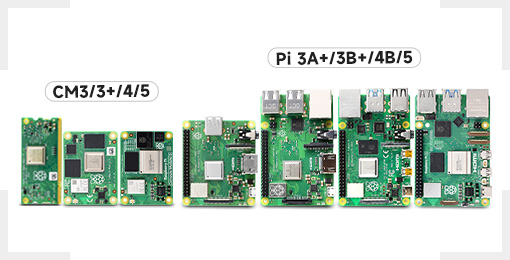
The display supports Raspberry Pi 5, 4B, 3B+, and 3A+. For CM3/3+/4 models, an additional adapter board is required.
3.2. Hardware Connection
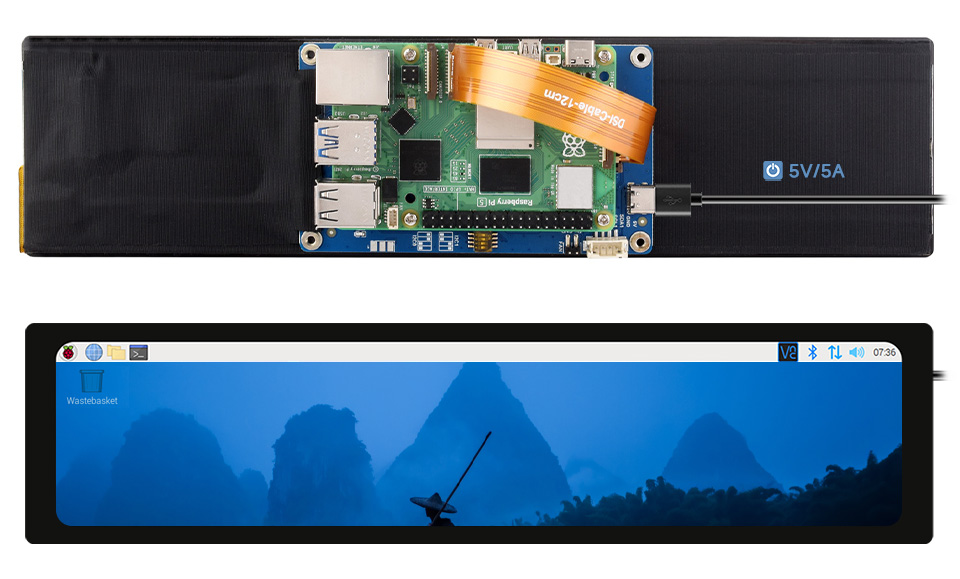
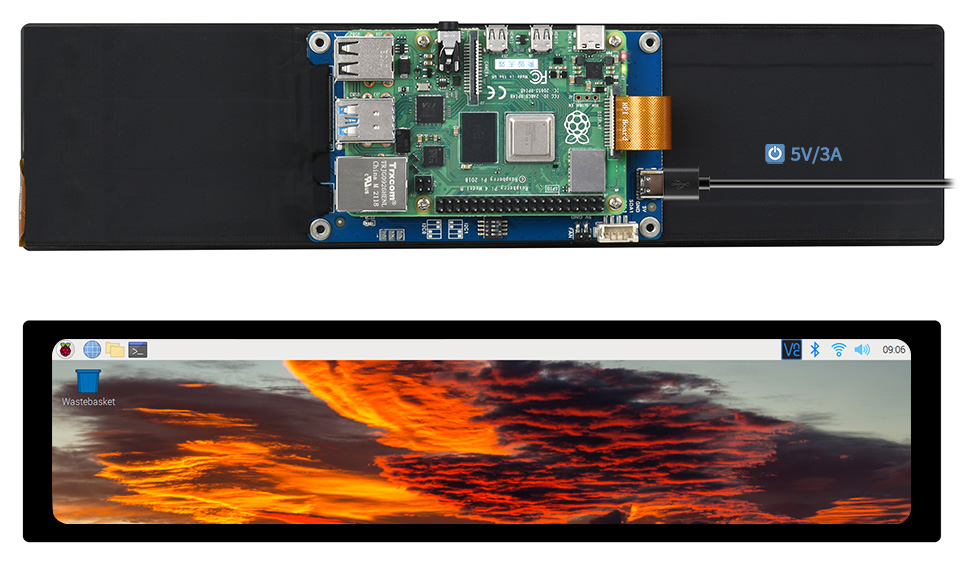
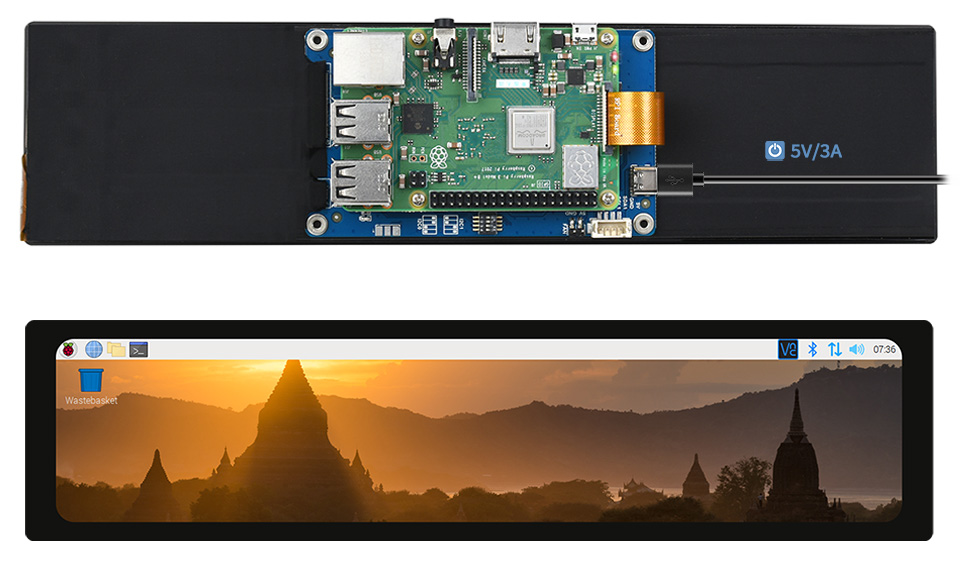
- Connect the DSI Cable: Connect one end of the DSI-Cable-12cm to the DSI connector on the 11.9inch DSI LCD. Connect the other end to the DSI port on your Raspberry Pi board.
- Power Supply: Connect the PH2.0 4PIN cable to the power input on the display and to a suitable 5V power source. The display can also draw power from the Raspberry Pi via the DSI connection, but an external 5V/3A or 5V/5A power supply is recommended for stable operation, especially with Raspberry Pi 5.
- Touch Connection: The touch functionality uses an I2C interface. Ensure the touch port selection is correctly configured (I2C0 or I2C1) if applicable, and connect the touch communication cable if separate from DSI.

3.3. Software Configuration
The display orientation is portrait by default (320×1480 resolution H×V). To change to landscape display, you will need to modify the software configuration on your Raspberry Pi OS. Refer to the Waveshare product wiki or documentation for specific driver installation and configuration steps for your Raspberry Pi model and OS version.
4. Operating Instructions
4.1. Display Functionality
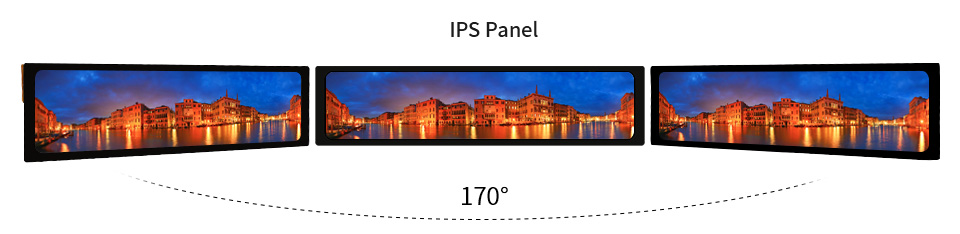
The 11.9inch DSI LCD features an IPS panel, providing a wide 170° viewing angle for consistent color and image quality from various perspectives.
4.2. Touch Control
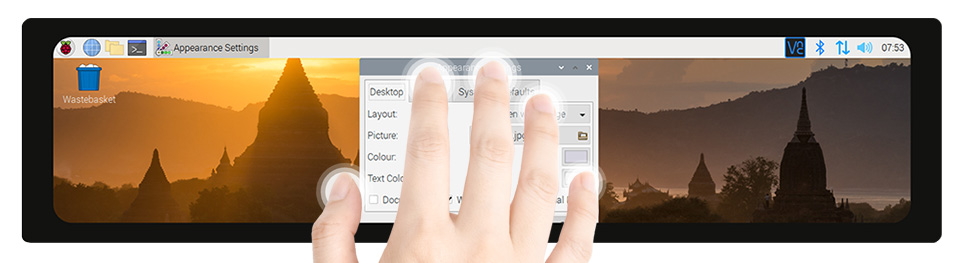
The display incorporates a 5-point capacitive touch panel with a toughened glass surface. This allows for multi-touch gestures and precise interaction with the operating system. Touch input is communicated via the I2C interface.
4.3. Brightness Adjustment
The display supports adjustable brightness via software. This feature allows users to customize the screen's luminosity to suit different lighting conditions and preferences.

5. Maintenance
To ensure the longevity and optimal performance of your display, please follow these maintenance guidelines:
- Cleaning: Use a soft, lint-free cloth slightly dampened with water or a screen-specific cleaning solution to clean the display surface. Avoid using harsh chemicals, abrasive cleaners, or alcohol-based solutions, as these can damage the screen coating.
- Handling: Handle the display by its edges. Avoid applying excessive pressure to the screen, especially the touch surface.
- Storage: When not in use, store the display in a cool, dry place away from direct sunlight and extreme temperatures.
- Protection: The display features a toughened glass panel for durability, but it is not indestructible. Avoid dropping the display or exposing it to sharp objects.
6. Troubleshooting
If you encounter issues with your Waveshare 11.9inch DSI LCD Display, refer to the following common problems and solutions:
- No Display Output:
- Ensure the DSI cable is securely connected to both the display and the Raspberry Pi.
- Verify that the Raspberry Pi is powered on and functioning correctly.
- Check the power supply to the display; ensure it is receiving adequate 5V power (e.g., 5V/3A or 5V/5A).
- Confirm that the necessary drivers and display configurations are correctly installed on your Raspberry Pi OS.
- Touch Functionality Not Working:
- Ensure the touch interface (I2C) is properly connected and recognized by the Raspberry Pi.
- Check for any specific touch screen drivers or calibration software required by Waveshare for your Raspberry Pi OS.
- Verify the touch port selection on the display board, if applicable.
- Incorrect Display Orientation:
- The display defaults to portrait mode (320×1480). To change to landscape, you must modify the software configuration in your Raspberry Pi OS. Consult the Waveshare product wiki for detailed instructions on rotating the display output.
- Flickering or Unstable Display:
- This can often be caused by insufficient power. Ensure you are using a stable and sufficiently powerful 5V power supply for both the Raspberry Pi and the display.
- Check DSI cable for damage or loose connections.
7. Specifications
| Feature | Specification |
|---|---|
| Display Size | 11.9 inches |
| Resolution | 320 × 1480 pixels |
| Display Panel Type | IPS |
| Viewing Angle | 170° |
| Display Interface | DSI |
| Touch Type | Capacitive |
| Touch Points | 5-Points |
| Touch Interface | I2C |
| Touch Panel Material | Toughened Glass |
| Default Orientation | Portrait (320×1480 H×V) |
| Power Input | 5V (via DSI or external PH2.0 4PIN cable) |
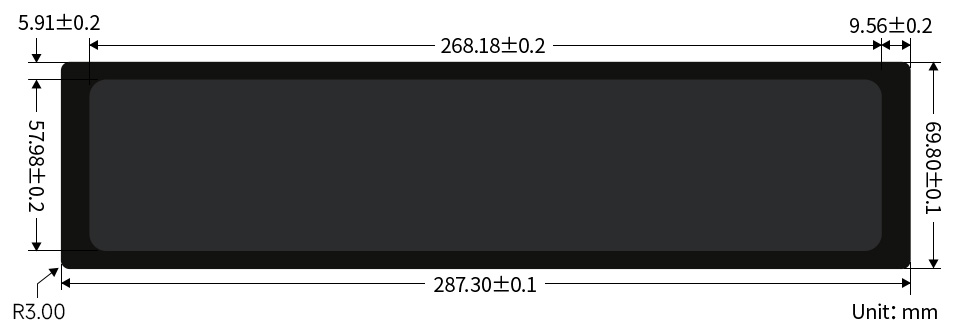
7.1. Dimensions
8. User Tips
- Optimal Viewing: Due to the IPS panel, the display offers excellent viewing angles. Experiment with different orientations and positions to find what works best for your application.
- Software Brightness: Utilize the software brightness adjustment feature to conserve power or adapt to varying ambient light conditions, enhancing user comfort and display lifespan.
- Driver Installation: Always refer to the official Waveshare product wiki for the latest drivers and detailed setup guides specific to your Raspberry Pi model and operating system. This ensures compatibility and access to all features.
- Power Considerations: For demanding applications or when using Raspberry Pi models that require more power, consider using a dedicated external 5V power supply for the display to ensure stable operation and prevent unexpected shutdowns or performance issues.
9. Warranty and Support
For technical support, warranty information, or further assistance with your Waveshare 11.9inch DSI LCD Display, please visit the official Waveshare website or contact their customer service. Ensure you have your product model and any relevant purchase details available when seeking support.


