
1. Introduction
The EWEADN X75/X75Pro is a versatile tri-mode mechanical gaming keyboard designed for both efficient office work and immersive gaming experiences. It features a compact 79-key layout, hot-swappable switches, customizable RGB lighting, and a unique multimedia screen with a CNC metal knob. This manual provides detailed instructions for setting up, operating, maintaining, and troubleshooting your keyboard.

2. Setup
2.1. Package Contents
Ensure all items are present:
- EWEADN X75/X75Pro Mechanical Keyboard
- USB Type-C Cable
- Wireless 2.4G Receiver
- Keycap Puller
- Switch Puller
- Spare Switches (if included with your version)
- User Manual (this document)
2.2. Connecting the Keyboard
The X75/X75Pro supports three connection modes: 2.4G Wireless, Bluetooth, and Wired (Type-C).
- Wired Connection:
- Connect the provided USB Type-C cable to the keyboard's port and the other end to your computer's USB port.
- The keyboard will automatically be detected and ready for use.
- 2.4G Wireless Connection:
- Locate the 2.4G wireless receiver (usually stored in a compartment on the keyboard).
- Plug the 2.4G receiver into an available USB port on your computer.
- Switch the keyboard's mode selector to 2.4G mode. The keyboard should connect automatically.
- Bluetooth Connection:
- Switch the keyboard's mode selector to Bluetooth mode.
- On your device (computer, laptop, tablet, or phone), go to Bluetooth settings and enable Bluetooth.
- Search for new devices. The keyboard should appear as "EWEADN X75" or similar.
- Select the keyboard to pair. Follow any on-screen prompts to complete the pairing process.
2.3. Driver Installation (Optional)
For advanced customization, including key remapping, macro settings, and lighting effects, you may need to install the dedicated EWEADN driver software. Please visit the official EWEADN website to download the latest driver compatible with your operating system (Windows/Mac OS).

3. Operating Instructions
3.1. Basic Keyboard Use
The X75/X75Pro features a compact 79-key layout. Standard typing functions operate as expected. Refer to the keycap legends for specific functions.
3.2. RGB Lighting Effects
The keyboard is equipped with approximately 16 million colored RGB light beads, offering various lighting effects and customization options.
- Changing Lighting Modes: Use the dedicated function keys or the CNC metal knob (if configured) to cycle through different lighting effects.
- Adjusting Brightness/Speed: Use function key combinations (e.g., Fn + Arrow keys) or the CNC metal knob to adjust brightness and animation speed.
- Music Rhythm Mode: The keyboard supports music rhythm 2.0, allowing the lighting to synchronize with audio playback.
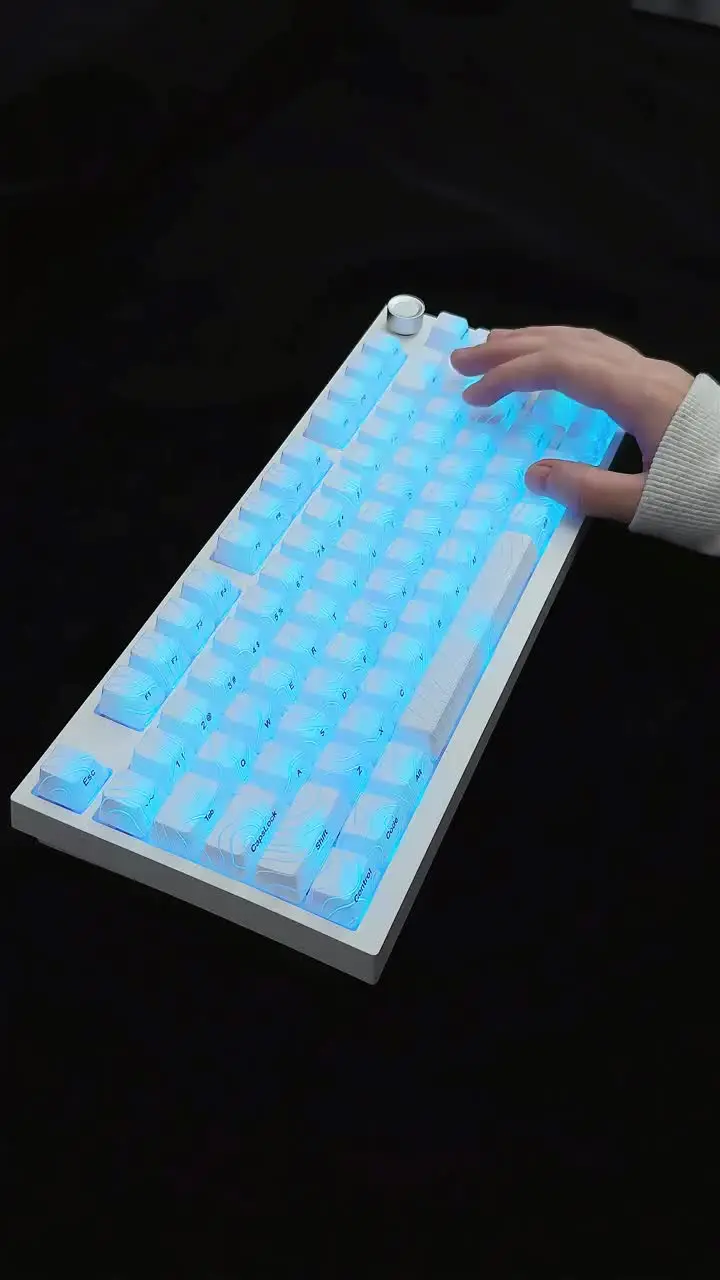
3.3. CNC Metal Knob and Multimedia Screen
The CNC metal knob and 1.14-inch TFT multimedia color screen provide intuitive control and personalized display options.
- Knob Functions:
- One Press: Mute/unmute audio.
- Rotation: Adjust volume (+/-).
- Fn + Knob (Flagship Version): Switch the knob level to control light effects or screen adjustments.
- Multimedia Screen:
- Displays real-time information such as keyboard connection status, battery level, and current mode.
- Supports custom GIF animations, allowing users to upload personalized images or animations.


4. Maintenance
4.1. Cleaning the Keyboard
- Disconnect the keyboard from your device before cleaning.
- Use a soft, lint-free cloth slightly dampened with water or a mild cleaning solution to wipe the keycaps and chassis.
- For deeper cleaning, use the provided keycap puller to remove keycaps and clean underneath with compressed air or a small brush.
- Avoid spraying liquids directly onto the keyboard.
4.2. Replacing Switches and Keycaps
The X75/X75Pro features hot-swappable switches, allowing for easy replacement without soldering.
- Keycap Replacement: Use the keycap puller to gently remove the desired keycap. Align the new keycap and press down firmly until it clicks into place.
- Switch Replacement:
- First, remove the keycap using the keycap puller.
- Use the switch puller to grasp the top and bottom clips of the switch. Gently pull the switch upwards to remove it from the PCB.
- Align the pins of the new switch with the holes on the PCB. Ensure the pins are straight to avoid bending.
- Press the new switch down firmly until it snaps into place. Replace the keycap.

5. Troubleshooting
- Keyboard not responding:
- Check the connection mode (wired, 2.4G, Bluetooth) and ensure it matches your device.
- For wireless modes, ensure the keyboard is charged.
- Try reconnecting the cable or re-pairing the wireless connection.
- Restart your computer/device.
- RGB lighting not working/incorrect:
- Ensure the lighting is enabled via function keys or software.
- Check the multimedia screen for any lighting status indicators.
- If using the custom driver, ensure settings are correctly applied.
- Bluetooth connection issues:
- Ensure the keyboard is in Bluetooth pairing mode.
- Remove the keyboard from your device's Bluetooth list and re-pair.
- Ensure your device's Bluetooth is enabled and working correctly.
- Multimedia screen not displaying correctly:
- Check the keyboard's power status.
- If customizing GIFs, ensure the file format and size are compatible with the keyboard's software.
6. Specifications
| Feature | Specification |
|---|---|
| Product Name | X75/X75Pro Three-Mode Mechanical Keyboard |
| Keyboard Standard | 78 Keys (75% Layout) |
| Operation Style | Mechanical |
| Interface Type | Bluetooth, 2.4G Wireless, Wired (Type-C) |
| Switches Hot Swap | Yes (Compatible with 3-pin and 5-pin switches) |
| Switches Manufacturer | Kailh, Gaote, Huannuo (depending on version) |
| Keycup Material | PBT plastic |
| Keycup Printing | Dye-sublimation (Original two-color PBT keycap) |
| Backlight Type | RGB (16 million colors, music rhythm 2.0) |
| Battery Included | Yes |
| Battery Capacity | 8000mAh (some versions may have 18000mAh) |
| Wireless Latency | As low as 1ms (Swiftspeed wireless technology) |
| Multimedia Screen | 1.14-inch TFT multimedia color screen (supports custom GIFs) |
| Knob | CNC Metal Knob (plugable, volume/brightness/lighting control) |
| Keyboard Structure | E-sports gasket structure with five layers of premium filling (Poron cotton, IXPE shaft lower pad, PET sound pad, EPDM axis cotton) |
| Dimensions (Approx.) | 327mm (L) x 137mm (W) x 38mm (H) |
| System Support | Windows, Mac OS |


7. User Tips
- Battery Management: To maximize battery life, turn off RGB lighting when not needed, especially during extended wireless use. The keyboard offers approximately 200 hours with lights off and 30 hours with lights on.
- Customization: Experiment with different switch types to find your preferred typing or gaming feel, thanks to the hot-swappable design.
- Screen Personalization: Utilize the custom GIF feature on the multimedia screen to display unique animations or important system information for a personalized touch.

8. Warranty and Support
For warranty information, technical support, or service inquiries, please contact the seller or manufacturer directly. Keep your proof of purchase for any warranty claims.