
1. Introduction
The Akko MonsGeek FUN68 HE is a high-performance 65% magnetic switch custom keyboard designed for competitive gaming and enhanced productivity. It features a compact 68-key layout, advanced magnetic switches with 0.005mm Rapid Trigger (RT) precision, an 8K polling rate, and vibrant ARGB lighting. This keyboard offers versatile connectivity options including wired USB Type-C, 2.4G wireless, and Bluetooth, providing flexibility for various setups.
This manual provides detailed instructions on setting up, operating, maintaining, and troubleshooting your FUN68 HE keyboard to ensure you get the most out of its advanced features.

2. Setup and Connectivity
2.1. Initial Connection
The FUN68 HE keyboard supports three connection modes: Wired (USB Type-C), 2.4G Wireless, and Bluetooth.
- Wired Connection: Connect the keyboard to your computer using the provided USB Type-C cable.
- 2.4G Wireless Connection:
- Turn on the keyboard.
- Press
Fn + Yto enter 2.4G mode. - Short press
Fn + Yto switch between 2.4G channels. - Long press
Fn + Yfor 3 seconds to initiate pairing.
- Bluetooth Connection:
- Turn on the keyboard.
- Press
Fn + E,Fn + R, orFn + Tto enter Bluetooth mode and select a channel (BT1, BT2, BT3). - Short press the respective
Fn + E/R/Tkey to switch between paired Bluetooth devices. - Long press the respective
Fn + E/R/Tkey for 3 seconds to initiate pairing for a new device. The keyboard can connect up to 3 devices.

2.2. Driver Installation
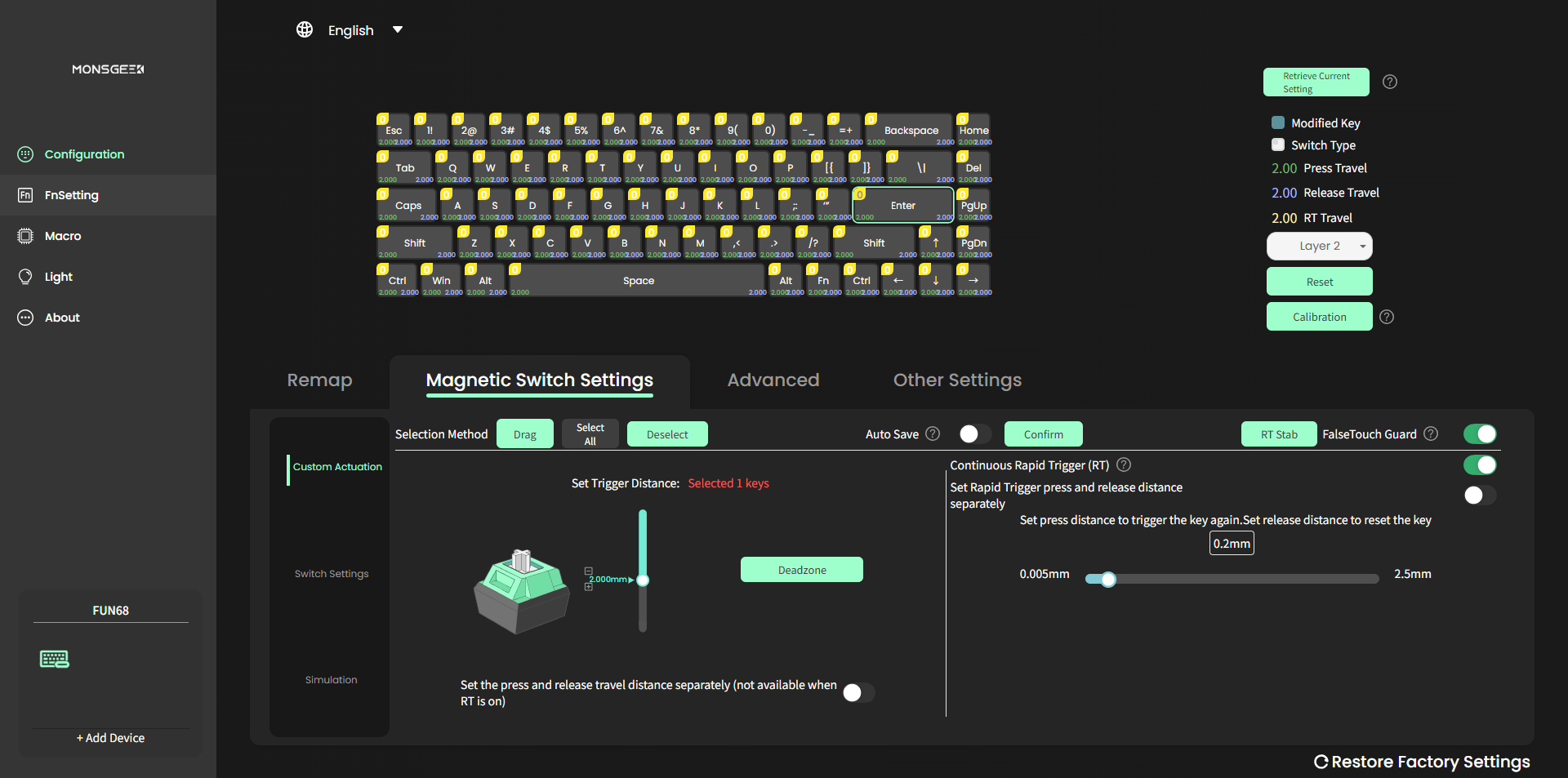
To unlock the full customization potential of your FUN68 HE keyboard, download and install the MonsGeek Driver. The driver is web-based and can be accessed at: https://web.monsgeek.com/
2.3. Magnetic Switch Compatibility
The FUN68 series is cross-compatible with 5 third-party magnetic switches. After replacing switches, select the corresponding switch type in the MonsGeek Driver and calibrate the keyboard. You can also mix and match different magnetic switches simultaneously.
Important Note:
The magnetic switches used in the FUN68 series incorporate a downward-facing N-pole magnet. Akko Magnetic Creamy Yellow switches, which use a downward-facing S-pole magnet (as found in the M1W HE and M1W V3 HE), are not compatible with the FUN68. Always verify the magnetic polarity of switches before replacement.

3. Operation
3.1. Combination Keys (Fn Functions)
The FUN68 HE keyboard utilizes an Fn key for various secondary functions:
| Combination | Function (Win) | Function (Mac) |
|---|---|---|
| Fn + 1! | F1 | F1 |
| Fn + 2@ | F2 | F2 |
| Fn + 3# | F3 | F3 |
| Fn + 4$ | F4 | Siri |
| Fn + 5% | F5 | F5 |
| Fn + 6^ | F6 | F6 |
| Fn + 7& | F7 | F7 |
| Fn + 8* | F8 | ▷II (Play/Pause) |
| Fn + 9( | F9 | D (Previous Track) |
| Fn + 0) | F10 | x (Next Track) |
| Fn + -_ | F11 | F11 |
| Fn + =+ | F12 | F12 |
| Fn + Esc | | | | |
| Fn + M | - Ax | - Ax |
| Fn + C | D | D |
| Fn + P | Prtsc | Prtsc |
| Fn + W | AD | AD |
| Fn + I | Ins | Ins |
| Fn + O | Win/Mac (0) | Win/Mac (0) |
| Fn + ] | → | → |
| Fn + [ | ↑ | ↑ |
| Fn + Backspace | Reset | Reset |
| Fn + L | ← | ← |
| Fn + L_Win | WIN | WIN |
| Fn + R_Alt | FN+\ | FN+\ |
3.2. Backlight Control
- Adjust Color: Press
Fn + \to cycle through 7 single colors and an RGB loop effect in all RGB lighting modes.
3.3. Battery Level Check (Wireless Mode Only)
To check the battery level, press Fn + Spacebar. The indicator lights on the number keys will show the charge status:
- Below 30%: Number 1-2 keys show red light.
- Below 40%: Number 1-3 keys show green light.
- Below 50%: Number 1-4 keys show green light.
- Below 60%: Number 1-5 keys show green light.
- Below 70%: Number 1-6 keys show green light.
- Below 80%: Number 1-7 keys show green light.
- Below 90%: Number 1-8 keys show green light.
- Below 100%: Number 1-9 keys show green light.
- Fully Charged: Number 1-0 keys show green light.
3.4. Advanced Features (via MonsGeek Driver)
The MonsGeek Driver software allows for extensive customization of your keyboard's performance and lighting.
- Rapid Trigger (RT): Dynamically changes key actuation and deactivation points. Customize for 'All Buttons' or 'Per Button' and activate 'Non-stop Rapid Trigger' for instant key response. This feature is crucial for competitive gaming, enabling techniques like 'Counter-Strafe' in games like VALORANT.

Diagram illustrating the Rapid Trigger (RT) functionality, showing how actuation and reset points are dynamically adjusted for faster response compared to regular keyboards. - Adjustable Actuation Distance: Fine-tune each key's actuation point from 0.1mm to 3.4mm in 0.005mm steps, optimizing for typing or gaming preferences.

Diagram showing the adjustable actuation distance feature, allowing users to set individual key actuation points. - Dynamic Keystrokes (DKS): Assign up to four different operations to a single key based on the press force. A light press triggers one action, a deeper press another, and release also supports two-stage settings.

Diagram illustrating Dynamic Keystrokes (DKS), where different actions are triggered based on the depth of a keypress. - Toggle Key (TGL): Transforms a key into a toggle switch. Pressing it can either continuously hold down a function or trigger it multiple times at a high frequency.

Diagram explaining the Toggle Key (TGL) function, showing how a key can be set to either hold a function or trigger it repeatedly. - Mod-Tap: Create dual-functional keys. Holding down the key performs one function, while tapping it performs another.

Diagram illustrating Mod-Tap functionality, showing how a single key can have different actions based on whether it's pressed and held or tapped. - Snap Key (SOCD): Prioritizes the most recent keypress for swift directional changes without releasing previous inputs, ensuring fluid and responsive control, especially in FPS games.

Diagram explaining Snap Key (SOCD), which prioritizes the most recent keypress for quick directional changes in gaming. - RT Stabilizer: This mode helps prevent unintended inputs or disconnections from slight hand tremors when using a 0.005mm Rapid Trigger precision. It can be activated via the MonsGeek Driver with 4 different filtering levels.

Image highlighting the RT Stabilizer feature, designed to enhance stability and prevent unintended inputs during high-precision Rapid Trigger usage. - Key Remapping: Customize the layout of your keys for optimal efficiency and comfort.
4. Maintenance
4.1. Cleaning
To keep your keyboard in optimal condition:
- Use a soft, lint-free cloth to wipe down the keycaps and case.
- For deeper cleaning, remove keycaps and use compressed air to clear debris from between switches.
- Avoid using harsh chemicals or abrasive materials that could damage the keyboard's finish or components.
4.2. Demagnetized Stabilizer
The FUN68 HE features a demagnetized stabilizer wire, which reduces magnetic interference, improves trigger accuracy, and enhances long-term stability. This design contributes to the keyboard's consistent performance over time.

5. Troubleshooting
- Connectivity Issues: Ensure the keyboard is in the correct mode (Wired, 2.4G, or Bluetooth) for your device. Re-pair wireless connections if necessary.
- Key Mapping/Functionality: If keys are not responding as expected, check the settings in the MonsGeek Driver. Factory reset may resolve unexpected remapping issues.
- Inconsistent Actuation: Ensure magnetic switches are properly seated. If using third-party switches, verify compatibility and calibrate them using the MonsGeek Driver.
- Keyboard Tilt/Layout Adjustment: Some users may find the keyboard's inherent tilt or 65% layout takes getting used to, especially when transitioning from flatter or full-size keyboards. Practice and customization via the driver can help.
- Noise Level: The FUN68 HE is a mechanical keyboard and may not be ideal for users prioritizing extreme quietness.
For persistent issues, refer to the official user manual PDF or contact AKKO customer service.
6. Specifications
| Feature | Detail |
|---|---|
| Model | MonsGeek FUN68 HE Keyboard |
| Brand | AKKO |
| Layout | 65% (68 keys) |
| Keycup Printing | Doublshot |
| Keycup Material | PBT plastic |
| Switches Hot Swap | No |
| Backlight Type | MULTICOLOR (ARGB, 500Hz refresh rate) |
| Axis Body Brand | AKKO |
| Full Size Keyboard | No |
| Wrist Support | No |
| Style | Standard |
| Interface Type | USB |
| Battery Included | No (3000mAh for Tri-mode Version Only) |
| Operation Style | Mechanical |
| Language | English |
| Application | Desktop, Laptop |
| Type | Wired (Tri-mode: USB Type-C/2.4g & Bluetooth) |
| Origin | Mainland China |
| Structure | Tray Mount |
| Connection | Wired: USB Type-C; Tri-mode: USB Type-C/2.4g & Bluetooth |
| Case Material | ABS |
| Case Color | Black/White |
| Plate | Aluminum |
| Battery | 3000mAh (Tri-mode Version Only) |
| LED | ARGB |
| Magnetic Switch Cross-Compatibility | Yes |
| Accuracy | 0.005 mm (Rapid Trigger) |
| Polling Rate | 8K (Adjustable 125Hz-8000Hz) |
| Key Features | Custom Actuation, Mod-Tap, Toggle Key, Dynamic Keystroke, Keys Remapping, SOCD |
| Stabilizer | Pre-Lubed Plate-Mounted Stabilizer, RT Stabilizer, Demagnetized Stabilizer |
| Software | MonsGeek Driver & Web-Based Driver |
| Keycap Profile | Cherry Side-printed |
| Size (without keycaps) | 316*106.6*27mm |
| Weight (without package) | 0.6kg |
6.1. Akko Flash Magnetic Switch Specifications
- Total Travel: 3.5±0.1mm
- Initial Force: 25gf Min
- Actuation force at 2.0mm Travel: 40±5gf
- End Force: 48gf Max
- Initial Magnetic Flux: 90+15GS (PCB: 1.6mm)
- Bottom Magnetic Flux: 580+50GS (PCB: 1.6mm)
- Top/Stem/Bottom: PC/POM/PA66
- LED Diffuser
6.2. Akko Glare Magnetic Switch Specifications
- Total Travel: 3.4mm
- Initial Force: 25gf Min
- Actuation force at 2.0mm Travel: 40±5gf
- End Force: 48gf Max
- Initial Magnetic Flux: 95+15GS (PCB: 1.6mm)
- Bottom Magnetic Flux: 589+50GS (PCB: 1.6mm)
- Top/Stem/Bottom: PC/POM/PC
- LED Diffuser

7. User Tips
- Familiarize with Layout: If you're new to 65% keyboards, take time to get accustomed to the compact layout, especially the placement of arrow keys and navigation keys.
- Maximize Customization: The MonsGeek Driver is powerful. Explore its features to customize key mappings, actuation points, and RGB lighting to suit your specific needs and gaming style.
- Experiment with RT: For competitive gaming, experiment with the Rapid Trigger settings and actuation distances to find your optimal response time.
- Consider Sound Profile: The keyboard is mechanical and may produce audible clicks. If quietness is a priority, be aware of its sound characteristics.
- Calibration is Key: After replacing magnetic switches, always use the MonsGeek Driver to calibrate the keyboard for accurate performance.
8. Warranty and Support
8.1. Warranty Information
AKKO provides a one-year warranty for customers in mainland China. For warranty policies in other regions, please contact your local AKKO distributor or seller directly.
Note: Disassembling the keyboard without manufacturer/seller instructions will immediately void the warranty.
8.2. Customer Support
If you encounter any issues related to your product or require assistance, please do not hesitate to contact the AKKO official customer service team. They are available to assist you and ensure a seamless and satisfactory experience.
For additional guides and documents, you may refer to the official user manual PDF: User manual (PDF)