
1. Product Overview
The ANYSECU W400 is a robust 4G Network PoC (Push-to-Talk over Cellular) Walkie Talkie running on Android 15. It features global 2G/3G/4G network band support, a 4.0-inch IPS touch screen, built-in NFC for patrolling clock-in, and a powerful 2.5W stereo loudspeaker. Designed for reliable communication, it integrates seamlessly with popular PoC applications like Zello, Real-PTT, and Pocstar.

2. Package Contents
Please check the package contents carefully. If any items are missing or damaged, contact your vendor.
- 1x W400 Radio Body
- 1x Power Adapter
- 1x USB Data Cable
- 1x Removable Battery (4350mAh)
- 1x Back Clip
- 1x Mini Screwdriver
- 1x Wrist Strap

Video: Unboxing and Assembly Guide
This video demonstrates how to unbox the W400 and assemble its components, including attaching the belt clip.
3. Setup Guide
3.1. Battery Installation
- Ensure the device is powered off.
- Locate the battery cover on the back of the device.
- Use the provided mini screwdriver to loosen the screws securing the battery cover.
- Carefully remove the battery cover.
- Insert the 4350mAh battery into the battery compartment, ensuring the contacts align correctly.
- Replace the battery cover and tighten the screws with the mini screwdriver.
3.2. SIM Card and SD Card Installation
- With the battery cover removed, locate the SIM card slot(s) and the MicroSD card slot.
- Insert your 4G LTE/WCDMA/GSM compatible SIM card(s) into the designated slots.
- (Optional) Insert a MicroSD card for expanded storage.
- Reattach the battery cover as described in section 3.1.
3.3. Attaching the Belt Clip and Wrist Strap
- Align the belt clip with the mounting points on the back of the device.
- Slide the belt clip into place until it securely locks.
- Thread the wrist strap through the designated loop on the device for added security.
3.4. Initial Charging
Before first use, fully charge the device.
- Connect the USB data cable to the W400 and the power adapter.
- Plug the power adapter into a wall outlet.
- The charging indicator will illuminate. Allow the device to charge until the indicator shows a full charge (typically green or off).
4. Operating Instructions
4.1. Power On/Off
- Power On: Press and hold the Power button (usually on the side) until the screen lights up.
- Power Off: Press and hold the Power button, then select "Power Off" from the options on the screen.
4.2. Basic Navigation (Android 15 OS)
The W400 runs on Android 15, offering enhanced security, battery optimization, and privacy features.

- Touch Screen: Navigate the 4.0-inch IPS display by tapping, swiping, and pinching.
- Home Button: Returns to the home screen.
- Back Button: Returns to the previous screen.
- Recent Apps Button: Shows recently used applications.
4.3. Network Connectivity
- 4G/3G/2G: Once a SIM card is installed, the device will automatically connect to the available cellular network. Check the signal strength indicator on the status bar.
- Wi-Fi: Go to Settings > Network & internet > Wi-Fi to connect to a Wi-Fi network.
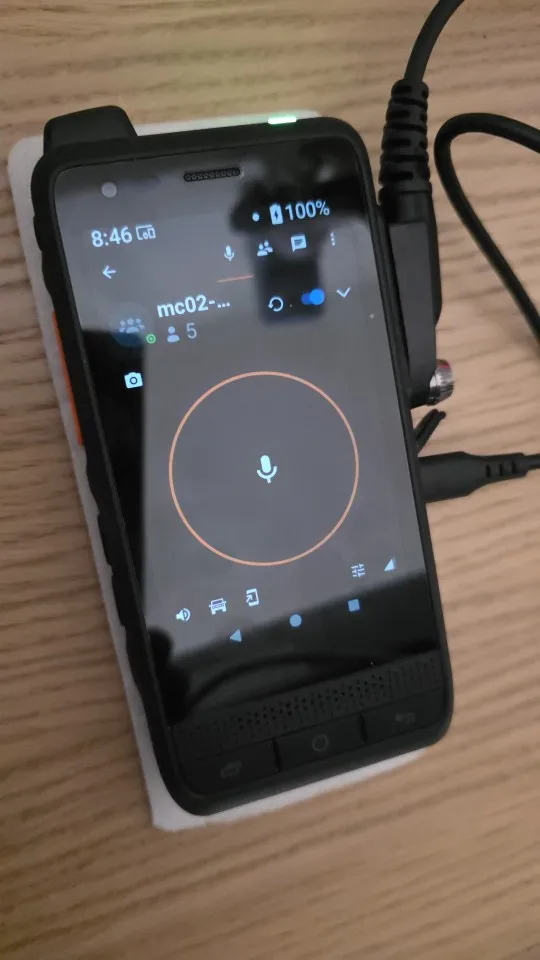
4.4. Push-to-Talk (PoC) Functionality
The W400 is designed for PoC communication, supporting applications like Zello, Real-PTT, and Pocstar.

- Install your preferred PoC application (e.g., Zello) from the Google Play Store.
- Log in or create an account within the application.
- Join or create channels/groups for communication.
- Press and hold the dedicated PTT button on the side of the device to transmit your voice. Release to listen.
4.5. NFC Functionality
The built-in NFC can be used for various purposes, such as patrolling clock-in systems.
- Ensure NFC is enabled in Settings > Connected devices > Connection preferences > NFC.
- To use, simply tap the back of the device against an NFC tag or reader.
4.6. Camera Usage
The W400 features a 5MP front camera, a 13MP main camera, and a 13MP infrared triple camera system.
- Open the Camera application from the home screen or app drawer.
- Select between front, main, or infrared camera modes if available in the app.
- Tap the screen to focus and press the shutter button to take photos or record videos.
4.7. Audio Output
The device is equipped with a front 2.5W stereo loudspeaker for clear audio.

- Adjust volume using the dedicated volume buttons on the side of the device.
- Connect external headphones or speakers via the audio jack if desired.
5. Maintenance and Care
- Cleaning: Use a soft, dry cloth to clean the device. Avoid harsh chemicals or abrasive materials.
- Water Resistance: The W400 is IP65 rated for water and dust resistance. While it can withstand splashes and dust, avoid submerging it in water. Ensure all port covers are securely closed.
- Battery Care: To prolong battery life, avoid extreme temperatures. Do not overcharge or fully discharge the battery regularly.
- Software Updates: Regularly check for and install system updates to ensure optimal performance, security, and compatibility.
- Storage: Store the device in a cool, dry place when not in use.
6. Troubleshooting
6.1. Device Not Powering On
- Ensure the battery is correctly installed and fully charged.
- Connect the device to the charger and try powering it on again.
- If the issue persists, try removing and reinserting the battery.
6.2. No Network Connection
- Check if the SIM card is properly inserted.
- Verify that your SIM card has an active data plan and is compatible with 4G/3G/2G networks.
- Go to Settings > Network & internet > Mobile network and ensure mobile data is enabled.
- Try restarting the device.
6.3. PoC Application Issues
- Ensure you have a stable internet connection (4G or Wi-Fi).
- Check if the PoC application is updated to the latest version.
- Log out and log back into the PoC application.
- If the issue is specific to a region (e.g., Zello not working in UAE), verify service availability with the application provider.
6.4. Audio Problems
- Check the volume settings using the side buttons and within the Android settings.
- Ensure the loudspeaker is not obstructed.
- If using external audio accessories, ensure they are properly connected and functional.
6.5. Device Unresponsive / Freezing
- Press and hold the Power button for about 10-15 seconds to force a restart.
- If the device frequently freezes, consider performing a factory reset (Settings > System > Reset options > Erase all data (factory reset)). Note: This will erase all data on the device. Back up important information first.
7. Specifications
| Feature | Specification |
|---|---|
| Brand Name | ANYSECU |
| Model Number | W400 |
| Walkie Talkie Type | PoC Network Walkie Talkie |
| Operating System | Android 15 |
| Frequency Range | LTE/WCDMA/GSM (Global 2G/3G/4G Network Bands) |
| Output Power | >50W (Note: This might refer to network capability, not RF output for a walkie-talkie) |
| Maximum Range | >50km (Network dependent) |
| Battery Capacity | 4350 mAh |
| Battery Included | Yes |
| Display | 4.0" IPS Touch Screen |
| Cameras | 5MP Front + 13MP Main + 13MP Infrared Triple Cameras |
| Loudspeaker | Front 2.5W Stereo Loudspeaker |
| Waterproof / Water-Resistant | IP65 |
| Material | Plastic + Metal |
| Dimensions | 144.5 x 69.9 x 21.2 mm |
| Package Weight | 0.42 kg |
| Certifications | CE, FCC |
8. User Tips
- Network Compatibility: The W400 is compatible with various network-based communication platforms. It has been noted to work with Dvswitch, Echolink, PEANUT, and Qso one devices, in addition to Zello, Real-PTT, and Pocstar.
- Battery Life: The Android 15 OS offers better battery optimization. For extended use, consider carrying a spare battery, as they are commonly available for this type of device.
- PoC Application Functionality: If a specific PoC application like Zello is not working in your region, it may be due to local network restrictions or service availability. Check with the application provider or your local network operator.
- Microphone Port: Ensure the microphone port is kept clear of debris for optimal audio quality.
9. Warranty and Support
The ANYSECU W400 is certified with CE and FCC standards, ensuring compliance with relevant safety and quality regulations.
For technical support, warranty claims, or further assistance, please contact your original point of purchase or the manufacturer directly. Keep your purchase receipt as proof of purchase.