
1. Introduction
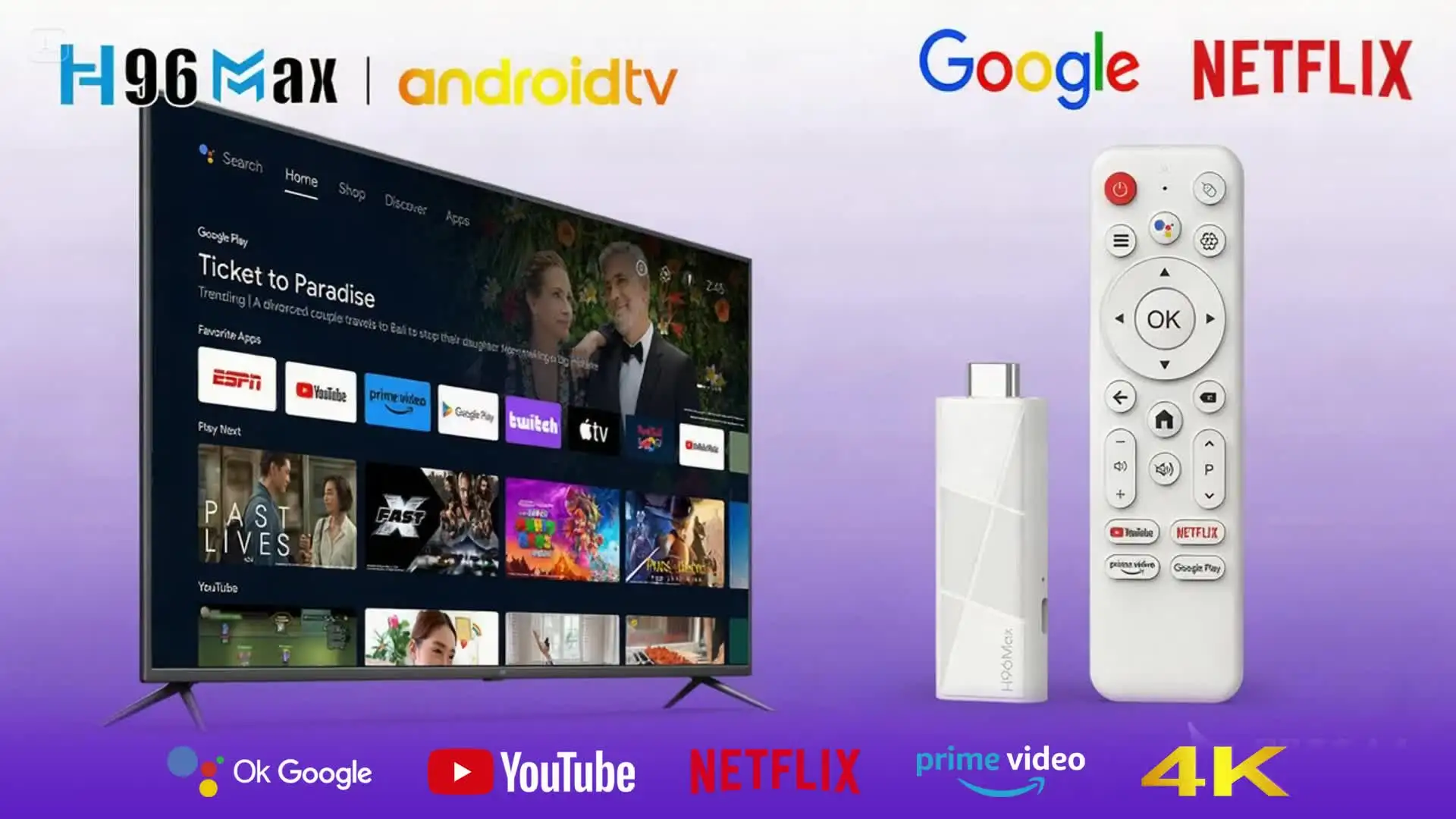
The H96 MAX RK3518 Mini TV Stick is a compact and powerful smart TV box designed to transform your television into a smart entertainment hub. Running on Android 14, it offers a user-friendly interface, 4K Ultra HD resolution, and advanced connectivity features like Wi-Fi 6 and Bluetooth 5.4. With integrated Google Voice control, you can easily navigate content and enjoy a seamless media experience.

2. Package Contents
Please check the package for the following items:
- H96 MAX RK3518 TV Stick
- Remote Control
- Power Adapter
- HDMI Cable
- USB Cable
- User Manual (this document)

3. Product Overview
3.1. TV Stick Layout

The H96 MAX RK3518 TV Stick features the following ports:
- HD Port: Connects to your TV's HDMI input.
- USB Port: For connecting external devices like USB drives or keyboards.
- Power Supply Port: For connecting the power adapter.
3.2. Remote Control Functions

The remote control provides the following functions:
- Power ON/OFF: Turns the TV Stick on or off.
- Voice: Activates Google Voice Assistant.
- Menu: Accesses menu options.
- OK: Confirms selections.
- Arrow Keys: Navigates through menus and content.
- Back: Returns to the previous screen.
- Home: Returns to the home screen.
- Volume +/-: Adjusts the volume.
- Volume Mute: Mutes/unmutes the sound.
- YT (YouTube): Quick access to YouTube.
- PV (Prime Video): Quick access to Prime Video.
- NF (Netflix): Quick access to Netflix.
- GP (Google Play): Quick access to Google Play Store.
- Mouse: Activates mouse assistance mode.
- Set Up: Accesses settings.
- Del: Delete function.
- Channel Up/Down: Changes channels (if applicable).
Remote Indicator Status:
- Infrared Status: When infrared is emitted, the LED blinks 2 times continuously when a key is pressed; the LED goes out when the key is released.
- Wireless Status: When sending wireless signals, the LED will be on when a button is pressed; the LED will be off when the button is released.
4. Setup Instructions
4.1. Initial Connection
- Connect the H96 MAX RK3518 TV Stick to an available HDMI port on your television using the provided HDMI cable.
- Connect the power adapter to the TV Stick's power supply port and then plug it into a power outlet.
- Turn on your television and select the correct HDMI input source corresponding to the port where the TV Stick is connected.
- The TV Stick will power on automatically and display the Android TV boot screen.
4.2. Remote Control Pairing
For the first pairing, please place the remote control near the TV Stick.
- Press and hold the [LEFT] and [RIGHT] buttons on the remote control at the same time for about 10 seconds.
- You will see the red light on the remote control blinking continuously.
- Release the buttons to automatically enter pairing mode.
For subsequent reconnections (second pairing), simply press any button on the remote control to reconnect.
5. Operating Instructions
5.1. Navigating the Interface
Use the arrow keys on your remote control to navigate through the Android TV interface. Press the OK button to select items. The Home button will always take you back to the main screen, and the Back button will return you to the previous menu or application.

5.2. Using Google Voice Assistant
The H96 MAX RK3518 supports Google Voice control for easy interaction. Press the Voice button on your remote control and speak your commands. For example, you can say "Hey Google, play an action movie" or "Hey Google, workout music" to find content or control playback.

5.3. Screen Casting
The TV Stick supports screen casting, allowing you to mirror content from your mobile device to your television. Ensure both your mobile device and the TV Stick are connected to the same Wi-Fi network. Use the screen cast feature on your mobile device to connect to the TV Stick.

5.4. Mouse Assistance
The TV Stick supports a mouse assistance function, which can be useful for navigating certain applications or web pages. To use this feature:
- Check or uncheck the applications in the list on the left.
- When the selected application is opened, a mouse icon will automatically appear.
- Use the up, down, left, and right buttons on the remote control to move the mouse icon.
- Confirm that the button achieves the click effect.
- When the mouse icon reaches the boundary and continues to move, it will trigger the sliding page flipping effect.
6. Specifications
| Feature | Description |
|---|---|
| Model Number | H96 MAX RK3518 |
| Brand Name | SkyBeats |
| Operation System | Android 14 |
| Processor | Rockchip RK3518 (Quad-Core ARM Cortex-A53) |
| GPU | ARM Mali-450 |
| RAM | 1GB / 2GB (depending on variant) |
| ROM | 8GB / 16GB (depending on variant) |
| Resolution | 4K Ultra HD |
| Wi-Fi | Wi-Fi 6 (2.4G & 5G) |
| Bluetooth | BT5.4 |
| Antenna Type | Internal |
| Remote Control | Included |
| Dimensions (approx.) | Length: 77.7mm, Width: 30.6mm, Height: 13.2mm |
| Certification | CE |


7. Troubleshooting
If you encounter any issues, please refer to the following common problems and solutions:
- No display after power on:
- Confirm your device is connected to the TV correctly.
- Set the correct HD Input from your TV configuration.
- TV has images but no sound:
- Make sure your TV is not in mute mode and the volume is not too low.
- Fail to connect to the network:
- Make sure the Ethernet cable (if used) is properly connected.
- Make sure Wi-Fi is functional and your TV Stick has a strong enough signal from your router.
- Remote control failure:
- Replace the battery of the remote control with a new one, and make sure it is placed with the correct polarity.
- Make sure the remote control is within the range of the TV Stick.
- Go to the Setting menu to unpair and re-pair the remote control.
Important: Please use original accessories to avoid any risks.
8. User Tips
- For optimal performance, ensure your Wi-Fi router is placed in an open area and within reasonable proximity to the TV Stick.
- Regularly check for system updates in the settings menu to ensure you have the latest features and security patches.
- When using voice commands, speak clearly and directly into the remote control's microphone for best recognition.
- If you experience lag, try closing unused applications running in the background.
9. Maintenance
- Keep the TV Stick and remote control clean by wiping them with a soft, dry cloth.
- Avoid exposing the device to extreme temperatures, humidity, or direct sunlight.
- Do not attempt to disassemble or repair the device yourself, as this will void the warranty and may cause damage.
- Store the device in a cool, dry place when not in use for extended periods.
10. Warranty and Support
For detailed warranty information and technical support, please refer to the official product page or contact the seller directly. A user manual in PDF format is also available for download: User manual (PDF).