
1. Introduction
This manual provides detailed instructions for the installation, operation, and maintenance of your Carlaoer TS18 Android Car Multimedia System. Please read this manual thoroughly before using the product to ensure proper function and safety.
2. Safety Precautions
- Consult the instruction manual for electrical application. Incorrect operation may cause damage to the unit.
- This unit should be installed by professionals if possible.
- Insulate all exposed wires to prevent short circuits.
- Connect the power cable only after all unit connections are properly set.
- The unit is designed for a 12V-14.4V negative ground operating system only. Ensure your vehicle is connected to such a system.
- Non-professionals should exercise caution when altering internal parameters in factory settings. Incorrect changes may affect the normal use of the product.
3. Package Contents
Verify that all items are present in the package:


- Carlaoer TS18 Multimedia Host (9 or 10-inch display)
- Power Cable
- USB Cables (x2)
- GPS Antenna
- 4G Antenna (if applicable)
- RAC Input/Output Cables
- Camera Input/BT Antenna
- Cooling Fan (if applicable)
- Instruction Manual (PDF available online)
4. Specifications
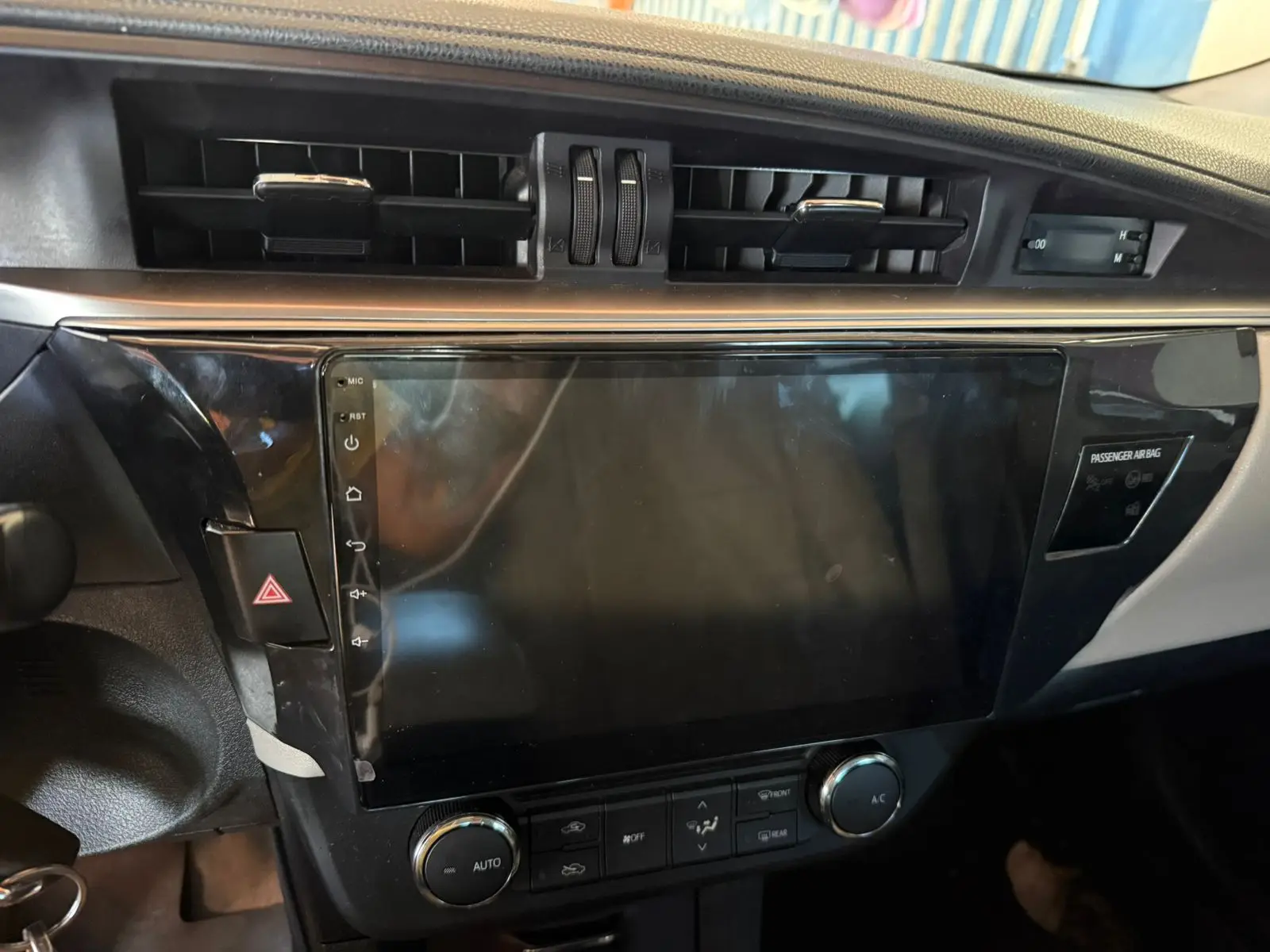
| Feature | Specification |
|---|---|
| Brand Name | Carlaoer |
| Model | TS18 |
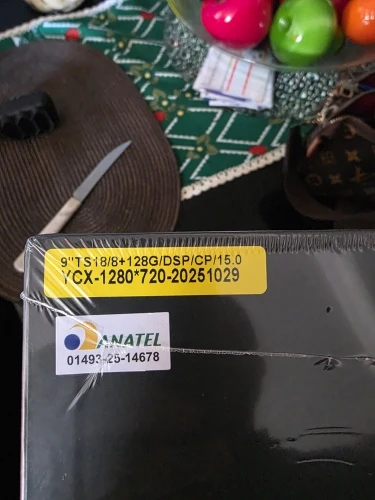
| Display Size | 9", 10" |
| Resolution | 1280*720 (QLED/IPS) |
| Processor Type | 8581 (8 CORE ARM Cortex A55 1.6GHz) |
| RAM | 2G, 4G, 6G |
| ROM | 32G, 64G, 128G |
| Operating System | Android 10 (API 29) |
| Voltage | 12 V (DC:12-14.4V, 10A) |
| Max External Memory | 256G |
| Din Type | Double Din |
| TF/Micro SD Slot | 1 |
| Is touch screen | Yes |
| Digital Media Format | Mp3, MP4, WMA, JPEG |
| OSD Language | Chinese (Simplified/Traditional), Belarusian, Polish, Russian, Romanian, Portuguese, Turkish, Ukrainian, Hebrew, Yiddish, Indonesian, English |
| Certification | CE |
| Feature | Specification |
|---|---|
| FM Frequency Range | 87.5-108MHz |
| Radio Signal/Noise Ratio | >60dB |
| USB/SD Frequency Response | 20Hz-20KHz |
| USB/SD Signal/Noise Ratio | >60dB |
| Total Harmonic Distortion (T.H.D) | <3% (1KHz) |
| Max Output Power | 4*50W |
| Speaker Impedance | 4-8ohm/CH |
| Amplifier Chip | TDA 7388 |
| EQ | 36EQ / 48EQ (depending on model) |
| Feature | Availability |
|---|---|
| Wi-Fi Function | Yes |
| Support 3G/4G Network | Yes |
| Built-in GPS | Yes |
| Bluetooth | Bluetooth 5.0 |
| CarPlay | Built-in chip |
| Android Auto | Built-in chip |
| Voice Control | Optional (requires activation code) |
| DSP | Yes |
| Reversing Input | Yes (AHD HD Camera optional) |
| Split Screen | Yes |
| Support Steering Wheel Control | Yes |
| Support Can-Bus | Yes (may require separate adapter) |
| ADAS DVR | Optional (1080P ADAS DVR) |
| TPMS | Optional |
5. Installation
5.1. Wiring Instructions
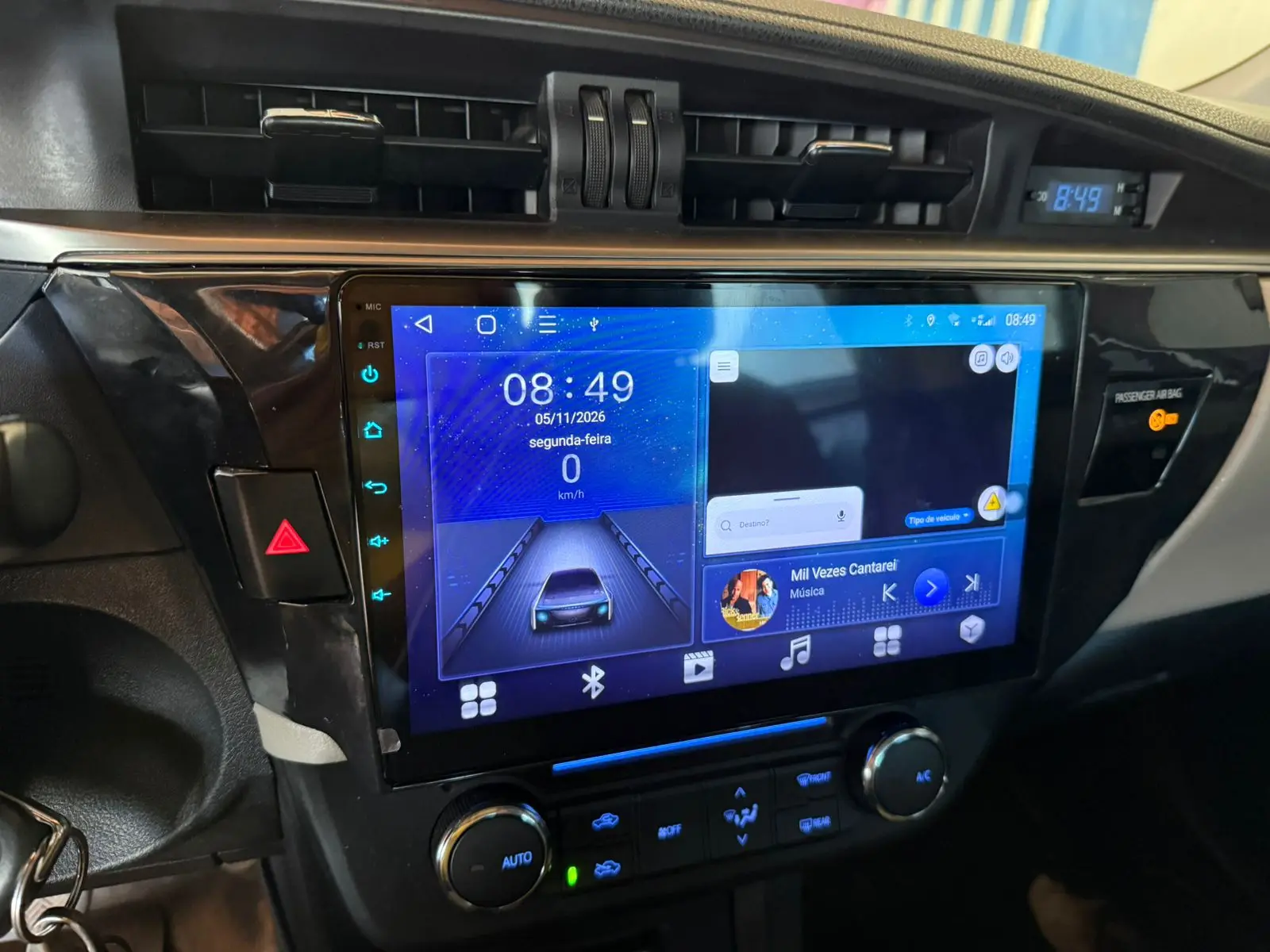
Refer to the diagrams below for proper power and signal connections. Ensure all connections are secure and insulated.
5.2. Cable Connections Overview
The unit features various input/output ports for comprehensive connectivity. The following list details common connections:

- Power Connector (A): Main power and speaker connections.
- B/C/D/E Connectors:
- MIC-/MIC+ (Optional)
- VIDEO-IN1/IN2 (Yellow)
- SUB-OUT (Optional)
- AUX-IN L/R (White/Red)
- RCA-OUT L/R (White/Red)
- Amplifier Control Wire
- USB1/USB2 Rear
- Handbrake Control Wire (Optional)
- WiFi Antenna
- Rear Camera Power (Optional)
- CAM-IN (Yellow)
- BT Antenna
- GPS Antenna: Connect the GPS antenna. Ensure the terminal wire is connected to avoid affecting WIFI and Bluetooth signal strength.
5.3. Cooling Fan Installation
The unit may include a cooling fan for better heat dissipation, ensuring smoother operation.
6. Operating Instructions
6.1. User Interface (UI) Overview
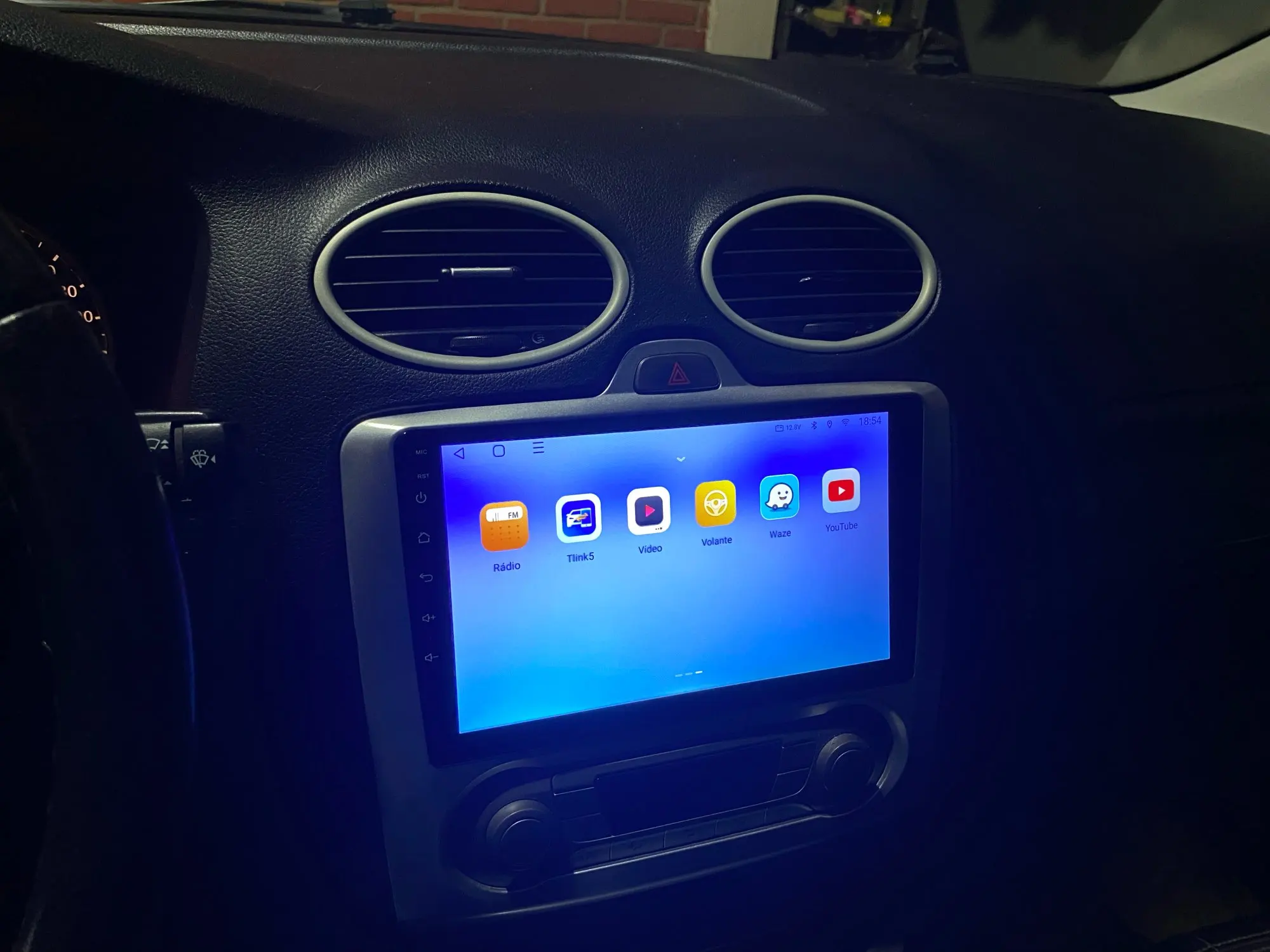
The Carlaoer TS18 features a user-friendly interface. You can customize themes and layouts.

6.2. Menu Functions (Option 1 & 2)
The system offers two main menu display options, each with similar functionalities:
Option 1 Menu Functions:

- Network: Turn Wi-Fi on/off and connect to the internet.
- Bluetooth: Turn Bluetooth on/off and connect devices.
- Connection Management: Configure connection settings.
- Sound: Adjust sound levels for each channel.
- Display: Adjust brightness, wallpaper, and other display settings.
- Vehicle Settings: Backlight switch, BRAKE function switch, fan switch settings.
- Navigation: Configure car navigation functions.
- Languages & Input: Set system language.
- Date & Time: System date and time settings.
- Accounts: System account configuration.
- System: Clear system data and restore factory settings.
- Google Services & Preferences: Access Google services.
- Factory Mode: Access factory settings (password 8888).
- About Device: Display system version information.
Option 2 Menu Functions:
- Network (WLAN): Turn Wi-Fi on/off and connect to the internet.
- Bluetooth: Turn Bluetooth on/off and connect devices.
- Audio (Volume): Adjust sound levels for each channel.
- Display (Backlight Brightness): Adjust brightness, wallpaper, and other display settings.
- Sleep: Set sleep mode.
- Car Settings: Commonly used vehicle function settings and selections.
- Navi Settings: Configure car navigation functions.
- Factory Setup: Access factory settings (password 1234).
- More Settings: Other function settings (time/date/language, clear data, etc.).
- About Car Engine: Display system version information.
6.3. Radio Operation
The unit supports FM radio with various features:
- Band Selection: Choose between different FM bands.
- Scan & Store: Automatically scan and store radio stations.
- Quick Navigation: Easily navigate between stored stations.
- Long/Short Range Selection: Adjust reception sensitivity.
- EQ/DSP Settings: Fine-tune audio equalization and digital sound processing.
6.4. GPS Navigation
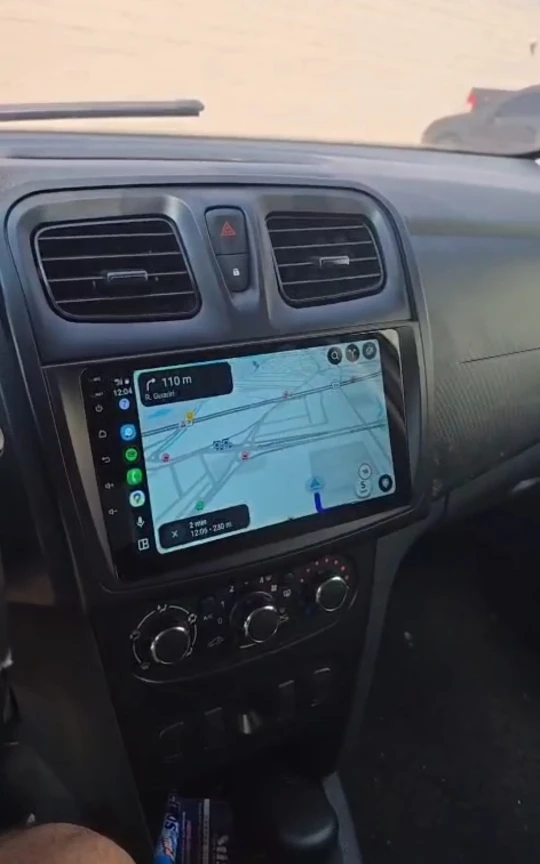
The system comes with built-in GPS and supports various online and offline map applications.
6.5. CarPlay & Android Auto
The TS18 unit features built-in CarPlay and Android Auto for seamless smartphone integration.
Connection Method:

- Enable Bluetooth on your smartphone and the multimedia unit.
- Pair your phone with the unit via Bluetooth.
- Open the 'TLINK5' app on the multimedia unit.
- Follow the on-screen prompts to establish the CarPlay or Android Auto connection.
6.6. Steering Wheel Control
The unit supports steering wheel controls for convenience and safety, allowing you to change tracks, adjust volume, and more.
6.7. Voice Control
The system supports voice control software for hands-free operation (optional, requires activation).

6.8. Split Screen Functionality
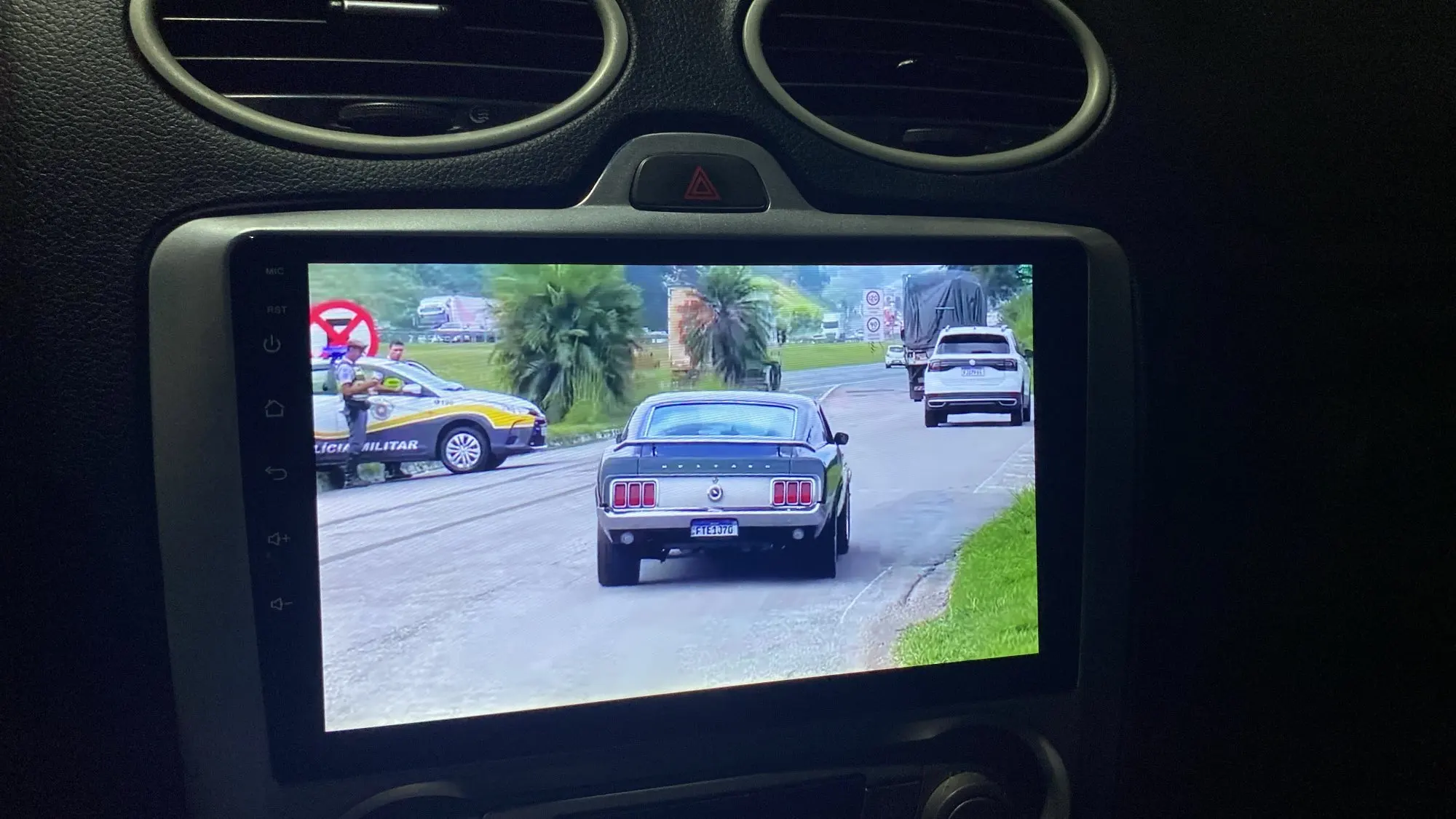
The smart split screen feature allows you to display multiple applications simultaneously, such as navigation and media playback.
7. Maintenance
- Cleaning: Use a soft, dry cloth to clean the screen and unit. Avoid abrasive cleaners or solvents.
- Software Updates: Periodically check for system updates in the 'System' menu to ensure optimal performance and access to new features.
- Heat Management: Ensure proper ventilation around the unit, especially if a cooling fan is installed, to prevent overheating.
8. Troubleshooting
- No Power: Check all power connections, including the main power cable and vehicle's fuse box. Ensure the unit is designed for your vehicle's voltage (12V-14.4V negative ground).
- Poor Wi-Fi/Bluetooth Signal: Ensure the dedicated terminal wire for the GPS antenna is properly connected, as it can affect Wi-Fi and Bluetooth signal strength.
- Steering Wheel Controls Not Working: Verify that the steering wheel control wires are correctly connected. A CANbus adapter may be required for some vehicle models and might need to be purchased separately.
- Rear Camera Display Issues: For high-definition or AHD cameras, ensure '4 channel AHD camera' is selected in the system settings. Check all camera wiring connections.
- 360° Camera Support: The device may lack a 12-pin connector required for 360° camera support, making installation impossible without additional compatible hardware.
- System Lag/Unresponsiveness: Try clearing system data or performing a factory reset (refer to menu functions for passwords). Ensure sufficient RAM and ROM for desired applications.
- Missing Cables for Installation: Some necessary cables (e.g., specific harnesses, CANbus adapters) may not be included and need to be purchased separately, especially for plug-and-play installations in certain vehicle models.
9. User Tips
- Smooth Performance: Users report the system is very fast and responsive, especially models with higher RAM (e.g., 6GB or 8GB).
- Internet Connectivity: For immediate internet access, simply insert a 4G SIM card into the unit.
- Screen Quality: The QLED/IPS 1280*720 screen offers good visual quality.
- Installation Considerations: Be aware that specific vehicle models (e.g., 2015 Corolla, Mitsubishi L200 2024, Chevrolet, Kia Sportage 2018) may require additional cables or CANbus adapters not included in the standard package. Professional installation is recommended.
- Rear Camera Resolution: Some users note that the rear camera output may not show significant resolution improvement, even with AHD cameras.
- Voice Control & UI Themes: These features may require separate activation codes or membership purchases.
10. Warranty and Support
10.1. Warranty
The Carlaoer TS18 Multimedia System comes with a 365-day warranty. Please retain your proof of purchase for warranty claims.
10.2. Additional Resources
For more detailed instructions and documents, including an electronic Apk "Manual", you can refer to the official user manual PDF:
If you encounter any inconsistencies with the product's functionality, please consult the actual product or contact customer support.