
1. Product Overview
The Srnubi 11.26" Dash Cam is a versatile in-car entertainment and recording system, offering 4K UHD front recording, 1080P rear recording, wireless Carplay and Android Auto, GPS navigation, Wi-Fi connectivity, Bluetooth 5.0, AUX, and FM transmitter functions. It is designed to enhance your driving experience with advanced features and reliable recording capabilities.


2. Package Contents
Please check the package contents carefully upon unboxing:
- 11.26-inch DVR Unit
- Monitor Base
- Car Charger
- 3M AUX Cable
- Long Bracket
- 6M 1080P Camera (if included in your purchased configuration)
- GPS Module (if included in your purchased configuration)

3. Setup Guide
3.1 Memory Card Installation and Formatting
- Ensure you use a high-quality U3 grade Class 10 high-speed brand memory card (supports 32G/64G/128G). Ordinary or inexpensive memory cards may not function properly.
- Insert the memory card into the designated slot on the DVR.
- Important: Format the memory card directly on the DVR. Do NOT format it on a computer.
- To format: After installation, navigate to the DVR menu, find the 'Format' option, and confirm.
3.2 Power Connection
- Connect the provided car charger to the DVR and your vehicle's cigarette lighter socket.
- For 24-hour parking monitoring (optional feature), you will need to replace the car charger with a Buck Line accessory. This allows the DVR to draw power directly from the car's ACC, enabling continuous recording even when the car is off. Professional installation of the Buck Line is recommended due to varying car battery and ACC interfaces.

3.3 Rear Camera Connection (Optional)
If your kit includes a rearview camera and you wish to use the reversing assist function, connect the red signal wire of the rearview camera to your car's reversing light (the light that illuminates when reversing). If the assist function is not desired, the red signal wire can be left unconnected.
3.4 GPS Module Connection (Optional)
If your configuration includes a GPS module, ensure it is correctly connected to the power supply as per the instructions. Incorrect connection will prevent the module from turning on and the trajectory playback function from working.
4. Operating Instructions
4.1 Basic Operation and Interface
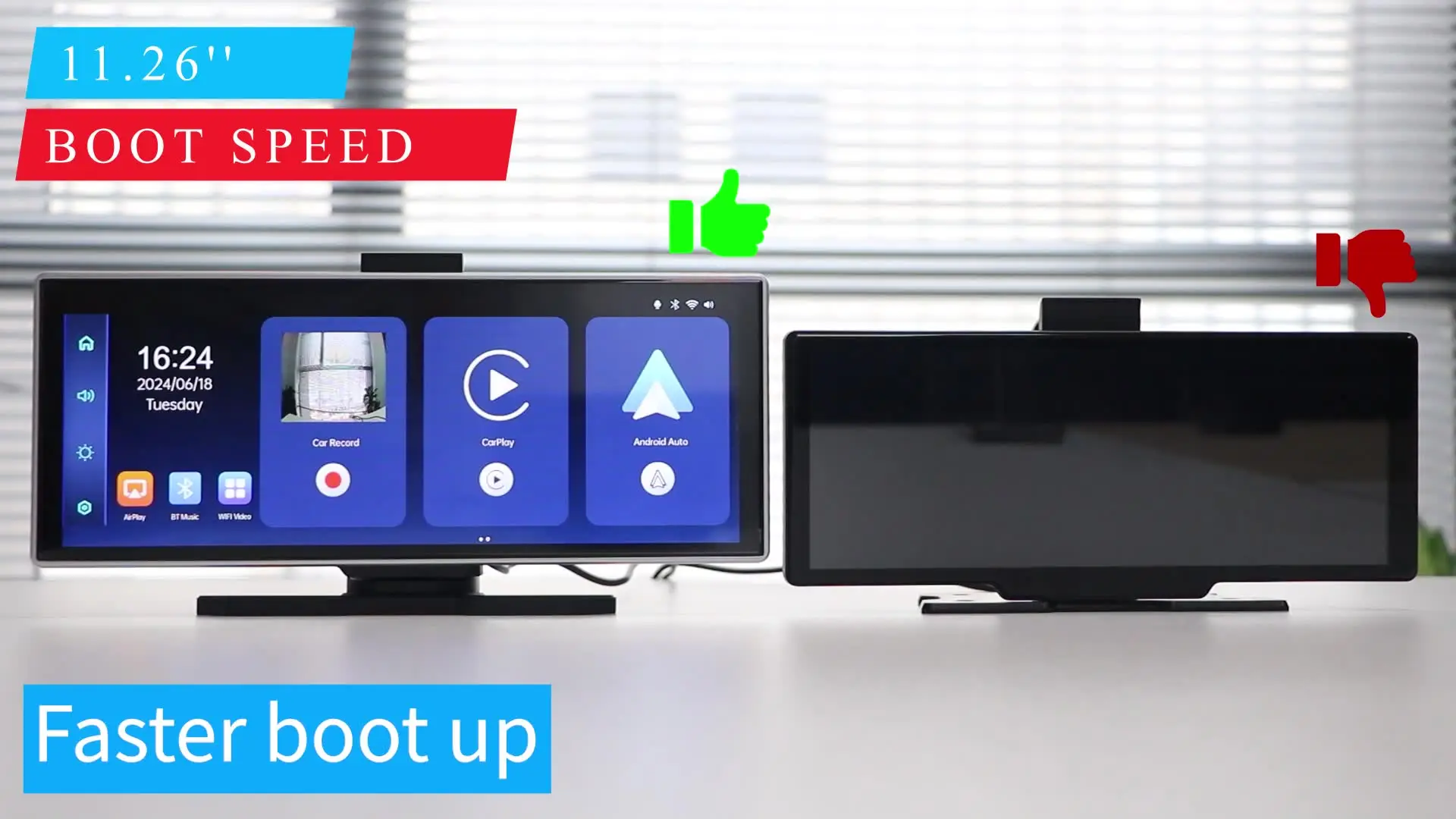
The device features an 11.26-inch touch screen for easy navigation. It boasts a faster boot-up speed compared to standard devices. You can switch between various display modes, including Carplay, Carplay + Camera, Front Camera only, and Front + Rear camera views.

4.2 Wireless Carplay and Android Auto
The dash cam supports wireless Carplay for iPhone and Android Auto for Android phones, allowing seamless integration of your smartphone's features onto the dash cam display.
- Open the Carplay/Android Auto connection page on the dash cam. Note the Bluetooth name displayed.
- On your smartphone, go to Bluetooth settings and search for the dash cam's Bluetooth name.
- Pair your phone with the dash cam. Upon successful connection, Carplay or Android Auto will automatically activate.
Note for Android Users:
- Some Huawei, Xiaomi, and Samsung phones may not fully support the Android Auto function.
- You may need to download the "Android Auto" app from the Google Play Store for full functionality.


4.3 Wireless Mirroring (AirPlay/Miracast)
The device supports AirPlay for iOS and Miracast for Android, allowing you to mirror your phone's screen directly to the dash cam display. Miracast typically does not require an additional app.


4.4 4K HD Recording
The dash cam features dual-channel recording with a 4K (3840x2160P) front camera and a 1080P rear camera. It utilizes H.265 video encoding for optimized memory usage, reducing consumption by up to 30% compared to H.264.


4.5 Driving Assistance Features
- Seamless Loop Recording: Recordings are automatically overwritten when the memory card is full, eliminating the need for manual deletion.
- Emergency Locking/Recording: The G-Sensor detects sudden impacts or collisions, automatically locking and saving the current recording to prevent it from being overwritten. You can also manually lock important recordings.
- Real-time Reversing View: When reversing, the system automatically displays the rear camera feed with a 140° wide-angle view, night vision, and parking lines. The rear camera is IP68 waterproof.
- 24-Hour Parking Monitor: With the optional professional power cable (Buck Line), the dash cam can monitor your vehicle 24/7, providing continuous protection.


4.6 Voice Control (Siri/Google)
Utilize Siri or Google Voice Control for hands-free operation, allowing you to manage navigation, calls, music, and other functions safely while driving.

4.7 Bluetooth Connectivity
Connect your phone via Bluetooth 5.0 to stream audio to the dash cam. For enhanced audio quality, connect the provided AUX cable to your original car radio's amplifier system.

4.8 APP Connection (Viidure)
The dash cam features a built-in 2.4GHz high-speed WiFi module. Download the "Viidure" app from your phone's app store (Apple App Store or Google App Market) to:
- View and download live video.
- Take pictures.
- Access device settings.

4.9 GPS Navigation & Music Play
Once connected via Carplay or Android Auto, you can utilize your phone's navigation applications directly on the dash cam screen. Music playback is also integrated, allowing you to control your media through the dash cam interface.

4.10 Video Demonstration
5. Maintenance
- Cleaning: Use a soft, dry cloth to clean the screen and exterior of the dash cam. Avoid abrasive cleaners or solvents.
- Memory Card Management: Regularly review recorded videos. The loop recording feature will automatically overwrite older files when the card is full. If you need to save specific footage, transfer it to another device before it's overwritten.
- Software Updates: Check the manufacturer's website or app for any available firmware updates to ensure optimal performance and access to new features.
6. Troubleshooting
- Product keeps restarting: This is often caused by voltage imbalance. Ensure you are using the provided matching power cable and not a third-party cable. The device should be powered via the car's cigarette lighter.
- Phone Bluetooth paired but Carplay/Android Auto not working:
- For iPhone: Check your phone's General Settings > Car Play page to ensure all connected devices are enabled.
- For Android: Verify that the "Android Auto" app is installed on your phone. Note that some Huawei, Xiaomi, and Samsung phones may have compatibility issues with Android Auto.
- Cannot use some third-party apps or video playback apps: Due to limitations of the Carplay/Android Auto versions, certain third-party applications or video playback apps may not be supported on the dash cam interface. You can try searching for Carplay/Android Auto compatible versions of these apps.
- GPS module not turning on: Double-check the connection between the GPS module and the power supply. Ensure it is connected correctly according to the setup instructions.
- Adding new language: Contact the manufacturer's engineer to inquire about adding specific languages. They may provide firmware for an upgrade.
7. Specifications
| Feature | Specification |
|---|---|
| Brand Name | srnubi |
| Item Type | Car DVR |
| Display Size | 11.26 inch |
| Display Type | IPS |
| Screen Ratio | 4:3 |
| Front Lens Resolution | UHD 4K 3840*2160P |
| Rear Camera Resolution | 1920*1080 |
| View Angle | 140 degrees |
| Video Code | H.264 |
| Video Format | AVI, MOV |
| Frames Per Second | 30 |
| Max External Memory | 128G |
| Memory Card Required Reading Speed | Class 10 |
| Power Source | Corded Electric |
| Weight | 1.05KG |
| OSD Language | Arabic, Chinese (Simplified), Chinese (Traditional), Dutch, English, French, Hebrew, Japanese, Korean, RUSSIA, Spanish, Turkish |
| Special Features | G-Sensor, With Rearview Mirror, Waterproof, Wide Dynamic Range, WiFi function, Bluetooth, Voice Control, Parking Monitor, External GPS |
| Chipset Manufacturer | Allwinner |
| Certification | CE |
| Interface | AV-In, Micro SD/TF, Bluetooth |
| Carplay and Android Auto | Support, wireless |
| Bluetooth Version | 5.0 |
| FM Transmitter Function | Support |
8. Warranty and Support
The Srnubi 11.26" Dash Cam comes with a 365-day warranty.
For urgent technical issues or inquiries about adding new languages, please contact the manufacturer's engineer directly via email. Specific contact details can be found on the product's official support page or by contacting your seller.
9. User Tips
- Cold Weather Adhesion: In temperatures below 10°C (50°F), the adhesive tape's initial stickiness may weaken. It is recommended to gently heat the tape surface with a hairdryer (around 40-50°C) before application to ensure optimal bonding.
- Memory Card Quality: Always use a high-quality U3 grade Class 10 memory card to ensure stable 4K recording and prevent data corruption.
- In-DVR Formatting: Always format your memory card directly on the DVR unit, not on a computer, for proper device compatibility.
- Dual Bluetooth Mode: To use dual Bluetooth (e.g., phone to dash cam for Carplay/Android Auto, and phone to car's original system for calls), first pair your phone with the dash cam. Then, within the Carplay/Android Auto interface, disconnect the phone's Bluetooth from the dash cam and connect it to your car's original Bluetooth system.
- Audio Output: For the best audio experience, connect the provided 3-meter AUX cable to your car's original radio system to utilize its amplifier.