Introduction
This user manual provides essential information for operating your URAO 10 Inch Tablet (Models C107/C108). Please read this guide thoroughly before use and retain it for future reference. This tablet is designed for versatile use, from productivity tasks to entertainment, featuring an Octa-Core processor, Android 15, and a comprehensive accessory kit.
Package Contents
Ensure all items are present in your package:
- URAO 10 Inch Tablet
- Bluetooth Keyboard
- Wireless Mouse
- Stylus Pen
- Protective Case
- Charging Cables (USB-C)
- Headphones
- Charger (5V 2A)
- User Guide

Product Overview
Familiarize yourself with the tablet's physical components:

- Headphone jack (3.5mm)
- Front camera (5MP)
- Volume +/- buttons
- Power on/off button
- Reset button (pinhole)
- MicroSD card slot
- USB-C port
- Speaker
- Microphone
- Rear camera (8MP)
Setup
Initial Power On
- Hold down the power button for 2-3 seconds to turn on the tablet.
- Select your preferred language.
- Follow the on-screen startup guide to complete the initial setup process.
Operating Instructions
Power On/Off
- To Turn On: Press and hold the power button for 2-3 seconds.
- To Turn Off: Press and hold the power button for 2 seconds to display power off and restart options. Tap 'Power off'.
- Force Shutdown: If the device is unresponsive, press and hold the power button for 10 seconds.
Sleep Mode
- To enter Sleep Mode when the tablet is ON, press the power button once.
- To wake the tablet from Sleep Mode, press the power button once again.
- Adjust automatic sleep settings via: Settings > Display > Screen timeout.
Split Screen Feature
The tablet supports a split-screen feature for easier multitasking:
- Open the first application.
- Tap the split-screen button (usually a square icon in the recent apps view).
- Select the second application to open it in split-screen mode.
Specifications
| Feature | Specification |
|---|---|
| Model | C107/C108 |
| Operating System | Android 15 |
| CPU | A523 Octa-Core (up to 2.0GHz) |
| RAM | 24GB (4GB + 20GB Smart RAM) |
| Internal Storage (ROM) | 128GB |
| Expandable Storage | Up to 1TB via TF card (not included) |
| Display Size | 10.1 inches |
| Display Resolution | 1280x800 IPS |
| Panel Type | IPS with Incell Technology, Anti-glare, Eye Care Mode |
| Front Camera | 5MP |
| Rear Camera | 8MP with AF and Flash |
| Network Communication | WiFi 6 (2.4G/5G) |
| Bluetooth | 5.4 |
| Battery Capacity | 5000mAh |
| Charging | 10W Type-C Fast Charging |
| Audio | Dual 1W Speakers, Dual Microphones, 3.5mm Headset Jack |
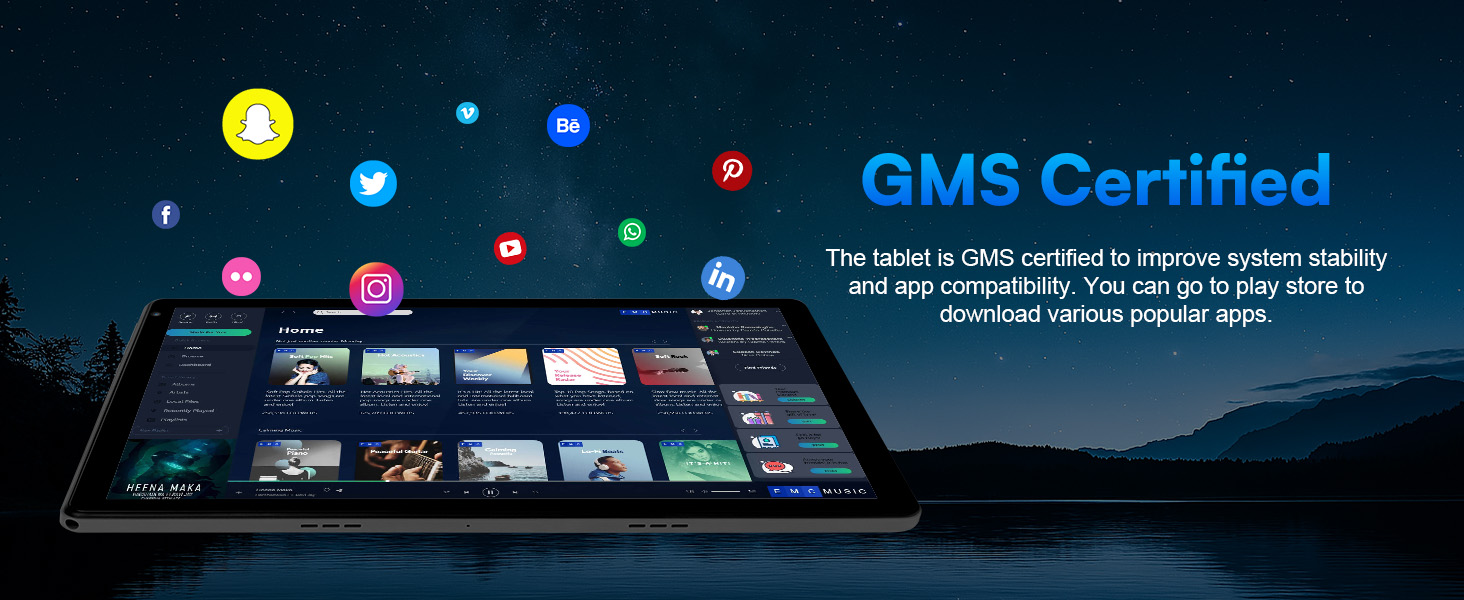
| Features | FM, OTG, Ultra Slim (8.9mm), Face Unlock, Widevine L1 Support, GMS Certified |
| Weight | Approx. 520g |
| Supported Languages | English, Russian, Spanish, Swedish, Portuguese, Turkish, Italian, German, Chinese, French, Japanese, Polish, Ukrainian, Greek, Hebrew |
| Certifications | CE, FCC, WEEE |


Maintenance
Battery Care
- The tablet contains a rechargeable Li-ion battery.
- If you use the tablet only occasionally, it is recommended to fully discharge the battery once a month.
- Always charge the device fully to maximize battery life.
- The lithium battery does not require full discharge before charging; you can charge the tablet even if it has some power remaining.
- Use the provided 5V 2A charger for optimal charging.
- Do not dispose of the tablet in fire.
Troubleshooting
Q1. The tablet does not power on.
- Recharge the tablet for at least 30 minutes, then attempt to reboot.
- Press the power button to check if the tablet is in Sleep Mode.
- Press and hold the power button for 10 seconds to force a shutdown, then reboot.
- Use a pin to press the reset button to restart the tablet.
Q2. The tablet does not charge.
- Charge the device for at least 30 minutes, especially if the battery was completely drained.
- Ensure the USB cable is securely connected to the charging port.
- Try using a different compatible USB cable and adapter.
Q3. An error message occurs during operation.
- Uninstall the application causing the error, then download and reinstall it.
- Use a pin to press the reset button to restart the tablet.
Q4. The tablet cannot be detected by the computer.
- Ensure the tablet is powered on.
- Try a different USB cable.
- Try a different USB port on your computer.
- When connecting the tablet to the computer, select 'Transfer files' or 'Transfer photos (PTP)' instead of 'Charge this device'.
Q5. The tablet cannot connect to Wi-Fi.
- Ensure Wi-Fi is enabled on your tablet.
- Verify that the correct password is entered.
- Reboot your Wi-Fi router.
- Check your router settings for any filter or device connection limitations.
- Forget the current Wi-Fi network on your tablet, reset the router, and reconnect.
Q6. The tablet's storage space is insufficient.
- Delete unused applications.
- Regularly clear application cache.
- Insert a microSD card to expand storage (up to 1TB).
User Tips
- Language Support: The tablet supports a wide range of languages, including English, Russian, Spanish, Swedish, Portuguese, Turkish, Italian, German, Chinese, French, Japanese, Polish, Ukrainian, Greek, and Hebrew. You can set the system language and keyboard layout to Hungarian if needed.
- Protective Accessories: For screen protection, consider purchasing a compatible protective glass from the seller or third-party retailers.
- External Connectivity: While the tablet supports WiFi for internet access, it does not include a SIM card slot for cellular data. External 3G connectivity typically refers to support for external 3G dongles.
- GPS Functionality: GPS functionality is not explicitly listed in the specifications.
Warranty and Support
For any inquiries or support needs, please contact us:
- E-mail: customservicare@outlook.com
- Tel: 1-888-880-0815
Manufacturer: Shenzhen Efercro Electronic Technology Co., Ltd
Address: Room 901, Block E, Building 1, Section 1, Chuangzhi Yuncheng, Liuxian Avenue, Xili Community, Xili Street, Nanshan District, Shenzhen
FCC Statement
This equipment has been tested and found to comply with the limits for a Class B digital device, pursuant to part 15 of the FCC Rules. These limits are designed to provide reasonable protection against harmful interference in a residential installation. This equipment generates, uses and can radiate radio frequency energy and, if not installed and used in accordance with the instructions, may cause harmful interference to radio communications. However, there is no guarantee that interference will not occur in a particular installation. If this equipment does cause harmful interference to radio or television reception, which can be determined by turning the equipment off and on, the user is encouraged to try to correct the interference by one or more of the following measures:
- Reorient or relocate the receiving antenna.
- Increase the separation between the equipment and receiver.
- Connect the equipment into an outlet on a circuit different from that to which the receiver is connected.
- Consult the dealer or an experienced radio/TV technician for help.
Caution: Any changes or modifications to this device not explicitly approved by the manufacturer could void your authority to operate this equipment.
This device complies with part 15 of the FCC Rules. Operation is subject to the following two conditions: (1) This device may not cause harmful interference, and (2) this device must accept any interference received, including interference that may cause undesired operation.
RF Exposure Information
The device has been evaluated to meet general RF exposure requirements. The device can be used in portable exposure conditions without restriction.
Specific Absorption Rate (SAR) Information
This PC meets the government's requirements for exposure to radio waves. The guidelines are based on standards that were developed by independent scientific organizations through periodic and thorough evaluation of scientific studies. The standards include a substantial safety margin designed to assure the safety of all persons regardless of age or health. FCC RF Exposure Information and Statement the SAR limit of USA (FCC) is 1.6 W/kg averaged over one gram of tissue. Device types: PC has also been tested against this SAR limit. This device was tested for typical body-worn operations with the back of the PC kept 0mm from the body. To maintain compliance with FCC RF exposure requirements, use accessories that maintain a 0mm separation distance between the user's body and the back of the PC. The use of belt clips, holsters and similar accessories should not contain metallic components in its assembly. The use of accessories that do not satisfy these requirements may not comply with FCC RF exposure requirements, and should be avoided.
Disclaimer
We reserve the right to change product specifications and update this information from time to time.


