
1. Introduction
Thank you for purchasing the BOYHOM M27 Handheld Game Player. This device is designed to provide an immersive retro gaming experience with its large 7-inch display and support for numerous emulators. Please read this manual carefully to understand the features and proper operation of your new device.
2. Package Contents
Ensure all items listed below are present in your package:
- BOYHOM M27 Game Console
- Micro USB Charging Cable
- HDMI Cable
- Instruction Manual (this document)
- Product Warranty Card

3. Device Overview
3.1 Appearance and Controls
Familiarize yourself with the layout of the console's buttons and ports.
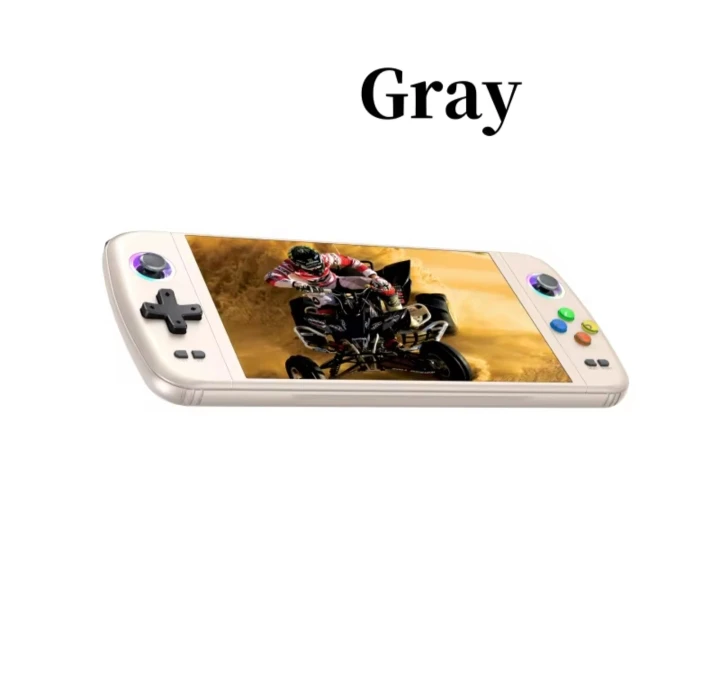

3.2 Interface Description
- Power Toggle Switch: ON/OFF
- TF Card Slot: For external storage expansion.
- Headphone Jack: 3.5mm stereo audio output.
- Charging Port: Type-C interface for power input.
- Volume Key (+): Increase volume.
- Volume Key (-): Decrease volume.
- Function Keys: (L1, L2, R1, R2)
- Function Keys: (Additional buttons on the right side)
- ABXY Keys: Standard action buttons.
- Direction Keys: D-pad for navigation.
- SELECT: Coin key (in arcade games), menu function.
- START: Start key, menu function.
- Horn: Built-in speaker.
4. Setup
4.1 Initial Charge
Before first use, fully charge the device. Connect the Micro USB charging cable to the Type-C charging port on the console and plug the other end into a 5V-1A or 5V-2A USB power adapter.
4.2 Inserting a TF Card
The device supports TF card expansion up to 256GB. To insert a TF card, locate the TF card slot and gently push the card in until it clicks into place. Ensure the device is powered off before inserting or removing the TF card.
4.3 Powering On/Off
To power on the device, slide the Power Toggle Switch to the 'ON' position. To power off, slide it to the 'OFF' position.
5. Operating Instructions
5.1 Basic Controls
- Direction Rocker Key: Use to navigate left, right, up, and down through options.
- A Key: Acts as a confirmation key in game menus.
- B Key: Acts as a return key in game menus.
- START/SELECT Keys: Access menu functions during gameplay.
5.2 Main Menu Functions
- Main Interface: All supported emulators are displayed here. Use the direction keys to scroll left and right to select different emulator categories.
- Game List: After selecting an emulator, a list of games for that emulator will be displayed, showing the number and ranking of games.
- Favorites: Press the 'X' key on the handle to add or remove games from your favorites list.
- Search: Filter games by typing the uppercase letters of the game name. The search function is case-insensitive.
5.3 Playing Games
- From the game menu, use the direction keys to select a game and press the 'A' key to start.
- To return to the home page from a game list, press the 'B' key.
- During gameplay, simultaneously press and hold the 'SELECT' and 'START' keys to access the in-game menu. From this menu, you can pause, save, load, or exit the game.
5.4 System Settings
From the main interface, press the 'START' key on the handle to enter the settings list. Here you can adjust language, sound, and view system information. You can also restore default settings.
6. Maintenance and Care
- Keep the device dry and away from moisture.
- Avoid exposing the device to extreme temperatures.
- Clean the device with a soft, dry cloth. Do not use harsh chemicals or abrasive cleaners.
- Do not attempt to disassemble or repair the device yourself, as this will void the warranty.
- When the ambient temperature is ≤0℃, move the machine indoors and allow it to sit at room temperature for 2 hours before use.
7. Troubleshooting
- Device does not power on: Ensure the battery is charged. Connect the charger and try again.
- Screen darkens during use: The device enters standby mode after 5 minutes of no operation. Press any button to wake it up.
- Games not loading: Ensure games are in the correct format and placed in the corresponding emulator folder on the TF card.
- Sound issues: Check volume settings and ensure headphones are properly connected if in use.
8. Specifications
| Feature | Detail |
|---|---|
| Model | M27 |
| Operating System | Linux |
| Display Size | 7 inches IPS |
| Screen Resolution | 1024x600 |
| Processor | Quad-core Cortex-A55 up to 1.6GHz |
| GPU | Mali-G52 |
| Battery Capacity | 4000mAh (Built-in) |
| Storage Expansion | Supports TF card up to 256GB |
| Games Included | 19000+ |
| Simulator Support | 30+ emulators (e.g., PSP, N64, Arcade, MAME, Atari2600) |
| Audio Output | 3.5mm stereo earphone jack, Built-in single horn (4 Ohm 3 watts) |
| Power Supply | 5V 2A |
| Supporting Languages | Japanese, French, German, Italian, Spanish, Portuguese, Russian, English, Swedish, Polish, Greek, Turkish, Korean, Dutch, Latin American Spanish, Brazilian Portuguese, Simplified Chinese, Traditional Chinese Style, Ukrainian |
| Origin | Mainland China |


9. User Tips
- Game Compatibility: Ensure that any games you download are in formats supported by the device's emulators and are placed in the correct corresponding folders on your TF card for proper recognition.
- Charging: Always use a 5V-1A or 5V-2A charger to ensure optimal charging and battery longevity.
- Screen Protection: Consider using a screen protector to prevent scratches on the 7-inch IPS display.
10. Warranty and Support
10.1 Warranty Terms
- Within seven days from the date of sale, if a performance failure occurs, and the product body and packaging are intact, the product may be exchanged for the same model (subject to inspection). This does not cover human-induced damage.
- The product is guaranteed for one year from the date of sale, with lifelong maintenance. Accessories are not covered by the warranty.
- Warranty service is only valid under normal use. Any human-induced damage (including self-disassembly or improper use) is not covered by the warranty.
- The warranty card must be provided for warranty claims. If the card is not provided or is altered without permission, the company reserves the right to refuse service.
10.2 Important Notes
- The product images in this manual are for reference only; the actual product shell may vary. Software upgrades are subject to the actual product.
- Product content or parameters may change without prior notice. Please refer to the current product.
- This machine is shipped with zero files stored. All external files (audio, video, games, pictures, etc.) used for demonstration purposes must be deleted immediately after the demonstration. The company assumes no responsibility for such files.
- Choking Hazard Warning: All packaging materials (such as tape, plastic bags, plastic film, binding wires, labels) and small accessories in the machine should not be accessible to children under 3 years of age to avoid suffocation hazards. Use under adult supervision.
- Children between 6 and 14 years old should use this product under adult supervision.
10.3 Additional Resources
For a detailed user manual in PDF format, please refer to the official document available at: BOYHOM M27 User Manual (PDF)