
Introduction
The Aepuosem A2pro is a versatile 4K UHD projector featuring an 8-inch touch tablet, Android 12, Wifi 6, Bluetooth connectivity, and 180° rotation projection. This manual provides essential information for safe and optimal use of your device, ensuring you get the most out of its advanced features.
Safety Tips
Please read and follow these safety instructions carefully to prevent injury or damage to the device.
- Always use the power supply type indicated on the machine and the power supply provided with the machine.
- Handle the power cord carefully to avoid excessive bending. Damaged power cords can lead to electric shock and fire.
- Do not disassemble the machine yourself. Repairs should only be performed by qualified professionals.
- Do not look directly into the projector lens while it is operating to avoid eye damage.
- Maintain a minimum clearance of 30 cm around the machine to ensure proper ventilation. Do not cover the projector with newspapers, cloth, or other items.
- Keep the machine away from humidity, direct sunlight, high temperatures, and magnetic objects.
- To extend the life of the machine and protect your eyesight, it is recommended to turn off the machine after 3 hours of continuous use and disconnect the power supply for 30 minutes before turning it on again.
WARNING: To prevent electric shock, do not open the casing. Maintenance must be handled by professionals.
Package Contents
Ensure all items are present in the package:
- Aepuosem A2pro Projector
- Power Adapter (US/AU/UK Plug, depending on your selection)
- Remote Control
- User Manual (This document and a PDF version)

Image: Aepuosem A2pro Projector with its integrated 8-inch touch screen.
Product Overview & Features
The Aepuosem A2pro combines multiple functionalities into one sleek device:
- Multi-functionality: Flat-panel multi-function dual-screen projector, offering projection, audio, a calendar secondary screen, and an 8-inch touch tablet.
- Seamless Switching: Effortlessly switch between tablet and projection modes in seconds, utilizing the touch-enabled 8-inch tablet for various scenarios.
- High-Quality Projection: Features closed direct projection for higher brightness, no dust accumulation, and fast auto-focus.
- Smart System: Runs on Android 12, eliminating the need for external devices. Supports mobile phone screen mirroring and connectivity to Bluetooth speakers, headsets, and microphones.
- Diverse Entertainment: Enjoy a wide range of content with pre-installed streaming apps and exclusive projection industry functions.

Image: Key features of the Aepuosem A2pro Projector.
Setup
- Placement: Position the projector on a stable desktop, or use a special hanger for ceiling mounting. The 180° rotation allows for flexible projection onto walls or ceilings.
- Power Connection: Connect the power adapter to the projector's power input and then plug it into a suitable electrical outlet.
- Initial Power On: Press the power button on the remote control or the projector unit to turn on the device. The projector will boot up, displaying the 'SMART PROJECTOR' logo.
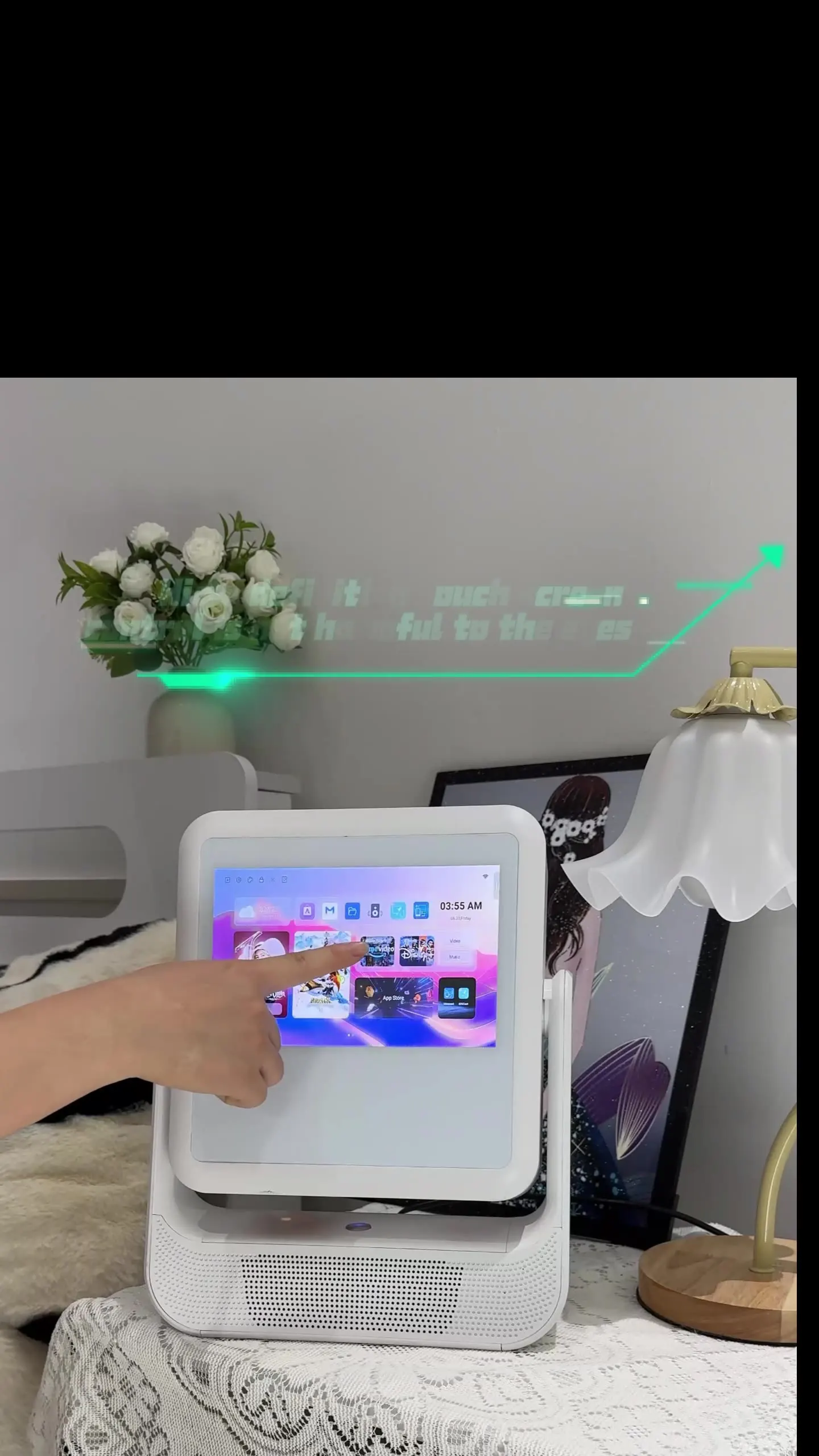
Video: Unboxing and initial setup demonstration of the Aepuosem A2pro Projector.
Operating Instructions
Tablet Operation
- Touch Screen Control: The 8-inch high-definition touch screen allows for intuitive navigation and control, designed to be comfortable for your eyes.
- Home Page: Access installed applications, settings, and various modes (Weather, Speaker) directly from the home screen.
- Applications: To view installed apps, press the right key on the home page. Select an app and press OK to open it. To uninstall, press the menu key or go to [Settings] - [Application].
- File Management: Insert a USB flash drive into the USB port. On the home page, select 'USB' to browse and play multimedia files.
Projection Settings
- Auto-Focus: The projector features fast auto-focusing. If the screen appears unclear, you can fine-tune the focus using the 'Focus' buttons (F-, F+) on the remote control.
- Keystone Correction: Automatic keystone correction is enabled by default. If manual adjustment is needed, go to [Settings] - [Projection settings] - [Manual keystone correction] and follow the on-screen wizard.
- Zoom: Adjust the screen size without moving the projector by navigating to [Settings] - [Projection Settings] - [Screen zoom] on the home page.
Connectivity
- WiFi: The projector supports WiFi 6 (2.4G/5G). To connect, go to [Settings] - [Network] and select your WiFi network.
- Bluetooth: The device is Bluetooth-compatible. Pair your Bluetooth speakers, headphones, or other devices via the Bluetooth settings.
- Sources: To select input sources like HDMI or USB, press the 'Source' button on the remote control and choose the desired option.
Remote Control Instructions
The remote control provides full functionality for navigating the projector and tablet interface.
- Power: Turns the projector on/off.
- Volume - / +: Adjusts the volume.
- Mute: Mutes/unmutes audio.
- Arrows: Navigation buttons (Up, Down, Left, Right).
- OK: Confirms selection.
- Menu: Accesses context-sensitive menus or app options.
- Home: Returns to the main home page.
- Source: Selects input sources (HDMI, USB, etc.).
- Back: Returns to the previous screen.
- Focus - / +: Manually adjusts projection focus.
- Autofocus: Triggers automatic focus adjustment.

Image: Projector displaying popular streaming applications.
Maintenance
- Cleaning the Lens: Use a soft, lint-free cloth to gently wipe the projector lens. Avoid abrasive materials or harsh chemicals.
- General Cleaning: Wipe the exterior of the projector with a soft, dry cloth. Do not use liquid cleaners directly on the device.
- Ventilation: Ensure the projector's ventilation ports are clear and unobstructed to prevent overheating.
- Power Cycle: To prolong the device's lifespan, power it off and disconnect from the power supply for 30 minutes after every 3 hours of continuous use.
Troubleshooting
- Image is blurry: If the image is unclear, first try using the autofocus function. If still blurry, manually adjust using the 'Focus' buttons (F-, F+) on the remote control.
- Projector enters screensaver: If the device enters screensaver mode due to inactivity, press the 'Back' button on the remote control to exit.
- No image/sound from connected device: Ensure the correct input source (HDMI, USB) is selected. Check all cable connections.
- Cannot connect to WiFi/Bluetooth: Ensure the WiFi/Bluetooth functions are enabled in the settings. Check network availability and correct passwords.
Specifications
| Feature | Specification |
|---|---|
| System | Android |
| Projection Technology | LCD |
| Optical Resolution | 3840x2160dpi (4K UHD Support) |
| Native Resolution | 1080P Full HD |
| Screen Scale | 16:09 |
| Brightness | 800 ANSI Lumens |
| Contrast Ratio | 2000:1 |
| Portable | Yes |
| Built-in Speaker | Yes (15W Dual Speakers) |
| Bluetooth-compatible | Yes |
| WiFi | WiFi 6 (2.4G/5G) |
| Keystone Correction | Auto Correction |
| Projection Distance | Up to 8M |
| Weight | 3.5KG |
| Power (W) | 65W |
| Power Source | AC&DC |
| Inbox Adaptor | Yes |
| Remote Controller Included | Yes |
| Display Size | ≤13.5 inches |
| Function | Video Playback |
| Structure | With a flat panel screen |
| Certification | CE |
| Origin | Mainland China |

Image: Product dimensions (22.3cm/8.78inch width, 32cm/12.6inch height, 25.5cm/10.04inch depth).
User Tips
- For optimal viewing, ensure the projection surface is flat and free from obstructions.
- Utilize the 180° rotation feature to project onto ceilings or walls for flexible viewing experiences.
- Regularly clean the lens with a soft, lint-free cloth to maintain picture clarity.
- Explore the Android 12 system to download additional streaming apps and games for enhanced entertainment.

Image: Example of a home theater setup using the projector.
Warranty & Support
For detailed warranty information, technical support, and service inquiries, please refer to the official product documentation or contact customer service.
A comprehensive user manual in PDF format is available for download: Aepuosem A2pro User Manual (PDF)