
1. Introduction
The EWEADN ZAP68 is a high-performance mechanical keyboard featuring HE (Hall Effect) magnetic switches, designed for competitive gaming and efficient productivity. It boasts a tri-mode connection, ultra-low latency, high polling and scanning rates, and advanced customization options. This manual provides detailed instructions for setting up, operating, and maintaining your ZAP68 keyboard.

2. Key Features
- HE Magnetic Switches: Utilizes Gateron high-performance magnetic switches for rapid trigger response and customizable actuation points.
- Tri-Mode Connectivity: Supports wired USB, 2.4Ghz wireless, and Bluetooth connections for versatile use across devices.
- Ultra-Low Latency: Achieves 0.125ms latency for wired connections, ensuring minimal input delay.
- High Performance Rates: Features an 8K return rate and 128K ultra-high scanning rate for precise and responsive input.
- True 0.01mm Precision: Offers exceptional accuracy in key actuation.
- Adaptive Dynamic Calibration: Automatically corrects and compensates for trigger parameters to maintain consistent accuracy.
- 0 Dead Zone & 0 Broken Touch: Advanced algorithms ensure every keypress is registered accurately without missed inputs.
- Custom Dynamic Keys: Supports advanced functions like RS, SOCD, DKS, MT, TGL, and programmable macros.
- ARGB Backlighting: 16 million color high-brush ARGB lighting with independent ICs for vibrant and customizable illumination, designed for eye protection.
- Web-Driven Software: Fully self-developed web driver for efficient customization of key parameters, lighting effects, and hotkeys.
- Long Battery Life: Equipped with a 7000mAh lithium battery for extended wireless usage.
- Sound Optimization: Features silicone muffler pads and a silicone bottom pad to enhance typing sound and feel.
- Ergonomic Design: Includes E-Sports Foot Support with a two-section independent design for adjustable typing angles.


3. Specifications
General Specifications
| Attribute | Value |
|---|---|
| Application | Desktop, Laptop |
| Interface Type | USB |
| Operation Style | Mechanical (Magnetic) |
| Language | English |
| Keyboard Standard | 68 keys |
| Type | 2.4Ghz Wireless (Tri-mode implies Bluetooth as well) |
| Battery Included | Yes (7000mAh) |
| Origin | Mainland China |
Detailed ZAP68 Series Specifications

Gateron Magnetic Switch Specifications

4. Setup Instructions
4.1. Wired Connection
- Connect the provided USB-C cable to the keyboard's USB-C port.
- Connect the other end of the USB-C cable to an available USB port on your computer.
- The keyboard will be automatically recognized by your operating system.
4.2. 2.4Ghz Wireless Connection
- Locate the 2.4Ghz USB receiver (dongle) that came with your keyboard.
- Plug the USB receiver into an available USB port on your computer.
- Turn on the keyboard using the power switch (usually located on the back or side).
- The keyboard should automatically connect to the receiver. If not, refer to the operating instructions for pairing mode.
4.3. Bluetooth Connection
- Ensure your keyboard is charged or connected via USB.
- Turn on the keyboard and switch it to Bluetooth mode (refer to keyboard specific key combinations, often Fn + a number key).
- On your computer or device, enable Bluetooth and search for new devices.
- Select "EWEADN ZAP68" (or similar name) from the list of available devices to pair.
- Follow any on-screen prompts to complete the pairing process.
5. Operating Instructions
5.1. Mode Switching
The ZAP68 supports multiple connection modes. Use the dedicated switch or key combination (e.g., Fn + a specific key) to toggle between Wired, 2.4Ghz Wireless, and Bluetooth modes.
5.2. RGB Lighting Control
The keyboard features customizable ARGB backlighting. Use the dedicated function keys (e.g., Fn + arrow keys or other designated keys) to:
- Change lighting effects.
- Adjust brightness.
- Change colors.
- Adjust animation speed.

5.3. Dynamic Key Customization (Web Driver)
The ZAP68 keyboard offers extensive customization through its self-developed web driver. This allows you to:
- Set custom key parameters.
- Configure lighting effects in detail.
- Program hotkeys and macros (RS, SOCD, DKS, MT, TGL, Press Key Macro).
- Adjust actuation points for magnetic switches.
Access the web driver via the provided URL: https://qmk.top/beta/ (Note: URL may be subject to change. Refer to product packaging or official website for the latest link).


5.4. Charging the Keyboard
When the battery is low, connect the keyboard via USB-C cable to a power source (computer USB port or a USB wall adapter). The RGB lighting may indicate charging status (e.g., a specific color or animation).

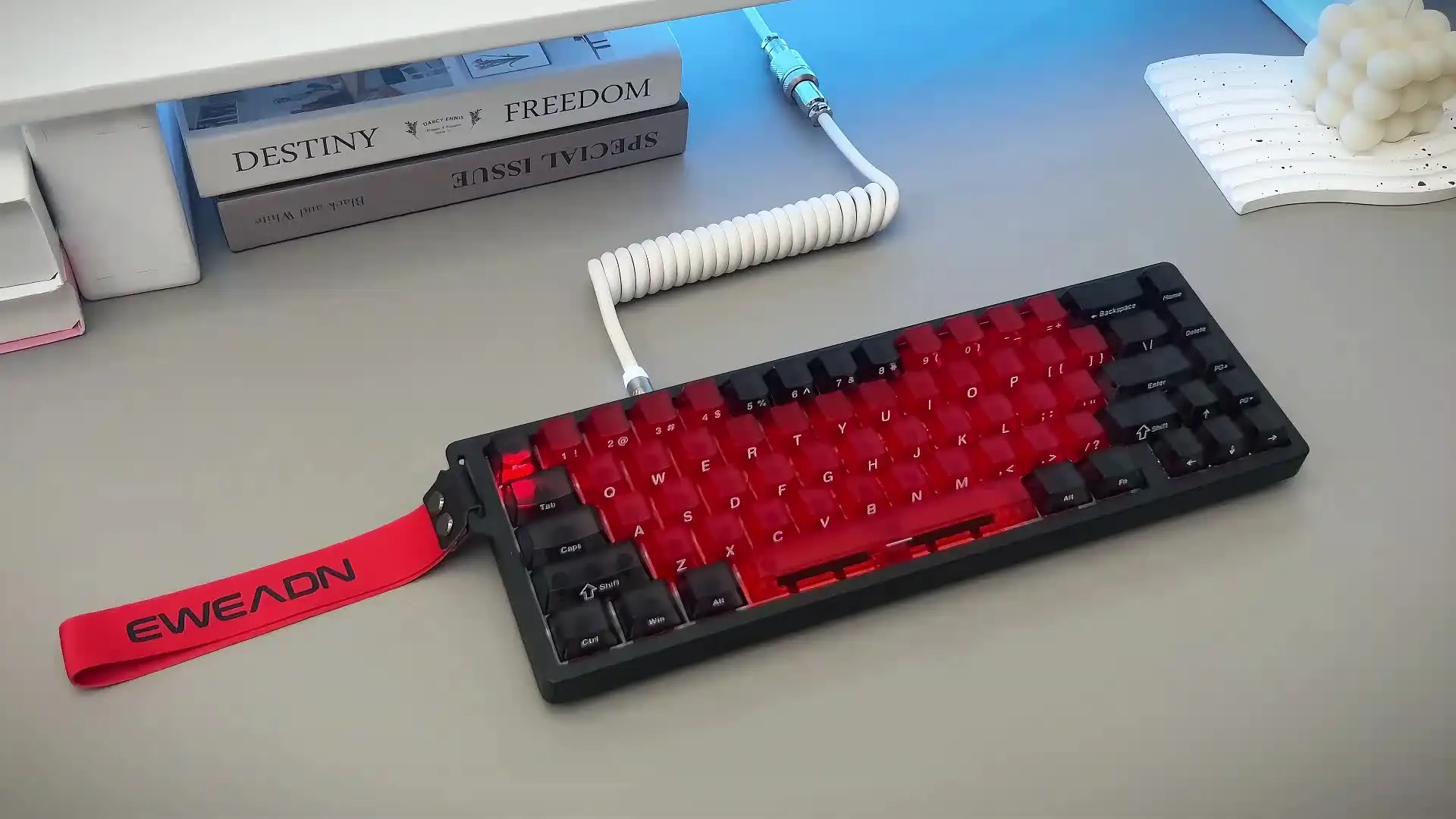
5.5. Keyboard Sound and RGB Demo
6. Maintenance
6.1. Cleaning
- General Cleaning: Use a soft, lint-free cloth slightly dampened with water or a mild cleaning solution to wipe down the keycaps and keyboard body. Avoid excessive moisture.
- Dust Removal: Use compressed air to remove dust and debris from between the keycaps and switches.
- Deep Cleaning (Keycaps): Keycaps can be carefully removed for deeper cleaning. Use a keycap puller to avoid damage. Wash keycaps with mild soap and water, rinse thoroughly, and ensure they are completely dry before reattaching.
6.2. Storage
When not in use for extended periods, store the keyboard in a dry, cool place away from direct sunlight and extreme temperatures. If using wireless modes, consider turning off the keyboard to conserve battery life.
7. Troubleshooting
7.1. Keyboard Not Responding
- Wired: Ensure the USB cable is securely connected to both the keyboard and the computer. Try a different USB port or cable.
- 2.4Ghz Wireless: Check if the USB receiver is properly plugged in. Ensure the keyboard is in 2.4Ghz mode and fully charged. Try re-pairing if necessary.
- Bluetooth: Verify Bluetooth is enabled on your device and the keyboard is in Bluetooth pairing mode. Re-pair the device if the connection is lost. Ensure the keyboard is charged.
- Battery: If using wireless modes, ensure the keyboard battery is charged.
7.2. Keys Not Registering or Double-Typing
- Cleaning: Dust or debris under the keycap or switch can cause issues. Clean the affected area using compressed air.
- Software/Firmware: Ensure the keyboard's firmware is up to date using the web driver. Check for any conflicting software on your computer.
- Actuation Point: If using the web driver, verify the actuation point settings for the magnetic switches are not set too sensitively or too high, which might cause unintended triggers or missed presses.
7.3. RGB Lighting Issues
- Brightness: Ensure the brightness is not set to minimum.
- Software: Use the web driver to check and reset lighting effects or update firmware.
- Power: Ensure the keyboard has sufficient power, especially for complex lighting effects in wireless mode.
8. User Tips
- Experiment with Actuation: Take advantage of the magnetic switches' customizable actuation points. Adjust them via the web driver to find the perfect balance for your typing style or gaming needs.
- Regular Firmware Updates: Periodically check the official web driver or EWEADN website for firmware updates to ensure optimal performance and access to new features.
- Optimize Wireless Performance: For critical gaming, consider using the wired connection for the lowest latency (0.125ms). For general use, 2.4Ghz wireless offers a good balance of performance and convenience.
- Personalize RGB: Dive into the ARGB customization options to create unique lighting profiles that match your setup or mood.
9. Warranty and Support
For warranty information, technical support, or service inquiries, please refer to the official EWEADN website or contact your retailer. Keep your proof of purchase for warranty claims.