
1. Introduction
Thank you for choosing the Inphic A9 Explorer V2 Wireless Gaming Mouse. This manual provides important information regarding the setup, operation, maintenance, and troubleshooting of your new mouse. Please read it carefully and retain it for future reference.
The Inphic A9 Explorer V2 is a versatile RGB wireless gaming mouse featuring low latency, adjustable DPI up to 12800, and support for driver software. It offers triple-mode connectivity (wired, 2.4G wireless, and Bluetooth 5.0), making it ideal for laptops, desktops, and other compatible devices.
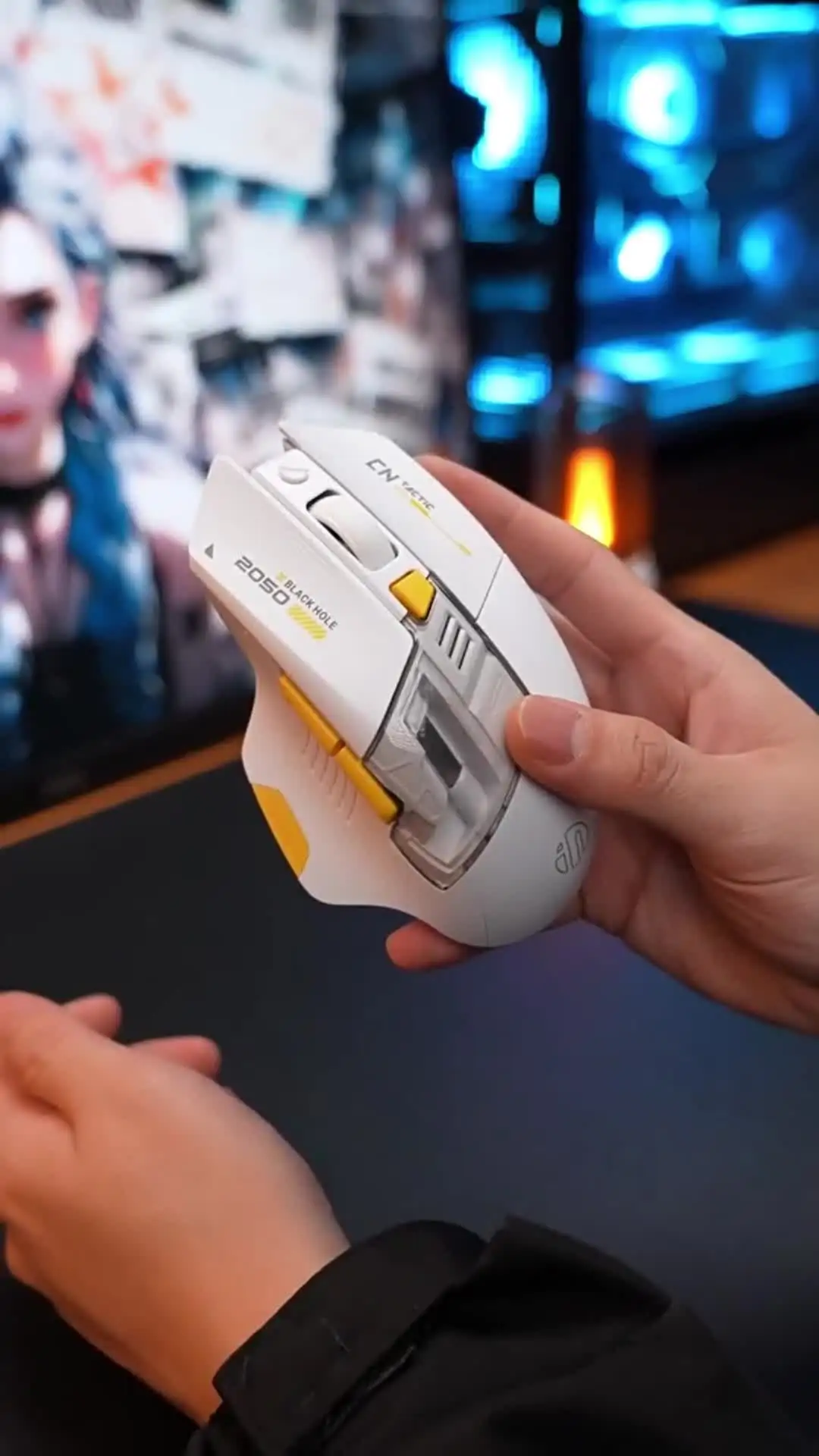
Video: Inphic A9 Explorer V2 Product Demonstration
2. Safety Information
Before using the product, please read through this important information carefully and keep it properly for future reference.
Warnings:
- Do not attempt to open or modify the product.
- Do not charge or clean the product unsupervised.
- If the product is not functioning properly, please contact customer service.
- Avoid exposing rechargeable products to hot or humid environments.
3. Package Contents
The package typically includes:
- Inphic A9 Explorer V2 Wireless Gaming Mouse
- USB Type-C Charging Cable
- 2.4G USB Receiver
- User Manual (this document)
4. Product Overview
Familiarize yourself with the mouse's buttons and features:

Image: Diagram showing mouse features including colorful light guide, ergonomic design, tri-mode connection, up to 12800 DPI, battery indicator light, and double-sided anti-slip design.
Button and Interface Description:
- Left Button: Standard left click function.
- Middle Button/Scroll Wheel: Scroll and middle click function.
- Right Button: Standard right click function.
- DPI Button: Adjusts the mouse's sensitivity (DPI).
- Forward Button: Navigates forward in web browsers/applications.
- Backward Button: Navigates backward in web browsers/applications.
- Battery Indicator Light: Displays current battery level.
- Mode Switch: Toggles between 2.4G, Bluetooth, and OFF modes.
- Light Switch/BT Pair Button: Controls lighting and initiates Bluetooth pairing.
- 2.4G Pilot Lamp: Indicates 2.4G wireless mode status.
- Bluetooth Pilot Lamp: Indicates Bluetooth mode status.
- 2.4G Receiver: USB dongle for 2.4G wireless connection.

Image: Close-up of the mouse highlighting the side auxiliary buttons for Forward and Back commands.
5. Setup and Connection
5.1. 2.4G Wireless Mode
- Locate the 2.4G USB receiver, usually stored in a compartment on the underside of the mouse.
- Insert the receiver into an available USB port on your computer.
- Turn the mode switch on the back of the mouse to the "2.4G" position.
- The mouse should connect automatically.

Image: Illustration of the three connection modes: Wireless 2.4G, Bluetooth 5.0, and Wired Type-C.
5.2. Bluetooth Mode
- Turn the mode switch on the back of the mouse to the "BT" position.
- For first-time Bluetooth connection, press and hold the "PAIR" button on the underside of the mouse until the Bluetooth indicator light flashes rapidly. The mouse will enter pairing mode for 2 minutes.
- On your computer or device, go to Bluetooth settings and search for new devices. Select "Inphic A9 Explorer V2" (or similar) from the list to pair.
- If the mouse has been previously paired with the device, it will automatically reconnect when the switch is set to "BT".
Note: Bluetooth mode is not supported on Windows 7 and earlier systems. For these systems, please use 2.4G wireless mode.
5.3. Wired Mode
- Connect the mouse to your computer using the provided USB Type-C cable. The mouse will function as a wired mouse and charge simultaneously.
6. Operation
6.1. DPI Adjustment
- Press the DPI button (located behind the scroll wheel) to cycle through different DPI settings. The mouse supports resolutions from 800 to 12800 DPI.
- The current DPI setting may be indicated by the color or pattern of the mouse's lighting.

Image: Highlights the mouse's professional gaming chip performance with 12800 Max DPI, 120 IPS Tracking rate, 25G Acceleration, and 1000Hz Return on investment (Polling Rate).
6.2. Adjustable Return Rates
The mouse supports up to 1000Hz report rate. You can switch to your desired report rate with a single tap. Long press the button to re-pair.
- Available return rates: 125 Hz, 250 Hz, 500 Hz, 1000 Hz.
Note: The return rate cannot be adjusted in Bluetooth mode.

Image: Diagram illustrating the four adjustable return rates (125Hz, 250Hz, 500Hz, 1000Hz) on the underside of the mouse.
6.3. Lighting Effects
- The mouse features a bionic streamer light with a self-breathing effect and seven-color RGB.
- Use the dedicated light switch button (if present) or the driver software to customize lighting.

Image: Close-up of the mouse showcasing the Bionic Streamer Light with Self-Breathing Effect and Seven-Color RGB.
6.4. Power Display
- The mouse features an innovative step-by-step power display, showing the battery level from full charge to low battery.

Image: Diagram illustrating the innovative step-by-step power display on the mouse.
6.5. Sleep Mode
- The mouse will enter sleep mode if it remains stationary for 0.5 seconds to 10 minutes. It can be woken up by moving the mouse or pressing any key.
- If the mouse remains stationary for 10 minutes, it will enter hibernation mode and can only be woken up by pressing any key.
7. Charging
- Connect the mouse to a USB power source (e.g., computer USB port, USB wall adapter) using the provided Type-C charging cable.
- It is recommended to charge the mouse via a computer USB port.
- Charge for at least 2 hours, or until the battery indicator lights are all solid, before using again.
Low Battery Warning:
- When the mouse battery voltage falls below 3.3V, it enters a low-power mode, and a white power indicator light flashes.
- When the voltage falls below 3.0V, the mouse power will automatically shut off.
- Cursor stuttering may indicate a low battery. Please charge the mouse promptly.

Image: Close-up showing the Type-C charging interface on the mouse.
8. Maintenance
- Clean the mouse regularly with a soft, dry cloth. Do not use harsh chemicals or abrasive materials.
- Ensure the optical sensor on the underside of the mouse is clean for optimal tracking performance.
- Store the mouse in a cool, dry place when not in use.
9. Troubleshooting
| Problem | Possible Solution |
|---|---|
| Mouse not responding |
|
| Cursor stuttering or lagging |
|
| Bluetooth pairing issues |
|
| Driver software not detecting mouse |
|
10. Specifications
| Feature | Detail |
|---|---|
| Product Model | A9 Explorer V2 |
| Dimensions (L x W x H) | 123 x 78 x 39 mm |
| Weight | 106g ± 3g |
| Connection Method | Wired (Type-C), 2.4G Wireless, Bluetooth 5.0 |
| Resolution (DPI) | 800 / 1200 / 1600 / 2400 / 3200 / 4800 / 12800 (Adjustable) |
| Polling Rate | Up to 1000Hz (125Hz, 250Hz, 500Hz, 1000Hz) |
| Rated Working Current | ≤ 8mA |
| Charging Input | 5V 250mA |
| Number of Buttons | 6 |
| Battery Capacity | 500mAh (Rechargeable) |
| Operating System Support | Windows (XP and above, 2.4G only for Win7 and below), macOS, iOS (13.0+), Android (5.0+) |
| Certifications | CE, RoHS |
| FCC ID | 2ANT9-A9EXPLORER |

Image: Table of product parameters including model, size, weight, connection, resolution, rated current, charging input, number of keys, battery capacity, and operating system.
11. User Tips
- Instant Connection: Users report instant and reliable connection across all three modes (wired, 2.4G, Bluetooth).
- Long Battery Life: The 500mAh battery provides excellent endurance, with some users reporting a week of continuous use even with LEDs on.
- Comfortable Ergonomics: The mouse features a right-hand ergonomic design with a hump for palm support and double-sided anti-slip grips, making it comfortable for medium to large hands.
- Quiet Clicks: The main left and right clicks are noted for being quiet and satisfying, enhancing the user experience.
- DPI On-the-Fly: Easily adjust DPI sensitivity using the dedicated button under the scroll wheel to match your task or game.
- Driver Software: While the mouse works plug-and-play, dedicated driver software is available for advanced customization of settings, lighting, and key bindings. Ensure you download the correct version from the official website.
12. Frequently Asked Questions (FAQ)
Q: Is the charging cable Type-C?
A: Yes, the Inphic A9 Explorer V2 uses a Type-C charging interface.
13. Warranty and Support
Warranty Policy:
Please refer to the product packaging or the official Inphic website for detailed warranty information. Generally, warranty covers manufacturing defects under normal use.
Customer Service:
For any product-related inquiries, technical support, or warranty claims, please contact Inphic customer service:
- Website: www.inphic.cn
- Service Hotline: 4000-187-128
Manufacturer: Dongguan Inphic Electronic Technology Co., Ltd.
Address: 247, Anhua Building, Longling Road, Dalang Town, Longhua District, Shenzhen, Guangdong, China
14. Recycling and Environmental Information
This product contains electronic components and a rechargeable battery. Please dispose of it responsibly according to local regulations for electronic waste. Do not dispose of it with household waste.
Environmental Protection Use Period:
The environmental protection use period for this product is 10 years. This period is based on the product's normal operating temperature and humidity conditions, as per SJ/T 11364 standards for hazardous substances in electronic and electrical products.
Hazardous Substances Table:
| Part Name | Lead (Pb) | Mercury (Hg) | Cadmium (Cd) | Hexavalent Chromium (Cr(VI)) | Polybrominated Biphenyls (PBB) | Polybrominated Diphenyl Ethers (PBDE) |
|---|---|---|---|---|---|---|
| Plastic parts | O | O | O | O | O | O |
| Battery | X | O | O | O | O | O |
This table is prepared in accordance with SJ/T 11364.
O: Indicates that the content of the hazardous substance in all homogeneous materials of the part is below the limit specified in GB/T 26572.
X: Indicates that the content of the hazardous substance in at least one homogeneous material of the part exceeds the limit specified in GB/T 26572, and there is currently no mature, alternative technology available. Inphic will strive to reduce the use of these substances through technological improvements.
Note: Exceeding hazardous substances in this product does not affect its safe use or quality. These substances are contained within the product and will not cause harm to users. During the environmental protection use period of this product, hazardous substances will not leak out and will not cause serious environmental pollution.

Image: Diagram illustrating multiple protection mechanisms: Overcurrent, Overvoltage, Overcharge, Short Circuit, and Power Protection.