
Important Safety Information and Disclaimers
Please read these instructions carefully before installation and operation.
- This device uses negative electrode grounding and a 12V power supply. Ensure your motorcycle's electrical system matches these requirements.
- Always turn off the vehicle's power before installation and only turn it back on after installation is complete.
- Plan the optimal mounting location for the navigation recorder component before final fixing.
- It is strictly prohibited to use a high-pressure water gun to rinse or soak this product. While it features IP67 waterproof design, prolonged exposure to rain (more than 2 hours) can cause internal short circuits. If exposed for longer, place it in a dry, ventilated area to air dry for 5 hours.
- When connecting cameras, ensure they correspond to the body identification.
- The camera lenses are fully enclosed and waterproof. However, avoid contact with solvents such as degreasing oil, alcohol, and tar cleaning agents, as these can damage the waterproof layer.
- Regularly clean up storage space for optimal file storage speed and security.
- Product structure and parameters may be improved with technological advancements. Any discrepancies between this manual's graphics/text and the actual product should defer to the actual product.
- This product is intended for motorcycles only.
- For your safety and the safety of others, watching video programs and performing related operations while driving is prohibited by national laws.
- The navigation function (and optional functions) are aids for driving and should not lead to distraction, carelessness, or loss of judgment. The manufacturer is not responsible for safety accidents caused by misuse.
1. Product Overview
The srnubi Motorcycle Carplay GPS Navigation System offers advanced features for an enhanced riding experience. Available in various models, it provides navigation, communication, and recording capabilities.

Figure 1: Overview of the 8.1-inch Motorcycle Carplay GPS Navigation System.
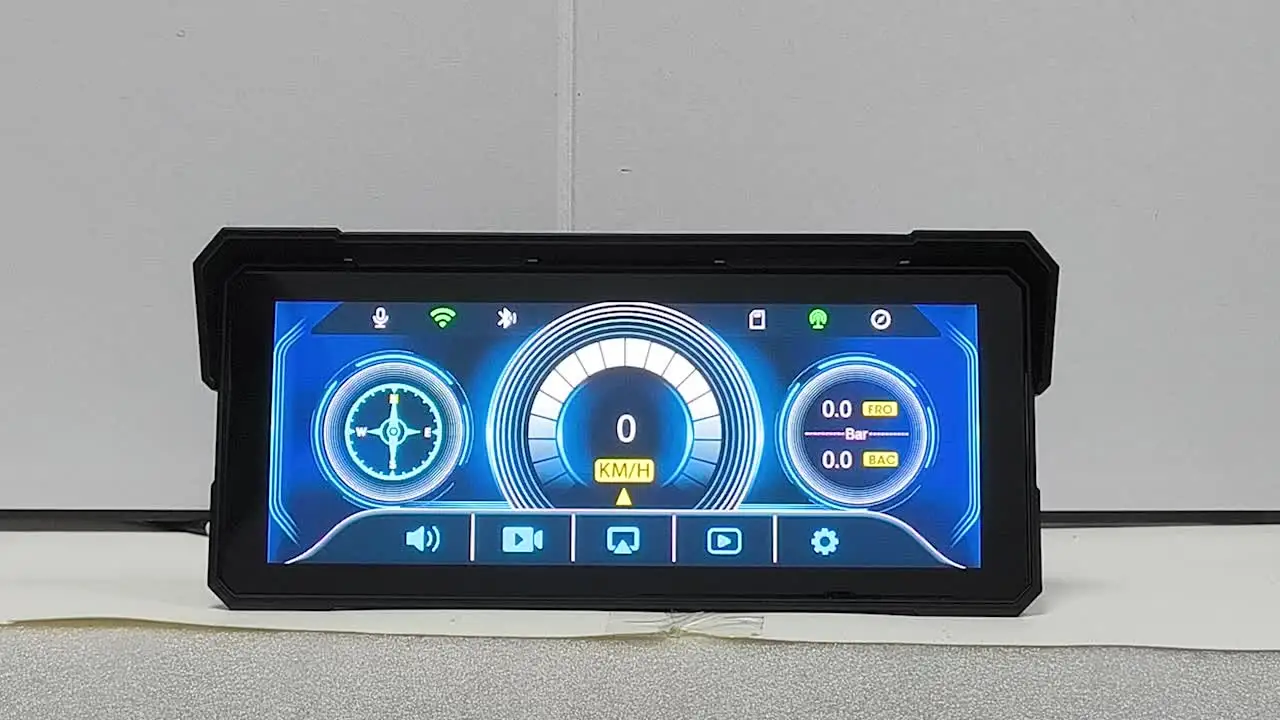
Video 1: Product demonstration showcasing CarPlay, navigation, music playback, settings, DVR functionality, TPMS, and language selection.
2. Setup Guide
2.1 Mounting Options
The device offers flexible mounting options to suit various motorcycle configurations. Choose from crossbar, handlebar, or rearview mirror mounting.

Figure 2: Installation diagram illustrating various mounting positions.

Figure 3: Visual examples of handlebar and rearview mirror mounting.
2.2 Wiring Diagram
Proper wiring is crucial for the device's functionality. Refer to the diagram below for connections.

Figure 4: Host unit wiring diagram.
- Power Cable Interface: Connect the main power cable here.
- ACC Connection: Connect to the original car ACC control wire.
- GND: Connect to the negative electrode of the battery.
- Front View Interface: For front camera connection (if applicable).
- Rear View Interface: For rear camera connection (if applicable).
Important: The red cable should be connected to the positive pole of the motorcycle, and the black cable to the negative pole. Ensure the motorcycle voltage is 12V and current is 1-3A for proper operation.
Video 2: Correct wiring demonstration for the device.
2.3 Tire Pressure Sensor Installation (Optional for MT58C)
For models with Tire Pressure Monitoring System (TPMS), follow these steps to install the external tire pressure sensors:
- Screw the anti-theft hexagonal nut onto the valve thread of the car tire.
- Tighten the sensor clockwise onto the valve thread of the car tire.
- Use the provided fixture to tighten the anti-theft hexagonal nut counterclockwise and attach it to the sensor to lock the anti-theft device.
After installation, use soapy water to check for air leaks around the sensor.

Figure 5: Tire pressure sensor installation and interface.
3. Operating Instructions
3.1 Interface Overview and Button Functions
The main interface provides quick access to various functions. Refer to the diagram and descriptions below:

Figure 6: Main interface and button functions.
- Volume: Click to adjust the volume.
- Video Recording: Click to enter the CarLog interface.
- Phone Connection Settings: Click here to connect your mobile phone using CarPlay, Android Auto, and more.
- Video Replay: View playback of recorded footage.
- System Settings: Click to enter the system settings interface.
- GPS: Click to search for satellite signals in open areas.
- Tire Pressure Set: Click to enter the tire pressure interface (if applicable).
3.2 Wireless CarPlay Connection
CarPlay wirelessly connects to iPhone and requires only a Bluetooth connection. No manual connection to a host hotspot is needed.
- Tap the "Phone Connection Settings" icon (button 3) to enter Mobile Internet settings.
- Select "CarPlay".
- Open your iPhone's Wi-Fi and Bluetooth. The first connection requires manually connecting to the device's Bluetooth.
- Wait for the device to recognize your iPhone.
- On your iPhone, go to Bluetooth settings, find the device (e.g., TF801BT_XXXX), and pair. You may need to enter a PIN.
- Confirm "Use CarPlay" on your iPhone.
- Once connected, the car machine will display the CarPlay application screen.

Figure 7: iPhone Bluetooth pairing for CarPlay.

Figure 8: CarPlay application screen.
3.3 Wireless Android Auto Connection
Android Auto requires your phone to support Google services and have essential software installed from the Google Play Store. Ensure Bluetooth is connected.
- Tap the "Phone Connection Settings" icon (button 3) to enter Mobile Internet settings.
- Select "Android Auto".
- Install necessary apps like Android Auto from the Google Play Store.
- Open the device's Wi-Fi and Bluetooth. Manually connect your phone to the device's Bluetooth.
- Wait for the device to recognize your Android phone.
- Once connected, the Android Auto application screen will be displayed.

Figure 9: Android Auto setup - required apps and Bluetooth connection.

Figure 10: Android Auto application screen.
Note: Huawei phones are not compatible with Android Auto on this device.
3.4 Phone Features and Voice Control
Utilize voice commands and other phone features hands-free for a safer ride.

Figure 11: Hands-free phone features.
3.5 Driving Recorder (DVR) Functions (for MT58 Series)
The MT58 series models include a dual-lens driving recorder with 4K front and 1080P rear cameras, offering a 110° viewing angle.

Figure 12: Dual Lens Driving Recorder overview.
To access recorder functions, click the "Video Recording" icon (button 2) on the main interface.

Figure 13: Recorder interface functions.
- Transcribe: View recorded footage.
- Photograph: Take still images.
- Lock: Manually lock the current recording to prevent overwriting.
- Recording: Start/stop recording.
- Front/Rear Video Switching: Switch between front and rear camera views.
- Return to Home Page: Exit the recorder interface.
- Mobile Link: Connect to a mobile device.
The device features G-Sensing Lock Video, which automatically locks video in case of emergency (built-in gravity sensor activates recording mode upon sensing vibration or collision).

Figure 14: G-Sensing Lock Video in action.
3.6 Remote Operation (for MT58B/MT58C)
Models with GPS remote include a square keypad for convenient operation, especially when wearing gloves.

Figure 15: GPS & Square Keying remote control.
4. Settings
Access system settings by clicking the "System Settings" icon (button 5) on the main interface. The following table details available settings:
| Setting | Description |
|---|---|
| Carplay position | Select the map position in CarPlay screen mirroring mode: left or right. |
| Link button | Turn the auxiliary button on or off. |
| Loop Recording | Set loop recording duration: 1 Min/3 Min/5 Min. |
| Car OSD | Enter your license plate watermark, which will be displayed in video playback. |
| Screen Saver | Set screen protection to off, 1, 3, or 5 minutes. |
| Channel set | Go to Mirror Flip Camera Installation Setup. |
| Language | Select from Chinese, English, Traditional Chinese, and 10 other languages. |
| Time Setting | Set 12-hour or 24-hour format. |
| Date Format | Set date format: year, month, day. |
| Eye protection mode | Set time for eye protection mode activation and brightness adjustment. |
| Tire pressure setting | Enter the setting for the tire pressure alert threshold. |
| Tip sound | Select the tire pressure alert sound. |
| Format SD | Format the TF card. |
| Reset Factory | Reset device to factory settings. |
| Version | View device version information. |
5. Maintenance
- Cleaning: Avoid using harsh solvents like degreasing oil, alcohol, or tar cleaning agents on the camera lenses to prevent damage to the waterproof layer. Use a soft, damp cloth for cleaning the screen and body.
- Water Exposure: While the device is IP67 waterproof, avoid prolonged exposure to heavy rain (over 2 hours). If this occurs, place the device in a dry and well-ventilated area for at least 5 hours to air dry and prevent internal short circuits.
- Storage Management: Regularly clean up the device's storage space to maintain optimal performance for video recording and file management.
- Screen Protection: The device comes with a protective film on the screen. If you notice scratches, these are likely on the film. You can remove the protective film to reveal a clear screen. The screen remains waterproof after the film is removed.
6. Troubleshooting (FAQ)
- Q: What phone versions are supported for CarPlay/Android Auto?
A: Apple phones: iOS 10 or higher. Android phones: Android 11 or higher. Not compatible with Huawei phones. - Q: Does it support Bluetooth helmets or headphones?
A: Yes. First, connect your phone to the product's Bluetooth for CarPlay/Android Auto. Then, connect your phone's Bluetooth to your helmet/earphone. - Q: Why is my package missing a camera, buttons, or tire pressure sensors?
A: The product has four options (MT-04, MT58A, MT58B, MT58C). Cameras, buttons (remote), and tire pressure sensors (TPMS) are optional features depending on the model purchased. Please review your order options carefully. - Q: Does the product have a built-in speaker?
A: No, the product does not have a built-in speaker. Audio is supported only via Bluetooth earphones/helmets. - Q: Does it have an Android system? Can I use YouTube?
A: No, it runs on a Linux system and does not support downloading additional software or apps. - Q: The machine is not turning on.
A: Ensure the motorcycle voltage is 12V and the current is 1-3A. Check that the red power cable is connected to the positive pole and the black cable to the negative pole of the motorcycle. Refer to the wiring video for correct connections. - Q: CarPlay/Android Auto is lagging.
A: Ensure your phone's Bluetooth signal is strong. A poor Bluetooth signal can cause lag. - Q: The screen has scratches.
A: The product has a protective film on the surface. The scratches are likely on this film. Remove the protective film to reveal a clear screen. The screen remains waterproof after the film is removed.
7. Specifications
| Feature | Specification |
|---|---|
| Brand Name | srnubi |
| Origin | Mainland China |
| Screen Size | 6.86 inch or 8.1 inch (model dependent) |
| Screen Resolution | 6.86 inch: 1280*480P; 8.1 inch: 1600x600 (IPS HD full lamination) |
| Waterproof Level | IPX7 |
| Operating Temperature | -4°F to 158°F (-20°C to 70°C) |
| Bluetooth Version | Bluetooth 5.0 (Dual Bluetooth) |
| Operating System | Linux |
| Power Supply | 12V (1-3A current recommended) |
| Product Dimensions | Approximately 238mm (Length) x 101mm (Height) |
| Package Dimensions | 27cm (Length) x 17cm (Width) x 12cm (Height) |
| Package Weight | 0.847 kg |
Model Variants:
- MT-04: 6.86 inch display, No Camera, No DVR function.
- MT58A: 8.1 inch display, With 4K front camera + 1080P rear camera.
- MT58B: 8.1 inch display, 4K+1080P dual lens, with GPS remote.
- MT58C: 8.1 inch display, 4K+1080P dual lens, with GPS remote and TPMS (Tire Pressure Monitoring System).

Figure 16: Approximate product dimensions.

Figure 17: Device compatibility with various motorcycles.
8. User Tips
- Linux System: Remember that this device runs on a Linux system and does not support downloading additional software or apps.
- Navigation: The device itself does not contain pre-installed navigation software. Utilize the navigation features through CarPlay or Android Auto by connecting your smartphone.
- Power Cable: Always use the original power cable provided with the device. Do not use Type-C cables for power, as the Type-C port is blocked for waterproofing.
- Customer Service: For any questions or issues, contact JMCQ Store customer service via their AliExpress store: https://www.aliexpress.com/store/1101399813.
- User Manual PDF: A detailed user manual in PDF format is available for download: User Manual (PDF).
9. Warranty and Support
For warranty information, technical support, or any product-related inquiries, please contact the seller directly through their official store on AliExpress:
JMCQ Flagship Store: https://www.aliexpress.com/store/1101399813
Please have your purchase details and model information ready when contacting support.