
1. Product Overview
The srnubi Motorcycle GPS Navigation system offers advanced features for motorcycle riders, including GPS navigation, multimedia playback, and optional dash cam recording. It supports wireless Carplay and Android Auto for seamless smartphone integration.
Model Variants:
- MT50: 5-inch display, no camera, no DVR function.
- MT58A: 8.1-inch display, with 4K front camera and 1080P rear camera.
- MT58B: 8.1-inch display, with 4K front camera, 1080P rear camera, and GPS remote control.
- MT58C: 8.1-inch display, with 4K front camera, 1080P rear camera, GPS remote control, and TPMS (Tire Pressure Monitoring System).

Main product display showing key features and interface.

Visual comparison of MT50 and MT58 models, highlighting camera and optional features.
2. Setup Guide
2.1 Package Contents
Before installation, verify that all components are present based on your purchased model:
- Main Display Unit (5-inch for MT50, 8.1-inch for MT58 series)
- Power Cable
- Mounting Brackets (various types for different installations)
- User Manual
- (For MT58 series) Front Camera (4K)
- (For MT58 series) Rear Camera (1080P)
- (For MT58B/MT58C) GPS Remote Control
- (For MT58C) TPMS Sensors

Example components for the MT50 model.
2.2 Mounting Options
The device offers flexible mounting to suit various motorcycle configurations:
- Handlebar Mount: Secure the unit directly to your motorcycle's handlebars using the provided clamp bracket.
- Rearview Mirror Mount: Attach the unit to the rearview mirror stem using the appropriate bracket.

Illustration of handlebar and rearview mirror mounting options.

The bracket allows for rotation to achieve optimal viewing angles.
2.3 Wiring Instructions
Proper wiring is essential for the device's functionality. Use only the original power cable provided.
- Connect the red cable to the positive pole of your motorcycle's power supply.
- Connect the black cable to the negative pole of your motorcycle's power supply.
- The device requires a 12V voltage and a 1-3A current environment to power on and operate correctly.
For a visual guide on correct wiring, please refer to the following video:

Video demonstrating the correct wiring procedure for the device.
2.4 Initial Power On
Once wired correctly, turn on your motorcycle's ignition. The device should power on automatically. If it does not, refer to the Troubleshooting section.
3. Operating Instructions
3.1 Basic Interface Navigation
The device features a responsive touchscreen interface. Swipe left/right to navigate between screens, tap icons to open applications or settings. The main screen typically displays speed, compass, and other vital information.
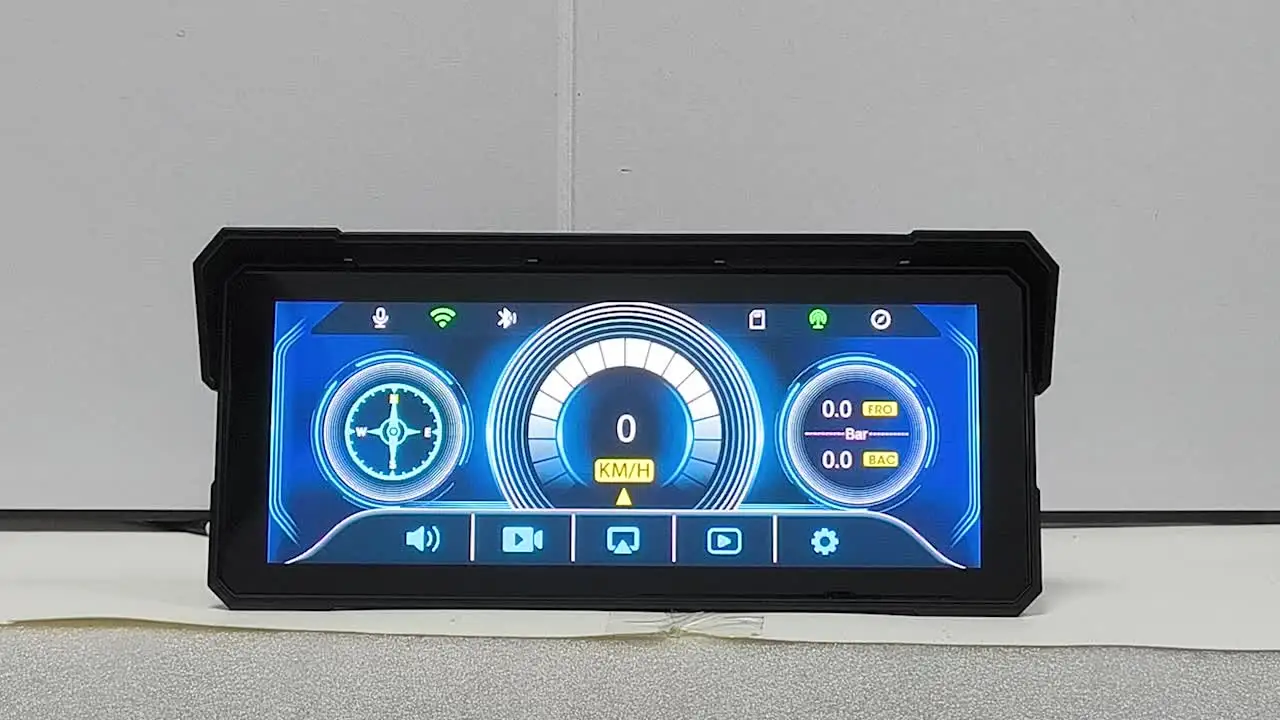
Product demonstration video showing UI navigation, Carplay, and settings.
3.2 Wireless Carplay & Android Auto
Connect your smartphone wirelessly via Bluetooth to access Carplay (for iPhone) or Android Auto (for Android devices). This allows you to use your phone's apps for navigation, music, phone calls, messaging, and voice commands directly on the device's screen.
- Connection: Ensure your phone's Bluetooth is enabled. On the device, navigate to the Carplay/Android Auto section and follow the on-screen prompts to pair with your phone.
- Features: Access navigation apps (e.g., Google Maps, Apple Maps), stream music, make and receive calls, send messages, and use voice assistants like Siri or Google Voice.

Wireless Carplay interface demonstrating various functions.

Hands-free phone features for safer riding.

AirPlay and AutoLink for wireless screen mirroring.
3.3 Dual Bluetooth Connectivity
The device features Dual Bluetooth 5.0, allowing for separate connections for audio and video. This means you can connect your phone for Carplay/Android Auto (video & audio) and simultaneously connect a Bluetooth headset or helmet for audio output, ensuring clear communication and music playback while keeping your phone safely stored.

Dual Bluetooth setup for enhanced audio experience.
For a tutorial on connecting Bluetooth earphones or helmets, please watch this video:
Video guide for connecting Bluetooth headsets/helmets.
3.4 Dash Cam Operation (MT58 Series)
Models MT58A, MT58B, and MT58C include a dual-lens driving recorder with a 4K front camera and a 1080P rear camera. The maximum viewing angle for both cameras is 110°.
- Recording: The system automatically starts loop recording when powered on.
- G-Sensing: A built-in gravity sensor automatically locks video footage in case of an emergency (e.g., sudden impact or collision) to prevent overwriting.
- Loop Recording: The system intelligently overwrites the earliest record files when the TF card is full.
- Remote Control (MT58B/MT58C): Use the optional GPS remote control to easily switch camera views, take photos, or lock video files.

Dual lens driving recorder setup.

G-Sensing feature for emergency video locking.

Explanation of intelligent loop recording.

4K Ultra HD video quality for front camera.
3.5 TPMS (Tire Pressure Monitoring System) (MT58C)
The MT58C model includes TPMS functionality. This system monitors your tire pressure and temperature in real-time, providing alerts for abnormal conditions to enhance riding safety.
- Binding Sensors: Follow the on-screen instructions to bind the TPMS sensors to your tires.
- Unit Settings: Configure pressure units (Bar, Psi) and temperature units (°C, °F) in the settings menu.
- Alarm Values: Set custom alarm thresholds for low voltage, high voltage, and tire temperature.
3.6 System Settings
Access the settings menu to customize various aspects of the device:
- Language: Select your preferred language.
- Time Setting: Adjust date and time.
- Speed Unit: Choose between KM/H or MPH.
- Screen Saver: Configure screen saver options.
- Channel Set: Manage camera channels (for MT58 series).
4. Maintenance
4.1 Waterproofing and Environmental Conditions
The device is rated IP67 waterproof, making it suitable for use in various weather conditions, including rain. It is designed to withstand temperatures between -4°F and 158°F (-20°C and 70°C).

Device suitability for all riding environments.
Important Note on Water Exposure:
While IP67 rated, prolonged exposure to rain for more than 2 hours can potentially cause internal short circuits. If your device has been exposed to rain for an extended period, place it in a dry and well-ventilated area to air dry for 5 hours to restore normal operation.
4.2 Screen Care
The product comes with a protective film on the screen. If you notice scratches, these are likely on the film. You can remove the protective film to reveal a pristine screen. The screen remains waterproof even after the film is removed.
4.3 General Cleaning
Use a soft, damp cloth to clean the device's exterior. Avoid using harsh chemicals or abrasive materials that could damage the screen or casing.
5. Troubleshooting
- Device does not power on:
- Ensure you are using the original power cable.
- Verify that your motorcycle's power supply provides 12V voltage and 1-3A current.
- Check that the red power cable is connected to the positive (+) terminal and the black cable to the negative (-) terminal of your motorcycle's battery. Refer to the wiring video in Section 2.3.
- Carplay/Android Auto is lagging or disconnecting:
- Check your smartphone's Bluetooth signal strength. A weak signal can cause performance issues.
- Ensure your phone's operating system is up to date.
- No built-in navigation app:
- The device uses your smartphone's navigation apps via Carplay or Android Auto. It does not have its own pre-installed navigation software. Connect your phone to use navigation features.
- Screen appears scratched:
- The device has a protective film on the screen. Gently peel off this film to reveal the unscratched screen underneath.
- Received package with damaged packaging:
- If the packaging box is damaged upon arrival, please contact customer service immediately. Do not rush to leave a review or file a dispute.
- Firmware Update:
- Firmware updates are typically handled by the manufacturer. If you believe a firmware update is necessary, please contact customer support for guidance. Do not attempt to update firmware from unofficial sources.
6. Specifications
| Feature | Specification |
|---|---|
| Brand Name | srnubi |
| Screen Size | 5 inch (MT50) / 8.1 inch (MT58 series) |
| Waterproof Level | IPX7 |
| Operating System | Linux |
| Connectivity | Wireless Carplay, Android Auto, Dual Bluetooth 5.0, WiFi |
| Front Camera (MT58 series) | 4K UHD |
| Rear Camera (MT58 series) | 1080P FHD |
| Operating Temperature | -4°F to 158°F (-20°C to 70°C) |
| Power Requirement | 12V, 1-3A |
| DVR Function | Available on MT58 series (MT50 has no DVR) |
| TPMS | Available on MT58C model |
| GPS Remote Control | Available on MT58B and MT58C models |
7. User Tips
- Power Supply: Always use the original power cable provided. Ensure your motorcycle's power supply is a stable 12V with 1-3A current for optimal performance.
- Navigation: Remember that the device relies on your smartphone's navigation apps through Carplay or Android Auto. Make sure your phone is connected via Bluetooth for navigation functionality.
- Screen Clarity: If the screen appears scratched, it's likely the protective film. Gently remove it for a clear display. The screen remains waterproof after removal.
- Water Exposure: While the device is IP67 waterproof, avoid exposing it to heavy rain for more than 2 hours to prevent potential internal damage. If prolonged exposure occurs, air dry the unit for 5 hours.
- Bluetooth Connection: For smooth Carplay/Android Auto operation, ensure your phone has a strong Bluetooth signal. A weak signal can lead to lag or disconnections.
- No Software Downloads: All products run on a Linux system and do not support downloading additional software or apps.
8. Warranty and Support
For any questions, technical support, or warranty inquiries, please contact the srnubi customer service team directly through their official store:
JMCQ Flagship Store on AliExpress
Please provide your product model and any relevant details when contacting support to ensure efficient assistance.