
1. Introduction
The Xiaovv BQ3 is an advanced 8MP Dual Lens Security Camera designed for comprehensive indoor and outdoor surveillance. It features a unique dual-lens system, offering both a wide-angle panoramic view and a controllable PTZ (Pan-Tilt-Zoom) camera for detailed tracking. Equipped with AI Humanoid Detection, two-way audio, and multiple night vision modes, the BQ3 provides robust security monitoring and communication capabilities.

Image: Xiaovv BQ3 camera highlighting key features like 12MP Ultra HD, Motion Detection, Loud Speaker, Night Vision, Two Way Audio, 4G LTE, Dual Lens, and Wi-Fi connectivity.
Product Demonstration Video
Video: A short demonstration of the Xiaovv BQ3 camera's features and functionality, including its dual-lens view and app control.
2. Key Features
- Dual Lens & Dual Screen: Provides both a fixed wide-angle view and a movable PTZ view simultaneously.
- 8MP Ultra HD Resolution: Delivers clear and detailed video footage.
- Pan 355° Tilt 90°: Remotely control the camera's movement for extensive coverage.
- AI Humanoid Detection & Motion Tracking: Automatically detects human shapes, tracks movement, and sends alerts.
- Two-Way Audio: Built-in microphone and speaker for real-time communication.
- Multiple Night Vision Modes: Supports Infrared Night Vision, Full Color Night Vision, and Intelligent Night Vision.
- IP66 Waterproof: Suitable for both indoor and outdoor use, resistant to various weather conditions.
- H.265 Video Compression: Efficient video storage and streaming.
- Multi-User Sharing: Allows multiple family members to access the camera feed.
- Connectivity Options: Available in WiFi (2.4G only) and 4G versions.
3. Specifications
| Feature | Specification |
|---|---|
| Brand Name | xiao vv |
| Model Number | BQ3 |
| Megapixels | 8MP |
| High Definition | 8.0 Megapixels |
| Lens (mm) | 3.6mm |
| Lens Quantity | Dual Lens |
| Viewing Angle | 130° (Wide-angle) |
| Movement Range (Pan) | 0°-360° |
| Movement Range (Tilt) | 0°-90° |
| Zoom Type | Digital zoom |
| Zoom | 4X |
| Connectivity | 4G (specific regions) or 2.4G WiFi (WiFi version) |
| Video Compression Format | H.265-AVI |
| IR Distance (m) | 20M |
| Sensor | CMOS |
| Color Night Vision | Yes |
| AI Functions | Motion Detection, AI Humanoid Detection, AI Face Detection |
| Audio Output | Two Way Audio |
| Operating Temperature | -10°C to 60°C |
| IP Rating | IP66 |
| Power Mode | Mains Electricity (DC-5A) |
| Installation | Side, Normal, Wall Mounted |
| Shell Material | Plastic |
| Storage Function | Micro SD card (up to 128GB, not included) |
| Supported OS | Windows 7, Windows 8, Windows 10 |
| Certification | CE, FCC, RoHS |
| Product Dimensions | Approx. 115mm (W) x 122mm (H) x 100mm (D) |
Note on 4G Camera Version: The 4G camera version supports local 4G traffic cards and is not compatible with WiFi wireless networks. It is currently not supported in Chile, Italy, Ghana, and Japan. For these regions, please select the WiFi camera version to connect to WiFi.
Note on WiFi Camera Version: The WiFi camera version only supports 2.4G WiFi and does not support 4G SIM cards or 5G WiFi.
4. Package Contents
The standard package typically includes:
- Xiaovv BQ3 Dual Lens Security Camera
- Power Adapter (EU Plug, if selected)
- Mounting Screws and Anchors
- User Manual (this document)
- (Optional) Micro SD Card (if purchased with camera)
Please check all contents upon unboxing. If any items are missing or damaged, contact customer support.
5. Setup and Installation
5.1 Camera Components Overview

Image: Detailed diagram showing the camera's front and side views with labels for white light, wide-angle lens, infrared light, power connector, rear speaker, camera shot, front microphone, TF card slot (1), reset button (2), and dimensions (115mm, 122mm, 100mm).
- White Light: For illumination in color night vision mode.
- Wide-angle Lens: Top fixed lens for panoramic viewing.
- Infrared Light: For infrared night vision.
- Power Connector: For connecting the DC-5A power supply.
- Rear Speaker: For two-way audio output.
- Camera Shot: Bottom PTZ lens.
- Front Microphone: For two-way audio input.
- TF Card Slot (1): Insert Micro SD card for local storage.
- Reset Button (2): Used for resetting the camera to factory settings.
5.2 Inserting the Micro SD Card
- Locate the TF card slot (1) on the camera body.
- Gently insert a Micro SD card (up to 128GB, not included) into the slot until it clicks into place.
- Ensure the card is inserted correctly to avoid damage.
5.3 Mounting the Camera
The camera can be installed on a side, normal (ceiling), or wall-mounted position. Choose a location that provides the desired viewing angle and is within reach of a power outlet.
- Select a suitable mounting location.
- Use the provided mounting screws and anchors to securely attach the camera bracket.
- Attach the camera to the mounted bracket.
- Adjust the camera's physical orientation if necessary before powering on.
5.4 Powering On and Initial Connection
- Connect the power adapter to the camera's power connector.
- Plug the power adapter into a power outlet.
- The camera will power on and initiate its self-test. Wait for the camera to indicate it's ready for connection (e.g., a voice prompt or LED indicator).
- Download the official mobile application (XIAOVV pro APP) from Google Play or the App Store.

Image: Icons for downloading the XIAOVV pro APP from Google Play, App Store, Windows version, and Mac OS version.
- Follow the in-app instructions to add your camera. This typically involves scanning a QR code on the camera or manually entering its ID.
- For WiFi cameras, ensure your phone is connected to a 2.4G WiFi network during setup.
- For 4G cameras, ensure a compatible 4G SIM card with an active data plan is inserted.
6. Operating Instructions
6.1 Live View and PTZ Control
Once connected, open the app to view the live feed. The dual-lens design provides two views:
- The top screen displays the fixed wide-angle view.
- The bottom screen displays the PTZ camera view, which can be controlled.

Image: Mobile app interface demonstrating the 355° pan and 90° tilt control for the PTZ camera, allowing adjustment of any angle.
Use the on-screen controls in the app to pan the PTZ camera horizontally up to 355° and tilt vertically up to 90°.
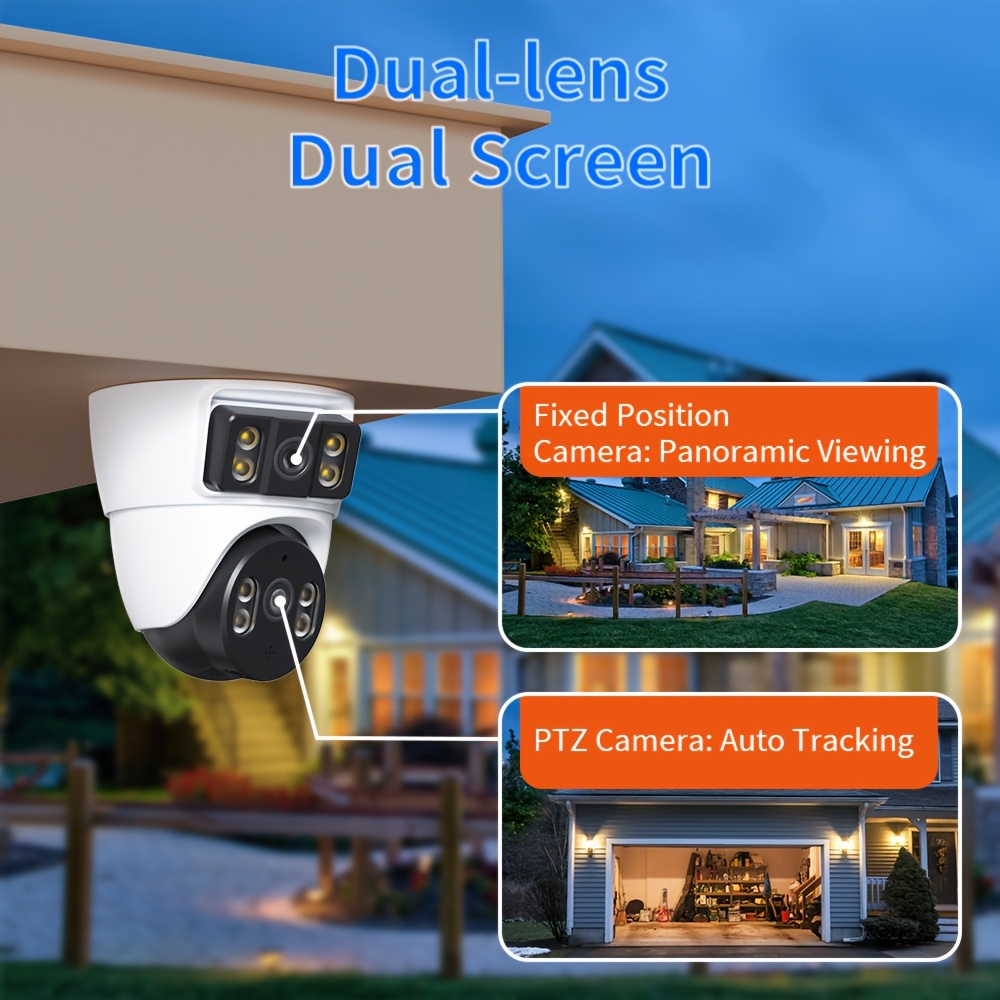
Image: Illustration of the dual-lens, dual-screen functionality, showing the fixed position camera for panoramic viewing and the PTZ camera for auto tracking.
6.2 Two-Way Audio
The camera supports two-way audio communication. Tap the microphone icon in the app to speak through the camera's speaker, and listen through your phone's speaker.
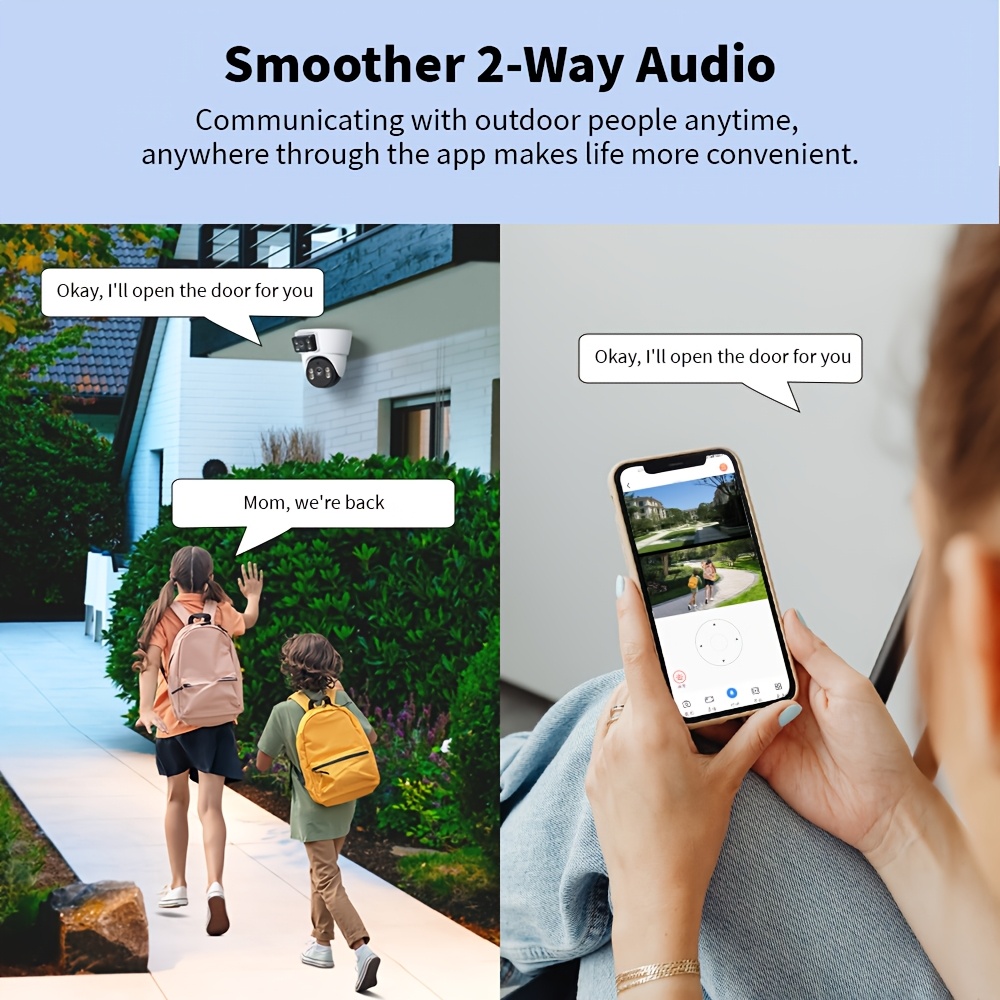
Image: A demonstration of the two-way audio feature, showing a person speaking through the camera to children outside, and a phone displaying the app interface.
This feature is useful for communicating with visitors, family members, or deterring intruders.
6.3 Night Vision Modes
The camera offers three night vision modes:
- Infrared Night Vision: Provides clear black and white video in low light conditions using infrared LEDs.
- Full Color Night Vision: Utilizes white lights to provide full-color video even in darkness.
- Intelligent Night Vision: Automatically switches between infrared and color night vision based on detected motion or light conditions.

Image: Visual comparison of day vision, infrared night vision, and full-color night vision from the camera.
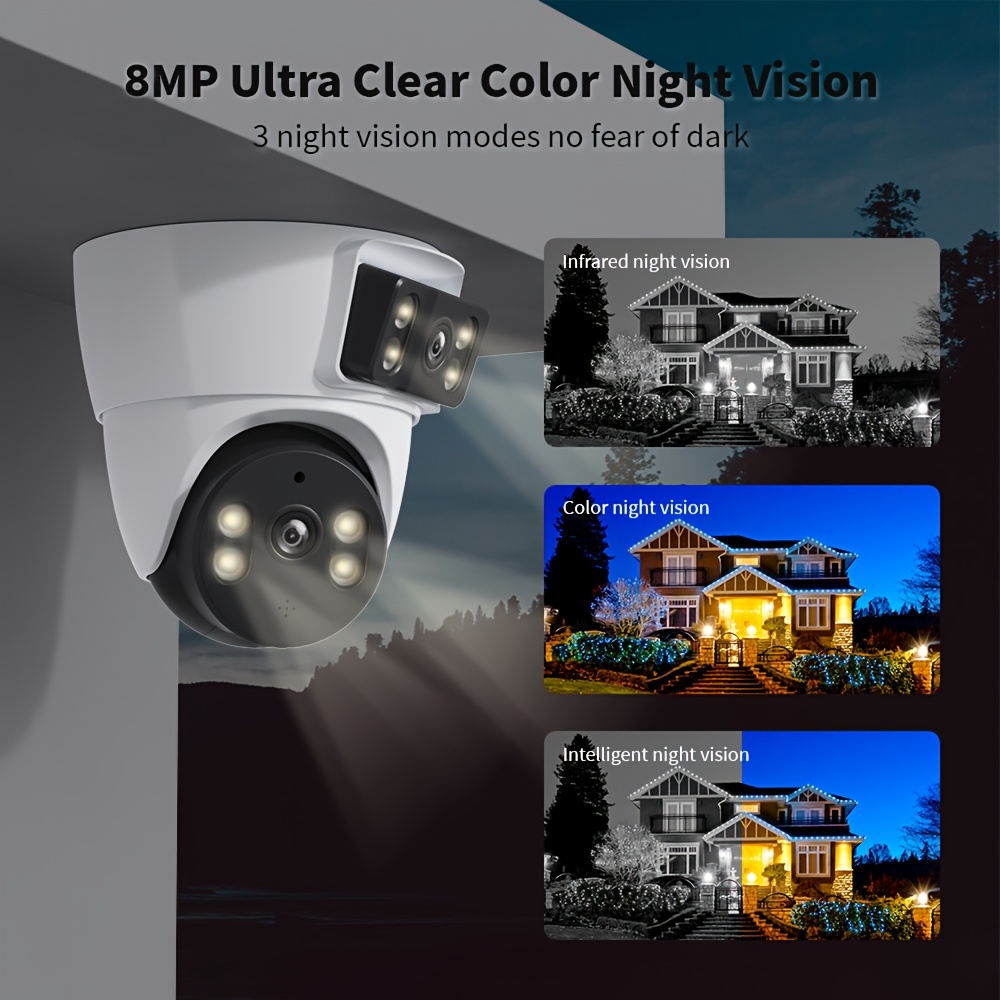
Image: Illustrates the three night vision modes: Infrared, Color, and Intelligent, emphasizing 8MP Ultra Clear Color Night Vision.
6.4 AI Humanoid Detection and Alerts
The camera's AI system can differentiate human shapes from other moving objects, reducing false alarms.
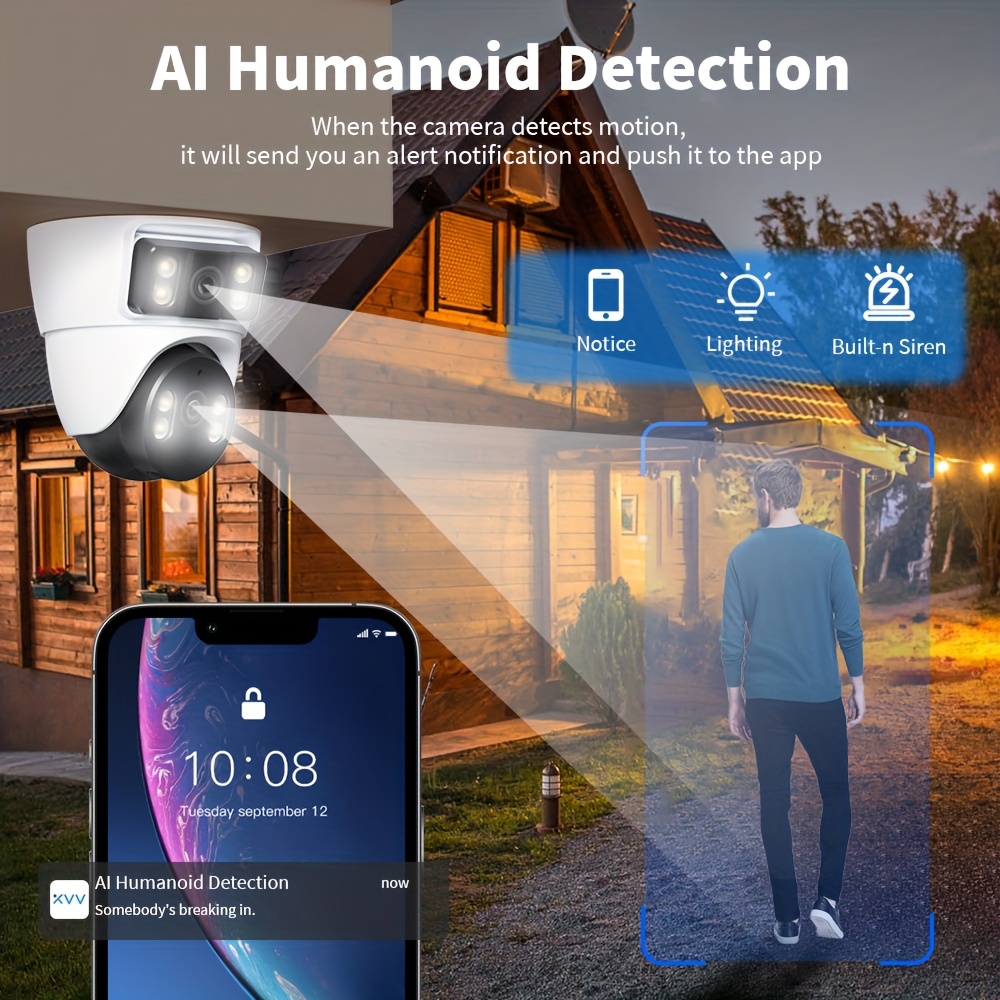
Image: Scene depicting AI Humanoid Detection, where the camera detects motion, sends an alert notification to the app, activates lighting, and triggers a built-in siren.
When motion is detected, the camera will:
- Send an alert notification to your mobile app.
- Activate the camera's lights (if configured for color night vision or deterrence).
- Trigger a built-in siren (if enabled).
- Record the incident.
You can configure detection zones and sensitivity settings within the app.
6.5 AI Face Detection and Smart Playback
The camera supports AI Face Detection, allowing for smart playback of recorded footage based on detected faces.

Image: Demonstrates AI Face Detection and smart playback, showing detected faces and corresponding video segments.
This feature helps quickly locate specific events involving recognized individuals in your recordings.
6.6 Multi-User Sharing
Share access to your camera with family members or trusted individuals through the app. This allows multiple users to view the live feed and recordings simultaneously.

Image: Illustrates the multi-user sharing feature, enabling family members to view the camera feed from different devices.
7. Maintenance
- Cleaning: Regularly wipe the camera lenses and body with a soft, dry cloth to remove dust and smudges. Do not use harsh chemicals or abrasive materials.
- Firmware Updates: Check the app periodically for firmware updates. Keeping your camera's firmware up-to-date ensures optimal performance and security.
- Power Supply: Ensure the camera is connected to a stable power source. Avoid using unapproved power adapters.
- SD Card Management: If using a Micro SD card, periodically check its status in the app. Consider formatting the card every few months to maintain performance, backing up important recordings first.
- Environmental Protection: Although IP66 rated, avoid direct exposure to extreme weather conditions or prolonged submersion in water.
8. Troubleshooting
| Problem | Possible Cause | Solution |
|---|---|---|
| Camera not powering on | No power, faulty adapter, loose connection. | Check power outlet, power adapter, and cable connections. Try a different outlet. |
| Unable to connect to WiFi | Incorrect WiFi password, 5G WiFi network, camera too far from router, 4G version camera. | Ensure correct 2.4G WiFi password. Move camera closer to router. Confirm you have the WiFi version. |
| 4G camera not connecting | No SIM card, incompatible SIM card, no data plan, unsupported region. | Insert an active 4G SIM card. Check data plan. Verify region compatibility (e.g., not Chile, Italy, Ghana, Japan). |
| Poor video quality | Weak network signal, dirty lens, low light. | Improve network signal strength. Clean the lens. Ensure adequate lighting or switch night vision modes. |
| Motion detection false alarms | High sensitivity, environmental factors (e.g., moving branches). | Adjust motion detection sensitivity and detection zones in the app. |
| Two-way audio not working | Microphone/speaker muted, app permissions, network issues. | Check app settings for audio mute. Grant microphone permissions to the app. Ensure stable network connection. |
If the problem persists, try resetting the camera using the reset button (2) and re-configuring it.
9. User Tips
- Optimal Placement: For best results with AI Humanoid Detection, position the camera to have a clear, unobstructed view of the area you wish to monitor.
- Network Stability: A strong and stable internet connection is crucial for smooth live viewing, timely alerts, and reliable cloud recording. Consider placing your WiFi camera closer to your router or using a WiFi extender if signal is weak.
- SD Card for Backup: Even if using cloud storage, a local Micro SD card provides a reliable backup for recordings, especially during internet outages.
- App Notifications: Customize your app notification settings to receive alerts only for critical events, preventing notification fatigue.
- Alexa Integration: While not explicitly stated as supported, some users inquire about Alexa connectivity. Check the latest app updates or manufacturer's website for potential future integrations with smart home platforms like Alexa.
10. Frequently Asked Questions (FAQ)
- Q: Does the camera connect to Alexa?
- A: The provided information does not confirm direct Alexa integration. Please check the official app or manufacturer's website for the latest compatibility updates.
- Q: What is the difference between the WiFi and 4G versions?
- A: The WiFi version connects to your home's 2.4G WiFi network and does not support SIM cards. The 4G version uses a local 4G SIM card for internet connectivity and does not support WiFi. Ensure you choose the correct version for your needs and region.
- Q: Can I view the camera feed on my computer?
- A: Yes, the manufacturer provides desktop client software for Windows and Mac OS, allowing you to view and manage your camera from a computer.
11. Warranty and Support
Your Xiaovv BQ3 Security Camera is covered by a manufacturer's warranty. Please refer to the warranty card included in your package or visit the official Xiaovv website for detailed warranty terms and conditions.
For technical support, troubleshooting assistance, or warranty claims, please contact Xiaovv customer service through their official website or the support section within the mobile application.
Manufacturer: Xiaovv
Website: [Refer to product packaging or official app for website details]
Email/Phone: [Refer to product packaging or official app for contact details]