
1. Introduction
The Fibocom FM160-EAU is a high-performance NR Sub 6 module designed for advanced IoT applications. It adheres to 3GPP Release 16 standards and maintains backward compatibility with LTE/WCDMA network technologies. Powered by the Qualcomm Snapdragon® X62 modem chipset, this module offers impressive data transfer capabilities, reaching maximum downlink rates of 3.5Gbps and uplink rates of 900Mbps under 5G connectivity.
Its compact M.2 form factor (30x52x2.3mm) ensures compatibility with existing Fibocom 5G modules like the FM150, facilitating seamless integration into various devices. The FM160-EAU also incorporates a multi-constellation GNSS receiver (GPS/Galileo/GLONASS/BeiDou/QZSS) for precise positioning and navigation, simplifying product development. With a comprehensive suite of interfaces including USIM, USB 3.1/3.0, PCIe 4.0, and PCM/I2S, the module provides significant flexibility for customer applications.
Capable of supporting multiple Internet protocols and industry-standard interfaces, the FM160-EAU is suitable for a wide range of cellular terminals such as Customer Premises Equipment (CPE), Set-Top Boxes (STB), Internet Protocol Cameras (IPC), and Outdoor Units (ODU). This module is specifically designed to cover mobile networks in Asia, Europe, and Australia.
2. Product Overview
The Fibocom FM160-EAU module is a versatile solution for 5G connectivity. Below are its key features and available configurations:
- Air Interface: Supports 5G (NR Sub 6), 4G (LTE), and 3G (WCDMA).
- Regional Coverage: Optimized for networks in Asia, Europe, and Australia.
- Chipset: Integrates the Qualcomm Snapdragon® X62 modem chipset.
- High Data Rates: Up to 3.5Gbps downlink and 900Mbps uplink in 5G.
- Form Factor: Standard M.2 (30x52x2.3mm) for easy integration.
- GNSS Support: Built-in GPS, Galileo, GLONASS, BeiDou, and QZSS for accurate positioning.
- Rich Interfaces: USIM, USB 3.1/3.0, PCIe 4.0, PCM/I2S, GPIO, UIM, MIPI.
- Operating System Support: Drivers available for Windows, Linux, and Android.
- Voice & SMS: Supports VoLTE, VoNR, and SMS over IP (IMS).
The FM160-EAU module can be purchased as a standalone unit or bundled with various adapter boards to suit different host system requirements:
- Only FM160-EAU: The bare module for direct M.2 integration.
- With USB 3.0 board: An adapter board converting the M.2 interface to USB 3.0 for flexible connectivity.
- With M.2-PCIe board: An adapter board for integrating the module into a PCIe slot.
- With Type-C board: An adapter board providing a Type-C USB interface.

Figure 2.1: Fibocom FM160-EAU M.2 5G Module (Front View)

Figure 2.2: Fibocom FM160-EAU Module with USB 3.0 Adapter Board

Figure 2.3: Fibocom FM160-EAU Module with M.2-PCIe Adapter Board

Figure 2.4: Fibocom FM160-EAU Module with Type-C Adapter Board
3. Specifications
3.1 Basic Features

Figure 3.1: Basic Features of FM160-EAU
| Feature | Description |
|---|---|
| Package | M.2 |
| Dimension (mm) | 30x52x2.3 |
| Sub-6 Bands | n1/3/5/7/8/20/28/38/40/41/75/76/77/78 |
| mmWave | NA |
| LTE FDD Bands | B1/3/5/7/8/20/28/32 |
| LTE TDD Bands | B38/40/41/42/43 |
| WCDMA Bands | B1/5/8 |
| Operation Mode | NSA & SA |
| Antenna | 4 |
| Operating Voltage | 3.135V-4.4V (Typical 3.8V) |
| Operating Temperature | -30°C - +75°C |
3.2 Key Functions & Performance

Figure 3.2: Key Functions and Performance of FM160-EAU
| Function | Details |
|---|---|
| NR MIMO | DL 4*4MIMO: n1/3/5/7/20/28/38/40/41/75/76/77/78 UL 2*2MIMO: n41/77/78 |
| LTE MIMO | DL 4*4 MIMO: B1/3/5/7/20/28/32/38/40/41/42/43 |
| NR SA (Mbps) | 2470 (DL) / 900 (UL) |
| NR ENDC (Mbps) | 3470 (DL) / 555 (UL) |
| LTE (Mbps) | 1600 (DL) / 211 (UL) |
| WCDMA (Mbps) | 42 (DL) / 5.76 (UL) |
3.3 Additional Functions & Interfaces

Figure 3.3: Additional Functions, Interfaces, and Certification
| Category | Item | Details |
|---|---|---|
| Functions | Voice | VoLTE & VoNR |
| SMS | SMS over IP (IMS) | |
| Audio | Supported | |
| FOTA | Supported | |
| OS Drivers | Windows/Linux/Android | |
| GNSS | GPS/GLONASS/Galileo/BeiDou/QZSS | |
| Interfaces | USB | USB3.1/3.0 & USB2.0 |
| PCIe | PCIe4.0 | |
| UART | NA | |
| SPI | NA | |
| GPIO | Supported | |
| I2C | NA | |
| SDIO | NA | |
| UIM | Supported | |
| I2S | Supported | |
| MIPI | Supported | |
| RGMII | NA | |
| Certification | Regulation | CE/RCM |
| Operator | NA | |
| Industry | GCF |
4. Setup & Installation
This section provides general guidelines for installing the Fibocom FM160-EAU module. Specific steps may vary depending on your host device and the adapter board used.
4.1 Safety Precautions
- Ensure the host device is powered off and disconnected from any power source before installation.
- Handle the module by its edges to avoid touching the gold connectors or sensitive components.
- Use anti-static precautions (e.g., anti-static wrist strap) to prevent electrostatic discharge (ESD) damage.
- Do not force the module into a slot; if it doesn't fit easily, recheck the orientation and compatibility.
4.2 Installation Steps
- Prepare the Host Device: Open your host device (e.g., laptop, router, industrial PC) to access the M.2 slot or the slot for your chosen adapter board (USB 3.0, PCIe, Type-C).
- Insert SIM Card (if applicable): If your application requires cellular connectivity, carefully insert a compatible USIM card into the module's SIM card slot or the adapter board's SIM slot. Ensure it is correctly oriented and fully seated.
- Install the Module:
- For M.2 Slot: Align the notch on the FM160-EAU module with the key in the M.2 slot. Gently insert the module at a 30-degree angle. Once seated, push the module down and secure it with a screw.
- For Adapter Boards (USB 3.0, PCIe, Type-C): If using an adapter board, first install the FM160-EAU module onto the adapter board as per the adapter's instructions. Then, install the assembled adapter board into the corresponding slot (USB port, PCIe slot, or Type-C port) on your host device.
- Connect Antennas: The FM160-EAU module supports 4 antennas. Carefully connect the appropriate 5G/4G antennas to the antenna connectors on the module or adapter board. Ensure a secure connection for optimal signal reception.
- Close the Host Device: Once the module and antennas are securely installed, reassemble your host device.
- Power On and Install Drivers: Power on your host device. The operating system (Windows, Linux, or Android) may automatically detect the new hardware. If not, you will need to install the specific drivers provided by Fibocom or your system integrator. Refer to the driver package documentation for detailed installation instructions.
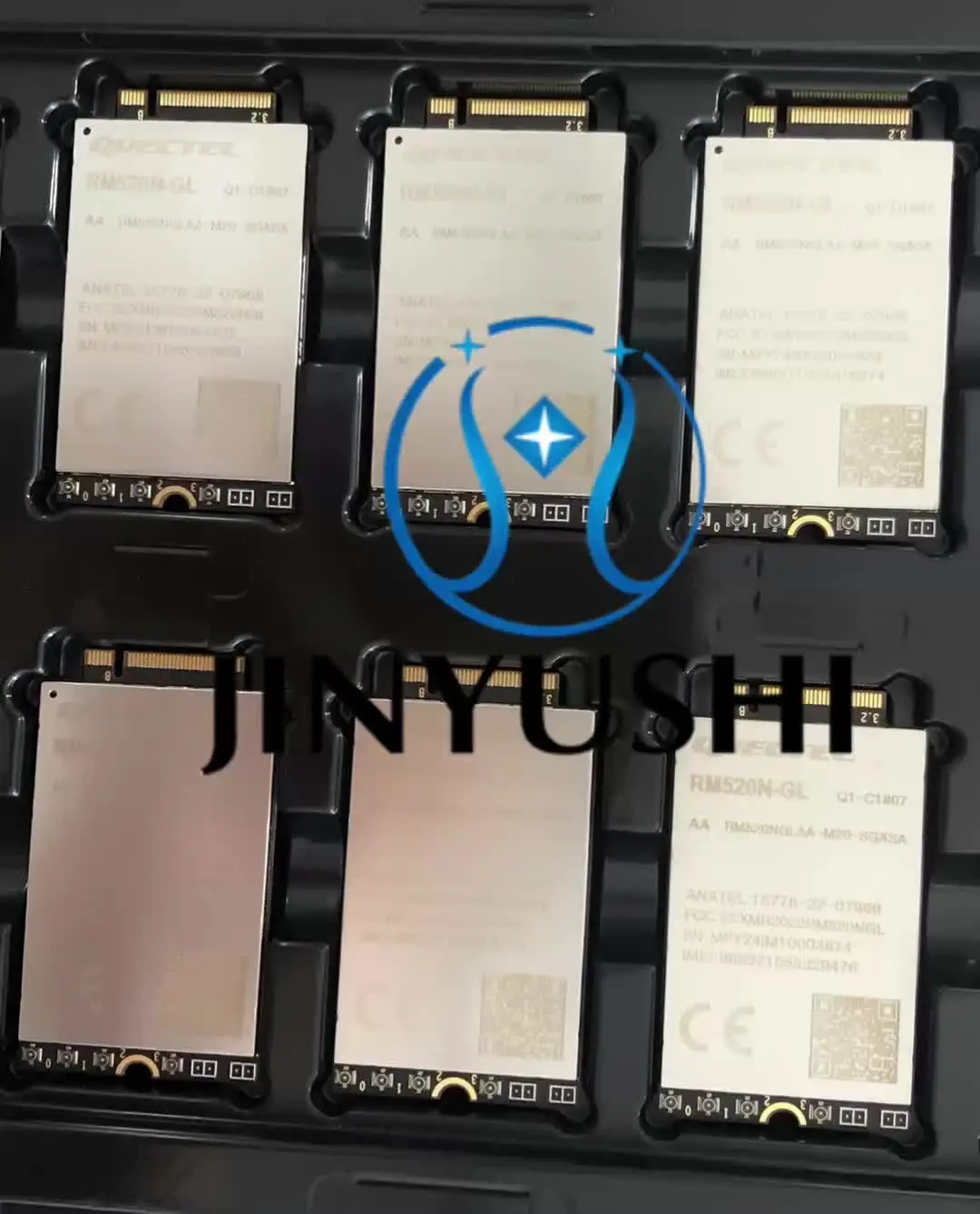
Video 4.1: Overview of various module types and packaging (for illustrative purposes of similar products).
5. Operating Instructions
Once the Fibocom FM160-EAU module is physically installed and its drivers are successfully loaded, it will be recognized by your operating system as a network adapter and potentially a GNSS device.
5.1 Establishing Network Connection
- Verify Module Detection: Check your operating system's device manager or network settings to ensure the FM160-EAU module is detected and its drivers are installed correctly.
- Configure APN: Access your operating system's network settings or the specific application managing the cellular connection. You will typically need to configure the Access Point Name (APN) provided by your mobile network operator.
- Connect to Network: Once the APN is configured, initiate a connection to the cellular network. The module will automatically attempt to connect to the best available 5G, 4G, or 3G network based on coverage and your SIM card's subscription.
- Monitor Connection Status: Use your system's network status indicators or a dedicated application to monitor the connection status, signal strength, and data usage.
5.2 GNSS Functionality
The integrated GNSS receiver provides positioning capabilities. To utilize this feature:
- Ensure your operating system or application has access to location services.
- Use compatible GNSS software or APIs to retrieve location data (GPS, Galileo, GLONASS, BeiDou, QZSS).
- For optimal performance, ensure the device has a clear view of the sky.
5.3 Voice and SMS
The FM160-EAU supports Voice over LTE (VoLTE), Voice over NR (VoNR), and SMS over IP (IMS). These features require support from your mobile network operator and appropriate software integration on the host device.
- VoLTE/VoNR: Enables voice calls over the 4G/5G network. Ensure your SIM card and network plan support these services.
- SMS over IP (IMS): Allows sending and receiving SMS messages using IP-based protocols.
6. Maintenance
Proper maintenance ensures the longevity and optimal performance of your Fibocom FM160-EAU module.
- Environmental Conditions: Operate the module within its specified operating temperature range of -30°C to +75°C. Avoid exposure to extreme temperatures, high humidity, dust, and direct sunlight.
- Cleaning: Keep the module and its connectors clean. Use a soft, dry, anti-static cloth to gently wipe away dust. Do not use liquid cleaners or solvents.
- Ventilation: If the module is installed in an enclosure, ensure adequate ventilation to prevent overheating, especially during prolonged high-data usage.
- Firmware and Driver Updates: Regularly check for and install the latest firmware and driver updates from Fibocom or your device manufacturer. Updates can improve performance, add new features, and address security vulnerabilities.
- Physical Handling: Avoid dropping or subjecting the module to physical shock. When removing or reinstalling, follow the safety precautions outlined in the installation section.
7. Troubleshooting
This section addresses common issues you might encounter with the Fibocom FM160-EAU module.
7.1 Module Not Detected by OS
- Check Physical Installation: Ensure the module is correctly seated in its M.2 slot or adapter board, and the adapter board is properly connected to the host device.
- Verify Power: Confirm the host device is powered on and receiving adequate power.
- Install/Update Drivers: Make sure the correct drivers for the FM160-EAU module are installed for your operating system (Windows, Linux, Android). If drivers are already installed, try updating them.
- Check BIOS/UEFI Settings: In some systems, the M.2 slot or PCIe slot might need to be enabled in the BIOS/UEFI settings.
7.2 No Network Connection
- Check SIM Card: Ensure the USIM card is correctly inserted, active, and has a valid data plan.
- Verify Antenna Connections: Confirm that all 4 antennas are securely connected to the module or adapter board. Loose connections can severely impact signal quality.
- APN Settings: Double-check that the Access Point Name (APN) settings in your operating system or network management software are correct for your mobile network operator.
- Signal Strength: Check the signal strength. If it's very low, try relocating the device or using higher-gain antennas.
- Network Coverage: Confirm that you are in an area with 5G, 4G, or 3G network coverage from your provider.
- Module Status: Check the module's status indicators (if any) or diagnostic tools provided by the driver for error messages.
7.3 Slow Data Speeds
- Signal Quality: Poor signal strength or quality is a common cause of slow speeds. Improve antenna placement or consider external antennas.
- Network Congestion: Network congestion in your area can lead to slower speeds, especially during peak hours.
- Data Plan Limits: Check if you have exceeded any data limits or if your plan throttles speeds after a certain usage.
- Driver Issues: Ensure you have the latest and most stable drivers installed.
- Host System Performance: Ensure your host device has sufficient processing power and memory to handle high-speed data.
8. Warranty & Support
For warranty information, please refer to the terms and conditions provided by your retailer or Fibocom. Typically, warranty covers manufacturing defects under normal use conditions.
For technical support, driver downloads, and further documentation, please visit the official Fibocom website or contact your product vendor. When seeking support, have your module's model number (FM160-EAU) and any relevant serial numbers or IMEI readily available.