1. Introduction
The KONNWEI KW905 OBD II adapter is a powerful car diagnostic tool designed to provide comprehensive vehicle information. It is fully compliant with OBD II/EOBD specifications and offers versatile wireless connectivity via Bluetooth 5.0 (also compatible with Bluetooth 4.0) to your smartphone or tablet. This device allows you to read real-time car engine data, such as engine speed, ignition timing, fuel trim, water temperature, and fuel consumption, and supports a wide range of OBD II applications.

Figure 1: KONNWEI KW905 ELM327 V1.5 OBD2 Bluetooth Scanner
2. Key Features
- Clear Check Engine Light: Helps diagnose and clear check engine light problems efficiently.
- Easy Fitment: Plugs directly into the standard 16-pin OBD2 diagnostic port found in most modern vehicles.
- Fit and Forget Design: Micro-sized with unique power-saving functionality to protect your vehicle's battery.
- Wide App Compatibility: Works with hundreds of popular OBD apps available for Android and iOS devices.
- Bluetooth 5.0 Connectivity: Ensures fast and stable wireless communication with your mobile device.
3. Functions
The KW905 provides access to various diagnostic data and functions:
- Read diagnostic trouble codes (DTCs), including generic and manufacturer-specific codes (over 3000 definitions in the database).
- Clear trouble codes and turn off the Malfunction Indicator Lamp (MIL), commonly known as the "Check Engine" light.
- Display real-time sensor data (Live Data) such as:
- Engine RPM (Revolutions Per Minute)
- Calculated Load Value
- Coolant Temperature
- Fuel System Status
- Vehicle Speed
- Short Term Fuel Trim
- Long Term Fuel Trim
- Intake Manifold Pressure
- Timing Advance
- Intake Air Temperature
- Air Flow Rate
- Absolute Throttle Position
- Oxygen sensor voltages/associated short term fuel trims
- Fuel Pressure
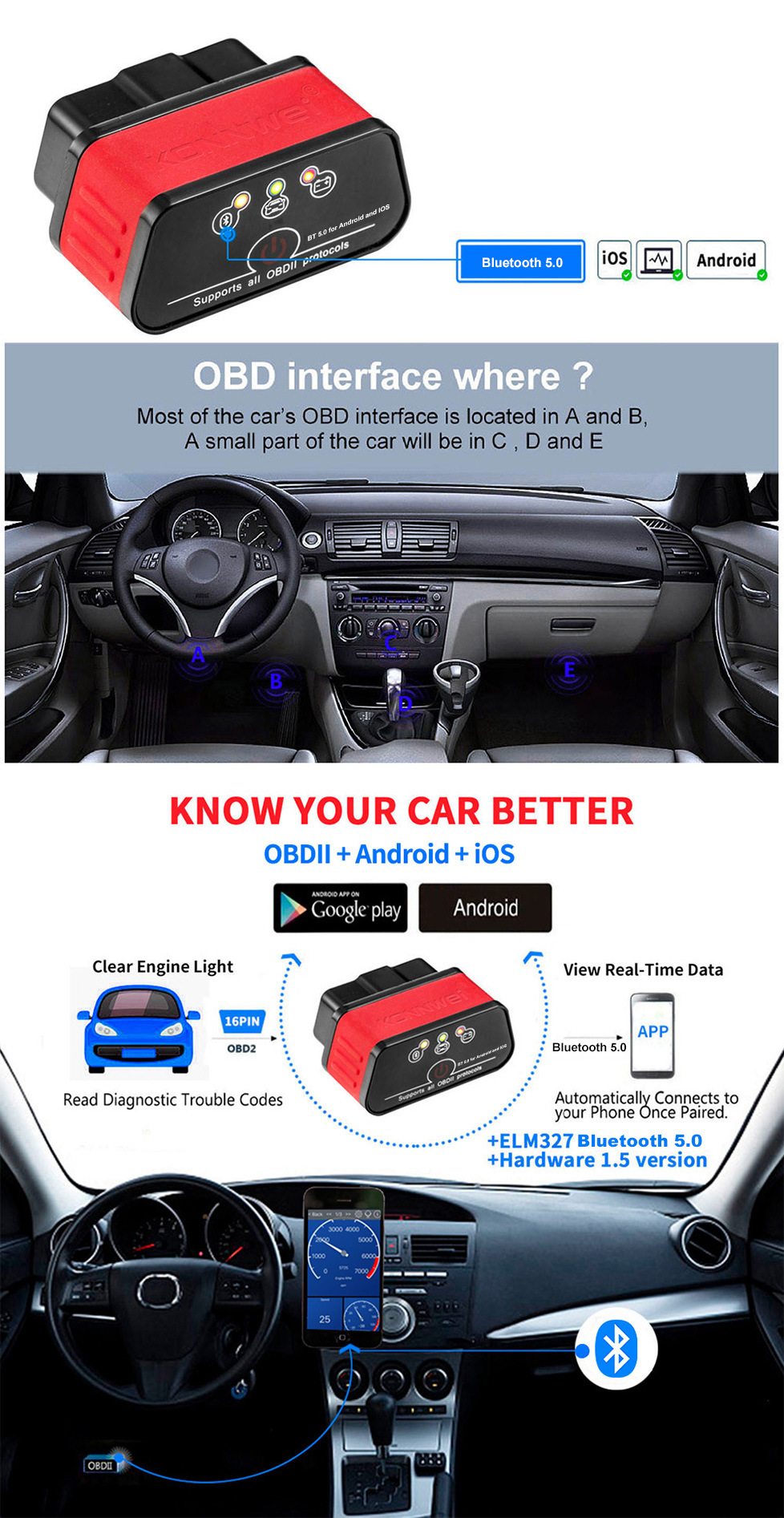
Figure 2: KW905 ELM327 Powerful Functions and Common OBD Interface Locations
4. Compatibility
4.1 OBD II Compliance
For your vehicle to be OBD II compliant, it must have a 16-pin Data Link Connector (DLC) located under the dashboard. Additionally, the Vehicle Emission Control Information Label (typically found under the hood in the engine compartment) must explicitly state "OBD II compliant or certified."
4.2 Supported Protocols
- ISO 9141
- KWP2000
- SAE J1850 (VPW & PWM)
- CAN
4.3 Vehicle Coverage
The KW905 works on all OBD2 compliant vehicles:
- USA: All vehicles from 1996 onwards.
- Europe: Petrol cars from 2001 onwards and diesel cars from 2003/2004 onwards.
- Supports all 12V Gasoline and Diesel cars manufactured after 1996 with OBD2 protocol.
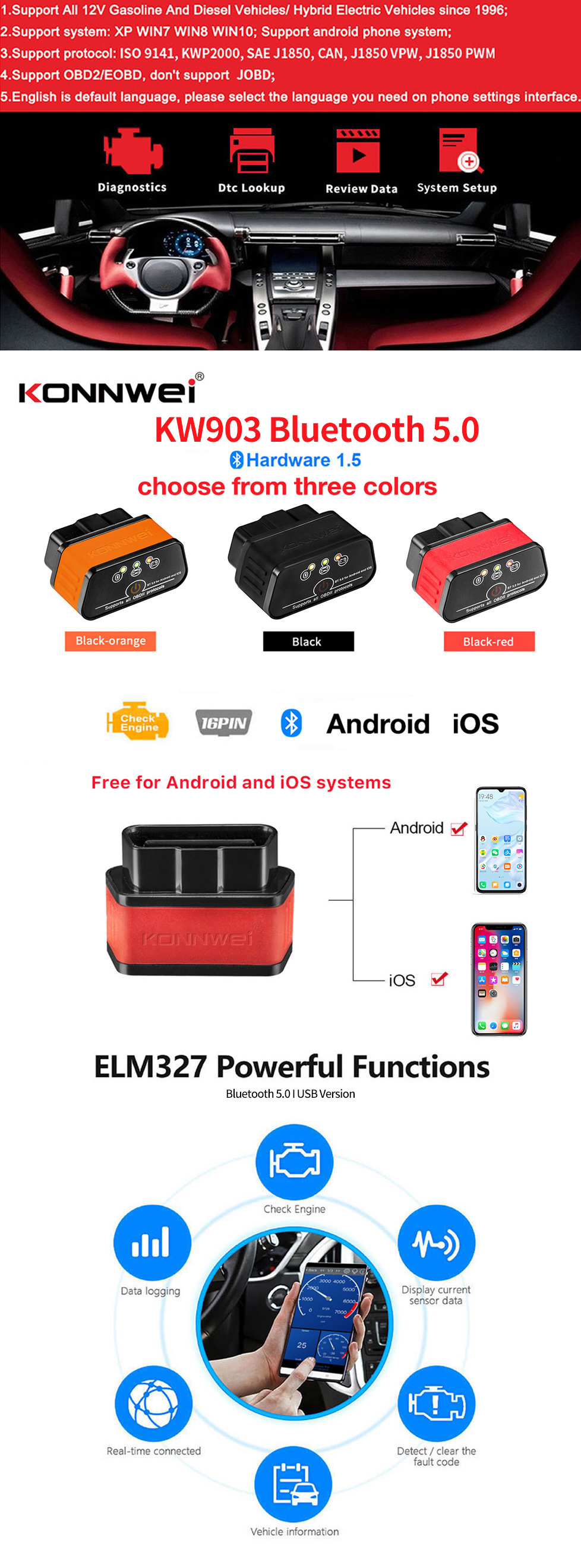
Figure 3: KW905 Supported Car Models and Protocols
5. Setup Guide
5.1 App Download
Scan the QR codes below with your smartphone to download a compatible OBD II app from the respective app stores:
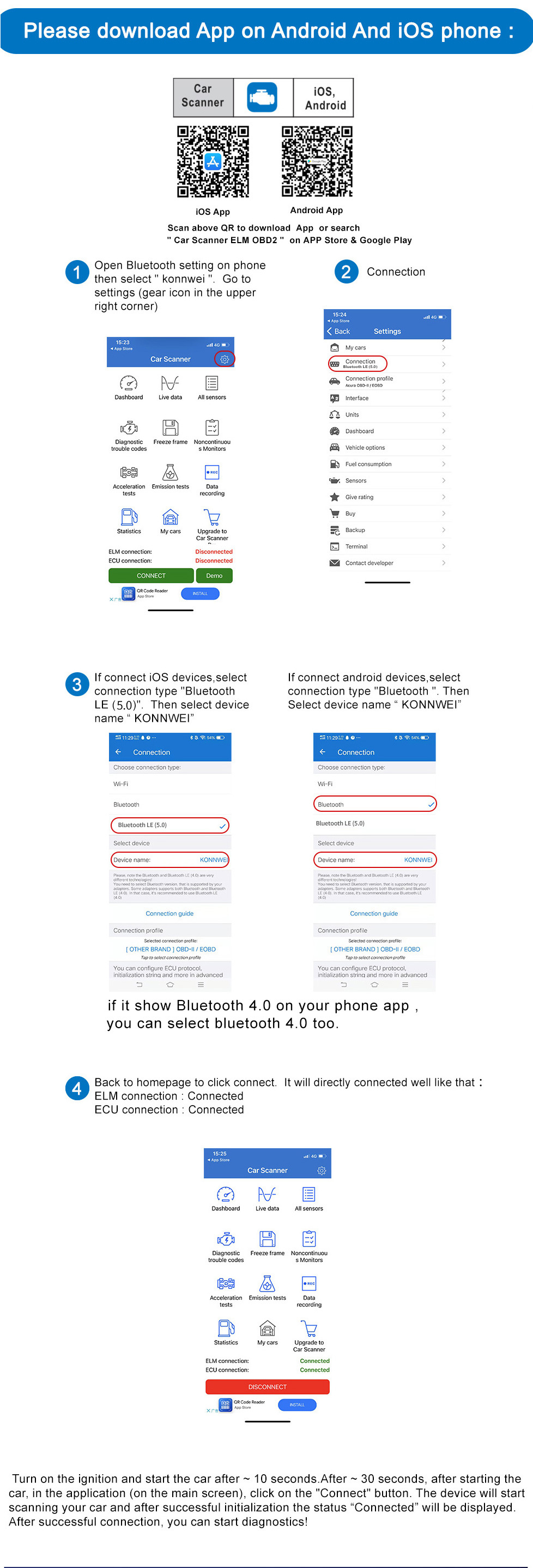
Figure 4: App Download QR Codes and Bluetooth Connection Steps
5.2 Bluetooth Pairing for Android Devices
- Plug the KW905 device into your vehicle's OBD2 port.
- Turn on your vehicle's ignition (do not start the engine yet).
- On your Android device, go to Settings > Bluetooth.
- Scan for available devices and select the device named "KONNWEI" or "V-LINK".
- If prompted, enter the default pairing password: 1234. The device should show as paired.
- Open your chosen OBD II app (e.g., Torque).
- Navigate to the app's settings (often found in the upper right corner).
- Select Connection Type > Bluetooth.
- Choose the Bluetooth device "KONNWEI" or "V-LINK" from the list. If your phone app shows Bluetooth 4.0, you can select Bluetooth 4.0.
- Completely exit the app and then re-open it.
- The app should now indicate a "Connected" status.
5.3 Bluetooth Pairing for iOS Devices
- Plug the KW905 device into your vehicle's OBD2 port.
- Turn on your vehicle's ignition (do not start the engine yet).
- On your iOS device, go to Settings > Bluetooth and ensure Bluetooth is enabled. (Note: The device name may not appear in the iOS Bluetooth settings list).
- Open your chosen OBD II app (e.g., Accurate).
- Navigate to the app's settings.
- Select Bluetooth and initiate the connection process within the app.
- Completely exit the app and then re-open it.
- The app should now indicate a "Connected" status.
6. Operating Instructions
- Connect the Device: Plug the KW905 into your vehicle's 16-pin OBD2 diagnostic port.
- Ignition On: Turn your vehicle's ignition to the 'ON' position (engine off).
- Establish Bluetooth Connection: Follow the Bluetooth pairing steps for your Android or iOS device as described in Section 5.
- Start Engine: Once the Bluetooth connection is established and the app shows 'Connected', start your car engine.
- Perform Diagnostics: Use your chosen OBD II app to access various functions:
- Read Codes: Select 'Read Diagnostic Trouble Codes' to view any active or pending fault codes.
- Clear Codes: After addressing any vehicle issues, select 'Clear Trouble Codes' to turn off the Check Engine Light.
- View Live Data: Access 'Live Data' streams to monitor engine parameters in real-time.
- Vehicle Information: Retrieve vehicle identification number (VIN) and other calibration information.
- Disconnect: To disconnect, simply close the app and remove the KW905 device from the OBD2 port.
7. Maintenance
- Keep the device clean and dry. Use a soft, damp cloth for cleaning; do not use harsh chemicals.
- Avoid exposing the device to extreme temperatures, direct sunlight, or high humidity.
- Store the device in a safe place when not in use to prevent physical damage.
- There are no user-serviceable parts inside the device. Do not attempt to open or repair it.
8. Troubleshooting
- Device not connecting to phone/tablet:
- Ensure the KW905 is securely plugged into the OBD2 port.
- Verify that your vehicle's ignition is turned to the 'ON' position.
- Check that Bluetooth is enabled on your phone/tablet.
- For Android, ensure the device is paired in your phone's Bluetooth settings. For iOS, ensure Bluetooth is enabled and try connecting directly through the app.
- Try restarting the OBD II app or your phone/tablet.
- Confirm the device is receiving power (check for any indicator lights on the KW905).
- App not displaying data or showing errors:
- Ensure the car engine is running when attempting to view live data.
- Verify that the app you are using is compatible with ELM327 devices and supports the OBD2 protocols of your vehicle.
- Check the app's settings for any specific configurations related to data refresh rates or sensor selection.
- "Check Engine" light not clearing:
- The device can only clear diagnostic trouble codes; it cannot fix the underlying mechanical or electrical issue. Ensure the problem causing the code has been resolved before attempting to clear it.
- Some codes may require multiple drive cycles after a repair before they can be permanently cleared.
9. User Tips
- Many users find the 'Torque' app for Android and 'Accurate' app for iOS to be highly compatible and feature-rich for use with ELM327 devices.
- Always ensure your vehicle is fully OBD II compliant to guarantee proper functionality of the scanner.
- If you encounter persistent connection issues, try pairing the device directly through your phone's Bluetooth settings first (for Android), then select it within your chosen OBD II app.
- Remember to turn the vehicle's ignition to the 'ON' position before plugging in the device or attempting to establish a connection.
10. Specifications
| Parameter | Value |
|---|---|
| Supply Voltage | 11.5V — 15V |
| Supply Current | <200mA |
| Operating Temperature | -40°C — 85°C |
| Operating Humidity | 5% — 95%RH Non-Dewfall |
| Product Dimensions (H x W x D) | 2.5cm x 4.8cm x 3.5cm |
| Product Net Weight | 0.03 kgs |
| Package Dimensions | 11.5cm x 9.2cm x 3.5cm |
| Package Net Weight | 0.053 kgs |
| Hardware Version | 1.5 |
| Bluetooth Version | 5.0 (compatible with 4.0) |

Figure 5: KW905 Package Contents and Dimensions
11. Warranty and Support
This KONNWEI KW905 device comes with a 2-year warranty as standard. If you encounter any problems with the device, please contact the seller directly for assistance, replacement, or warranty claims. Please retain your proof of purchase for warranty validation.


