1. Introduction
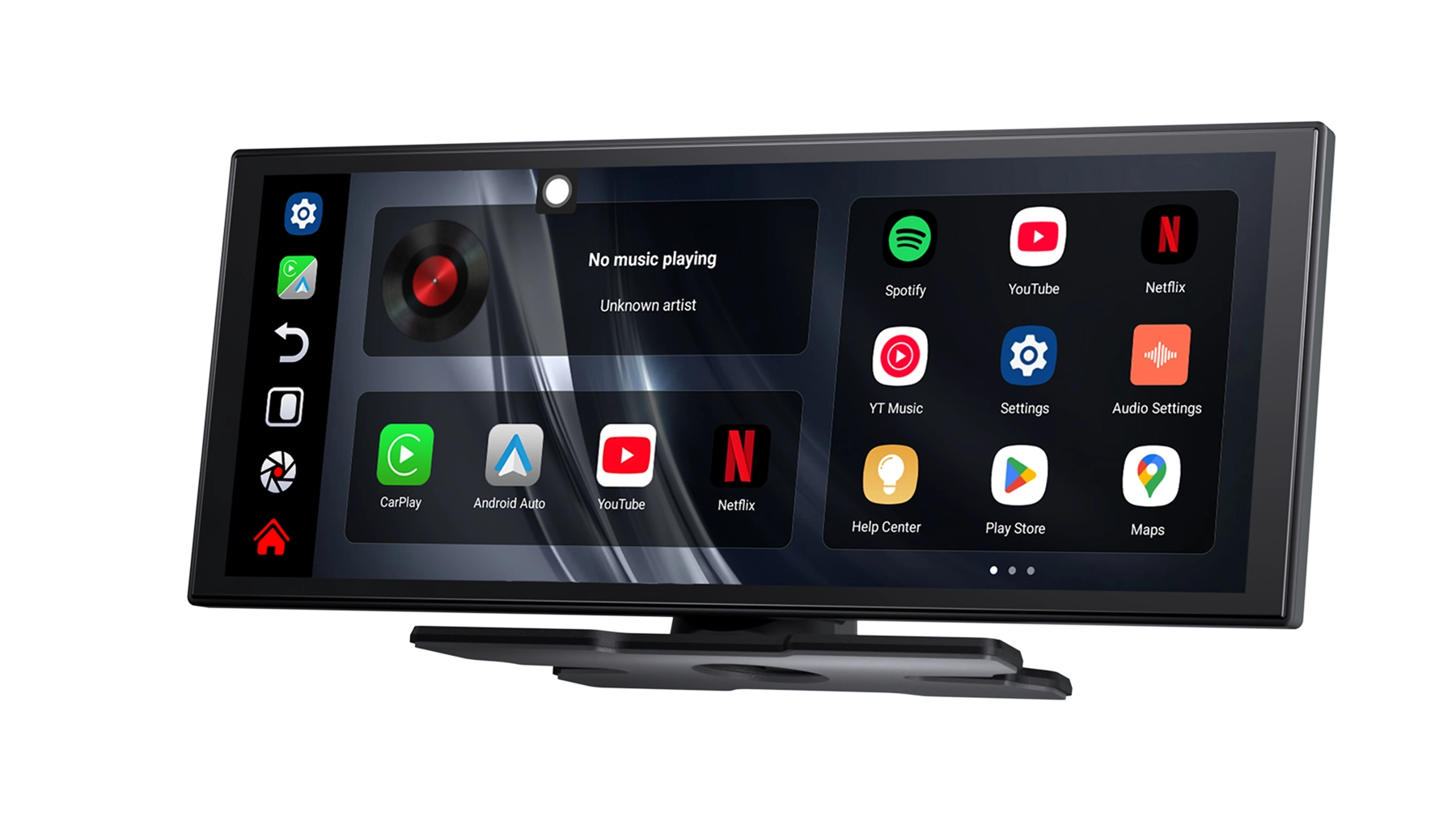
The Ottocast Ai 11.4" Wireless Carplay Screen is an advanced in-car display designed to enhance your driving experience with smart features, entertainment, and seamless connectivity. Powered by Android 15, it offers wireless CarPlay and Android Auto, a built-in AI assistant, and access to popular streaming apps like Netflix and YouTube. Its high-definition widescreen display and robust performance ensure a smooth and enjoyable journey.

2. Package Contents
Please check the box for the following items:
- Ottocast Ai 11.4" Wireless Carplay Screen
- Installation Bracket
- Car Charger Power Cable
3. Specifications
| Feature | Specification |
|---|---|
| System | Android 15 |
| Display Size | 11.4 inches |
| Display Resolution | 1920 x 720 pixels |
| Display Technology | Slim Display with In-Cell Touch |
| Contrast Ratio | 1:1000 |
| Brightness | Daylight Visible 600 Cd/m2 |
| Processor | 8-Core CPU |
| Memory (RAM) | 4GB |
| Storage (ROM) | 64GB |
| Wireless Connectivity | Wi-Fi (5 GHz), Bluetooth (BT 4.0) |
| Power Input | 5V/2A |
| Supported Functions | Wireless CarPlay, Wireless Android Auto, Google Play Store, App Download, Built-in GPS, Mobile Phone Mirroring, MP3 players, Voice control, Reversing Input, Split Screen |
| Special Features | Built-In Speaker/Microphone, AI Assistant |
| Rear Camera Resolution | 1080P / 720P (AHD compatible) |
| Language | Global Language Support |
| Vehicle Compatibility | Universal |

4. Setup Guide
4.1 Installation
- Mounting: Securely attach the Ottocast Ai screen to your car's dashboard or windshield using the provided installation bracket. Ensure it does not obstruct your view or interfere with airbags.
- Power Connection: Connect the car charger power cable to the screen's power input (5V/2A) and plug the other end into your car's cigarette lighter socket.
- Initial Power On: Once connected, the device should power on automatically or by pressing the power button.
4.2 Initial Configuration
- Language Selection: Follow the on-screen prompts to select your preferred language.
- Wi-Fi Connection: Connect the device to a stable Wi-Fi network for internet access, app downloads, and updates. Go to Settings > Network & Internet > Wi-Fi.
- Bluetooth Pairing: To connect your smartphone or other Bluetooth devices, go to Settings > Connected devices > Bluetooth and pair your device.
5. Operating Instructions
5.1 Wireless CarPlay & Android Auto
The Ottocast Ai supports seamless wireless connection to Apple CarPlay and Android Auto, allowing you to access your phone's features safely while driving.
- Ensure Bluetooth and Wi-Fi are enabled on your smartphone.
- On the Ottocast screen, select the CarPlay or Android Auto icon.
- Follow the on-screen instructions to pair your phone. Once paired, your phone's interface will appear on the screen.

5.2 AI Assistant & Voice Control
Utilize the built-in AI assistant for hands-free control of various functions.
- Activate the AI assistant by saying "Hey Google" or "Hi Siri" (if connected via CarPlay).
- Give commands such as
Related Documents - Ottocast Ai 11.4" Wireless Carplay Screen

User Manual: All-in-One Multimedia Adapter
User manual for the All-in-One Multimedia Adapter, detailing specifications, contents, interfaces, connection diagrams, user interface, quick settings, and firmware updates. This adapter allows for online and offline video playback, Bluetooth connectivity, and wireless CarPlay/Android Auto on stock car monitors.
Ottocast P3 SE Wireless CarPlay & Android Auto Adapter User Manual
User manual for the Ottocast P3 SE, a wireless adapter that enables Apple CarPlay and Android Auto functionality in vehicles. Learn about setup, features, and compatibility.
Ottocast MirrorTouch Auto-Adapter User Manual
User manual for the Ottocast MirrorTouch Auto-Adapter, covering installation, wireless CarPlay, screen mirroring for iOS and Android, firmware upgrades, and troubleshooting.
OttoAibox E2 User Manual: Wireless CarPlay and Android Auto Adapter
Comprehensive user manual for the Ottocast OttoAibox E2, detailing installation, setup, features, and troubleshooting for wireless CarPlay and Android Auto connectivity in vehicles. Includes setup guides for SIM, Wi-Fi, app management, and more.
User Manual: All-in-One Multimedia Adapter
This user manual provides instructions for the All-in-One Multimedia Adapter, detailing its specifications, features, connection methods, user interface, settings, and firmware updates. It enables online and offline video playback on car monitors with Apple CarPlay.
U2-AIR PRO Wireless CarPlay Adapter FAQ
Frequently Asked Questions (FAQ) for the OTTOCAST U2-AIR PRO wireless CarPlay adapter. Find solutions for connection issues, compatibility, performance problems, and more.