
1. Introduction
Thank you for choosing the Xiaovv BQ3 WiFi Dual Lens Security Camera. This advanced security camera is designed to provide comprehensive surveillance with its innovative dual-lens system, 360-degree pan-tilt-zoom (PTZ) capabilities, AI humanoid detection, and two-way audio communication. This manual will guide you through the setup, operation, and maintenance of your camera to ensure optimal performance and security for your home or business.
2. Product Overview
2.1. Components
Familiarize yourself with the various parts of your Xiaovv BQ3 camera:

This diagram illustrates the key components: white light, wide-angle lens, infrared light, power connector, rear speaker, camera shot, front microphone, TF card slot (1), and reset button (2). Dimensions are also provided.
- White Light: Provides illumination for color night vision.
- Wide-Angle Lens (Top): Offers a fixed panoramic view.
- Infrared Light: Enables infrared night vision.
- Power Connector: For DC-5A power input.
- Rear Speaker: For two-way audio output and audible alarms.
- Camera Shot (Bottom PTZ Lens): The movable lens for auto-tracking and remote control.
- Front Microphone: For two-way audio input.
- TF Card Slot (1): For Micro SD card storage (up to 128GB, not included).
- Reset Button (2): Used to reset the camera to factory settings.
2.2. Key Features
- Dual Lens & Dual Screen: Features two lenses for comprehensive coverage. The top lens provides a fixed panoramic view, while the bottom PTZ lens offers auto-tracking and remote control, effectively eliminating blind spots.
- 4MP 2K HD Resolution: Captures clear and detailed video footage.
- 360-Degree Monitoring (Pan 355°, Tilt 90°): The PTZ lens can be easily controlled via the mobile application to adjust any angle at any time, providing a full 360-degree view.
- IP65 Waterproof Rating: Designed for both indoor and outdoor use, capable of withstanding various weather conditions with an operating temperature range of -20°C to +50°C.
- Ultra Clear Color Night Vision: Offers three night vision modes (Infrared, Color, Intelligent) for clear visibility in low-light conditions, minimizing eye strain.
- AI Humanoid Detection & Motion Tracking: Automatically detects human motion, sends alert notifications to your app, activates lights, records incidents, and can trigger a built-in siren.
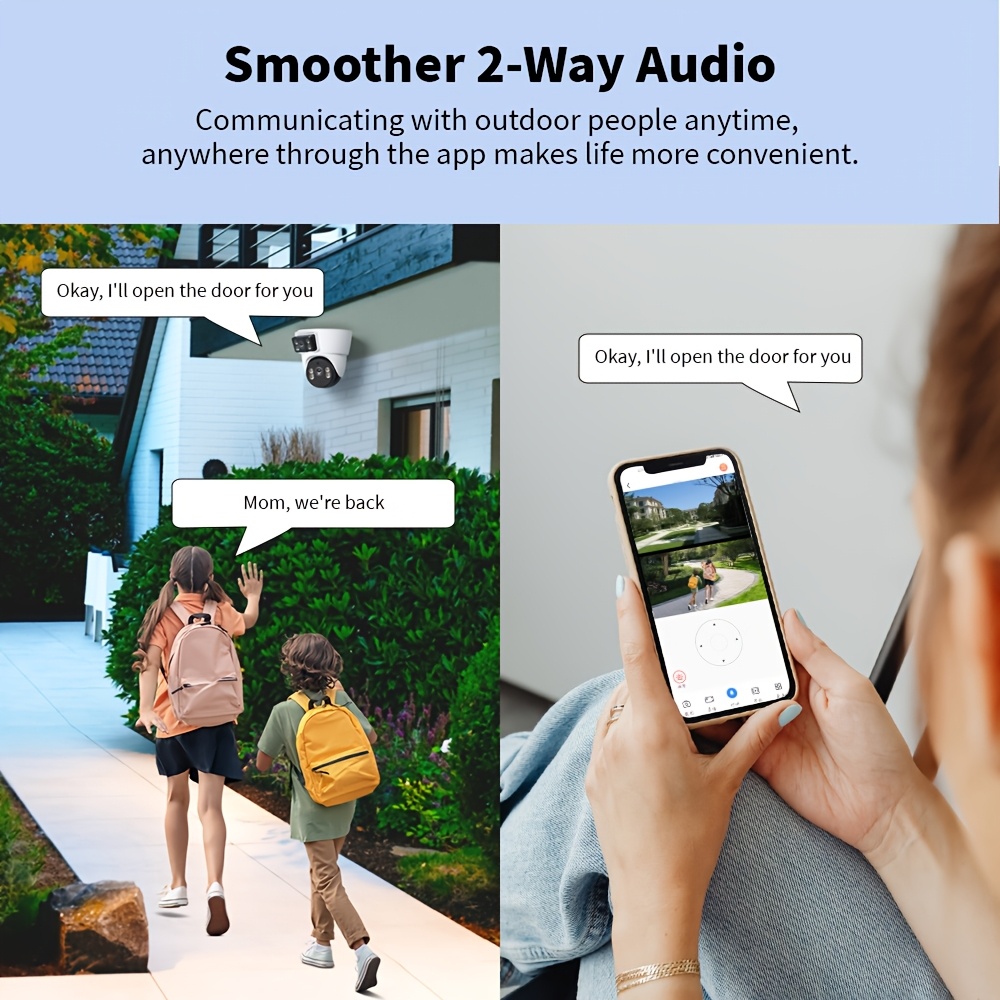
- Smoother 2-Way Audio: Communicate with people near the camera through the app with professional audio processing for clear interaction. You can also use it to deter intruders with vocal alerts.
- Multi-User Sharing: Share camera access with family members, allowing multiple users to view the live feed and recordings simultaneously from anywhere.
- Wireless Connectivity: Supports Wi-Fi IEEE 802.11b/g/n/ax 2.4GHz for easy integration into your home network.
- Local Storage: Supports Micro SD cards up to 128GB (card not included) for local video recording.
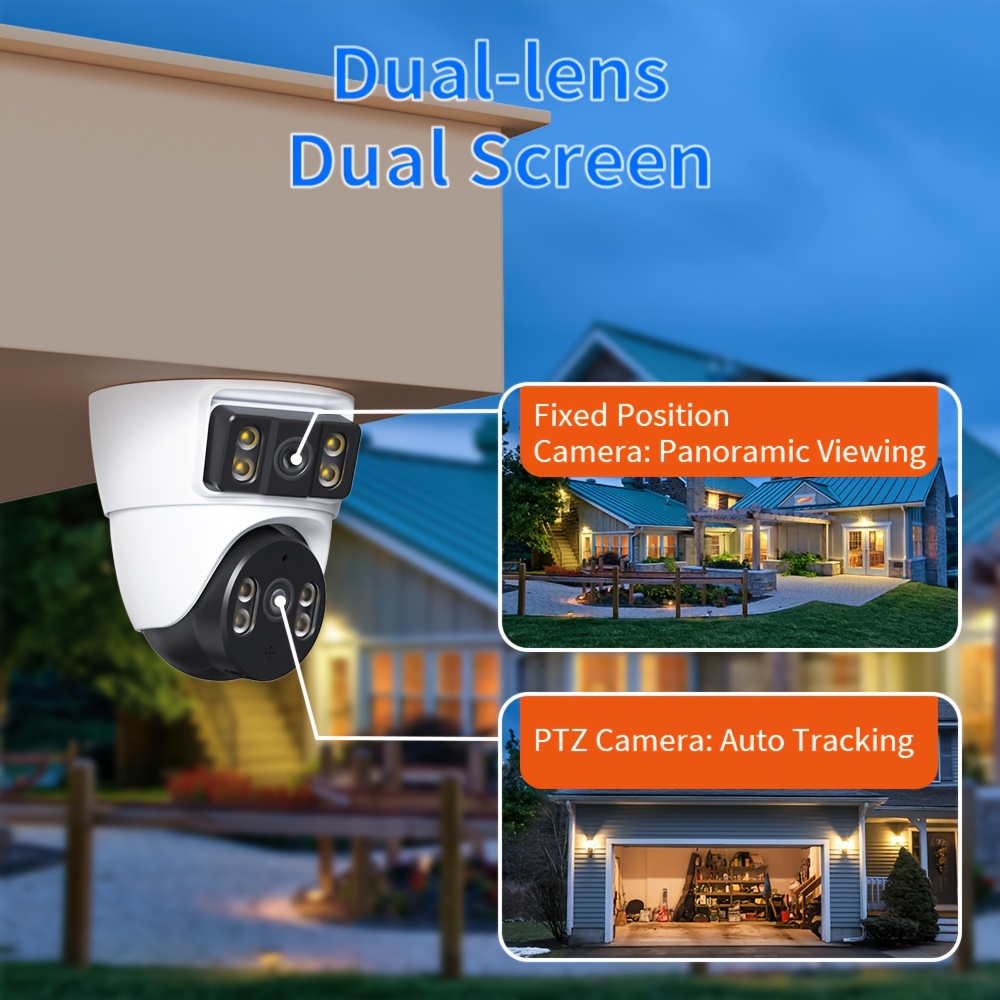
This image demonstrates how the fixed wide-angle lens provides panoramic viewing (Screen 1) and the PTZ lens offers auto-tracking (Screen 2) for comprehensive monitoring.

The camera's PTZ capabilities allow for 355° horizontal pan and 90° vertical tilt, controllable through your smartphone application.

The camera is rated IP65 waterproof, suitable for all weather conditions, and operates effectively between -20°C and 50°C.

Choose from Infrared, Color, or Intelligent night vision modes for optimal clarity in dark environments.

When motion is detected, the camera sends alerts, illuminates the area, and can activate a siren, providing robust security.

Engage in real-time conversations with visitors or deter unwanted guests using the camera's two-way audio feature.
Grant access to family members to monitor your home security from their own devices.
3. Setup Instructions
Follow these steps to set up your Xiaovv BQ3 camera:
3.1. Unboxing and Initial Inspection
- Carefully remove all components from the packaging.
- Check for any visible damage or missing parts.
3.2. Micro SD Card Installation (Optional)
- Locate the TF card slot (1) on the camera as shown in Figure 1.
- Gently insert a Micro SD card (up to 128GB, purchased separately) into the slot until it clicks into place.
- Ensure the card is inserted in the correct orientation.
3.3. Power Connection
- Connect the provided power adapter to the power connector on the camera.
- Plug the power adapter into a suitable power outlet. The camera will power on and initiate its startup sequence.
3.4. App Installation and Account Creation
- Download the official mobile application for the Xiaovv BQ3 camera from your smartphone's app store (e.g., Google Play Store or Apple App Store). The specific app name can usually be found on the product packaging or the seller's product page.
- Install the app and create a new user account if you don't already have one.
3.5. Wi-Fi Connection and Camera Pairing
- Open the installed app and follow the on-screen instructions to add a new device.
- Ensure your smartphone is connected to a 2.4GHz Wi-Fi network. The camera only supports 2.4GHz Wi-Fi.
- The app will guide you through connecting the camera to your Wi-Fi network, typically involving scanning a QR code displayed on your phone with the camera or entering Wi-Fi credentials.
- Once connected, the camera's status indicator will change (refer to the app or camera's LED indicator guide for specific patterns).
3.6. Physical Installation
The camera supports various installation methods:
- Mounting Options: Ceiling, Embedded, Side, Normal, Wall Mounted, Magnetic, Stick, Pendant Mount, Vertical Pole Mount, Corner Mount.
- Choose a suitable location that provides the desired viewing angle and is within Wi-Fi range.
- Use the provided mounting hardware (if any) to securely install the camera. Ensure the camera is positioned to maximize its dual-lens and PTZ capabilities.
4. Operating Instructions
4.1. Live View and Dual Screen Monitoring
- Open the mobile app and select your camera to view the live feed.
- The app will display both the fixed wide-angle view and the PTZ camera view simultaneously, allowing for comprehensive monitoring.
4.2. Pan, Tilt, and Digital Zoom Control
- In the live view, use the on-screen controls to pan the PTZ lens horizontally (355°) and tilt it vertically (90°).
- Pinch to zoom on the live feed to digitally zoom in on specific areas.
4.3. Night Vision Modes
- Access the camera settings in the app to switch between the three night vision modes:
- Infrared Night Vision: Provides black and white video in complete darkness.
- Color Night Vision: Utilizes white lights to provide full-color video in low light.
- Intelligent Night Vision: Automatically switches between infrared and color night vision based on detected motion or light conditions.
4.4. Two-Way Audio
- Tap the microphone icon in the app's live view to speak through the camera's speaker.
- Tap the speaker icon to listen to audio from the camera's microphone.
4.5. AI Humanoid Detection and Motion Tracking
- Enable AI Humanoid Detection in the app settings to receive alerts when human figures are detected.
- Activate Motion Tracking for the PTZ lens to automatically follow detected human movement.
- Configure alert notifications (app push, email photo, local alarm, telephone alarm) and siren activation in the app settings.
4.6. Video Recording and Playback
- Recordings are automatically saved to the Micro SD card when motion is detected or continuous recording is enabled.
- Access the playback feature in the app to review recorded footage.
4.7. Multi-User Sharing
- In the app, navigate to the camera settings and find the 'Share Device' or 'Multi-User' option.
- Follow the instructions to invite other users to view your camera feed.
5. Maintenance
5.1. Cleaning
- Regularly clean the camera lenses with a soft, dry cloth to ensure clear image quality.
- Wipe the camera body with a damp cloth if necessary, avoiding harsh chemicals.
5.2. Firmware Updates
- Check the mobile app periodically for available firmware updates.
- Install updates to ensure your camera has the latest features and security enhancements.
5.3. Micro SD Card Management
- If using a Micro SD card, format it periodically through the app settings to maintain optimal recording performance.
- Replace the Micro SD card if it becomes corrupted or reaches its end of life.
6. Troubleshooting
- Camera not connecting to Wi-Fi: Ensure your Wi-Fi network is 2.4GHz. Check Wi-Fi password. Move camera closer to the router. Try resetting the camera using the reset button (2) as shown in Figure 1.
- Poor image quality: Clean the camera lenses. Check your internet connection speed. Ensure the camera is receiving adequate power.
- Motion detection not working: Verify that motion detection and AI Humanoid Detection are enabled in the app settings. Adjust sensitivity levels if needed. Ensure there are no obstructions blocking the camera's view.
- Two-way audio issues: Check microphone and speaker settings in the app. Ensure your phone's volume is up.
- No recording to SD card: Ensure the Micro SD card is correctly inserted and formatted. Check if the card has sufficient free space. Replace the card if it's faulty.
7. Specifications
| Feature | Specification |
|---|---|
| Product Model | XVV-3640S-BQ3 (BQ3 WiFi) |
| Brand Name | xiao vv |
| Megapixels | 4MP (2*2M) |
| High Definition | 1080P(Full-HD) / 2K HD |
| Lens (mm) | 4mm |
| Lens Angle | 110° ± 5° |
| Lens Quantity | Dual Lens |
| Zoom Type | Digital zoom (2x) |
| Connectivity | WIFI (2.4GHz, IEEE 802.11b/g/n/ax) |
| Power Input | DC-5A |
| Power Supply | Normal |
| Operating Temperature | -10°C to +50°C |
| Video Encoding | H.265-AVI |
| Storage Function | Micro SD card (up to 128G, user-purchased) |
| Installation Options | Ceiling, Embedded, Side, Normal, Wall Mounted, Magnetic, Stick, Pendant Mount, Vertical Pole Mount, Corner Mount |
| AI Functions | Motion Detection, Humanoid Tracking |
| Color Night Vision | Yes (Infrared, Color, Intelligent modes) |
| Scene Application | Indoor and outdoor |
| Alarm Type | Telefon Alarm, Local Alarm, Email Photo |
| Supported Operating Systems | Windows 98, XP, Vista, 7, macOS, 8, 10, 2000, 2008, 2003 |
| IP Rating | IP65 Waterproof |
| Pan/Tilt Range | Pan 355°, Tilt 90° |
| Product Dimensions (L x W x H) | 115mm x 100mm x 122mm (approximate, refer to diagram) |
8. User Tips
- App Compatibility: The camera operates with a dedicated mobile application. Please refer to the product packaging or the seller's online product page for the exact name of the compatible app to download.
- Optimal SD Card Use: For continuous and reliable recording, consider using a high-quality Micro SD card and format it regularly through the app.
- Motion Detection Zones: Utilize the app's features to set specific motion detection zones to reduce false alarms from irrelevant areas.
- Secure Wi-Fi: Always connect your camera to a secure, password-protected 2.4GHz Wi-Fi network.
9. Warranty and Support
For warranty information, technical support, or service inquiries, please refer to the documentation provided with your purchase or contact the seller directly. Keep your proof of purchase for warranty claims.