
1. Introduction
The TESLONG TD300S is an advanced industrial endoscope designed for detailed inspections of narrow and curved spaces. It is particularly useful for applications such as automotive evaporators, fuel tanks, catalytic converters, and other hard-to-reach areas. This borescope features a unique 210-degree two-way articulating camera, allowing users to navigate and view from various angles, effectively eliminating visual blind spots. The device connects to your mobile phone or tablet, displaying clear 2.0-megapixel photos and 1080P videos directly on your screen. It is compatible with a wide range of Android and iOS devices, offering a versatile and powerful inspection tool.
2. Product Features
- High-Resolution Camera: Equipped with a 2.0-megapixel camera for clear imaging.
- Photo & Video Quality: Supports 1920x1080 resolution for both photos and videos.
- Audio Recording: Records sound simultaneously with video, enhancing inspection documentation.
- Two-Way Articulation: Camera probe can rotate 210 degrees in two directions for comprehensive viewing.
- Flexible Probe: Features a 1.2-meter elastic metal tube (available in 5.5mm or 6.2mm lens diameter).
- Wide Compatibility: Compatible with iPhone iOS 12.0+ (including iPhone 15/16 and iPads with USB-C port) and Android 8+ (including tablets 18+ supporting OTG & UVC function). Note: Not compatible with older iPhones (Lightning port) or Windows PCs/MacBooks.
- Integrated Lighting: Six adjustable LED lights with three levels of brightness for optimal illumination in dark environments.
- Durable & Waterproof: IP67 waterproof rating for the probe, allowing use in wet conditions.
- Long-Lasting Battery: Built-in 2500mAh Li-battery provides up to 5 hours of continuous use.
- Intelligent High-Temperature Protection: Automatic alarm and shutdown when the probe temperature exceeds 85°C (185°F) to protect the device and prolong camera life.
- User-Friendly Controls: One-click photo and video recording, automatically stored in your phone's album.
- Real-time Data Display: Features temperature and battery level display.
- Image Manipulation: Includes image zoom, image flip, and photo comparison functions within the app.
3. Package Contents
Please check the package for the following items:
- 1 x TESLONG TD300S Industrial Endoscope
- 1 x Canvas Carrying Case
- 4 x Alcohol Wipes (for cleaning)
- 1 x Charging Cable (Type-C connector)
- 2 x OTG Cables (for device connection)
- 1 x Instruction Manual

Image: The complete TESLONG TD300S borescope kit, including the main unit, cables, and carrying case.
4. Setup Guide
4.1 Charging the Device
Before first use, fully charge the borescope using the provided Type-C charging cable. Connect the cable to the borescope's charging port and a suitable USB power adapter (not included). The battery level will be displayed on your connected device's screen.

Image: Graphic illustrating the borescope's 2500mAh rechargeable battery, providing up to 5 hours of continuous use.
4.2 App Installation
- Scan the QR code provided in the instruction manual or on the product packaging to download the recommended 'Smart Endosc' or 'Smart Endoscope' application.
- Alternatively, search for 'Smart Endosc' or 'Smart Endoscope' in your device's app store (Google Play Store for Android, Apple App Store for iOS).
- Install the application on your mobile phone or tablet.
4.3 Connecting to Your Device
- Mount your mobile phone or tablet securely onto the borescope's adjustable holder.
- Connect the borescope to your mobile device using one of the provided OTG cables. Ensure a secure connection.
- Open the 'Smart Endosc' application. The live feed from the borescope camera should appear on your screen.

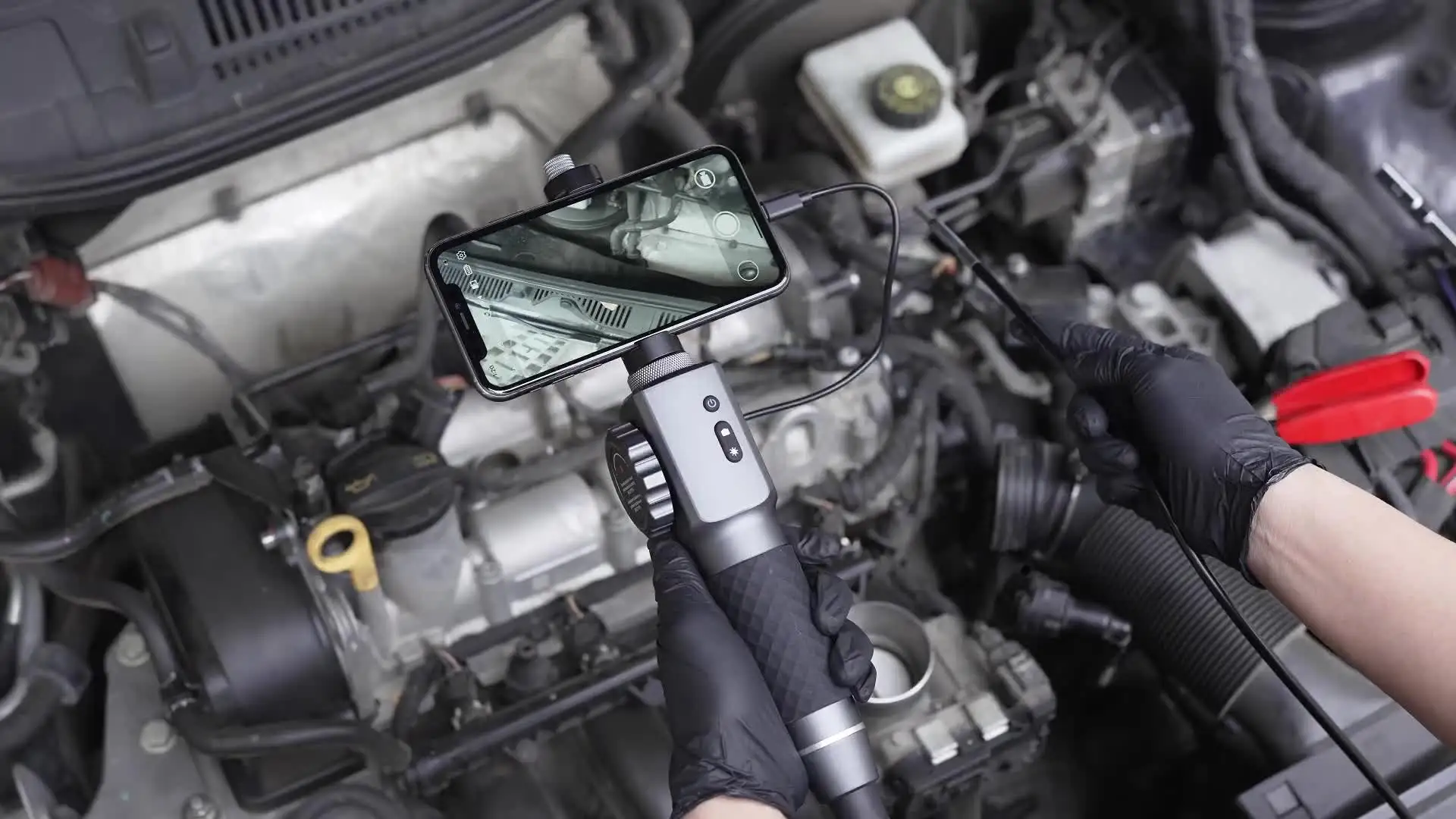
Image: The TD300S borescope connected to a smartphone, ready for inspection.

Image: The borescope is compatible with various iOS and Android devices.

Image: USB-C compatibility details for iOS and Android devices.
5. Operating Instructions
5.1 Powering On/Off
Press and hold the power button on the borescope handle to turn the device on or off. The power indicator light will illuminate when the device is on.
5.2 Adjusting LED Brightness
Use the dedicated light adjustment button on the handle to cycle through three levels of LED brightness. This allows for optimal illumination in various inspection environments.
5.3 Articulating the Camera Probe
The borescope features a 210-degree two-way articulation. Use the rotation dial on the handle to precisely control the angle of the camera probe, enabling you to view around corners and obstacles.

Image: The borescope probe demonstrating its 210-degree two-way rotation capability.
5.4 Taking Photos and Recording Videos
The borescope allows for one-touch photo and video recording. Press the dedicated photo/video button on the handle to capture images or start/stop video recording. All captured media will be automatically stored in your connected device's photo album.
The app also provides controls for these functions, along with additional features like image zoom, image flip, and photo comparison. The photo resolution is 1920x1080 (2 million pixels), and video resolution is 1080P (1920x1080) at approximately 19.83 FPS, with sound recording.

Image: Demonstrating the 1080P HD camera for clear visualization during engine inspections.
5.5 High-Temperature Protection
The device is equipped with intelligent high-temperature protection. If the probe temperature exceeds 85°C (185°F), an automatic alarm will sound, and the device will shut down to prevent damage. This feature helps prolong the camera's lifespan.

Image: High-temperature protection feature, showing an alarm at 85°C.
5.6 Video Demonstration
Video: A demonstration of the TESLONG TD300S borescope in action, showcasing its articulation, LED lights, lens size, engine inspection capabilities, app functions, photo/video export, and IP67 waterproof rating.
6. Maintenance
6.1 Cleaning the Probe and Lens
After each use, especially in dirty or wet environments, gently clean the camera lens and probe with the provided alcohol wipes or a soft, lint-free cloth. Ensure no debris or residue remains on the lens to maintain optimal image clarity. Do not use abrasive cleaners or solvents.
6.2 Storage
Store the borescope in its canvas carrying case when not in use to protect it from dust, impacts, and extreme temperatures. Keep the device in a dry place, away from direct sunlight.
6.3 Battery Care
To prolong battery life, avoid fully discharging the battery frequently. If storing the device for an extended period, charge it to approximately 50-70% capacity every few months.
7. Troubleshooting
- No Image on Screen: Ensure the borescope is powered on, correctly connected to your mobile device via the OTG cable, and the 'Smart Endosc' app is open. Check if your device's operating system meets the compatibility requirements (iOS 12.0+, Android 8+).
- Poor Image Quality: Clean the camera lens with an alcohol wipe. Adjust the LED brightness using the button on the handle. Ensure the inspection area is adequately lit. Check the focal length; the borescope has a professional focal length for clear viewing.
- Device Not Connecting: Verify that your mobile device supports OTG and UVC functions (for Android). Ensure the USB-C connection is secure. If using an iPhone, confirm it is an iPhone 15/16 or a USB-C compatible iPad, as older iPhones with Lightning ports are not supported.
- Borescope Shuts Down Unexpectedly: Check the temperature display in the app. If the probe temperature exceeds 85°C (185°F), the device will automatically shut down as a safety measure. Allow it to cool down before resuming use.
- Battery Drains Quickly: Ensure the device is fully charged before use. Reduce LED brightness if maximum illumination is not required.
8. Specifications
| Feature | Detail |
|---|---|
| Brand Name | Teslong |
| Model Number | TD300S |
| Lens Diameter | 5.5mm or 6.2mm (Soft Wire) |
| Camera Resolution | 2.0 Megapixels |
| Photo Resolution | 1920 x 1080 |
| Video Resolution | 1920 x 1080 (1080P) |
| Articulation Angle | 210° Two-way |
| Probe Length | 1.2 meters |
| Lighting | 6 adjustable LED lights |
| Battery Capacity | 2500mAh Li-battery |
| Working Time | Up to 5 hours |
| Waterproof Rating | IP67 (probe only) |
| High Temperature Protection | Auto alarm & shutdown at 85°C (185°F) |
| Compatibility | iOS 12.0+ (USB-C), Android 8+ (OTG & UVC) |
| Origin | Mainland China |
| Certification | CE, FCC, RoHS |
9. User Tips
- Optimal Viewing: Experiment with the LED brightness levels to find the best illumination for your specific inspection environment. Too much light can cause glare, while too little will obscure details.
- Focal Length: The borescope is designed with a professional focal length. For the clearest images, try to maintain a consistent distance from the object being inspected.
- Secure Connection: Always ensure your mobile device is securely mounted and the OTG cable is firmly connected to prevent accidental disconnections during critical inspections.
- Sound Recording: Utilize the sound recording feature during video inspections to narrate observations or capture ambient sounds that might indicate issues. This can be invaluable for later review.
- Regular Cleaning: A clean lens is crucial for clear images. Make it a habit to clean the lens before and after each use, especially when inspecting dusty or oily areas.
10. Warranty and Support
For warranty information, technical support, or service inquiries, please refer to the contact details provided by your retailer or visit the official Teslong website. Keep your purchase receipt as proof of purchase for warranty claims.