
1. Introduction
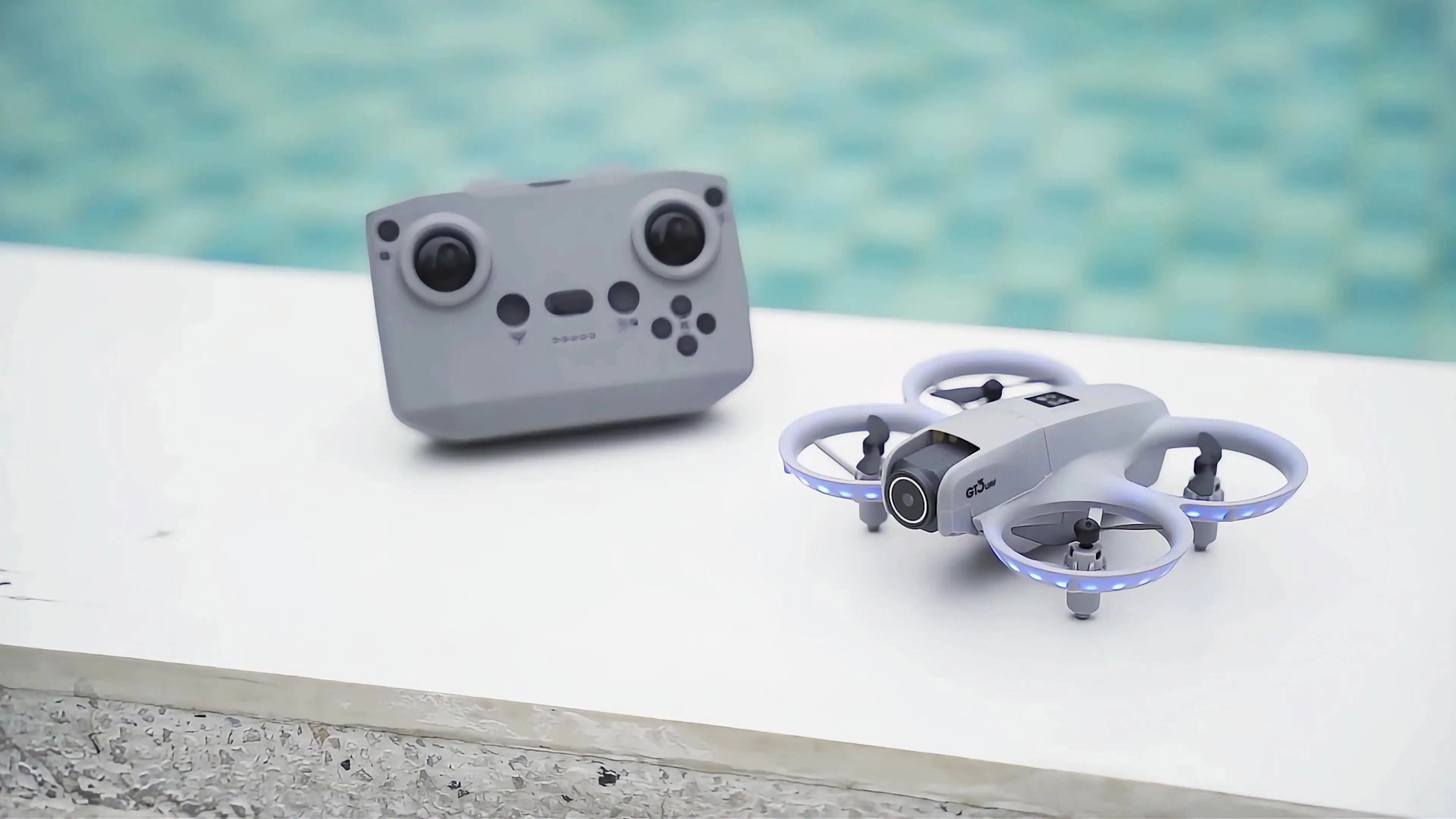
The DWI GT3 Mini RC Drone is a compact and versatile quadcopter designed for aerial photography and recreational flight. Featuring an 8K HD camera with 180° upward shooting capability, optical flow positioning, and intelligent obstacle avoidance, it offers a user-friendly experience for beginners and enthusiasts alike. Its lightweight design and full perimeter propeller protection ensure safe and enjoyable operation both indoors and outdoors.

2. Safety Warnings and Compliance
- Age Restriction: Not suitable for children under 36 months (3 years). Recommended age for operation is 14+ years.
- Chemical Warning (California Proposition 65): This product contains Di(2-ethylhexyl)phthalate (DEHP), a chemical known to the State of California to cause developmental toxicity, cancer, and male reproductive toxicity. For more information, please visit www.P65Warnings.ca.gov.
- Always operate the drone in open, clear areas, away from people, animals, and obstacles.
- Ensure propellers are securely attached and undamaged before each flight.
- Do not operate in strong winds (anti-wind ability is level 5).
- Keep hands and face clear of rotating propellers.
- Do not fly near airports or restricted airspace.
- Always follow local regulations regarding drone operation.

3. Package Contents
The following items are included in your DWI GT3 Mini RC Drone package:
- 1 x GT3 Drone
- 1 x Remote Control
- 1 x 3.7V Lipo Battery
- 1 x USB Charging Cable
- 4 x Spare Propeller Blades
- 1 x Screwdriver
- 2 x User Manuals

4. Specifications
| Feature | Detail |
|---|---|
| Model Number | GT3 |
| Type | RC Quadcopter |
| Material | ABS Plastic, Metal, Electronic Components |
| Color | Grey |
| Drone Weight | 100g (68g mentioned in image) |
| Takeoff Weight | 100g |
| Dimensions (Quadcopter) | 13.6 x 11 x 4.7 cm (5.35 x 4.33 x 1.85 inches) |
| Packaging Size (Box) | 17.6 x 14.6 x 9.1 cm (6.93 x 5.75 x 3.58 inches) |
| Packaging Weight | Approx. 295 grams |
| Motor Type | 716 Motor |
| Gyroscope | 6-axis |
| Control Channels | 4 channels |
| Frequency | 2.4G |
| Remote Distance | 100m |
| Flight Time | Approx. 10-20 minutes |
| Charging Time | 60 minutes |
| Charging Voltage | 3.7V |
| Power Source | Electric (Lithium battery) |
| Controller Battery | 3 x AAA (not included) |
| Controller Mode | MODE2 (Left throttle, Right direction) |
| Camera | Optical flow electrically adjustable dual camera |
| Video Capture Resolution | 4K UHD / 4K/6K/8K (selectable) |
| Camera Angle | Electrically adjustable 180° upward shooting |
| FPV | WiFi (Real-time transmission) |
| Anti-wind Ability | Level 5 |
| Operator Skill Level | Beginner |
| Indoor/Outdoor Use | Indoor-Outdoor |
| State of Assembly | Ready-to-Go |
| Features | App-Controlled, Obstacle Avoidance, Optical Flow Hovering, Headless Mode, One-Key Return, 360° Stunt Roll, LED Lights, Vertical Shooting, Beauty Filters |


5. Setup Guide
5.1 Battery Installation
- Drone Battery: Insert the provided 3.7V Lipo battery into the drone's battery compartment. Ensure it clicks into place securely. The modular design allows for quick installation and removal.
- Remote Control Batteries: Open the battery compartment on the back of the remote control. Insert 3 AAA batteries (not included), ensuring correct polarity. Close the compartment.
5.2 Charging the Drone Battery
- Connect the USB charging cable to the drone battery.
- Plug the other end of the USB cable into a suitable USB power adapter (e.g., computer USB port, wall adapter).
- The charging indicator light will show the charging status. Charging time is approximately 60 minutes.
- Do not overcharge the battery. Disconnect once fully charged.
5.3 Initial Pairing (0 Threshold 3 Steps)
- Power On Drone: Press the power button on the drone. The LED lights will illuminate.
- Connect Remote Control: Power on the remote control. The remote will automatically search for the drone.
- Take Off: Once paired, the drone is ready for flight. You can initiate takeoff with a one-click takeoff function or by gently tossing it from your hand.

6. Operating Instructions
6.1 Remote Control Overview
The remote control operates in MODE2 (left throttle, right direction). Familiarize yourself with the buttons and joysticks:

- Power Switch: Turns the remote control on/off.
- Throttle (Left Joystick): Controls altitude (up/down) and rotation (left/right).
- Direction Lever (Right Joystick): Controls forward/backward and left/right lateral movement.
- Speed Switching: Adjusts flight speed (low, medium, high).
- Lens Adjustment: Electrically adjusts the camera angle up to 180° for upward shooting.
- Obstacle Avoidance Switch: Activates/deactivates the intelligent obstacle avoidance mode.
- One-Click Start/Drop: Initiates automatic takeoff or landing.
- Stunt Roll: Performs 360° stunt rolls.
- Fine-Tuning Buttons: Used to trim the drone's flight for stability (forward, backward, left, right).
6.2 Flight Modes and Features
- Optical Flow Hovering: Provides intelligent stabilization and fixed-point positioning for stable flight, especially useful for beginners.
- Headless Mode: Eliminates the need to adjust the aircraft's position before flight, as the drone's orientation is relative to the pilot.
- One-Click Auto Return: Press a button to automatically bring the drone back to its takeoff point.
- Intelligent Obstacle Avoidance: The drone automatically recognizes and avoids obstacles, preventing collisions.
- 360° Stunt Roll: Execute impressive aerial flips with a single button press.
- Trajectory Flight: Draw a flight path on the connected app, and the drone will fly autonomously along that path.


6.3 Camera and App Functions
- Dual Camera System: The drone features a 4K-ESC dual camera system with an electrically adjustable lens for 180° upward shooting.
- Real-time FPV: Connect your smartphone to the drone via WiFi to view real-time footage, take photos, and record videos directly from the drone's camera.
- High-Quality Resolution: Capture stunning photos and videos in 4K, 6K, or 8K resolution.
- Vertical Shooting: Supports high-quality 9:16 portrait video recording without additional cropping, ideal for social media.
- One-Click Beauty: The companion app includes a built-in beauty algorithm with skin care and beauty filter options to enhance your aerial photos.
- Image Stabilization: The camera system provides stabilization for clearer and smoother footage.


7. Maintenance
- Cleaning: Use a soft, dry cloth to clean the drone and remote control. Do not use harsh chemicals or solvents.
- Propellers: Regularly inspect propellers for any damage (cracks, bends). Replace damaged propellers immediately using the provided spare blades and screwdriver.
- Battery Care:
- Store batteries in a cool, dry place.
- Do not expose batteries to extreme temperatures or direct sunlight.
- If the drone will not be used for an extended period, remove batteries from both the drone and remote control.
- Storage: Store the drone and its accessories in a safe place, away from dust and moisture.
8. Troubleshooting
| Problem | Possible Cause | Solution |
|---|---|---|
| Drone does not power on | Low battery; Battery not properly installed | Charge drone battery; Reinstall battery correctly |
| Remote control does not power on | Low/dead AAA batteries; Batteries installed incorrectly | Replace AAA batteries; Check polarity and reinstall |
| Drone does not respond to remote | Not paired; Out of range; Interference | Re-pair drone and remote; Ensure within 100m range; Move to an area with less interference |
| Unstable flight / Drifting | Not calibrated; Damaged propellers; Strong wind | Perform gyroscope calibration; Replace damaged propellers; Fly in calmer conditions |
| Obstacle avoidance not working | Feature deactivated; Sensor obstruction | Activate obstacle avoidance mode; Ensure sensors are clean and unobstructed |
| No real-time video feed | WiFi not connected; App issue | Ensure phone is connected to drone's WiFi; Restart app and drone |
9. User Tips
- First Flight: Always perform a quick calibration before your first flight and after any significant crash to ensure optimal stability.
- Practice in Open Spaces: For beginners, start flying in a large, open outdoor area free from obstacles and people.
- Utilize Obstacle Avoidance: When flying indoors or in confined spaces, ensure the obstacle avoidance feature is active to prevent accidental collisions.
- Experiment with Camera Angles: Take advantage of the 180° electrically adjustable camera to capture unique perspectives, including upward shots for creative aerial photography.
- App Features: Explore the mobile app's features like trajectory flight and beauty filters to enhance your flying and photography experience.
10. Warranty and Support
For warranty information, technical support, or service inquiries, please refer to the official product website or contact the seller directly. Keep your purchase receipt as proof of purchase.
Note: This product is covered by a "Fast delivery & get refunds for any issues" promise, which includes a $1.00 coupon code if delayed, refund if the package is lost, and refund if items are damaged or not delivered within 30 days. Additionally, "Free returns within 90 days" may apply. Please check the seller's specific terms and conditions for full details.