Introduction
Thank you for choosing the Cox CMK87 Low Noise Membrane Keyboard. This manual provides detailed instructions for setting up, operating, maintaining, and troubleshooting your new keyboard. Please read this manual thoroughly before use to ensure optimal performance and longevity of your device.
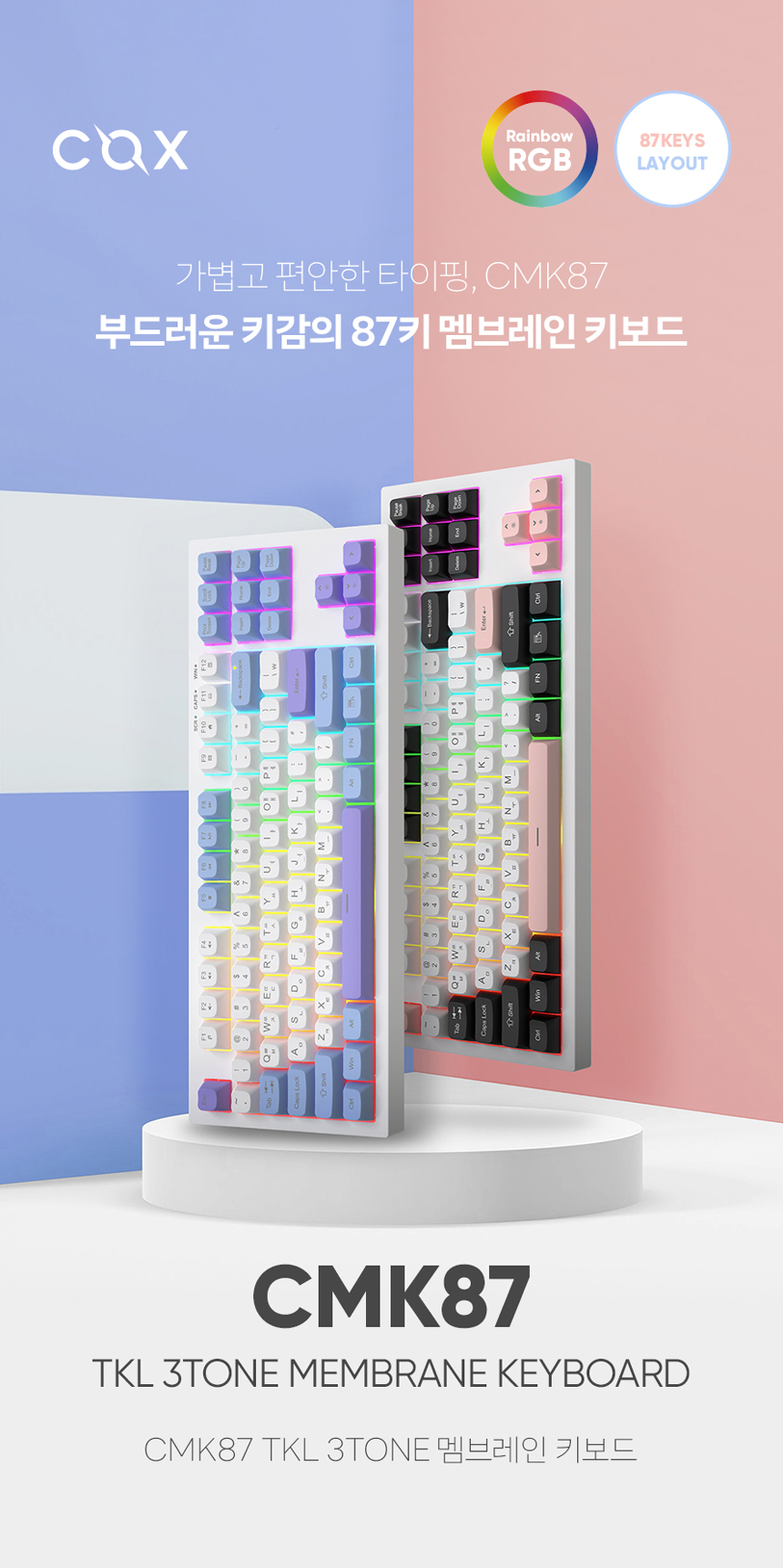
Figure 1: Cox CMK87 Keyboard (Olivia color scheme)
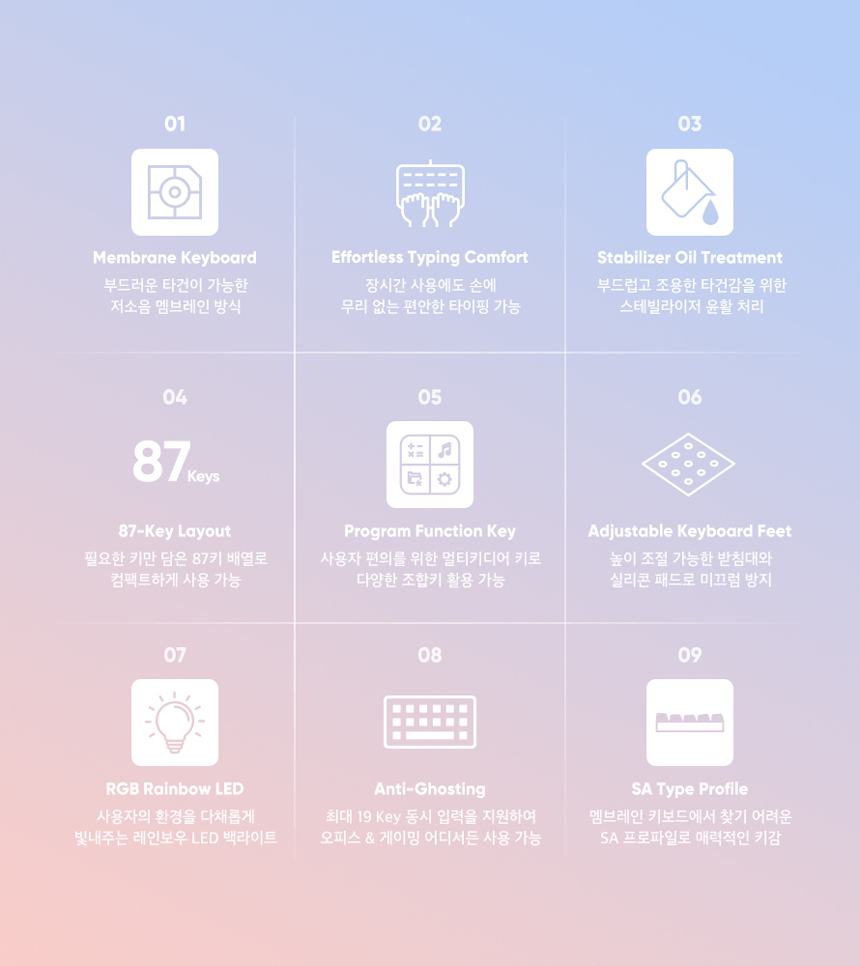
Figure 2: Cox CMK87 Keyboard (White Plate with 3-color keycaps)
Package Contents
Please check the package for the following items:
- Cox CMK87 TKL 3Tone Membrane Keyboard
- USB Type-C Cable
- User Manual (this document)
- AS Receipt (for warranty purposes)
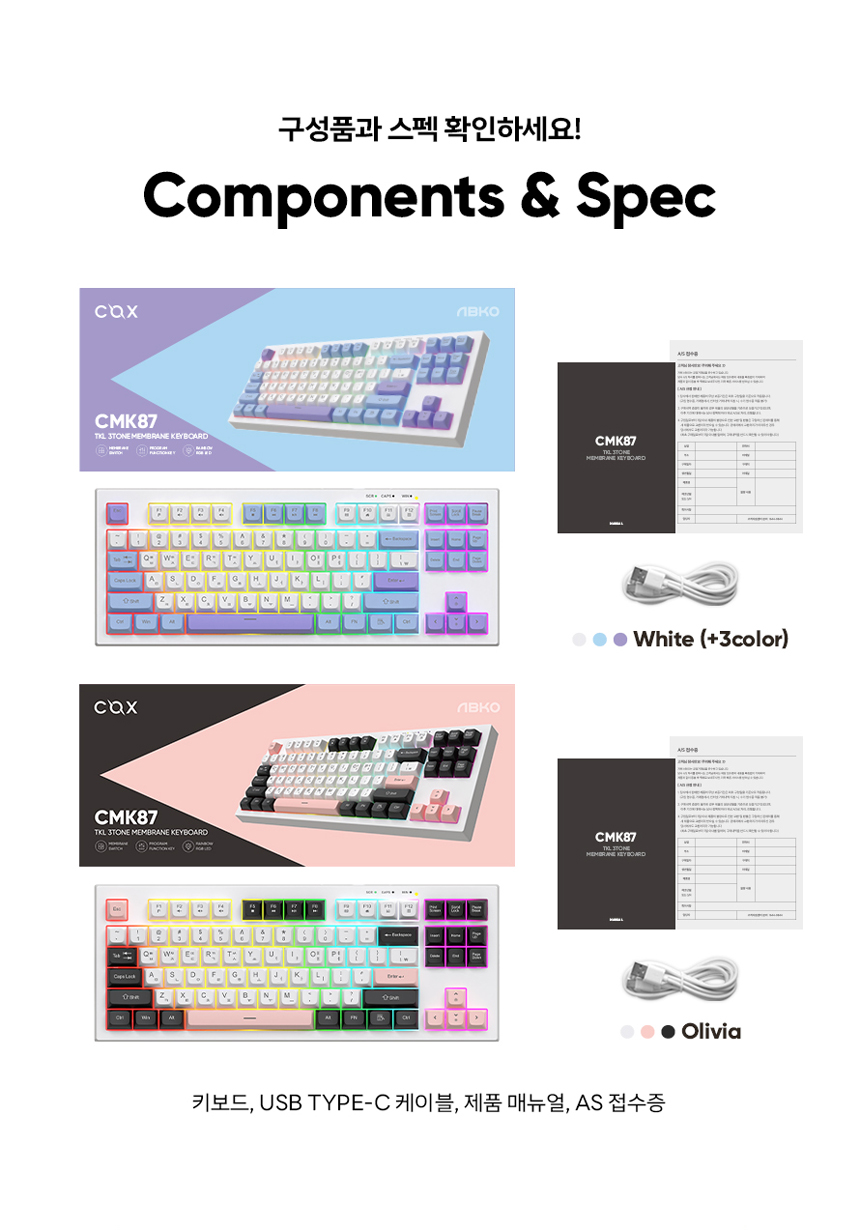
Figure 3: Package Contents and Specifications Overview
Setup
Unpack the Keyboard: Carefully remove the keyboard and all accessories from the packaging.
Connect the Keyboard: Plug the USB Type-C end of the provided cable into the port on the keyboard and the standard USB-A end into an available USB port on your computer.
The keyboard is plug-and-play and does not require additional driver installation for basic functionality on supported operating systems.
Adjust Keyboard Feet: The CMK87 features 2-step adjustable keyboard feet on the underside. Adjust them to your preferred typing angle for ergonomic comfort. The feet are equipped with silicone pads to prevent slipping.

Figure 4: Adjustable Keyboard Feet
Operating Instructions
Basic Typing
The CMK87 is an 87-key Tenkeyless (TKL) layout keyboard, providing a compact design while retaining essential keys for both office and gaming environments.

Figure 5: 87-Key Layout for Office and Gaming Use
Programmer Function Keys (FN Combinations)
The keyboard features multimedia and utility functions accessible via the FN key in combination with the F-keys (F1-F12).
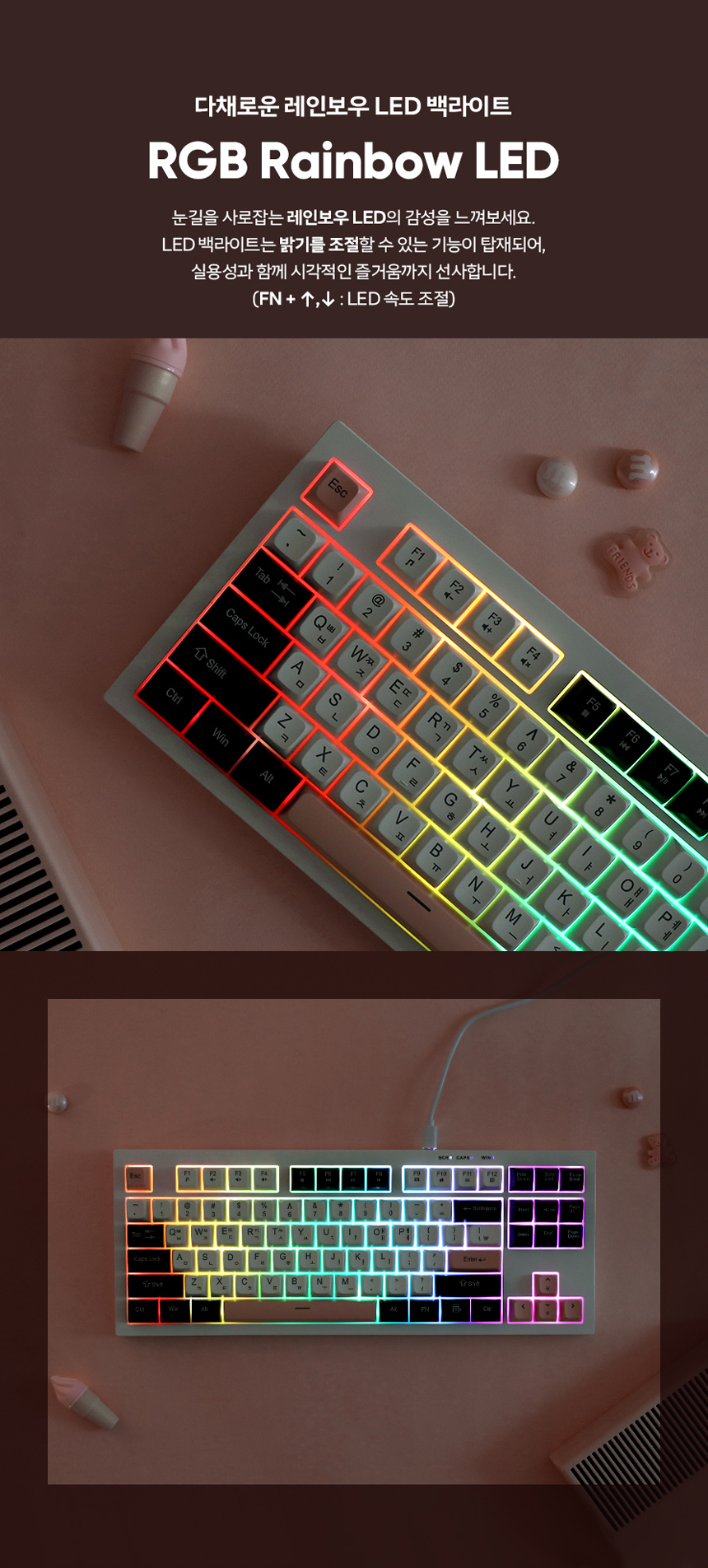
Figure 6: FN Key Combinations for Multimedia and Utility Functions
| Key Combination | Function |
|---|---|
| FN + F1 | Media Player |
| FN + F2 | Volume Down |
| FN + F3 | Volume Up |
| FN + F4 | Mute |
| FN + F5 | Stop |
| FN + F6 | Previous Track |
| FN + F7 | Play/Pause |
| FN + F8 | Next Track |
| FN + F9 | |
| FN + F10 | Homepage |
| FN + F11 | Lock All Keys |
| FN + F12 | Calculator |
RGB Rainbow LED Backlighting
The CMK87 features vibrant RGB Rainbow LED backlighting. You can adjust the LED speed using the following key combinations:
- FN + Up Arrow: Increase LED speed
- FN + Down Arrow: Decrease LED speed
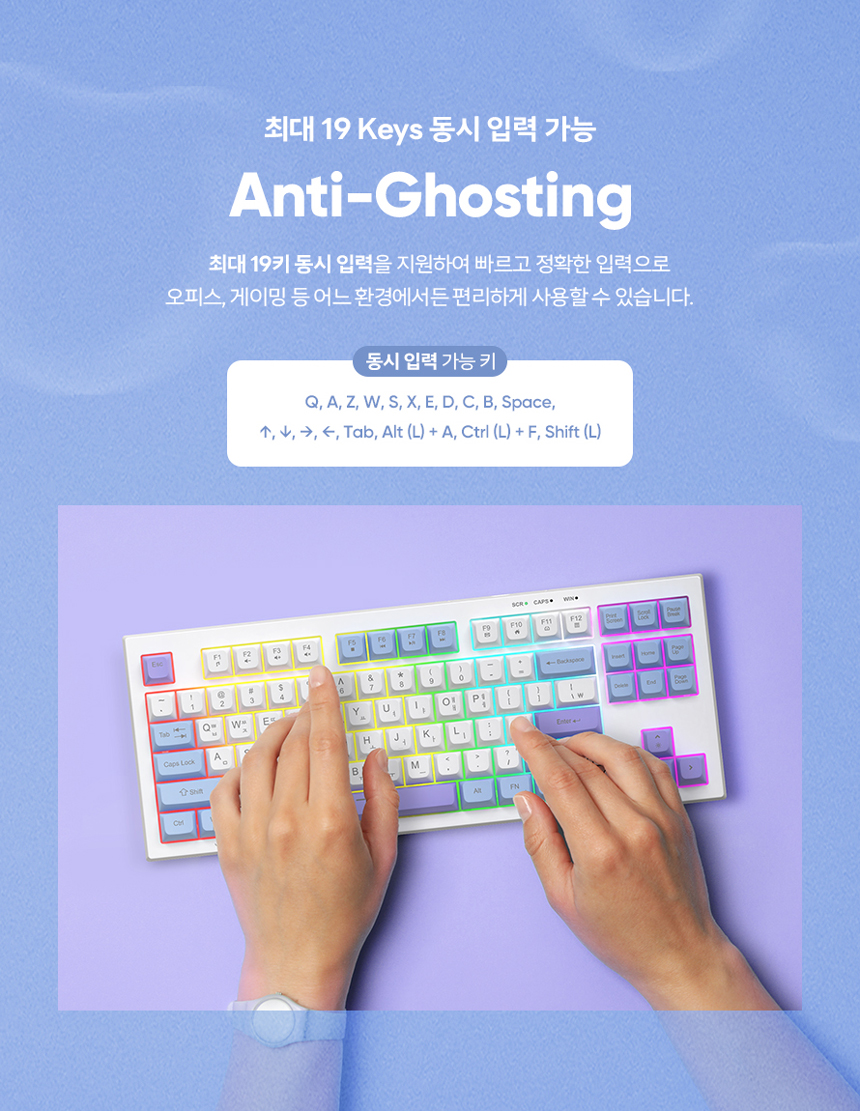
Figure 7: RGB Rainbow LED Backlighting in action
Anti-Ghosting
The CMK87 supports up to 19 keys simultaneous input, ensuring accurate and fast input in various scenarios, including office work and gaming. This feature prevents 'ghosting' where key presses are not registered due to limitations in the keyboard's circuitry.
Keys supporting simultaneous input include: Q, A, Z, W, S, X, E, D, C, B, Space, Up Arrow, Down Arrow, Left Arrow, Right Arrow, Tab, Left Alt + A, Left Ctrl + F, Left Shift.
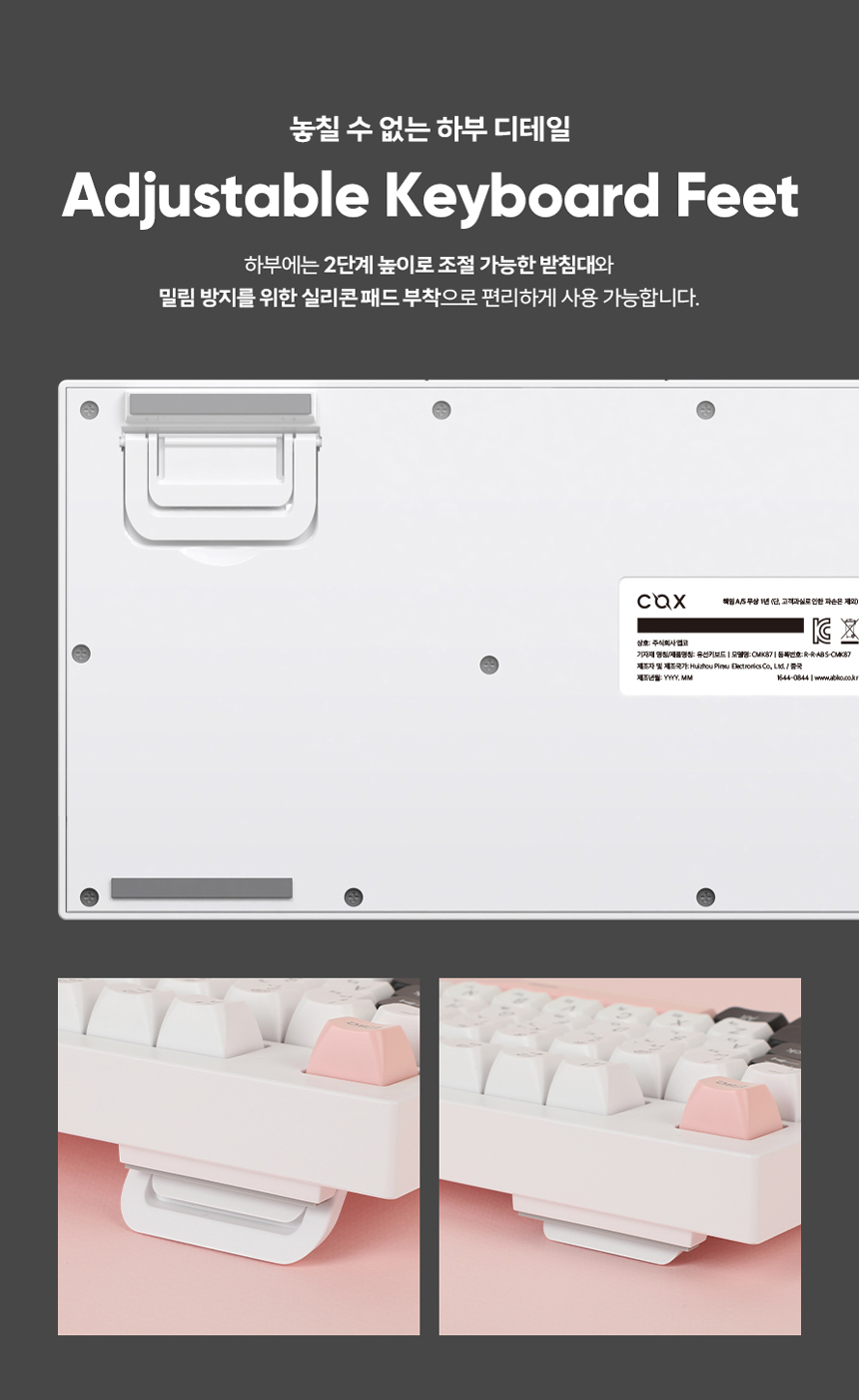
Figure 8: Anti-Ghosting capability for multiple key presses
Maintenance
Cleaning
- To clean the keyboard, disconnect it from your computer.
- Use a soft, lint-free cloth slightly dampened with water or a mild cleaning solution to wipe the keycaps and surface.
- Avoid spraying liquids directly onto the keyboard.
- For dust and debris between keys, use compressed air.
Stabilizer Oil Treatment
The CMK87 membrane keyboard undergoes a stabilizer oil treatment process, which provides a smoother key feel and minimizes typing noise compared to general membrane keyboards. This treatment is applied during manufacturing to enhance durability and user experience.
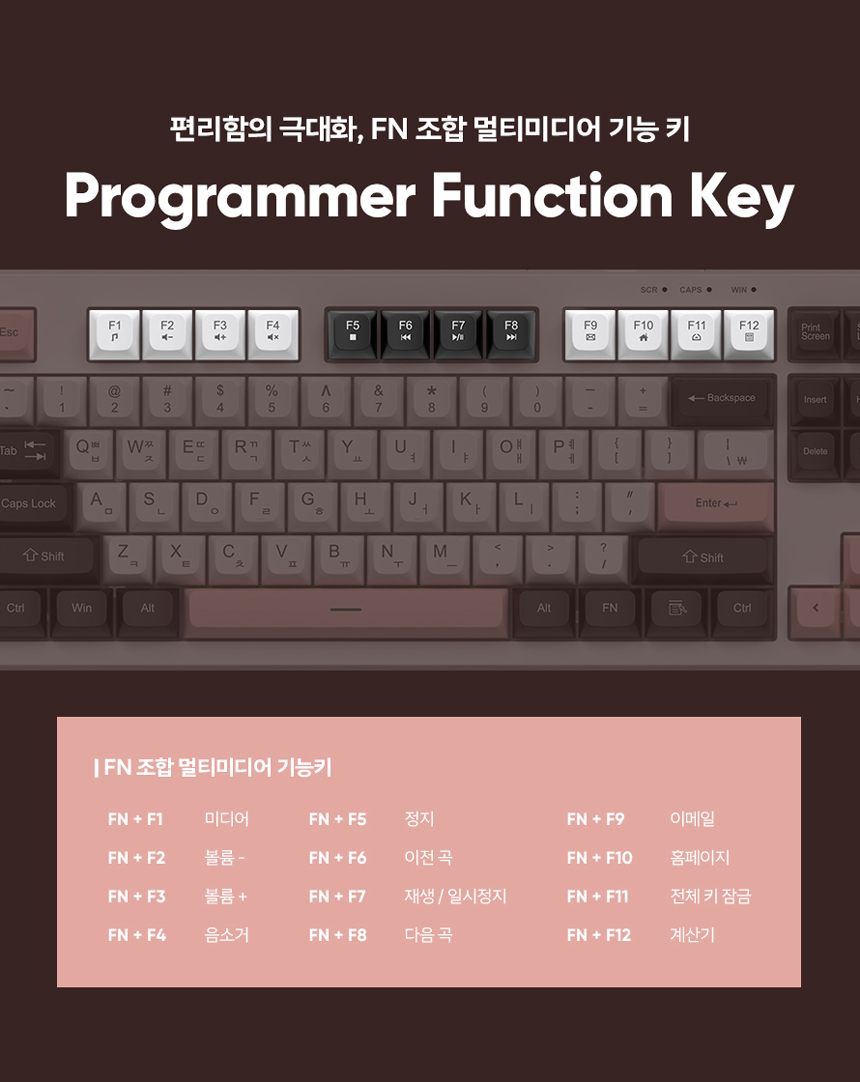
Figure 9: Detail of Stabilizer Oil Treatment
Troubleshooting
- Keyboard not responding:
- Ensure the USB cable is securely connected to both the keyboard and the computer.
- Try plugging the keyboard into a different USB port on your computer.
- Restart your computer.
- Keys not registering or ghosting:
- While the CMK87 has anti-ghosting for up to 19 keys, excessive simultaneous key presses beyond this limit may still lead to unregistered inputs.
- Ensure no debris is lodged under the keycaps.
- Backlighting not working or behaving unexpectedly:
- Check if the keyboard is properly connected.
- Ensure no FN key combinations have inadvertently turned off or altered the lighting mode.
Specifications
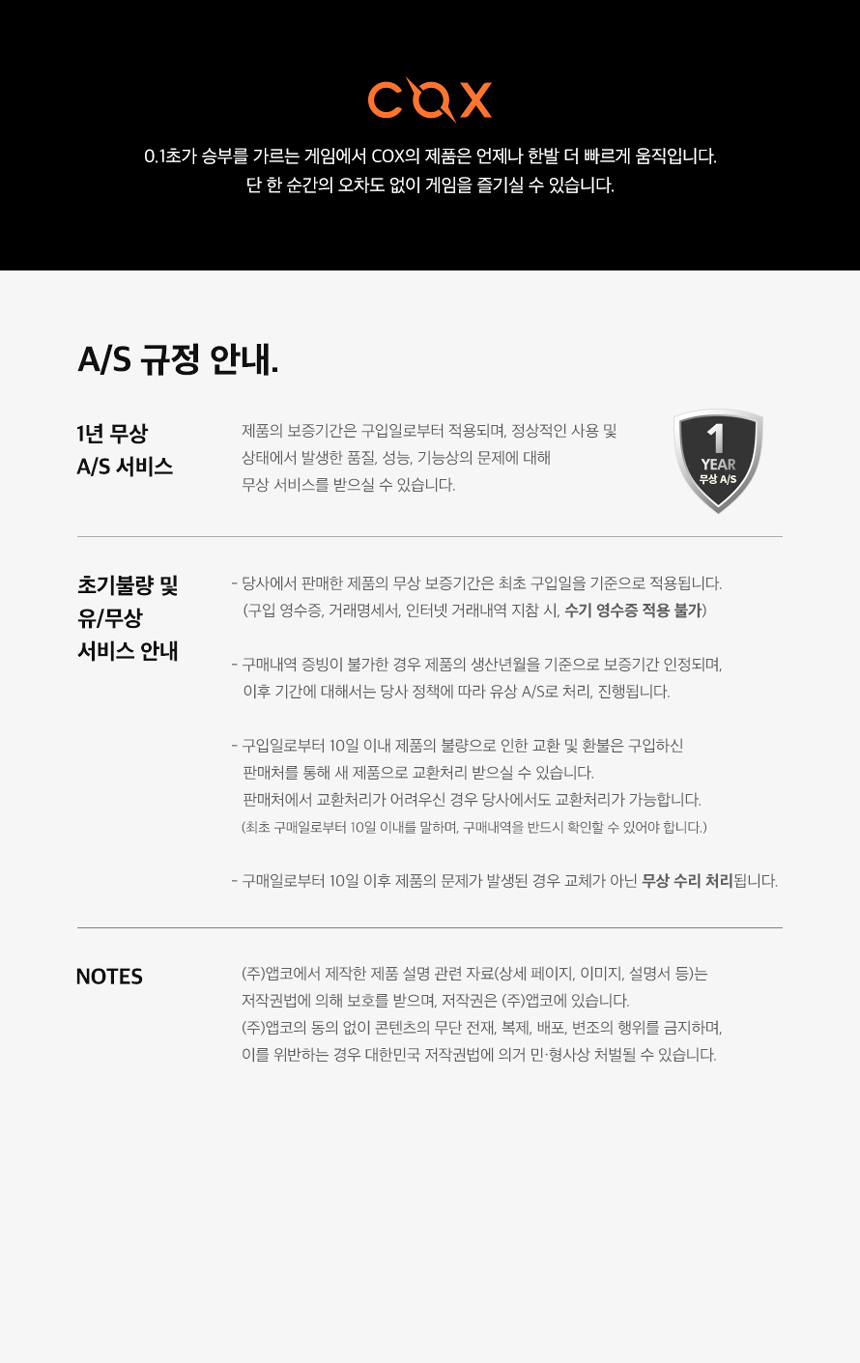
Figure 10: Detailed Product Specifications
| Feature | Detail |
|---|---|
| Model | CMK87 TKL 3Tone Membrane Keyboard |
| Color Options | White Plate With 3color Keycaps / Olivia |
| Size (L x W x H) | 365 x 140 x 41 mm |
| Weight | 663 (± 10) g (Without Cable) |
| Cable Length | 150 (± 5) cm |
| Switch Type | Membrane |
| Keycap Material | ABS (SA Type Profile) |
| Operating Force | 50 (± 20) gf |
| Key Layout | 87 Keys |
| Backlighting | RGB Rainbow LED |
| OS Compatibility | Windows 95 / 98 / XP / 2000 / ME / VISTA / 7 / 8 / 10 / 11 |
| Interface | USB Type-C |
| Certification | KC: R-R-ABS-CMK87 |
Warranty and Support
Warranty Information
The Cox CMK87 keyboard comes with a 1-year free After-Sales (A/S) service. This service covers defects in quality, performance, or function that occur under normal use conditions.
- Initial Defects (within 10 days of purchase): Products found to have initial defects within 10 days from the date of purchase are eligible for exchange or refund. Proof of purchase is required.
- After 10 days of purchase: For issues arising after 10 days from the date of purchase, the product will be handled as a repair service according to the company's A/S policy.
- Proof of Purchase: A valid purchase receipt or transaction history is required for all warranty claims.

Figure 11: Warranty Policy Overview
Customer Support
For further assistance, technical support, or warranty claims, please contact your retailer or the manufacturer's customer service department. Refer to your purchase documentation for contact details.
User Tips
- Ergonomics: Utilize the adjustable keyboard feet to find a comfortable typing angle that reduces strain on your wrists.
- Cable Management: Ensure the USB Type-C cable is routed neatly to prevent accidental disconnections or damage.
- Regular Cleaning: Periodically clean your keyboard to prevent dust and debris buildup, which can affect key performance and longevity.


