1. Overview
Thank you for purchasing the Fanvace P6 music player. This device is equipped with advanced features to provide an exceptional music and video experience. It runs on Android 13 and is powered by an MTK 8-core processor, ensuring smooth performance and enhanced multitasking capabilities. With 4GB of RAM and 32GB of internal storage, expandable up to 1TB with a Micro SD card, you have ample space for your media files. The 5-inch IPS screen with a resolution of 1080*1920P delivers vivid colors and clear images.
The Fanvace P6 supports a wide range of audio formats including MP3, WMA, WAV, Ogg, FLAC, APE, AAC, and video formats such as MP4, DAT, RM, RMVB, FLV, MKV, MOV, TS. It features Bluetooth 5.0 and dual-band Wi-Fi (2.4GHz & 5GHz) for versatile connectivity.

Figure 1.1: Fanvace P6 MP3/MP4 Player with its user interface and physical buttons.

Figure 1.2: Overview of the Fanvace P6's key features including 5.0 inch screen, WiFi 2.4G&5G, Bluetooth 5.0, Android 13, 4GB RAM, 32GB ROM, 1080P resolution, and 2500mAh battery.
2. Setup
2.1 Package Contents
Ensure all items are present in the package:
- 1 x MP3 Player
- 1 x 64GB SD Card
- 1 x USB C Cable
- 1 x Wired Earphones
- 1 x Screen Protector
- 1 x Protective Case
- 1 x User Manual
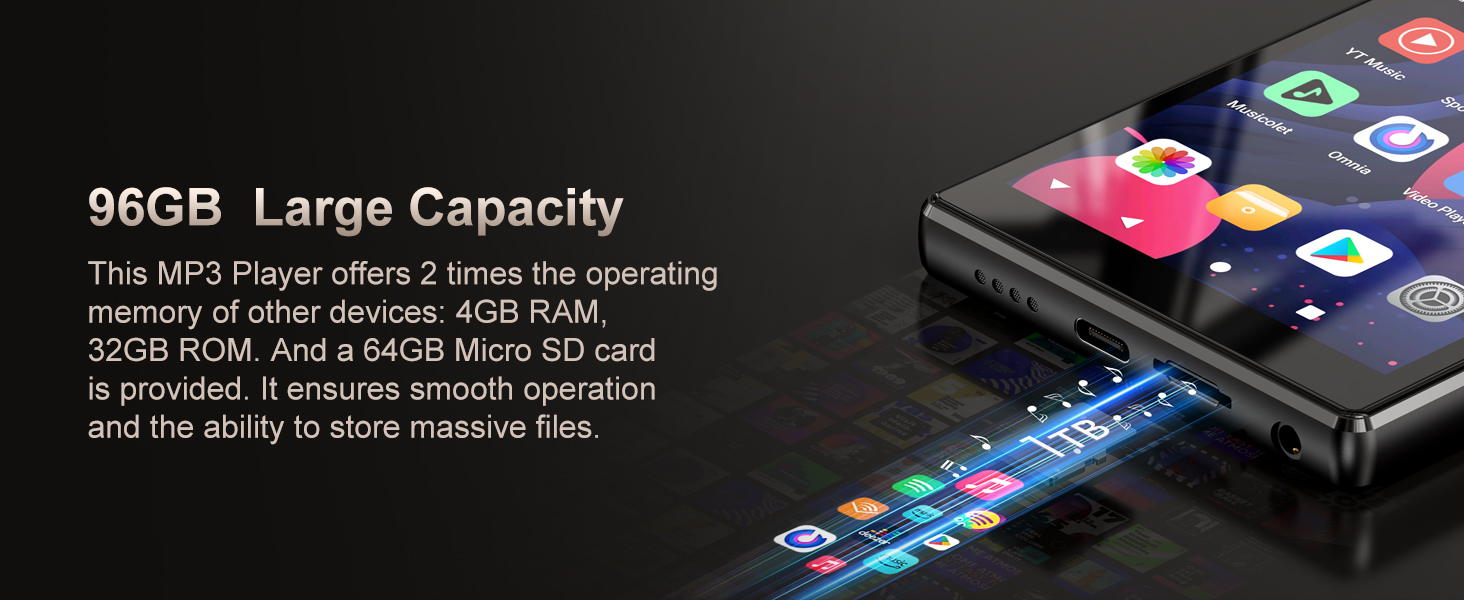
Figure 2.1: Contents of the Fanvace P6 package.
2.2 Device Layout and Controls
Familiarize yourself with the physical layout and controls of your Fanvace P6:
- Volume +: Increases audio volume.
- Volume -: Decreases audio volume.
- Reset: A small pinhole for device reset.
- ON/OFF: Power button to turn the device on/off.
- Speaker: Built-in speaker for audio output.
- Card slot: For inserting a Micro SD/TF card (up to 1 TB).
- USB-C port: For charging and data transfer.
- 3.5mm port: For connecting wired earphones.

Figure 2.2: Detailed diagram of the Fanvace P6, highlighting its dimensions and port locations.
3. Operating Instructions
3.1 Home Screen Navigation
The home screen can be customized with shortcuts, widgets, and folders. Key indicators and functions include:
- Battery Level: The white battery level indicator decreases and turns red as the battery drains.
- WIFI Signal: White full bands decrease with weaker Wi-Fi signal strength.
- Hide: Hides all shortcut icons.
- Back: Returns to the previous screen.
- Recent apps: Opens a list of recently used applications. Tap an app to open or swipe left/right to remove its thumbnail.
- Home: Returns to the home screen.
3.2 Google Play Store
Google Play provides access to movies, TV shows, music, books, magazines, and apps. Sign in with your Google Account to access content and download applications.

Figure 3.1: Accessing the Google Play Store for apps and media.
Important Notes for Google Play Store:
- Avoid installing high-capacity or heavy games, as this device is primarily a music player.
- Do not install applications from third-party or unknown sources outside of Google Play Store to prevent compatibility issues or viruses.
- Excessive app installations can slow down the system. If the player becomes unresponsive or restarts unexpectedly, remove some applications to free up system resources.

Figure 3.2: Download more apps to personalize your MP3 player.
3.3 Connecting to Wi-Fi
To connect your device to a Wi-Fi network:
- From the home screen, go to the settings menu.
- Locate and select the "Wi-Fi" option.
- Turn on Wi-Fi if it is not already enabled.
- The music player will scan for available Wi-Fi networks.
- Select the network you want to connect to from the list.
- If the network is password-protected, enter the correct password.
- Wait for the music player to connect. A status indicator will show connection strength.
3.4 Connecting to Bluetooth
The P6 can connect to various Bluetooth devices like speakers, headphones, smartphones, and car audio systems:
- Go to the settings menu.
- Look for the “Bluetooth” option and tap on it.
- Ensure Bluetooth is turned on. The MP3 player will scan for available devices.
- Put your Bluetooth speaker, headphones, or other compatible device into pairing mode.
- Once the P6 detects the Bluetooth device, its name will appear on the screen. Select the device to initiate pairing.
- If required, enter a pairing code or confirm the connection on both devices.
- Once paired, the P6 will automatically connect to the Bluetooth device when in range and Bluetooth is enabled.

Figure 3.3: Bluetooth 5.0 connectivity for headphones, speakers, and car systems.
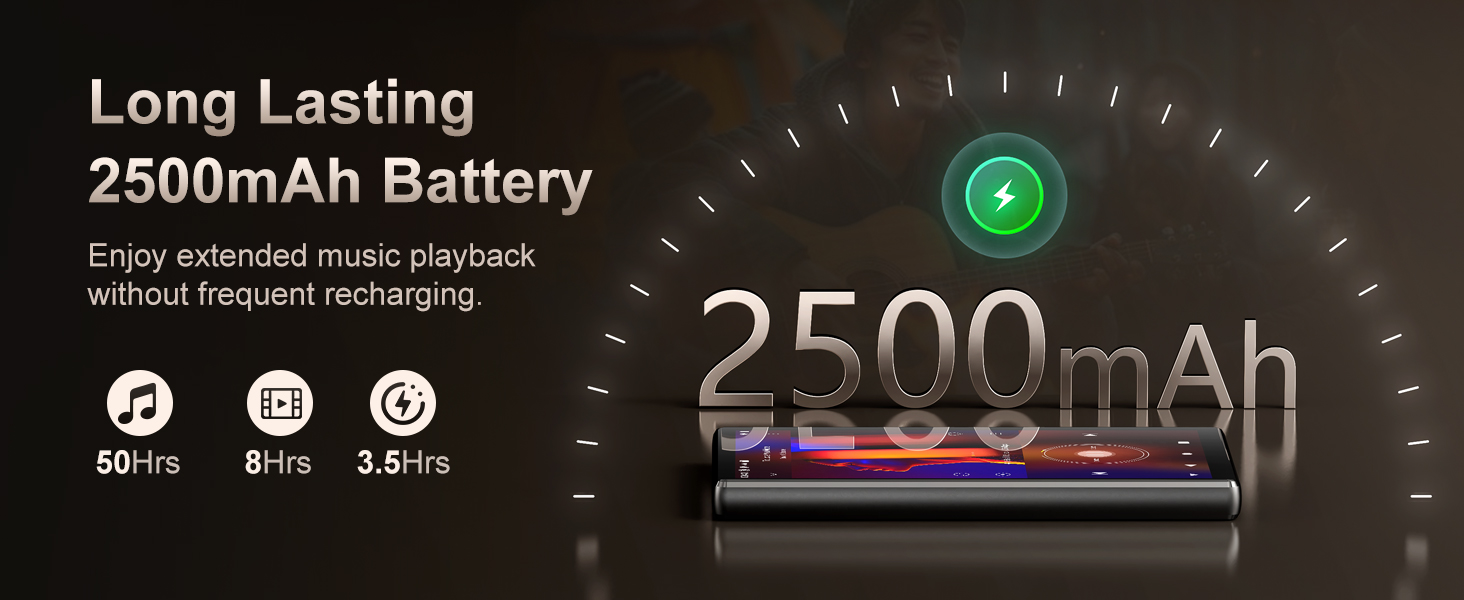
Figure 3.4: Bluetooth 5.0 ensures perfect compatibility with various audio devices.
3.5 Media Playback
The Fanvace P6 is designed for easy music and video enjoyment, supporting a wide array of formats directly without conversion.

Figure 3.5: Supported music and video formats for seamless playback.

Figure 3.6: The 5.0 inch HD screen with 1080*1920PX resolution provides high color reproduction for video playback.
3.6 Storage Management
The device comes with 32GB ROM and includes a 64GB TF card, totaling 96GB of storage. This can be expanded up to 1TB with an external Micro SD card.

Figure 3.7: 96GB massive storage for countless songs and media.
4. Maintenance
4.1 General Care and Warnings
- Do not leave the device in environments with extreme temperatures (below -10°C or above 50°C) for extended periods. Extreme temperatures can deform the device and shorten its service life.
- Do not place the device in water.
- Do not use the equipment during thunderstorms.
- Do not expose the equipment to direct sunlight for long durations.
4.2 Extending Battery Life
To maximize your device's battery life:
- Reduce screen brightness.
- Utilize the Quick Screen Timeout feature (found in Settings > Display).
- Turn off Wi-Fi when not near a strong signal.
- Disable Location Services.

Figure 4.1: The 2500mAh battery provides long-lasting playback.
5. Troubleshooting
5.1 Device Not Responding to Charging or PC Connection
- Check for poor contact between the cable and the device.
- Inspect the USB port for damage.
- Check if the USB cable is damaged. Try using the USB cable with other devices. If it still doesn't respond, the cable may be faulty.
5.2 SD Card Not Working Properly
- Re-insert the SD card into the device.
- Check the SD card for physical damage.
- Ensure the SD card is formatted as FAT32 or EXFAT (FAT32 is perfectly supported).
- Restart the MP3 player or perform a factory reset.
- Clean the metal contacts of the SD card.
- Verify that the SD card has sufficient free storage.
5.3 Slow Operating Speed, Stalling, or Restarting
- Too many applications installed: Remove unnecessary applications to free up system resources.
- Software incompatibility: If you installed third-party software, remove it.
- Poor Wi-Fi signal: A weak Wi-Fi signal can affect performance, especially with live streaming apps.
5.4 Forgot Password
If you forgot your password:
- Universal Password: Try entering 1235789.
- Forgot Pattern Lock: Press and hold the power button and volume + simultaneously until the Android recovery page appears. Use volume + or - to navigate and the power button to select "Wipe data/factory reset." This will erase all data, so remember your password for future use.
5.5 Unstable or Frequently Dropping Wi-Fi Connection
- Move the MP3 player closer to the Wi-Fi router.
- Avoid placing the player near sources of interference (other electronic devices, metal objects).
- Restart both the Wi-Fi router and the music player.
5.6 Reset & Restore
- Reset: Insert a small object (like a paper clip) into the reset hole.
- Factory Restore: In the settings app, tap "Reset options" and select "Factory reset" to restore factory settings. This will erase all data; back up your data first.
6. Specifications
| Feature | Specification |
|---|---|
| Android System | Android 13 |
| Processor | MTK 8-core |
| Internal Memory | 4GB RAM, 32GB ROM |
| Screen | 5.0 inch, 1080*1920 resolution |
| Bluetooth | V5.0 |
| Wi-Fi | Dual band, 2.4GHz & 5 GHz |
| Music Format Support | MP3, WAV, APE, FLAC, AAC, Ogg, WMA |
| Video Format Support | AVI, MKV, RMVB, MP4, MPG, MOV, TS, DAT, FLV |
| Picture Format Support | JPEG, BMP, GIF, PNG |
| USB Slot | TYPE-C |
| Earphone Type | Φ3.5 * 1 standard (max 125mW/32Ω) |
| Battery Capacity | 2500mAh |
| Input | 5V 1A |
| Expansion Slot | Micro SD/TF Card (up to 1 TB) |
| Compatible System | Window XP, Vista, 7, 8, 10, 11; Mac OS 10 |
7. User Tips
- App Management: To maintain optimal performance, avoid installing high-capacity games or too many third-party applications. Regularly review and uninstall apps you no longer need.
- Battery Optimization: Adjust screen brightness and manage Wi-Fi usage (turn off when not needed) to significantly extend battery life.
- SD Card Compatibility: For best results, ensure your Micro SD card is formatted to FAT32.
- Connectivity: If experiencing Wi-Fi issues, try moving closer to your router and restarting both the player and the router.
- Keyboard Customization: While Microsoft Swiftkey is the default, you can install your preferred keyboard from the Play Store to suit your typing habits.
8. Warranty & Support
For any questions or assistance, please contact our customer support team. We are committed to providing support and will respond to inquiries within 12 hours.
Customer Support Email: yuntuo-aftersales@hotmail.com
Thank you for choosing our MP3 player. Enjoy your music!
A PDF version of this user manual is available for download. Please refer to the official product page or contact customer support for the direct link: User manual (PDF)


