
1. Introduction
The Bonroad Wireless Carplay Android Auto Module Box is an advanced infotainment upgrade designed to integrate Apple Carplay and Android Auto functionalities into your compatible Volkswagen or Skoda vehicle's existing MIB/MIB2 system. This module enhances your driving experience by providing seamless access to navigation, music, hands-free communication, and other smartphone features directly on your car's display, utilizing original car controls.
2. Compatibility
This module is specifically designed for Volkswagen and Skoda vehicles equipped with the MIB or MIB2 infotainment system. A key requirement for installation is the presence of a CD player in the glovebox. Please verify your vehicle's system and the presence of the CD player before proceeding with installation.
2.1 System Identification
To confirm your vehicle has the MIB system, check the HMI Versions screen on your car's display. Look for "MIB" in the software information.

Additionally, confirm the presence of a CD player in your glovebox, as shown in the images below.


2.2 Compatible Vehicle Models
The following table lists compatible vehicle models and their respective year ranges:

| Series | Model | Year Range |
|---|---|---|
| For VW Series | Golf 7 | 2013-2019 |
| Golf Sportsvan | 2014-2019 | |
| GTI | 2014-2019 | |
| Passat B8 | 2014-2019 | |
| Tiguan | 2014-2021 | |
| B8 Variant | 2014-2019 | |
| Teramont | 2014-2019 | |
| New Polo | 2016-2019 | |
| T-Cross | 2016-2019 | |
| Jetta | 2016-2019 | |
| T-ROC | 2016-2019 | |
| For Skoda Series | SUPERP-B | 2014-2019 |
| Octavia | 2014-2019 | |
| KODIAQ | 2014-2019 | |
| KOROC | 2014-2019 | |
| KAMIQ | 2014-2019 | |
| For Seat Series | Arona | 2016-2019 |
| New Leon | 2016-2019 | |
| NEW IBIZA | 2016-2019 | |
| Toledo | 2016-2019 | |
| Ateca | 2016-2019 |
3. Key Features
The Bonroad Module Box offers a range of features to enhance your in-car experience:

- Wireless/Wired Carplay & Android Auto: Seamless integration of your smartphone's interface onto your car's display.
- Navigation Maps: Supports popular navigation apps like Google Maps, Waze, and Apple Maps directly on your car screen.
- Bluetooth Connectivity: For hands-free calling and audio streaming.
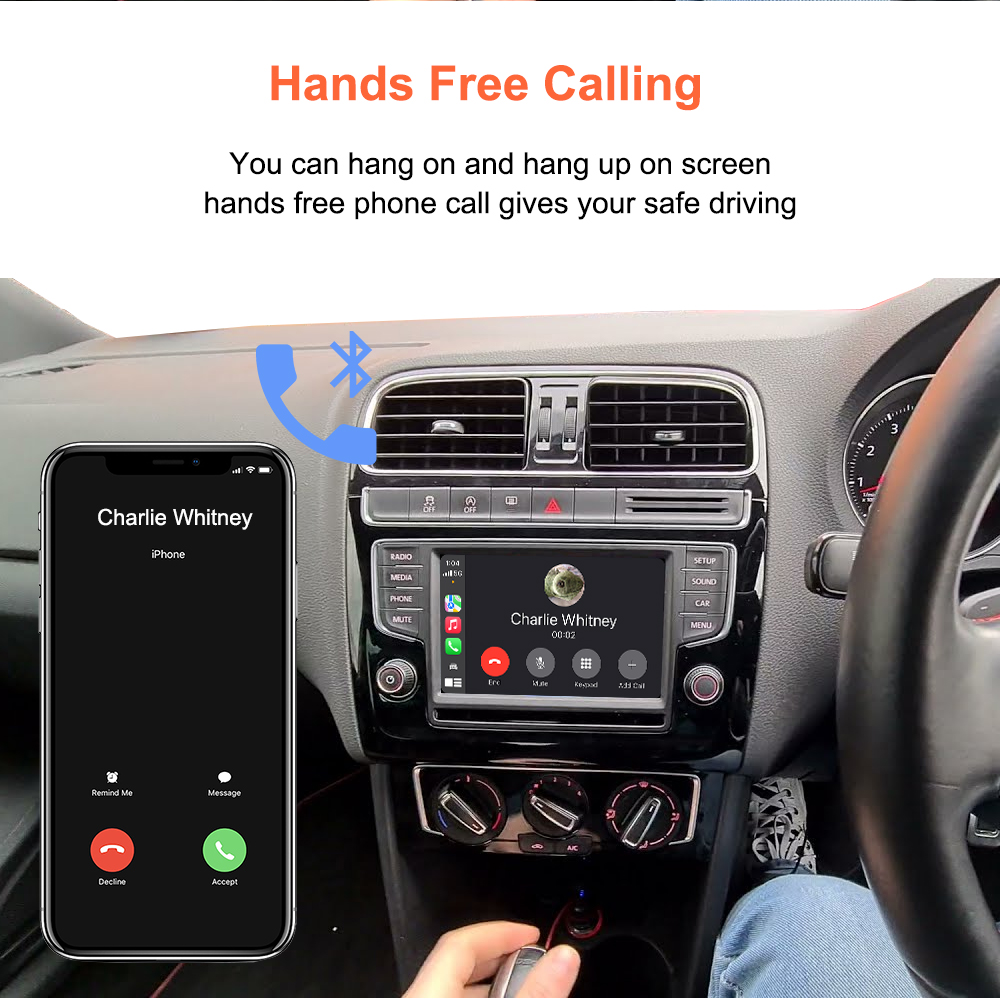
- Hands-Free Calling: Make and receive calls safely using the car's display and controls.
- Online Music: Stream music from your phone via Bluetooth.
- Original Car Control Compatibility: Retains functionality of original car steering wheel controls and central control knob.
- Reversing Camera Support: Supports factory reverse cameras, parking radar, and aftermarket 360 cameras.
- Siri Control: Voice control functionality for Apple Carplay.
- USB Flash Drive Support: For media playback.


4. Installation and Setup
Installation of the Bonroad Module Box requires technical expertise and familiarity with car electronics. It is highly recommended that installation be performed by a qualified professional to avoid damage to your vehicle or the module. The module connects to your vehicle's existing MIB/MIB2 system, typically involving connections to the CAN bus, video input, and LVDS display signals.
4.1 Pre-Installation Checklist
- Ensure your vehicle is compatible (refer to Section 2).
- Confirm the presence of a CD player in the glovebox.
- Gather necessary tools for disassembling car panels and connecting wiring.
- Disconnect the vehicle's battery before starting installation.
4.2 Module Connections Overview
The module features several ports for integration:

- CAN POWER: For power supply and CAN bus communication.
- VIDEO: Video input for external sources (e.g., aftermarket camera).
- TOGGLE: Likely for switching between original system and module interface.
- LVDS: Low Voltage Differential Signaling connection to the car's display.
The module integrates with the car's existing "MEDIA IN" port and other wiring behind the head unit. Specific wiring diagrams are typically provided with the product packaging or by the installer.
4.3 Post-Installation
- Reconnect the vehicle's battery.
- Turn on the ignition and test all functionalities of the module, including Carplay, Android Auto, audio, and controls.
- Ensure seamless switching between the original car system and the module interface.
5. Operating Instructions
Once installed, the Bonroad Module Box allows you to access Carplay and Android Auto through your car's display. The system is designed to work with your original car controls.
5.1 Switching Between Systems
Typically, a dedicated button or a long press on an existing button (e.g., "MEDIA" or "NAV") will switch between your car's native infotainment system and the module's Carplay/Android Auto interface. Refer to your installer or the specific wiring instructions for your vehicle model.
5.2 Using Carplay/Android Auto
- Wireless Connection: Enable Bluetooth and Wi-Fi on your smartphone. Pair your phone with the module via Bluetooth. Once paired, Carplay or Android Auto should launch automatically.
- Wired Connection: Connect your smartphone to the module's USB port using a high-quality USB cable. Carplay or Android Auto should launch automatically.
- Navigation: Select your preferred navigation app (Google Maps, Waze, Apple Maps) from the Carplay/Android Auto interface.
- Music & Media: Access your music streaming apps or play media from a USB flash drive.
- Hands-Free Calls: Use the phone icon on the display or voice commands to make and receive calls.
- Voice Control (Siri/Google Assistant): Activate voice control by pressing and holding the voice command button on your steering wheel or the car's central control knob.
5.3 Using Original Car Controls
The module is designed to integrate with your vehicle's existing controls:
- Steering Wheel Controls: Use volume, track skip, and voice command buttons as usual.
- Central Control Knob: Navigate menus and select options on the Carplay/Android Auto interface.
6. Maintenance
The Bonroad Module Box requires minimal maintenance. Follow these guidelines to ensure optimal performance:
- Keep the module and its connections free from moisture and extreme temperatures.
- Avoid physical impact to the module.
- Ensure your car's infotainment system software is up to date, if applicable.
- Periodically check for firmware updates for the module (consult the manufacturer's website or your installer).
- Clean the car's display screen with a soft, lint-free cloth.
7. Troubleshooting
If you encounter issues with your Bonroad Module Box, try the following steps:
- No Display/Black Screen:
- Ensure all cables are securely connected.
- Verify the module is receiving power.
- Check if the car's display input is correctly switched to the module.
- Carplay/Android Auto Not Launching:
- For wireless connection, ensure Bluetooth and Wi-Fi are enabled on your phone and paired correctly.
- For wired connection, try a different USB cable (ensure it's a data cable, not just charging).
- Restart your smartphone and the car's infotainment system.
- Audio Issues:
- Check volume levels on both your phone and the car's system.
- Ensure Bluetooth audio is selected as the source on your car's system.
- Controls Not Responding:
- Verify the module is fully integrated with the car's CAN bus system.
- Restart the car's infotainment system.
- Compatibility Concerns:
- Double-check your vehicle model and year against the compatibility list (Section 2.2).
- Confirm your car has the MIB/MIB2 system and a CD player in the glovebox. Many user questions revolve around this, so it's a critical point.
If problems persist, contact your installer or the manufacturer's support for further assistance.
8. Specifications
| Attribute | Value |
|---|---|
| Brand Name | BONROAD |
| Origin | Mainland China |
| Package Length | 20 cm |
| Package Width | 10 cm |
| Package Height | 10 cm |
| Package Weight | 1.2 kg |
| High-concerned chemical | None |
9. User Tips
- Verify Compatibility Carefully: Before purchasing or installing, always double-check that your specific car model, year, and MIB system version are listed as compatible. Pay close attention to the requirement for a CD player in the glovebox.
- Professional Installation Recommended: Due to the complexity of integrating with vehicle electronics, professional installation is strongly advised to ensure correct functionality and prevent damage.
- Use Quality Cables: When using wired Carplay/Android Auto, ensure you use a high-quality USB data cable for stable connection and performance.
10. Warranty and Support
For warranty information, technical support, or service inquiries, please refer to the documentation provided with your purchase or contact the Bonroad customer support directly. Keep your proof of purchase for any warranty claims.