Introduction
Thank you for choosing the OSALO 5M Desktop Solar Office Calculator. This 12-digit calculator is designed for efficiency and ease of use in office and commercial environments. Featuring a dual power supply (solar and battery), a large LCD display, and comfortable buttons, it ensures reliable performance for all your calculation needs. This manual provides detailed instructions on setting up, operating, and maintaining your calculator.

Key Features
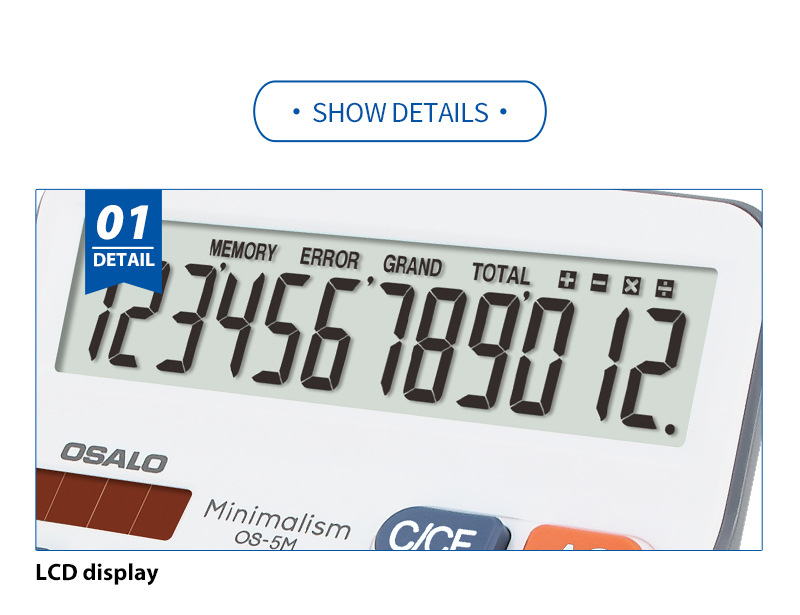
- 12-Digit Extra Large LCD Display: Provides clear and easy-to-read numbers.
- Dual Power Supply: Operates on solar energy in well-lit conditions and switches to battery power in low light, ensuring continuous operation.
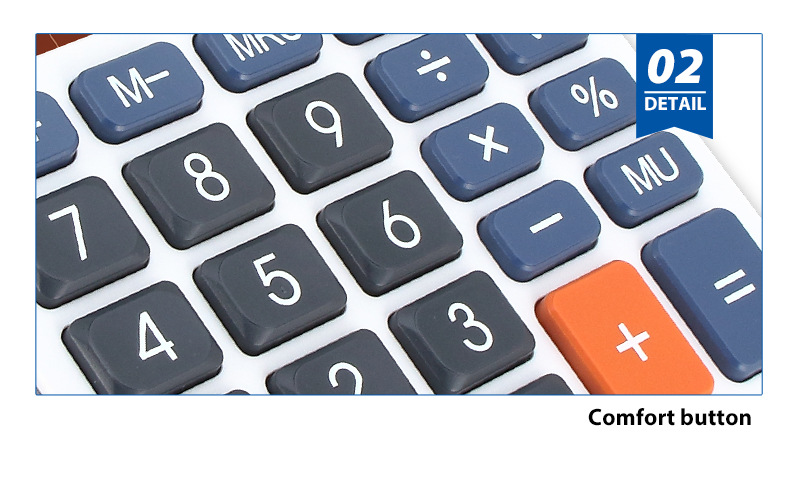
- Comfort Buttons: Ergonomically designed buttons for comfortable and accurate input.
- Durable Construction: Made from environmentally friendly ABS plastic for long-lasting use.
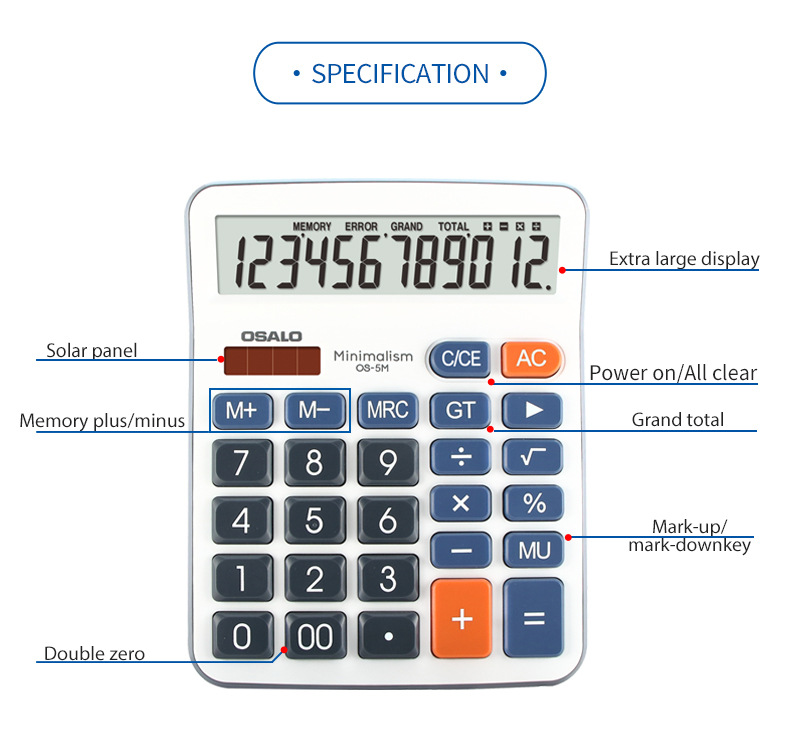
- Essential Functions: Includes basic arithmetic, memory functions (M+, M-, MRC), Grand Total (GT), Percentage (%), and Square Root (√).
Setup
Battery Installation
The OSALO 5M calculator uses a dual power system (solar and battery). While it can operate on solar power in sufficient light, a battery ensures consistent performance in all conditions. No battery is included with the product.
- Turn the calculator over to access the back panel.
- Locate the battery compartment cover.
- Slide the cover open in the direction indicated by the arrow (if any).
- Insert the required battery type (typically a button cell battery, e.g., LR1130 or AG10, though not specified in provided data, this is common for such calculators) with the correct polarity (+/-).
- Close the battery compartment cover securely.

Initial Power On
The calculator will automatically power on when exposed to sufficient light (solar power) or when a battery is installed and any key is pressed. Press the AC (All Clear) button to clear any previous calculations and start fresh.
Operation
Familiarize yourself with the calculator's layout and key functions:
Basic Calculations
- Addition (+), Subtraction (-), Multiplication (x), Division (÷): Enter the first number, press the desired operation key, enter the second number, then press = for the result.
- Percentage (%): Used for percentage calculations. E.g., to calculate 10% of 200, enter 200 x 10 %.
- Square Root (√): Enter a number, then press √ to find its square root.
- Double Zero (00): Quickly input two zeros.
Memory Functions
- M+ (Memory Plus): Adds the displayed number to the memory.
- M- (Memory Minus): Subtracts the displayed number from the memory.
- MRC (Memory Recall/Clear): Press once to recall the memory value. Press twice to clear the memory.
Clear Functions
- AC (All Clear): Clears all entries and calculations, including memory.
- C/CE (Clear Entry/Clear): Press once to clear the last entry. Press twice to clear the current calculation (similar to AC but may not clear memory).
Special Functions
- GT (Grand Total): Displays the grand total of all calculations performed since the last AC press.
- MU (Mark-up/Mark-down): Used for profit margin calculations.
Product Demonstration Video
Maintenance
Cleaning
- To clean the calculator, use a soft, dry cloth.
- For stubborn dirt, slightly dampen the cloth with water or a mild, non-abrasive cleaner.
- Do not use strong chemical cleaners, solvents, or abrasive materials, as these can damage the casing or display.
Storage
- Store the calculator in a cool, dry place away from direct sunlight and extreme temperatures.
- Avoid placing heavy objects on top of the calculator to prevent damage to the keys or display.
- If storing for an extended period, consider removing the battery to prevent leakage.
Troubleshooting
| Problem | Possible Cause | Solution |
|---|---|---|
| Display is blank or dim. | Insufficient light for solar power, or low/dead battery. | Move the calculator to a brighter area. Replace the battery if necessary. |
| Incorrect calculation results. | Incorrect key input, or residual values in memory. | Press AC to clear all values and memory, then re-enter the calculation. Double-check your input. |
| Keys are unresponsive. | Dust or debris under the keys, or internal malfunction. | Gently clean around the keys. If the problem persists, contact customer support. |
Specifications
| Feature | Detail |
|---|---|
| Brand Name | OSALO |
| Model Number | 5M |
| Max. Digits | 12 |
| Power Source | Dual Power Supply (Solar & Battery) |
| Battery Included | No |
| Material | Environmentally friendly ABS plastic |
| Dimensions (H x W x D) | 185 mm x 148 mm x 41 mm |
| Weight | Approx. 0.32 kg |
| Certification | CE |
User Tips
- For optimal solar performance, ensure the calculator's solar panel is exposed to adequate light.
- Always press AC before starting a new complex calculation to ensure all previous values are cleared.
- Utilize the memory functions (M+, M-, MRC) for multi-step calculations to avoid re-entering numbers.
Warranty and Support
For any questions, technical support, or warranty claims regarding your OSALO 5M calculator, please contact the manufacturer or your point of purchase. Keep your purchase receipt as proof of purchase.


