
1. Introduction
The Blurams Indoor Security Camera 2K (Model A31S-2pc) is designed to provide comprehensive home monitoring for pets, elders, and general security. Featuring 2K clarity, 360° rotation, motion tracking, two-way audio, and night vision, this camera keeps you connected to your home from anywhere. This manual will guide you through the setup, operation, and maintenance of your new device.
2. Safety Information
⚠️️ Disclaimer:
Camera products can only be used for purposes permissible under applicable law and regulations. Misuse of the product for any illegal activities is strictly forbidden. Please comply with the applicable laws and regulations in your country/area.
3. Package Contents
Please check the box for the following items:
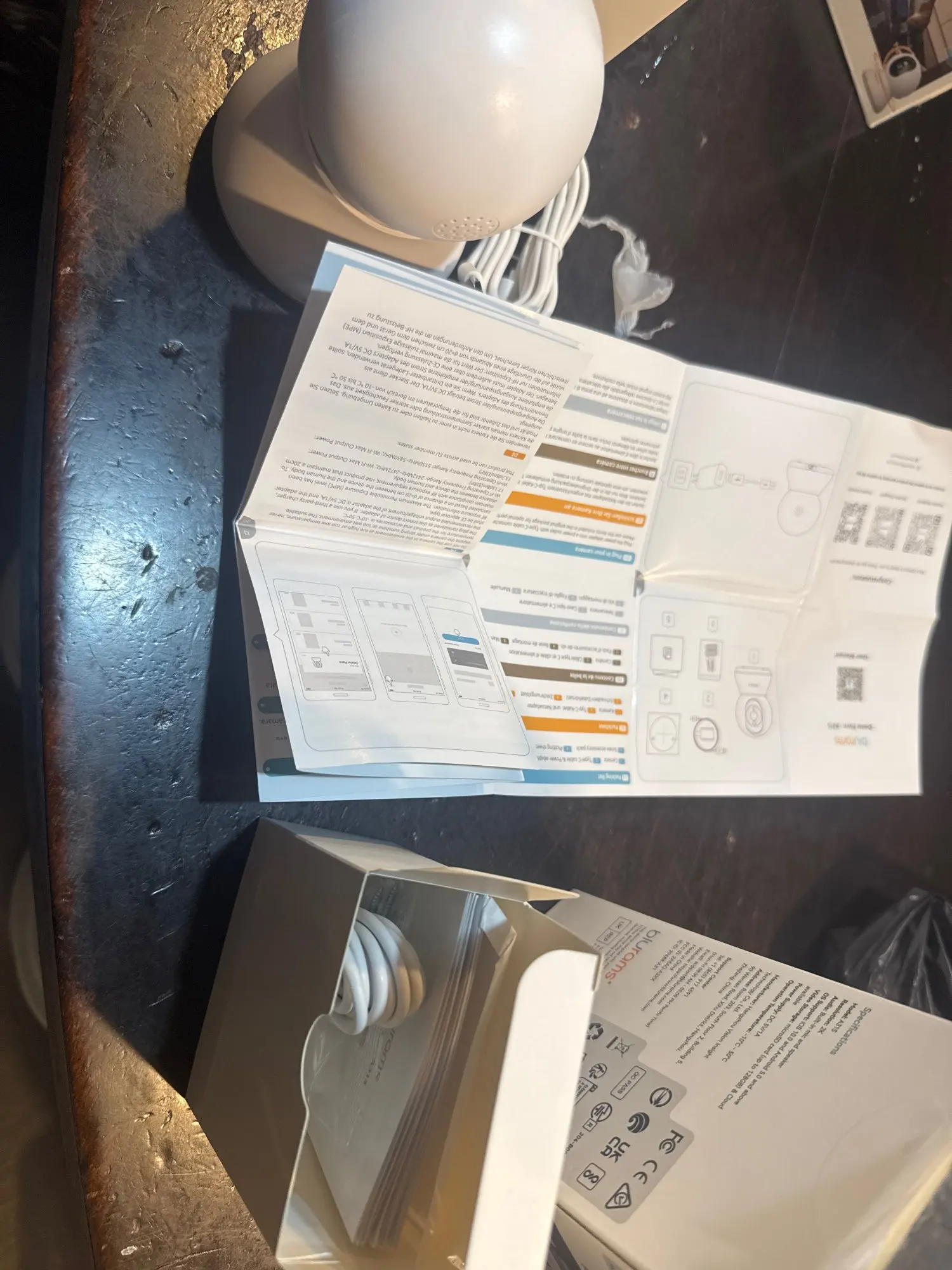
- Blurams Indoor Security Camera (A31S-2pc)
- USB Cable (Note: Power adapter may not be included. Please use a compatible 5V power adapter.)
- User Manual (PDF available online: View User Manual PDF)
- Mounting accessories (screws, wall plugs)
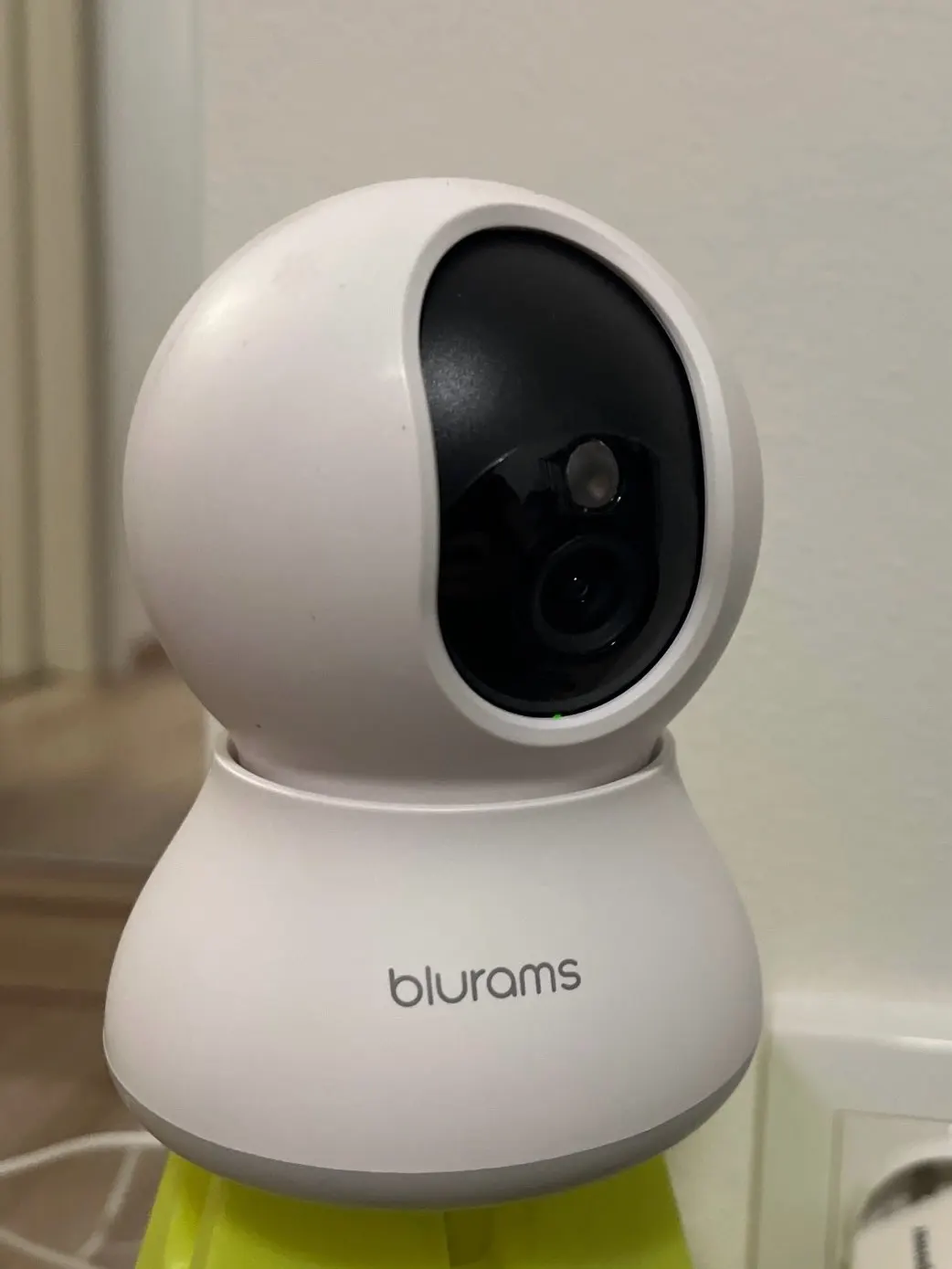
4. Product Overview
The Blurams A31S-2pc camera features a sleek, compact design with a rotating head for wide-angle viewing. It includes a camera lens, IR sensors for night vision, and a microphone/speaker for two-way audio.


5. Specifications
| Feature | Specification |
|---|---|
| Brand Name | BoyKeep (Blurams) |
| Model Number | A31S-2K |
| High Definition | 3.0 Megapixels (2K Clarity) |
| Style | Dome Camera |
| Connectivity | 2.4G/5G Wi-Fi (Note: Only 2.4GHz Wi-Fi is supported for initial connection) |
| Power Supply | 5V (Mains Electricity) |
| Power Consumption | 5W |
| Sensor | CMOS |
| Lens (mm) | 4mm |
| Viewing Angle | 360° |
| Movement Range (Pan) | 0°-360° |
| Installation | Ceiling, Wall Mounted, Normal (Desktop) |
| Color Night Vision | Yes |
| AI Functions | Motion Detection, Sound/Motion/Human Detection, AI Pet Detection (requires cloud subscription) |
| Audio Output | Two Way Audio |
| Local Storage | 8-128GB Micro SD Card (FAT32 format required) |
| Supported Operating Systems | Windows 7, macOS, Windows 10 |
| Operating Temperature | -10°C ~ 50°C |
| Smart Home Integration | Amazon Alexa, Google Home/Assistant, IFTTT |
| Wi-Fi Operating Frequency (2.4GHz) | 2412MHz ~ 2452MHz |
| Wi-Fi Max Output Power (2.4GHz) | 15.749dBm (EIRP) |
| Wi-Fi Operating Frequency (5GHz) | 5725MHz ~ 5850MHz |
| Wi-Fi Max Output Power (5GHz) | 11.769dBm (EIRP) |
| BLE5.0 Operating Frequency Range | 2402 ~ 2480MHz |
| BLE5.0 Max Output Power | 2.389dBm (EIRP) |
6. Setup Guide
Follow these steps to set up your Blurams camera:
- Download the Blurams App: Scan the QR code below or search for "Ease Life" in your App Store (Google Play or Apple App Store) to download the latest version.
- Power On: Plug the camera into a power outlet using the provided USB cable and a compatible 5V power adapter.
- Log In/Register: Open the Ease Life app. If you're a new user, register an account. Otherwise, log in with your existing credentials.
- Connect to 2.4GHz Wi-Fi: Ensure your phone is connected to a 2.4GHz Wi-Fi network. The camera only connects to 2.4GHz Wi-Fi for initial setup.
- Add Device by Bluetooth (BT):
- The app should automatically search for nearby devices.
- Ensure your phone's Bluetooth is enabled and allowed for "Ease Life" access.
- Select your device from the list, enter your home Wi-Fi network name and password.
- Wait 1-2 minutes. If "Network connection failed" occurs, double-check your Wi-Fi details.
- Add Device by Scanning Code:
- In the app, select "Add device by scanning code".
- Enter your home Wi-Fi network name and password.
- Place the QR code displayed on your phone 4 to 12 inches (10-30 cm) in front of the camera's lens. Move it back and forth slowly until you hear a "beep-beep" sound.
- Wait 1-2 minutes. If "Network connection failed" occurs, double-check your Wi-Fi details.
Important Notes for Setup:
- The camera is wired and requires continuous power. It is not battery-powered.
- For optimal QR code scanning, ensure the camera lens is clean and free of dust. Tap the QR code in the app to enlarge it if needed.
7. Operating Instructions
7.1 Basic Functions
- Live Video Streaming: Access real-time video feed from your camera via the Blurams app.
- Video Playback: Review recorded footage. The camera offers 1-day free recording or supports micro SD card storage (up to 128GB, FAT32 format). Cloud subscription is optional for extended recording and AI features.
- Two-Way Audio: Use the app to speak through the camera and listen to audio from its surroundings.
- 360° Rotation: Control the camera's pan and tilt directly from the app to view different areas of your room.

7.2 Advanced Features
- Motion Detection & Tracking: The camera can detect motion and automatically track the moving object within its 360° field of view. You will receive alerts on your phone.
- AI Pet Detection: With an optional cloud subscription, the camera can specifically detect pets and send relevant alerts.
- Night Vision: The camera provides clear infrared (IR) night vision for monitoring in low-light or dark conditions. Color night vision is also supported.
- Smart Home Integration: Integrate your Blurams camera with Amazon Alexa, Google Home/Assistant, and IFTTT for voice control and automated routines.


7.3 Installation Options
The camera can be installed in various ways to suit your needs:
- Normal Mounted: Placed on a flat surface like a table or shelf.
- Wall Mounted: Securely attached to a wall using the provided mounting accessories.
- Reverse Mounting: Mounted on the ceiling for an inverted view, which can be adjusted in the app settings.

7.4 Video Demonstration
Watch this video for a visual guide on the camera's features and setup:

8. Maintenance
- Cleaning: Use a soft, dry cloth to clean the camera's exterior. For the lens, use a specialized lens cleaning cloth to avoid scratches.
- SD Card Management: Power off the device before inserting or removing the micro SD card. Regularly format the SD card (FAT32) on your computer to ensure optimal performance and prevent data corruption.
- Firmware Updates: Keep the camera's firmware updated through the Blurams app to ensure the latest features and security patches.
9. Troubleshooting
9.1 Common Issues & Solutions
- Device frequently appears offline:
- Consider replacing the power adapter with a higher quality one.
- Position the device closer to your Wi-Fi router.
- Ensure your Wi-Fi network is stable.
- Memory card is inserted but not recognized:
- Ensure the micro SD card is 8-128GB and formatted to FAT32 on your computer.
- Power off the camera before inserting the SD card.
- Network connection failed during setup:
- Double-check your Wi-Fi network name and password for accuracy.
- Ensure your phone is connected to a 2.4GHz Wi-Fi network, as the camera only supports 2.4GHz for initial setup.
- Adjust the distance between the camera lens and the QR code on your phone (optimal: 4-12 inches).
- Missing Power Adapter: Some packages may only include a USB cable. Please use a compatible 5V power adapter.
- Sound Delay: If you experience sound delays, ensure your internet connection is stable and strong.
10. User Tips
- Optimal Wi-Fi: For the best experience, ensure your camera is connected to a stable 2.4GHz Wi-Fi network. While the camera supports 5GHz, initial setup often requires 2.4GHz.
- Cloud Subscription: While the camera offers basic features and local storage, consider a cloud subscription for advanced AI features like pet detection and extended video history.
- Two-Way Audio: Utilize the two-way audio feature to comfort pets or communicate with family members remotely.
- Placement: Experiment with different mounting options (normal, wall, ceiling) to find the best viewing angle for your monitoring needs.
- Image Quality: Users consistently praise the clear image quality, both day and night.
11. Warranty and Support
For warranty information and technical support, please refer to the official Blurams website or contact their customer service. You can also consult the full user manual PDF for detailed information.