1. Overview
The Guition HMI W5 ESP32-S3-N4R8 JC4827W543 is a versatile 4.3-inch IPS LCD Display Module designed for Human-Machine Interface (HMI) applications and Internet of Things (IoT) development. It features a 480x272 pixel resolution and is powered by the ESP32-S3-WROOM-1 module, which integrates a dual-core MCU with Wi-Fi and Bluetooth functionalities.
This module offers various touch panel options: NTP (Without Touch Panel), RTP (Resistive Touch Panel), and CTP (Capacitive Touch Panel). It includes an LCD display screen, backlight control circuit, and touch screen control circuit (for RTP/CTP versions). The module also reserves a TF card interface for expanded storage and provides up to 10 available IO pins for custom applications.
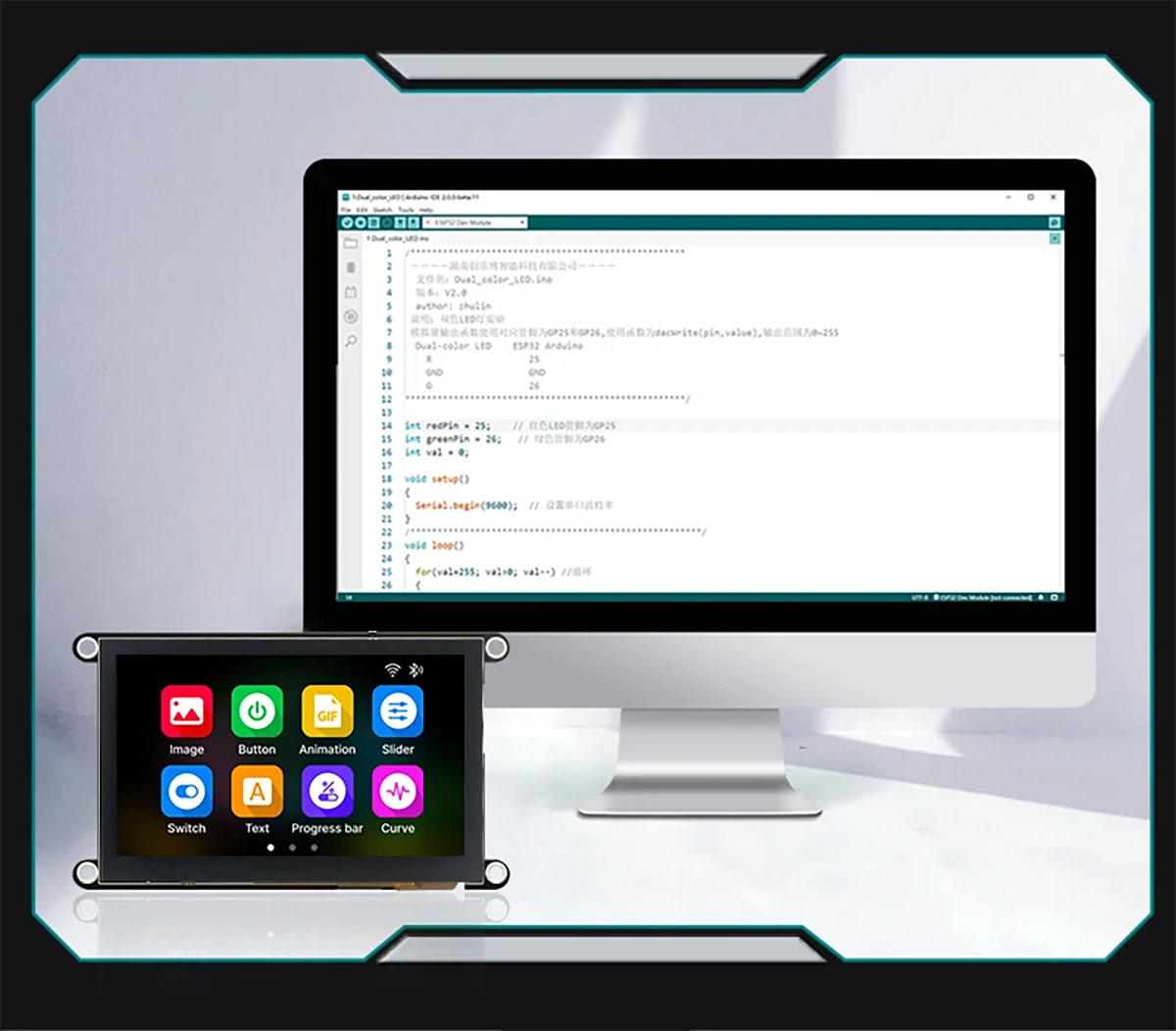
Development is supported across multiple platforms, including Arduino IDE, ESP IDE, Micropython, and the dedicated GUITION online development tools.

2. Key Features
- Display: 4.3-inch color screen with 16-bit RGB 65K color display.
- Resolution: 480x272 pixels.
- Controller: Integrated ESP32-S3-WROOM-1 module.
- Connectivity: Built-in Wi-Fi and Bluetooth functions.
- Memory: 512KB SRAM, 384KB ROM, 8MB PSRAM, 4MB Flash.
- Touch Options: Available in Without Touch Panel (NTP), Resistive Touch Panel (RTP), and Capacitive Touch Panel (CTP) versions.
- Storage Expansion: Equipped with a TF card slot.
- I/O: Up to 10 independent IO pins available for user applications.
- Power Management: Lithium battery charging and discharging circuit with overcharging and discharging protection.
- Development Support: Compatible with Arduino IDE, ESP IDE, Micropython, and GUITION online development tools.
- Programming: Supports one-click program download.
- Durability: Designed with military-grade process standards for long-term stable operation.
3. Specifications
3.1. Product Parameters
| Parameter | Value |
|---|---|
| Display Color | RGB 65K Color |
| SKU 01 | JC4827W543N (Without Touch Panel) |
| SKU 02 | JC4827W543R (Resistive Touch Panel) |
| SKU 03 | JC4827W543C (Capacitive Touch Panel) |
| Display Size | 4.3 Inch |
| Display Type | TFT IPS Full Angle |
| Controller | ST3401A |
| Resolution | 480*272 (Pixel) |
| Module Size | 120.00mm * 70.20mm |
| Effective Display Area | 95.04mm * 53.86mm |
| Operating Temperature | -20℃ ~ 70℃ |
| Storage Temperature | -30℃ ~ 80℃ |
| Operating Voltage | 5.0V |
| Power Consumption | About 260mA |
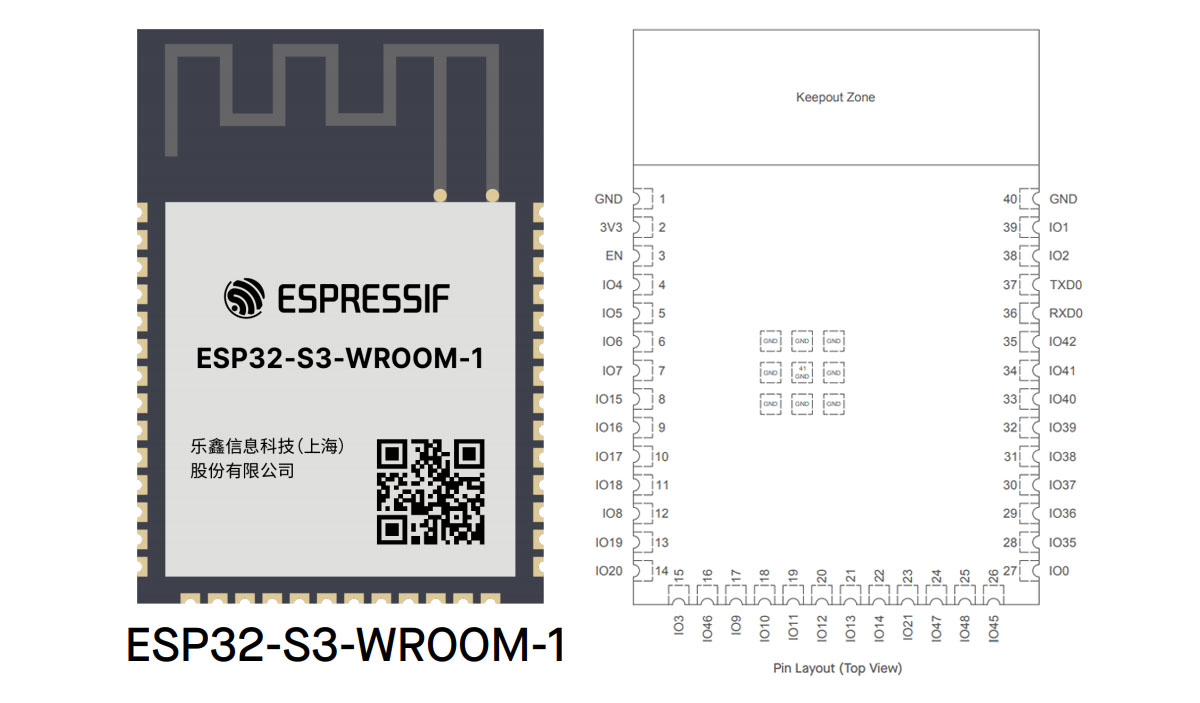
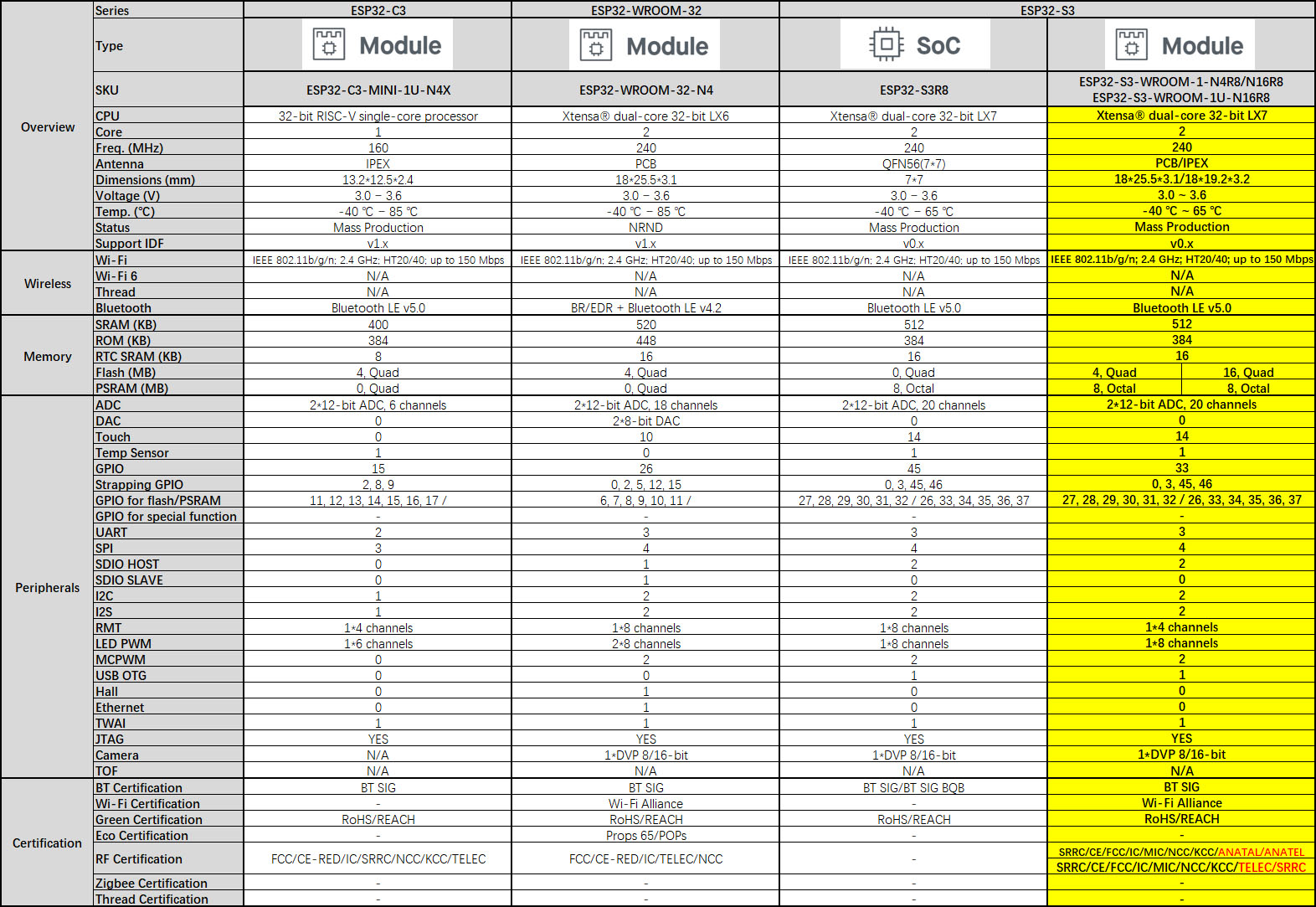
3.2. Controller Specifications (ESP32-S3-WROOM-1-N4R8)

The module utilizes the ESP32-S3-WROOM-1-N4R8 controller. For detailed specifications of the ESP32-S3 series, refer to the following tables:
3.3. Outline Dimensions
4. Setup Instructions
This section outlines the basic steps for setting up your Guition HMI W5 display module.
4.1. Component Identification

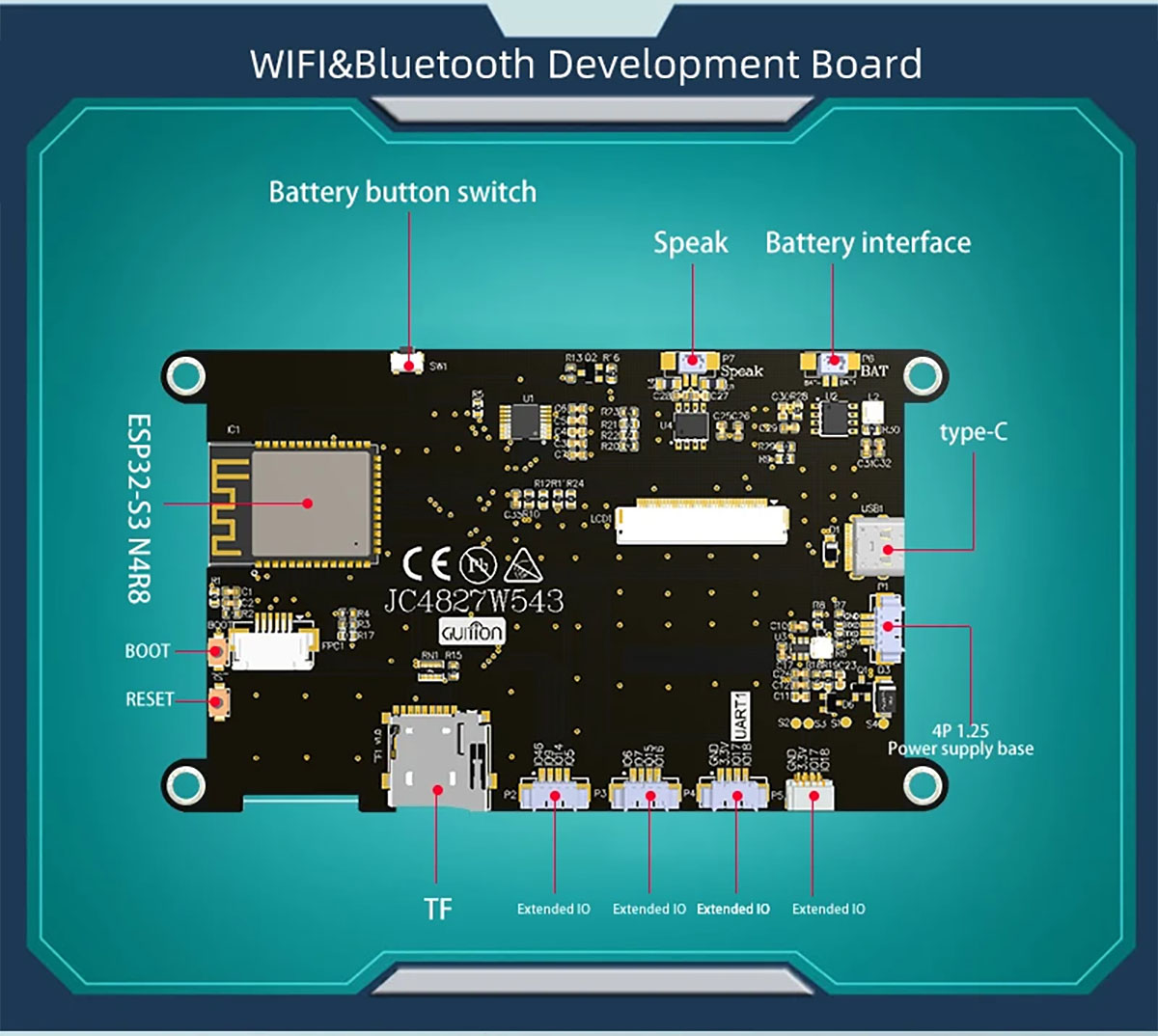
Refer to Figure 6 for the location of key components:
- Type-C Port: For power supply and data communication.
- Battery Interface: For connecting an external battery.
- Battery Button Switch: To control power from the battery.
- Speak: Speaker output.
- TF Card Slot: For inserting a MicroSD card for expanded storage.
- Extended IO: Multiple pins for connecting external sensors or peripherals.
- BOOT Button: Used for entering bootloader mode for firmware flashing.
- RESET Button: To restart the module.
4.2. Initial Connection
- Power Supply: Connect the module to a 5.0V power source using the Type-C USB port. Alternatively, connect a compatible lithium battery to the battery interface and ensure the battery switch is in the ON position.
- TF Card (Optional): If your application requires additional storage, insert a formatted MicroSD card into the TF card slot.
- External Peripherals (Optional): Connect any required sensors or actuators to the Extended IO pins as per your project's wiring diagram.
5. Operating Instructions
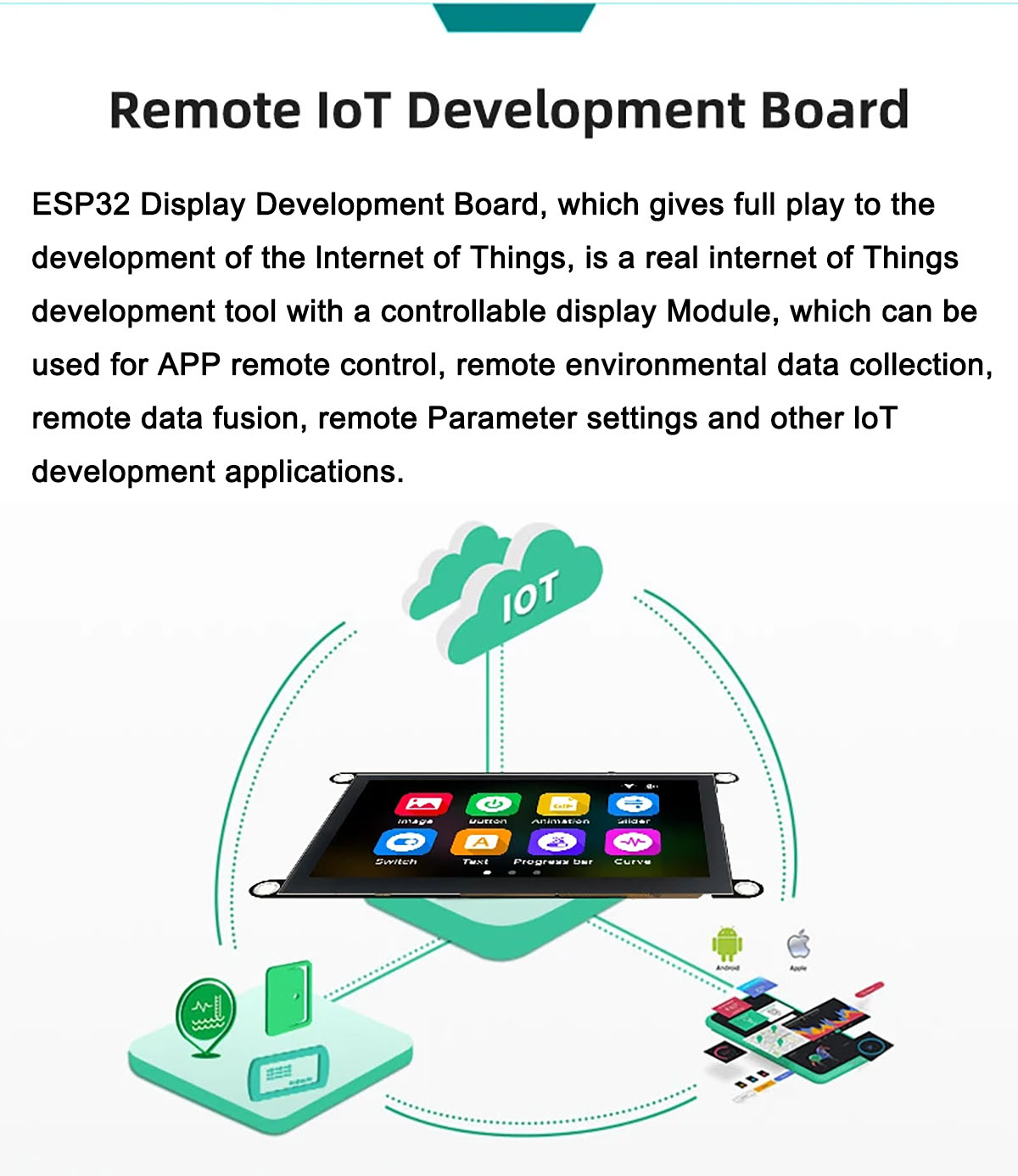
The Guition HMI W5 module is designed for various development and application scenarios, particularly in IoT and HMI projects.
5.1. Development Environments
The module supports development using several popular platforms:
- Arduino IDE: A widely used open-source electronics platform for writing code and uploading it to the board.
- ESP IDE: Espressif's official Integrated Development Environment for ESP32 series microcontrollers.
- Micropython: A lean and efficient implementation of the Python 3 programming language optimized to run on microcontrollers.
- GUITION: An online HMI development tool specifically designed for creating user interfaces for this module. Access it at https://guition.com/.
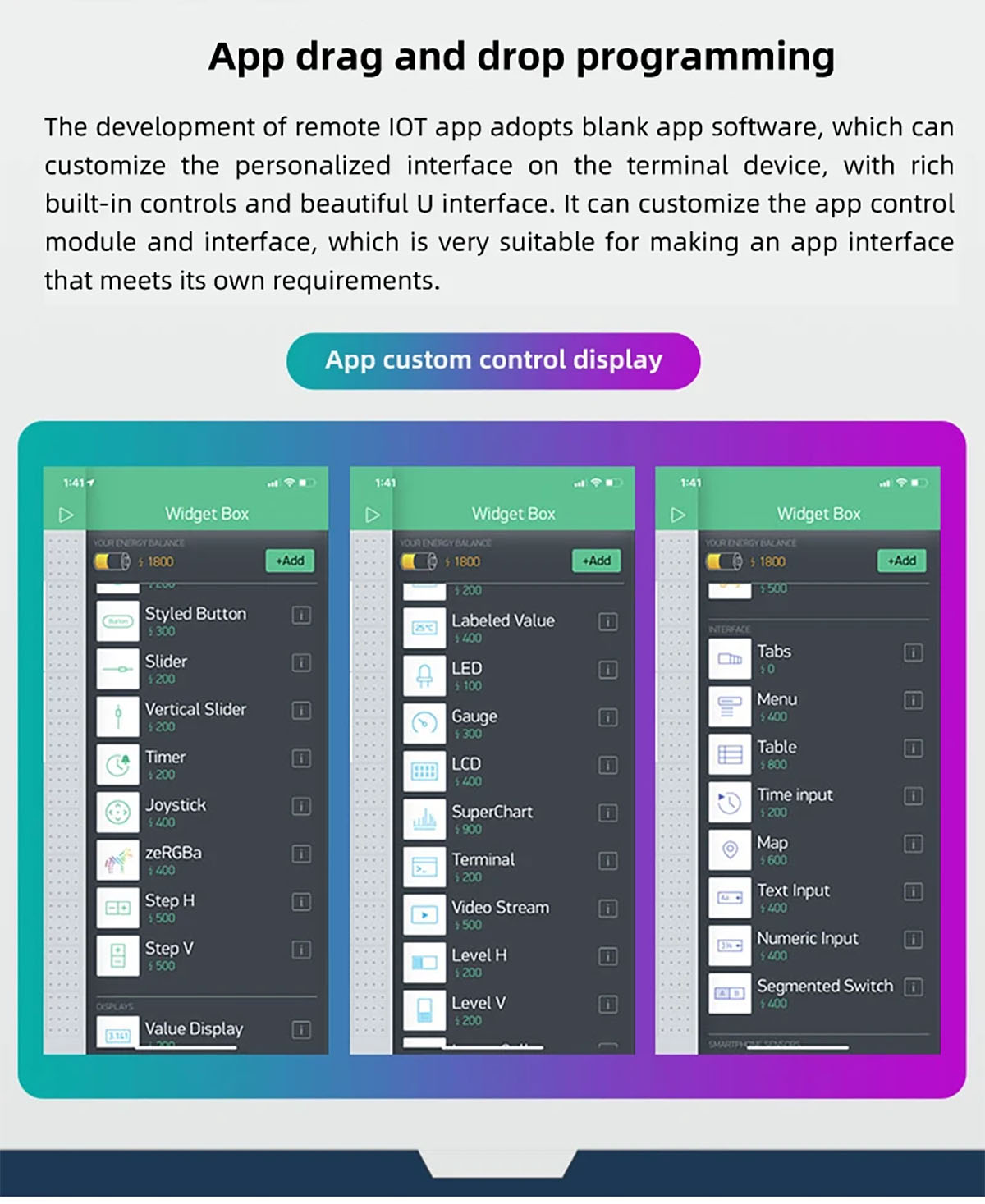
5.2. GUITION HMI Development Tool
The GUITION platform offers a user-friendly interface for designing and implementing HMI applications. It supports drag-and-drop programming for creating custom control displays and interfaces.
Key features of the Guition tool include:
- 3-minute hands-on HMI design.
- Web page operations and secondary development support.
- First-line direct connection and debugging.
- Rich UI materials and advanced graphics/animation.
- Multi-language support and UTF-8 encoding.
- Remote upgrade of user engineering.
5.3. Applications
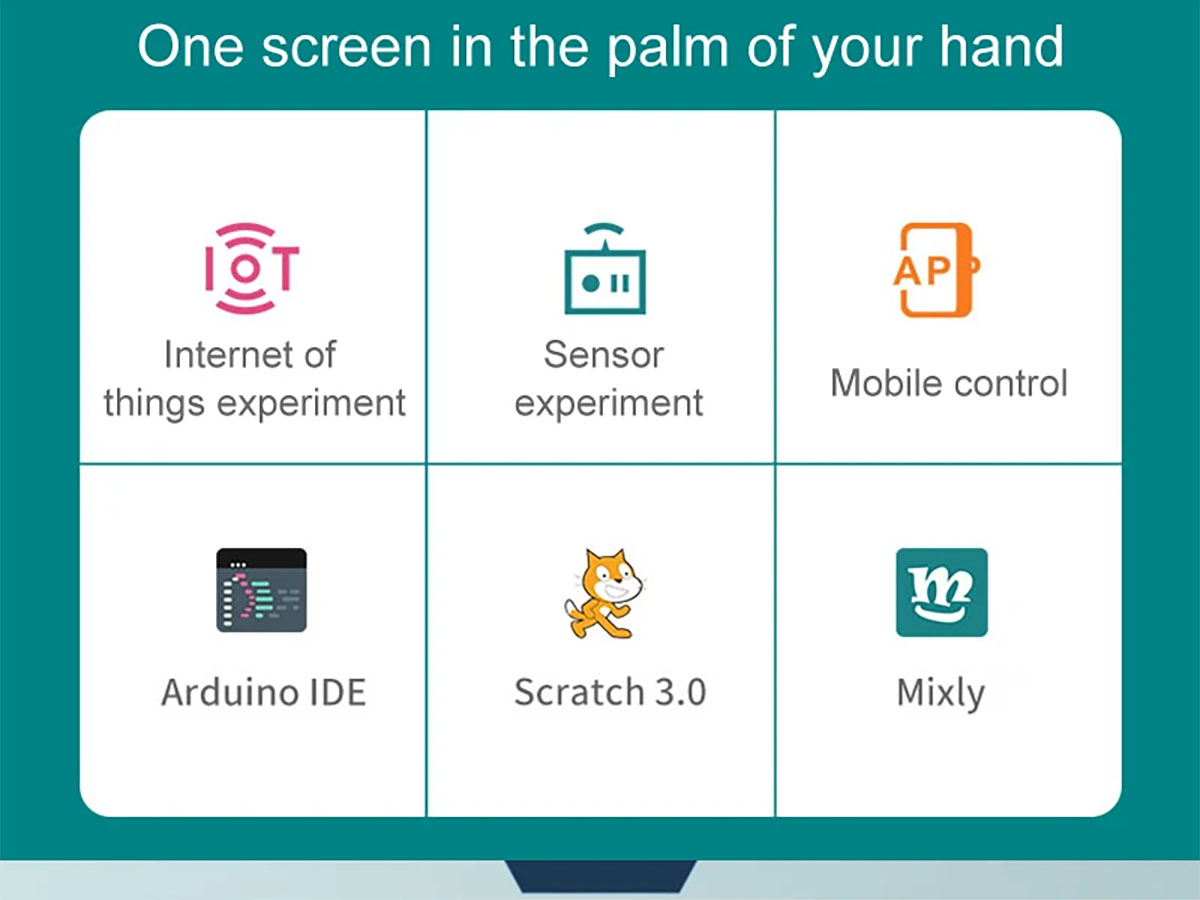
The module is suitable for a wide range of applications, including:
- Internet of Things (IoT) experiments and development.
- Sensor data acquisition and display.
- Mobile control interfaces.
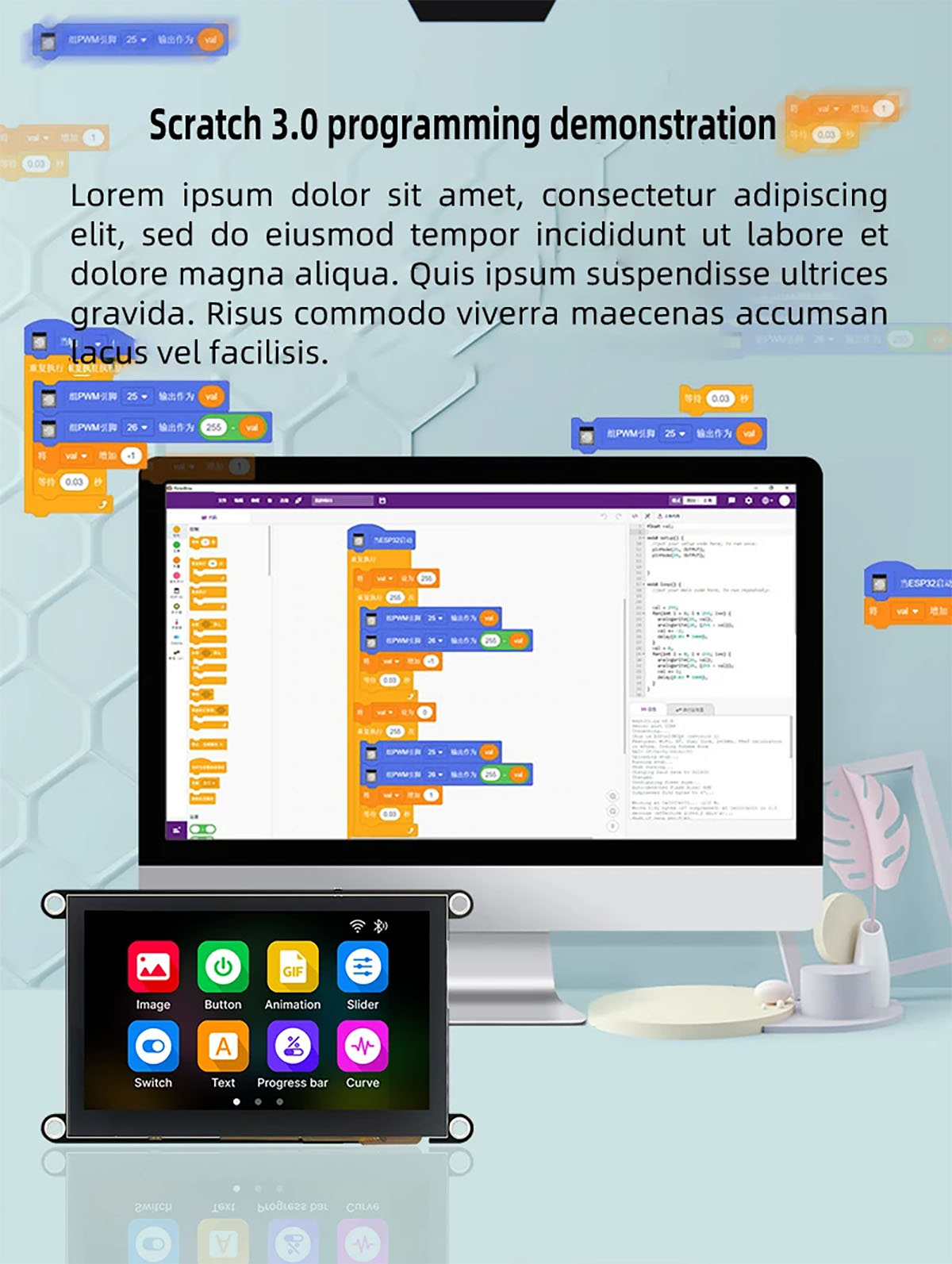
- Educational projects using Arduino IDE, Scratch 3.0, or Mixly.
6. Maintenance and Care
To ensure the longevity and optimal performance of your Guition HMI W5 display module, follow these maintenance guidelines:
- Operating Environment: Operate the module within the specified temperature range of -20℃ to 70℃. Avoid exposure to extreme temperatures, high humidity, or corrosive environments.
- Storage: When not in use, store the module in a dry place within the storage temperature range of -30℃ to 80℃.
- Handling: Handle the module with care to prevent physical damage. Avoid dropping or subjecting it to strong impacts.
- Cleaning: Use a soft, dry, anti-static cloth to clean the display surface. Do not use harsh chemicals or abrasive materials.
- Static Discharge: Take precautions against electrostatic discharge (ESD) when handling the module, especially when connecting or disconnecting components.
- Power Supply: Always use a stable 5.0V power supply. Incorrect voltage can damage the module.
7. Troubleshooting
This section provides general guidance for common issues you might encounter with the display module.
- Module Not Powering On:
- Ensure the Type-C USB cable is securely connected to a 5.0V power source.
- If using a battery, check that it is charged and properly connected, and the battery switch is ON.
- Try a different USB cable or power adapter.
- Display Not Showing Anything:
- Verify that the module is receiving power.
- Ensure your code is correctly uploaded and running.
- Check for any error messages in your development environment's serial monitor.
- Touch Screen Unresponsive (RTP/CTP versions):
- Ensure the touch panel is clean and free from obstructions.
- Verify that the touch screen drivers are correctly initialized in your firmware.
- For resistive touch, ensure proper calibration if applicable.
- Wi-Fi/Bluetooth Connectivity Issues:
- Check your network credentials (SSID, password) in your code.
- Ensure the module is within range of the Wi-Fi access point or Bluetooth device.
- Verify that the Wi-Fi/Bluetooth functions are correctly initialized and used in your firmware.
- Firmware Upload Failure:
- Ensure the correct board and port are selected in your IDE.
- Press and hold the BOOT button while pressing and releasing the RESET button to enter bootloader mode, then attempt to upload.
- Check for driver issues on your computer.
8. User Tips
No specific user tips from reviews or Q&A were provided for this product.
9. Warranty and Support
This product is manufactured by Shenzhen Surenoo Technology Co., Ltd., a professional display solution supplier. For technical support and further documentation, please refer to the following resources:
- Datasheet: A detailed datasheet for the module is available at http://pan.jczn1688.com/s/zyojx8.
- GUITION Online Development Tools: For HMI design and development, visit https://guition.com/.
- Surenoo Display Website: For general product information and other display solutions, visit https://www.surenoo.com/.
Please note that while basic examples for LVGL display and touch are provided, the default firmware source code is not included.


