
1. Introduction
The YINLEENCL TPA08 Tuya Smart Home Control Panel 8 Pro is an advanced 8-inch touch screen device designed to centralize control of your smart home ecosystem. Featuring an elegant design, powerful performance, and a user-friendly interface, it integrates various smart home functionalities including lighting, climate control, security, and entertainment. With built-in Alexa voice assistant and comprehensive gateway support, the TPA08 offers a seamless and intuitive smart living experience.

2. Key Features
- 8-inch HD Touchscreen: High-definition display (1280x800) for clear visuals and responsive touch control.
- Alexa Built-in: Integrated Amazon Alexa voice assistant for hands-free control of smart devices and information retrieval.
- Powerful Performance: Equipped with an RK3566 Quad-Core ARM Cortex-A55 processor (1.8GHz), 2GB RAM, and 16GB ROM for stable and smooth operation.
- Comprehensive Gateway Support: Built-in Zigbee 3.0, Bluetooth 4.2/BLE mesh, and Bluetooth gateway functions for connecting a wide range of smart devices.
- Universal IR Control: Features 3 infrared LED transmitters, supporting control of 12 categories of infrared devices.
- Dual-Band Wi-Fi: Supports both 2.4GHz and 5GHz Wi-Fi bands for fast and reliable internet connectivity.
- Audio Capabilities: Includes two built-in 2W high-fidelity speakers and an amplifier interface for connecting external dual-channel background music speakers.
- Physical Smart Control Button: Customizable button for quick access to shortcuts and scenes.
- Android 11 System: Runs on Android 11, offering a familiar and flexible operating environment.
- Dynamic Music Screensaver & Cloud Photo Frame: Enhances home aesthetics with visual effects during music playback and displays cherished moments.
- Extensive Compatibility: Supports control of over 410,000 Tuya ecosystem devices.

3. Specifications
| Attribute | Detail |
|---|---|
| Model Number | TPA08 |
| Operation System | Android 11 |
| CPU Model | Quad-core ARM Cortex-A55 RK3566 (1.8GHz) |
| RAM Memory | 2GB |
| ROM Storage | 16GB |
| Main Screen Size | 8 inch |
| Resolution | 1280*800 |
| Wi-Fi & Bluetooth | Wi-Fi 6 (2.4GHz & 5.8GHz, IEEE 802.11b/g/n), Bluetooth 5.2 |
| Wireless Protocol | Wi-Fi, Bluetooth, Zigbee 3.0, BLE mesh |
| Wired Port | Support |
| Built-in Speaker | 2 x 2W |
| Output Speaker Power | 2 x 30W (for external speakers) |
| Output Impedance | 8Ω |
| Input Voltage | 100-240V~, 50/60Hz |
| Working Temperature | 0-40°C |
| Working Humidity | 5%-90%RH (non-condensing) |
| Product Size (including base) | 127.5*233.5*38mm |
| Installation | Standard 86-sized wall boxes |
| Operation Mode | Touch control, Physical button, Voice control, APP control |

4. Setup
4.1 Physical Installation
The TPA08 control panel is designed for installation in standard 86-sized wall boxes. Ensure that the power supply is disconnected before beginning installation. Follow local electrical codes and consult a qualified electrician if you are unsure about the wiring process.
- Prepare a standard 86-sized wall box at your desired location.
- Connect the power wires (100-240V~, 50/60Hz) to the designated terminals on the back of the control panel.
- If using external speakers, connect them to the amplifier interface terminals.
- Secure the control panel into the wall box using the provided screws.
- Restore power to the circuit.

4.2 Initial Configuration
- Power On: Once installed and powered, the panel will boot up.
- Network Connection: Navigate to the 'Settings' menu on the touch screen. Select 'Network' and choose between Wi-Fi (2.4GHz or 5GHz) or a wired connection. Enter your network credentials if prompted.
- Login: The panel supports scan code authorization for login. Use your Tuya Smart app on your smartphone to scan the QR code displayed on the panel for quick setup and account linking.
- Device Pairing: Utilize the built-in Zigbee and Bluetooth gateway functions to add sub-devices. Follow the on-screen instructions to integrate new smart devices into your Tuya ecosystem.

5. Operating the Control Panel
5.1 Touch Control Interface
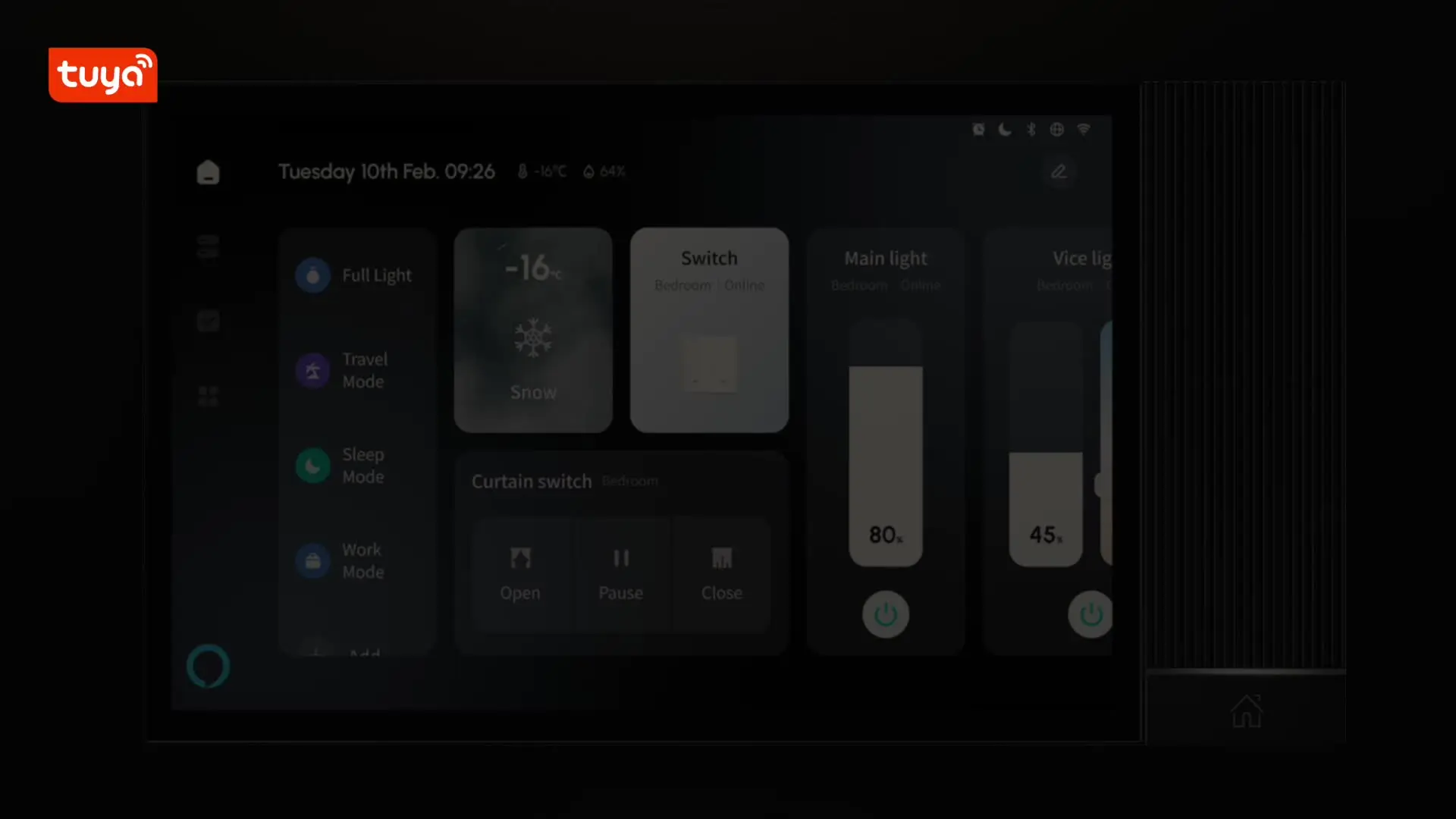
The 8-inch HD touch screen provides an intuitive interface for managing your smart home. Swipe through different screens to access device controls, scene settings, weather information, and more. Tap on icons to toggle devices, adjust levels, or activate scenes.
5.2 Voice Control with Alexa
The TPA08 has Alexa built-in, allowing you to control your smart home devices and access Alexa's features using voice commands. Simply say "Alexa" followed by your command. Examples include:
- "Alexa, turn on the living room light."
- "Alexa, set the thermostat to 22 degrees."
- "Alexa, what's the weather like today?"
- "Alexa, play music."

5.3 Device and Scene Control
The panel allows you to control individual devices and activate pre-configured scenes. You can manage lighting, curtains, air conditioners, IPC cameras, and other Tuya-compatible devices. Create custom scenes (e.g., "Morning Mode," "Sleep Mode," "Work Mode") to automate multiple actions with a single tap or voice command.

5.4 Universal IR Control
With its 3 infrared LED transmitters, the TPA08 can control a wide range of traditional IR-controlled devices such as TVs, air conditioners, and media players. Configure these devices within the panel's settings to integrate them into your smart home system.

5.5 Music and Entertainment
Enjoy music through the built-in 2W high-fidelity speakers or connect external dual-channel background music speakers via the amplifier interface for a theater-grade audio experience. The panel supports integration with services like Spotify and local music playback. A dynamic music screensaver combines music with visual effects.

5.6 Cloud Photo Frame
Transform your control panel into a digital photo frame, showcasing your cherished memories when not in active use. Configure this feature in the settings.
6. Maintenance
- Cleaning: Use a soft, dry, lint-free cloth to clean the screen and exterior. Do not use abrasive cleaners or solvents.
- Software Updates: Periodically check for and install software updates to ensure optimal performance and access to new features. Updates can usually be found in the 'Settings' menu.
- Environmental Conditions: Ensure the panel operates within the specified temperature (0-40°C) and humidity (5%-90%RH non-condensing) ranges to prevent damage.
7. Troubleshooting
7.1 Panel Not Responding
- Check if the panel is properly powered.
- Perform a soft reset by holding down the power button (if available) or by temporarily disconnecting and reconnecting power.
7.2 Network Connectivity Issues
- Verify your Wi-Fi router is working correctly and within range.
- Ensure the correct Wi-Fi password has been entered.
- Try restarting your router and the control panel.
- If using a wired connection, check the Ethernet cable and port.
7.3 Device Pairing Failures
- Ensure the smart device is in pairing mode as per its own instructions.
- Check that the device is within range of the control panel's Zigbee or Bluetooth gateway.
- Verify that the device is compatible with the Tuya ecosystem.
7.4 Alexa Voice Commands Not Working
- Ensure the panel has an active internet connection.
- Check if Alexa is properly configured and linked to your account in the panel's settings.
- Speak clearly and ensure there is no excessive background noise.
8. User Tips
- Customize Scenes: Take advantage of the scene creation feature to automate daily routines, such as a 'Good Morning' scene that opens curtains, turns on lights, and starts your coffee maker.
- Optimize Device Grouping: Group similar devices (e.g., all bedroom lights) for easier control and management through the panel or voice commands.
- Explore App Integration: Use the Tuya Smart app on your smartphone for remote control and advanced configurations not directly available on the panel.
- Regular Updates: Keep the panel's software updated to benefit from performance improvements, security patches, and new features.
9. Warranty and Support
For warranty information, technical support, or service inquiries, please refer to the documentation provided with your purchase or contact the seller directly. Keep your proof of purchase for warranty claims.